
Prompt when booting with USB flash drive: Invalid signature detected. Please check the security startup policy in the installation solution
Overview: When we use a USB flash drive to start the system, sometimes it may not boot. A prompt will appear in the BIOS: Invalid signature detected, please check the secure boot policy in the installation solution. When encountering this situation, it is usually caused by turning on Secure Boot in the BIOS. Here we will introduce how to turn off Secure Boot in the BIOS to solve this problem.
First, let’s understand what Secure Boot is: Secure Boot is a security feature designed to protect the computer’s startup process from malware and unauthorized operating systems. It is a technology introduced by Microsoft and is now widely used in many computers and mobile devices.
Secure Boot works by saying that when the computer boots, every component in the boot process must be verified with a digital signature to ensure that they were issued by a trusted issuer and have not been tampered with or replaced. If any component fails verification, Secure Boot will prevent the computer from continuing to boot. This helps prevent malware and unauthorized operating systems from running when the computer starts.
The advantages of Secure Boot are obvious: it provides greater security and prevents malware and other malicious operations from attacking the computer's startup process. Additionally, Secure Boot helps ensure hardware and software compatibility because it requires all boot components to be digitally signed and published by a trusted issuer.
It should be noted that Secure Boot is not perfect and it also has some limitations. For example, it might prevent users from installing a custom operating system on their computer or modifying certain components of the startup process. Additionally, Secure Boot may also be affected if the digitally signed private key is leaked or compromised. Therefore, when using Secure Boot, users need to protect the private key of the digital signature and ensure that the computer is not affected by any security holes.
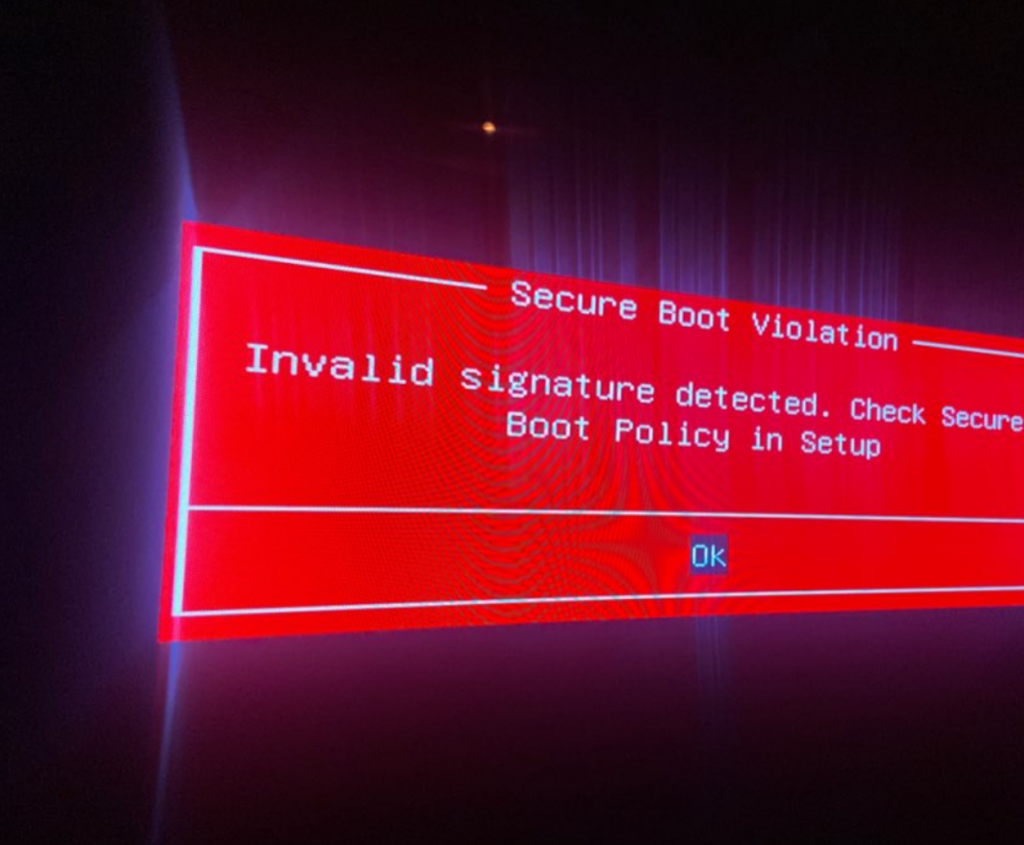
- solution:
1. Press the power button to turn off the computer. After powering off, press the power button to turn on the computer and quickly press Del on the keyboard to enter the BIOS.
2. After entering the BIOS, select Security>Secure Boot>Set Secure Boot to Disabled>F10 to save and exit.
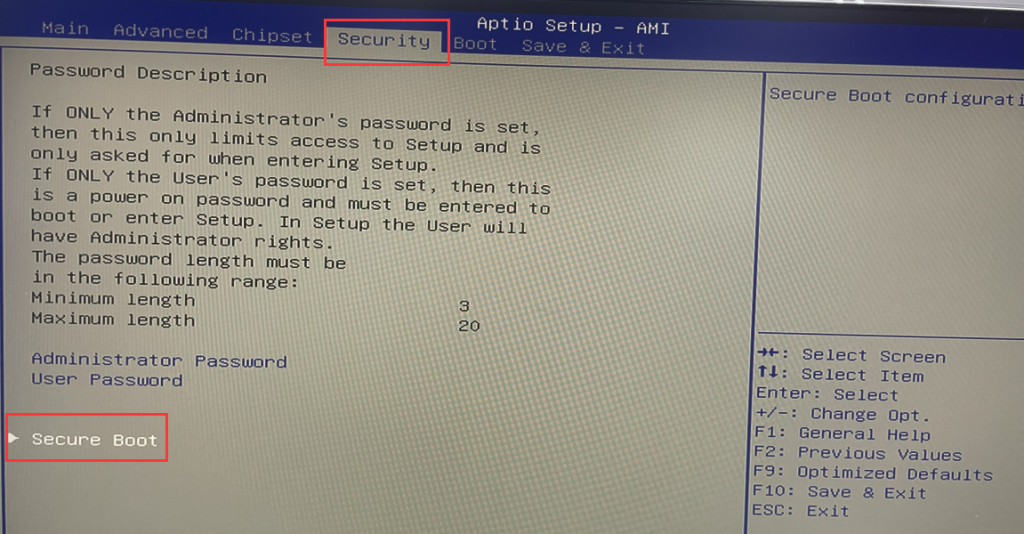
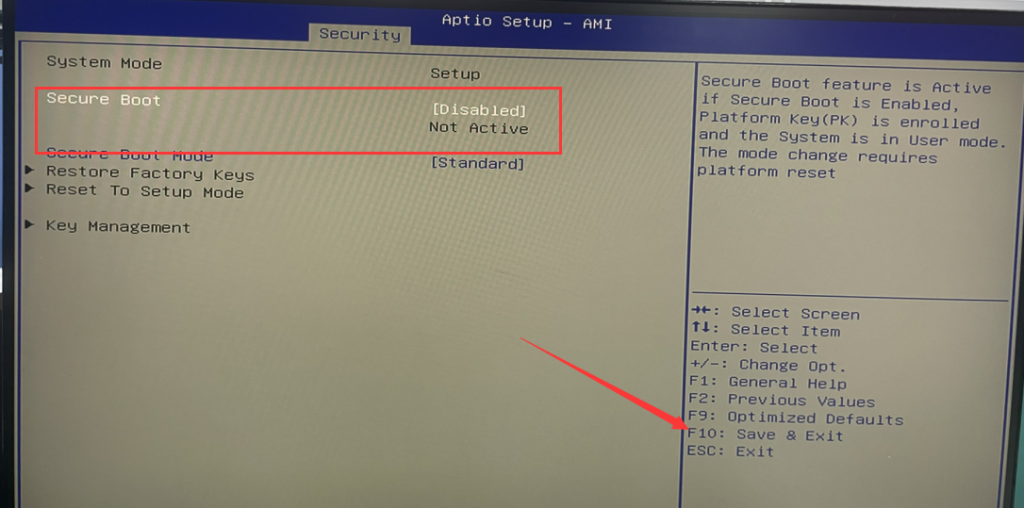
- 3. After turning off Secure Boot in the BIOS, the system can usually be booted from the USB flash drive normally.
How to check the project version in BIOS
What is the difference between laptop DDR3L, DDR4, and DDR5?
