
Windows10-11-How to recover the operating system through (Windows RE)?
author: VENOEN
2023-11-27
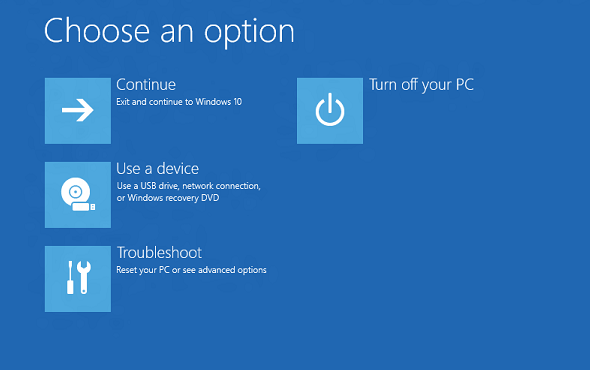
- Overview: Windows Recovery Environment (WinRE) fixes common causes of operating system failure to boot. WinRE is based on Windows Preinstallation Environment (Windows PE), which can be customized with additional drivers, languages, Windows PE optional components, and other troubleshooting and diagnostic tools. By default, WinRE comes preloaded on Windows 10 and Windows 11 desktop editions (Home, Pro, Enterprise, and Education) as well as Windows Server 2016 and later installations.
-
What's new in WinRE for Windows 11
Most tools can now be run in WinRE without having to select an administrator account and enter a password. After booting into the recovery environment, the encrypted files cannot be accessed unless the user has the key to decrypt the volume.
We updated the behavior of Advanced Startup (Settings > Update & Security > Recovery > Advanced Startup: Restart now) so that the Ease of Access feature will work in the recovery environment. For example, previously, if the Narrator feature was enabled before launching Advanced Startup, it would not be enabled on reboot (and could not be enabled). Advanced startup now boots directly into the Windows recovery environment, where users can use keyboard shortcuts to turn on the Ease of Access feature.
1. WinRE includes the following tools:Automatic repair and other troubleshooting tools. For more information, see Windows RE Troubleshooting Features.
Button reset (Windows desktop version only) This tool allows users to quickly repair their own PCs while preserving data and important customizations without having to back up their data in advance. For more information, see Push-Button Reset Overview.
System Image Recovery (Windows Server edition only) This tool restores the entire hard drive. For more information, see Recover the Operating System or Full Server.
WinRE mainly has the following uses:1-1. It is very convenient to perform system restore, system image recovery, startup repair and other operations;
1-2. Restore a non-functioning computer without losing photos, music, videos and other personal files;
1-3. Reset the system, that is, initialize the system to factory settings (not reinstalling the system, but the effect is equivalent to reinstalling the system, which will clear all files and settings in the previous system);
1-4. Uninstall the update patch that causes the system to crash.
2. WinRE entry method:How to enter the operating system desktop normally:
2-1. Users can access the WinRE function through the "Advanced Startup" menu. This menu can be launched in several different ways in Windows:
2-2. Click "Shut Down" in the login screen, and then select "Restart" while holding down the Shift key.
2-3. Click "Startup" > "Settings" > "Update & Security" "Recovery" >> Click "Restart Now" under "Advanced Startup". After rebooting enter the recovery media.
Methods for failing to enter the operating system desktop normally:
2-4. Press and hold the power button for 10 seconds to turn off your device.
2-5. Press the power button again to turn on the device.
2-6. When you see Windows starting (for example, the device displays the Windows logo when starting), immediately press the power button for 10 seconds to turn off your device or directly unplug the power adapter interface from the PC.
2-7. Press the power button again to turn on the device.
2-8. When Windows starts, press and hold the power button for 10 seconds to turn off your device or directly unplug the power adapter interface from the PC.
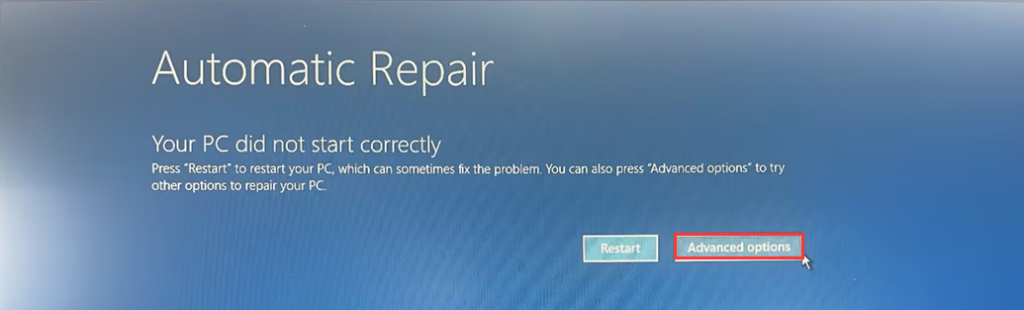
2-9. Press the power button again to turn on the system. The system will enter the Automatic Repair page. Select Advanced options on this page to enter WinRE.
3. Restore the system under WinRE system
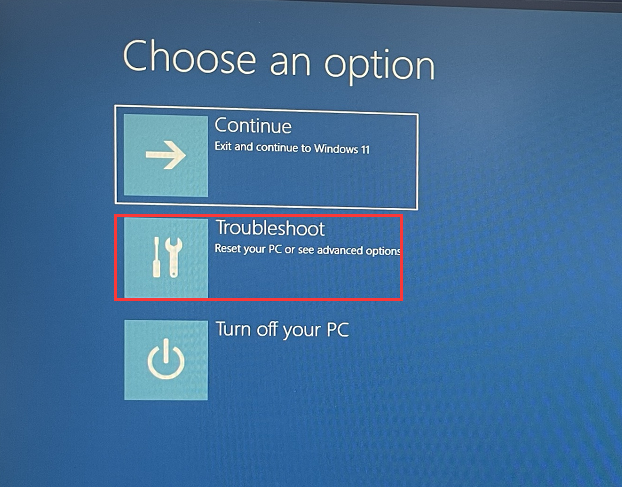
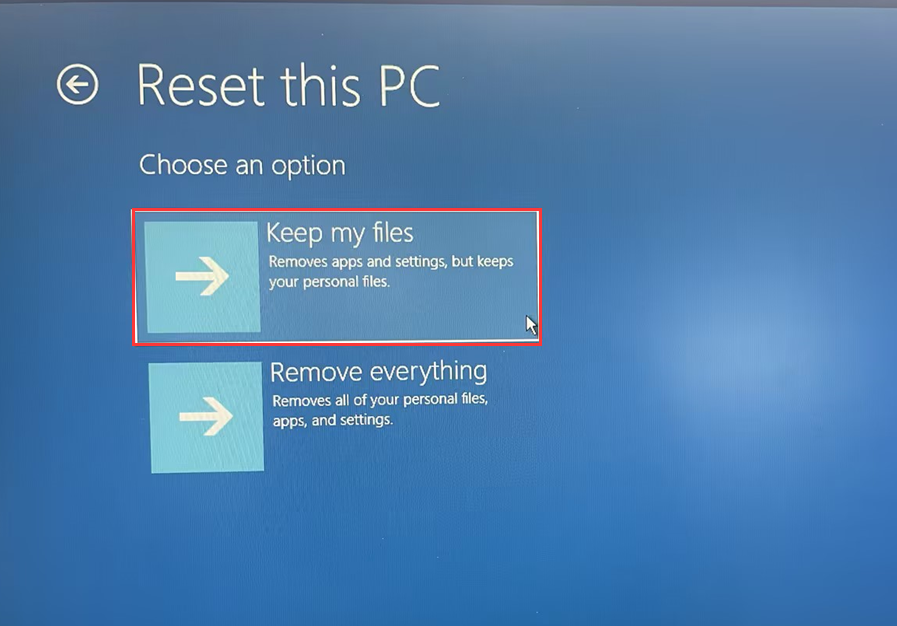
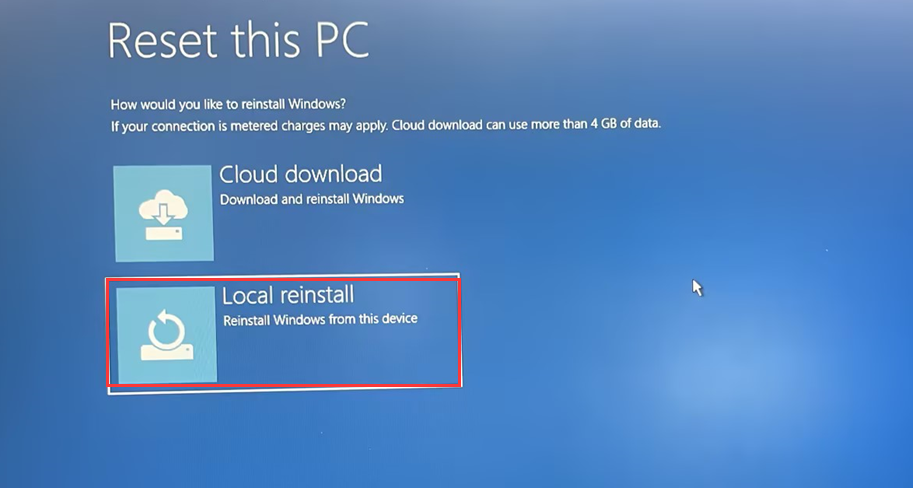
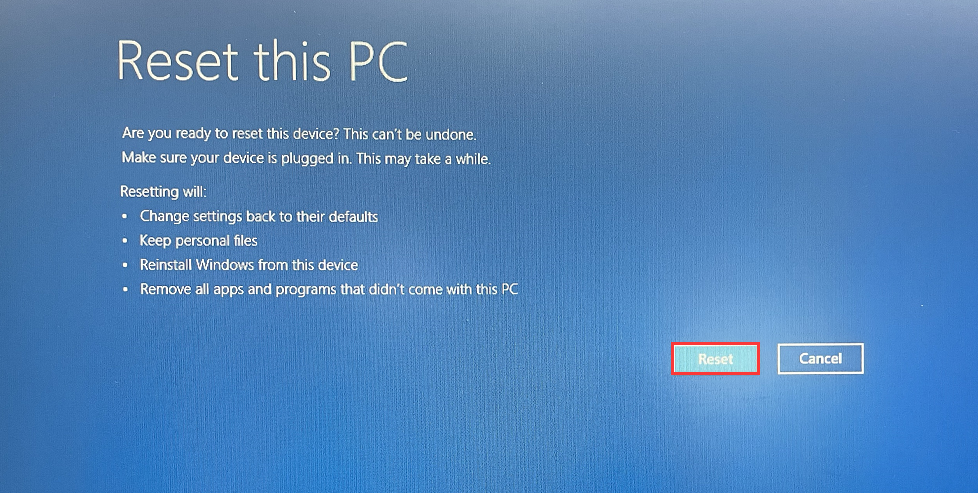
3-1. After entering the WinRE menu, select Troubleshoot>Reset this PC>Keep my files>Local reinstall>Local reinstall> wait for the system deployment to complete and click Reset. The system will automatically restore and install. After the restore is completed, it will automatically enter the system desktop.
PS:
Do not interrupt during the restore process
This operation will delete third-party applications installed on the system and initialize all system settings, but will not affect your personal photos, videos, and personal files.
PS:
Do not interrupt during the restore process
This operation will delete third-party applications installed on the system and initialize all system settings, but will not affect your personal photos, videos, and personal files.
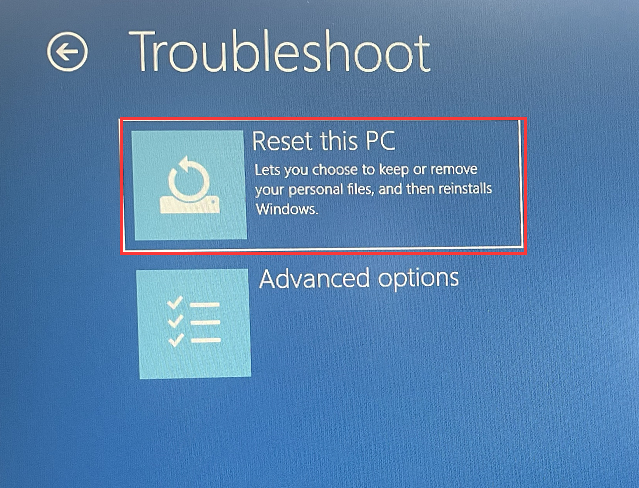
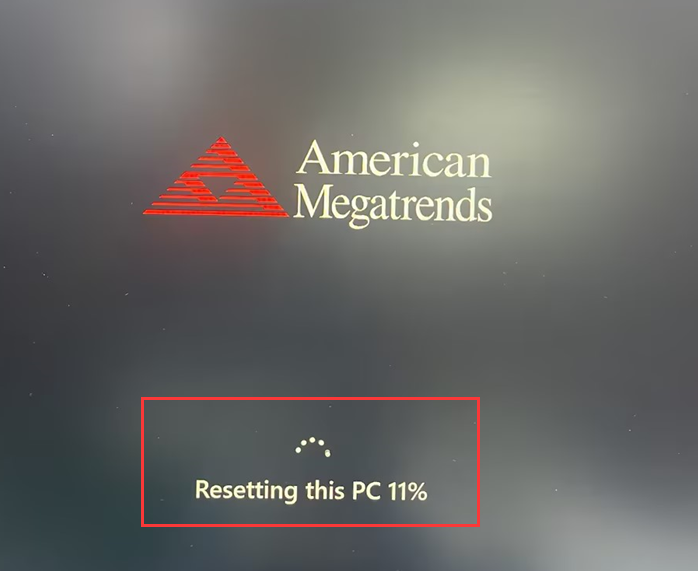
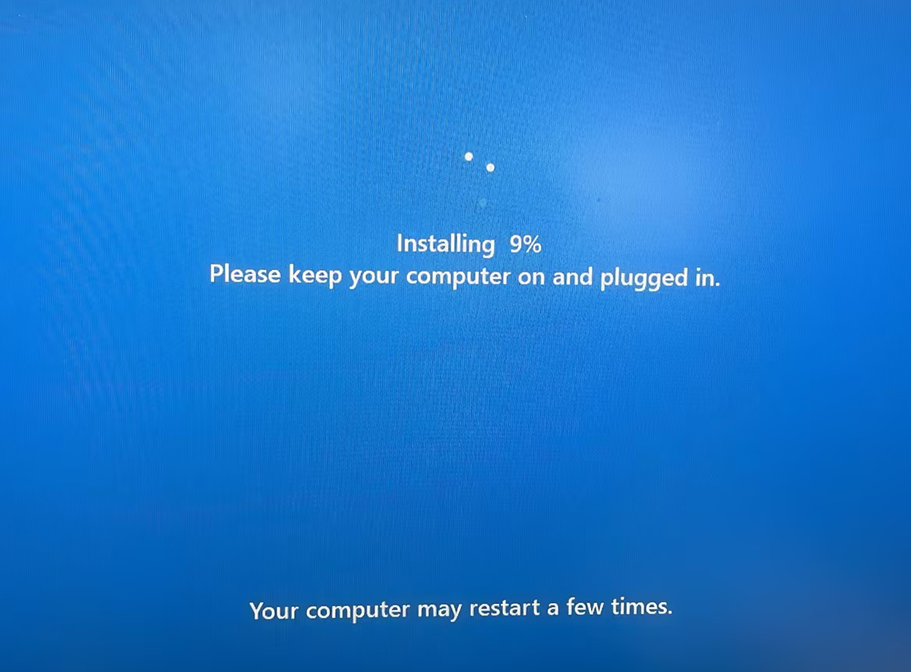
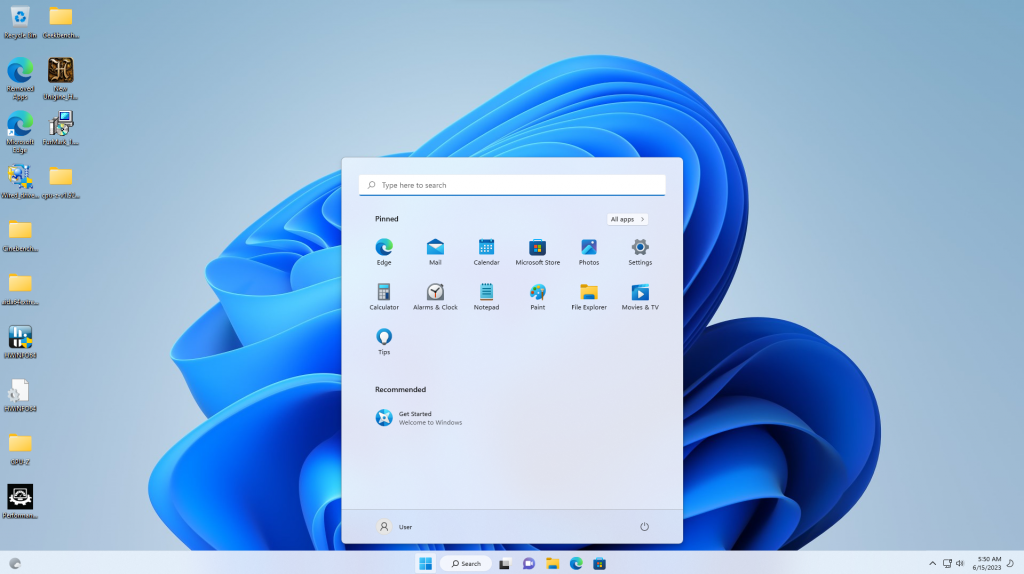
- 3-2. The picture below is a screenshot of the restoration process. The restoration usually takes 30 minutes, and the specific time depends on the hardware configuration.
How does H6 switch between RS422/RS485 modes?
What if the Realtek RTL8821CE WIFI module is not recognized under the Ubuntu system?
