
How to install the Intel i225/i226-V network card driver under Windows Server system?
author: VENOEN
2023-12-04
(How do I install the intel i225/i226-V NIC Driver on a Windows Server?)
Overview: Intel's network card is divided into two product lines, i225-V /i226-V belongs to the consumer product line, and the -LM suffix belongs to the commercial product line. By default, Windows Server can only install network card drivers for the commercial product line. However, it can be forced to install through the magic driver, the magic driver process is a little cumbersome, not introduced here. We'll upload the revised driver.
intel i225-V /i226-V Windows Server NIC driver Download address:
Baidu network location: //pan.baidu.com/s/1_LxQAuvgx7aJm08KYNWiYw
Extract code: HYSZ
Extract code: HYSZ
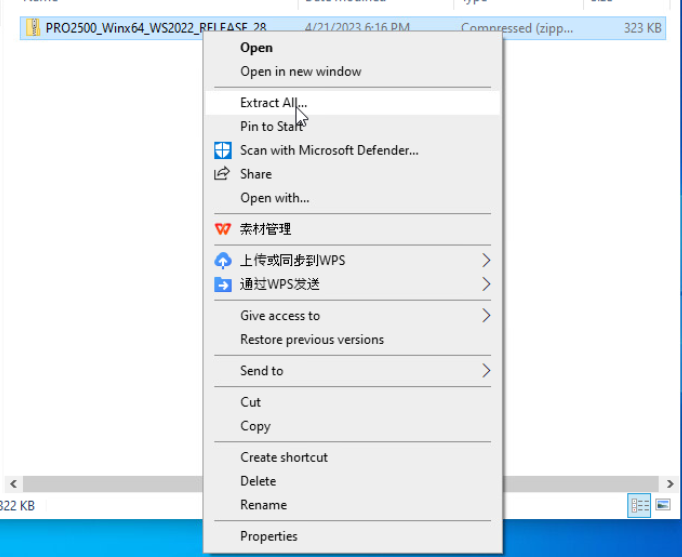
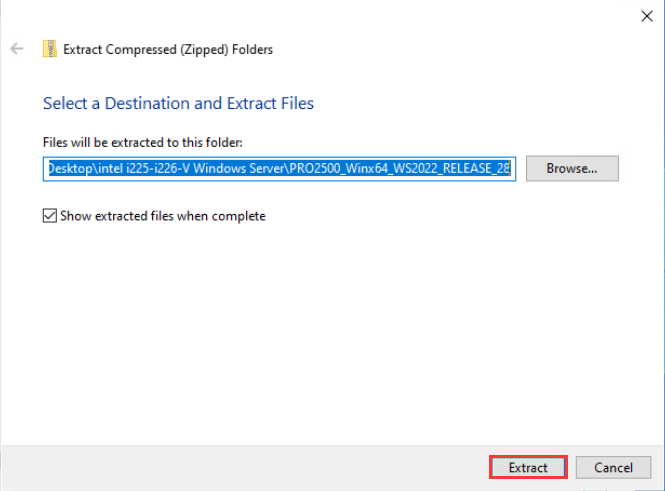
1. Go to the web disk to download the driver or contact your supplier to obtain it, and decompress the folder after downloading.
-
2. Install the driver
In Windows Server 2022, enter the following commands in CMD (administrator) :
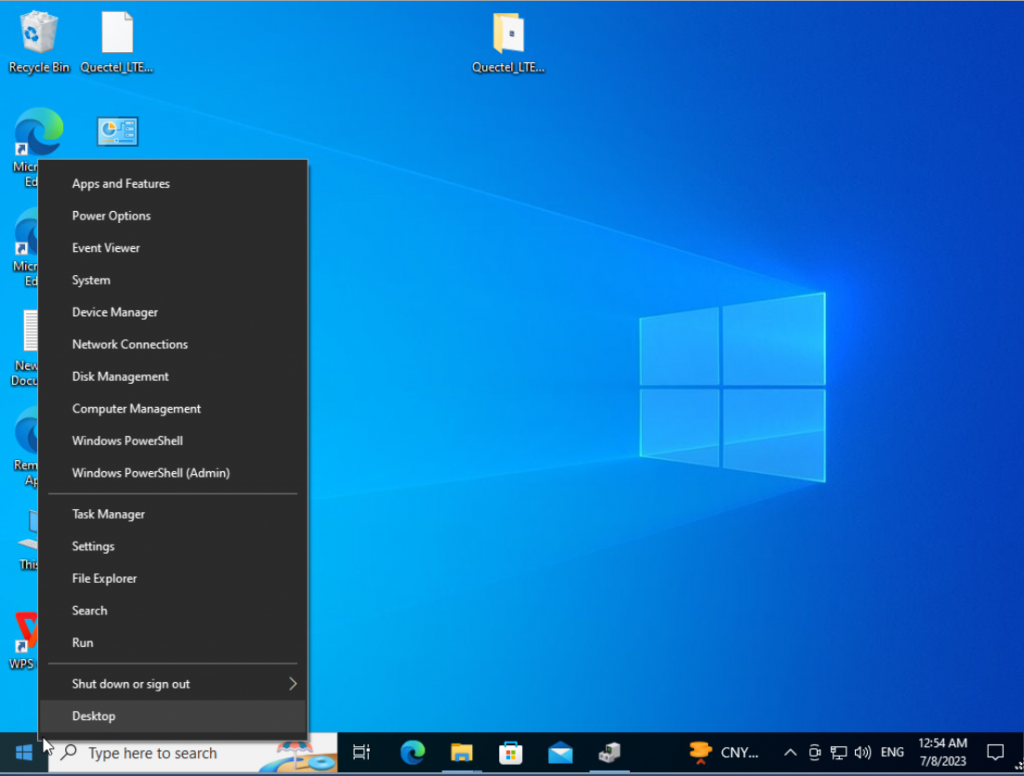
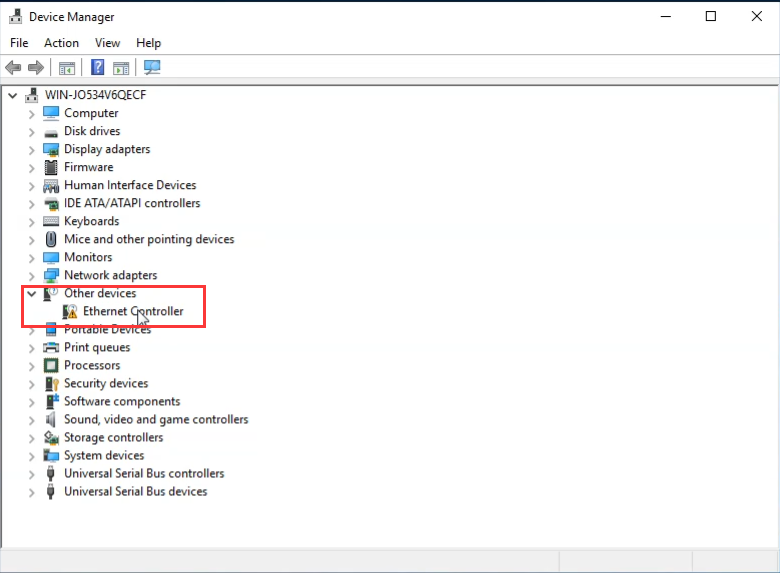
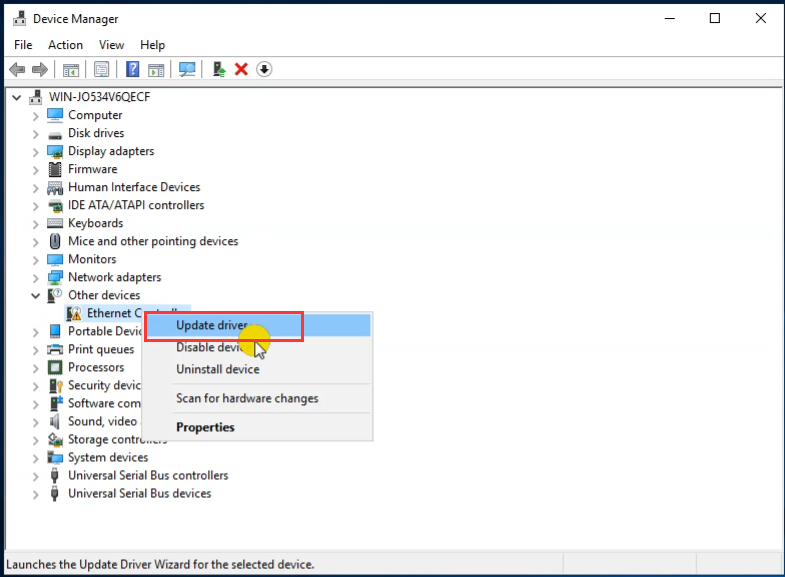
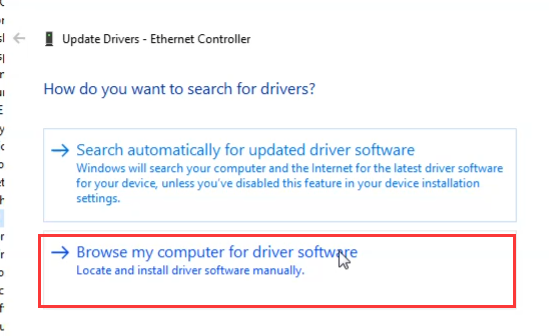
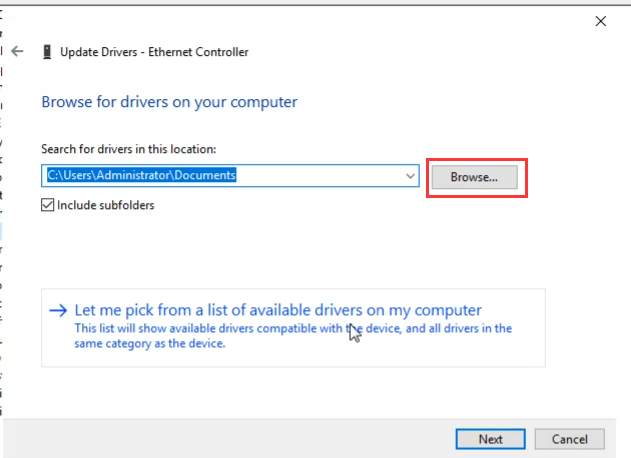
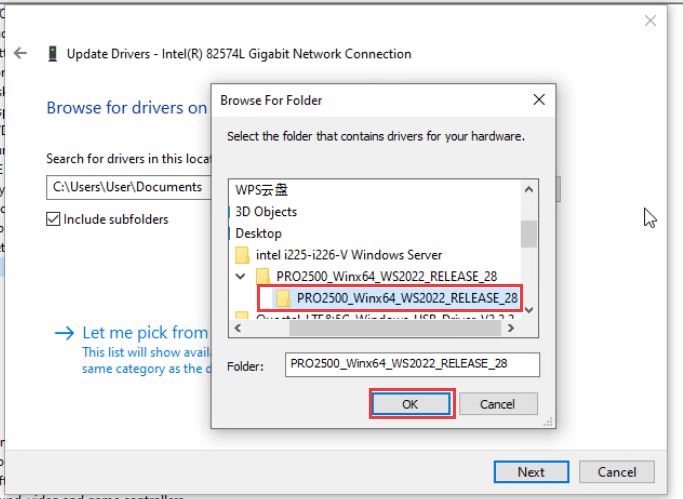
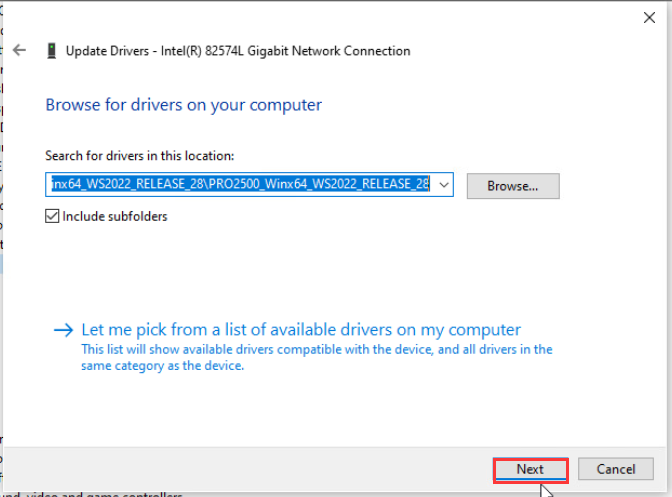
bcdedit -set loadoptions DISABLE_INTEGRITY_CHECKSbcdedit -set TESTSIGNING ONThen restart the machine.After restart, right-click "Start" menu, select Device Manager > Right-click Ethernet Controller>Update driver>Browse my computer for driver software>Browse... Select the decompressed driver directory and install the driver as prompted.
-
3. Exit the test mode
After the driver is installed, enter the following commands in CMD (administrator) to disable the test mode:
bcdedit -set loadoptions ENABLE_INTEGRITY_CHECKSbcdedit -set TESTSIGNING OFFThen restart the computer, and the driver installation is complete!
How to Enable Administrator Users and Set Administrator Passwords in the Win10-Win11 System?
How to switch between RS485\RS422 for K4-4th Gen models?
