
How to achieve 4G internet access for models with built-in SIM card slots on the motherboard?
author: VENOEN
2023-12-04
(How to achieve 4G Internet access for a model with a SIM card slot on the motherboard?)
Overview: Models with SIM card slots, through the expansion of 4G module +SIM card can achieve 4G Internet access in places without wired network and WIFI, of course, the premise is that the use of the scene has 4G network coverage.
PS: If the 4G module is not installed, the SIM card cannot be identified by directly inserting the SIM card into the mainboard, and the 4G module is required for identification. The 4G module is an optional component and is not available by factory default. Before purchasing the product, you can contact customer service to purchase, you can also buy the 4G module expansion, note: when purchasing the 4G module, please confirm whether the 4G module meets the network standards of your local network operator, for details, please consult the 4G module dealer or network operator.
1. 4G module hardware Installation (taking P12B as an example)
1-1. Remove the bottom 6 screws and open the bottom shell
1-1. Remove the bottom 6 screws and open the bottom shell

- 1-2, Insert the SIM card into the SIM card slot on the mainboard, pay attention to the open and lock directions on the SIM card slot, push in the open direction to open the SIM card slot, and push in the lock direction to lock the SIM card slot.
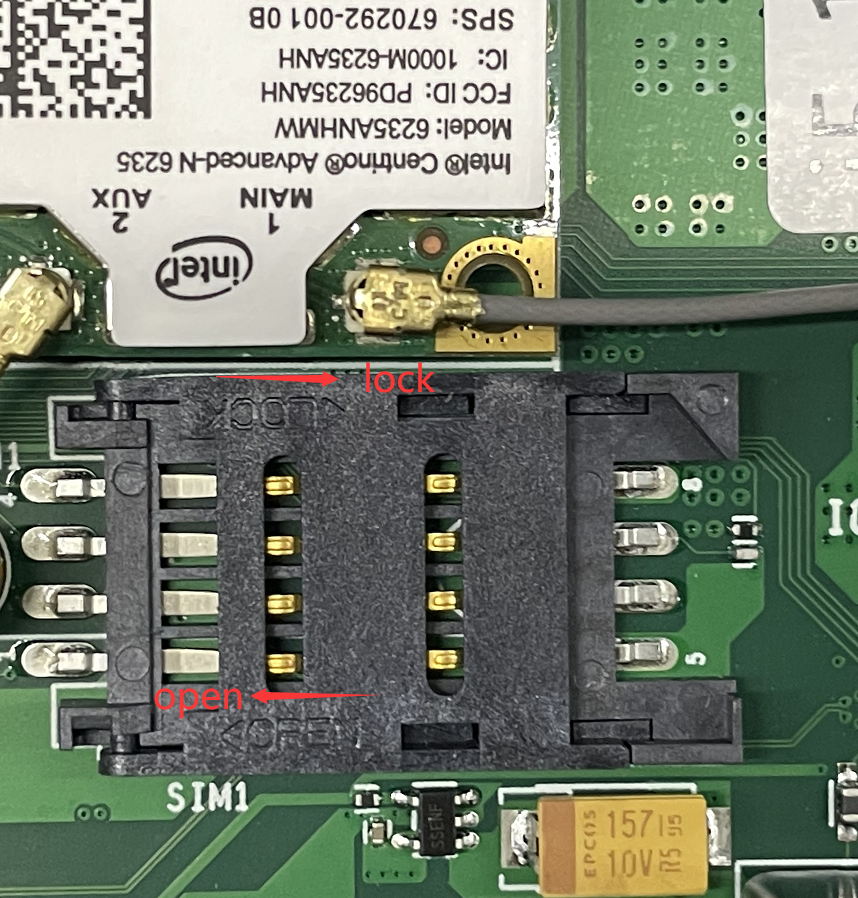
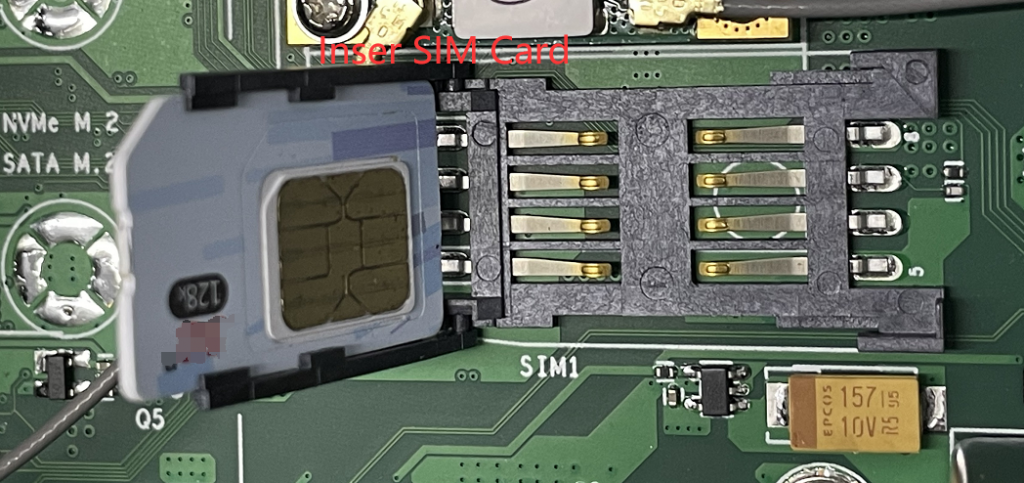
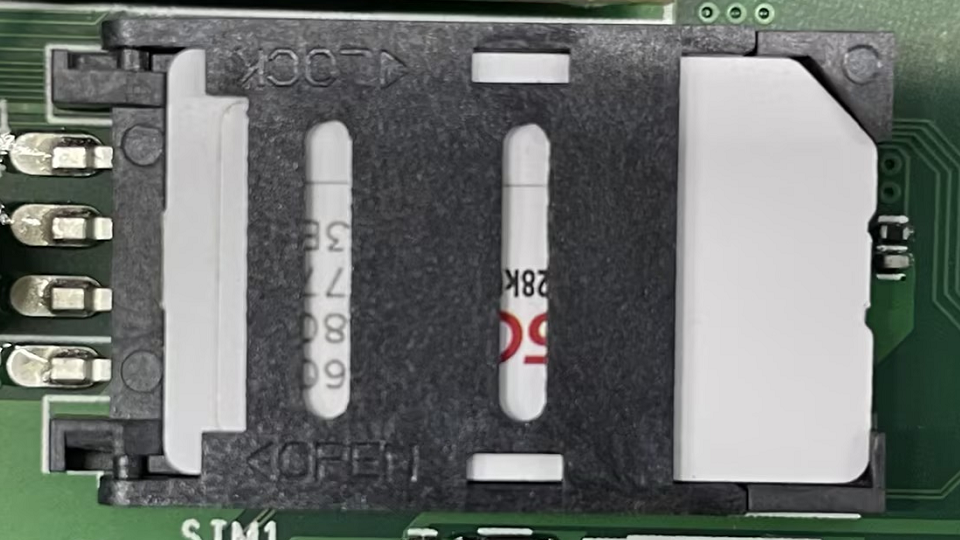
- 1-3. Insert the 4G module into the MPCIE full height slot and connect the external gain antenna cable. PS: If you need to use the WIFI function and 4G function at the same time, unplug the gain antenna cable on the AUX port of the WIFI module and install it on the Main port of the 4G module. If you do not need to use the WIFI function, you need to connect the gain antenna cable on the Main and AUX ports on the WIFI module to the 4G module.

- 1-4. After installation, close the bottom shell and install the external gain antenna.

- 2. Driver installation (Please contact the 4G module supplier to obtain the driver)
2-1. Right-click Setup.exe and choose Run as administrator>Next>Next>Finish to complete the installation.
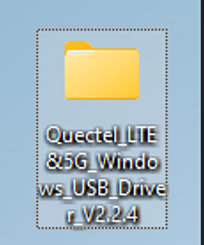
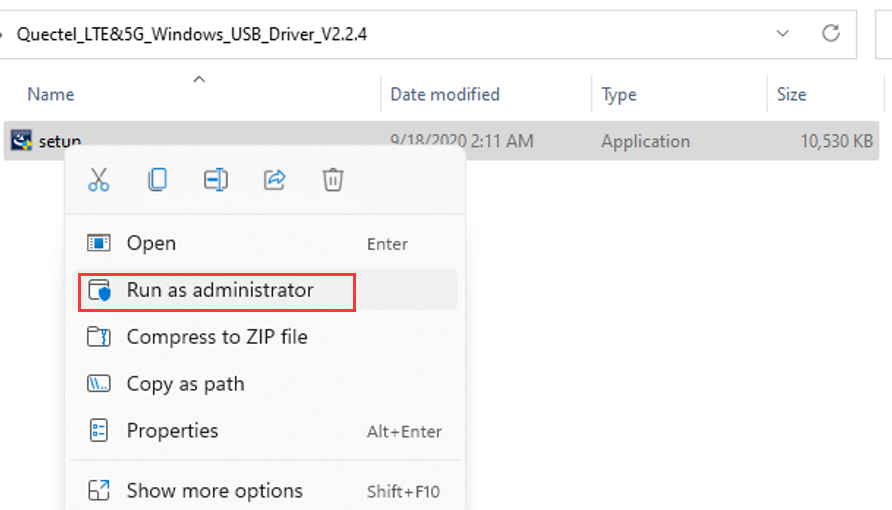
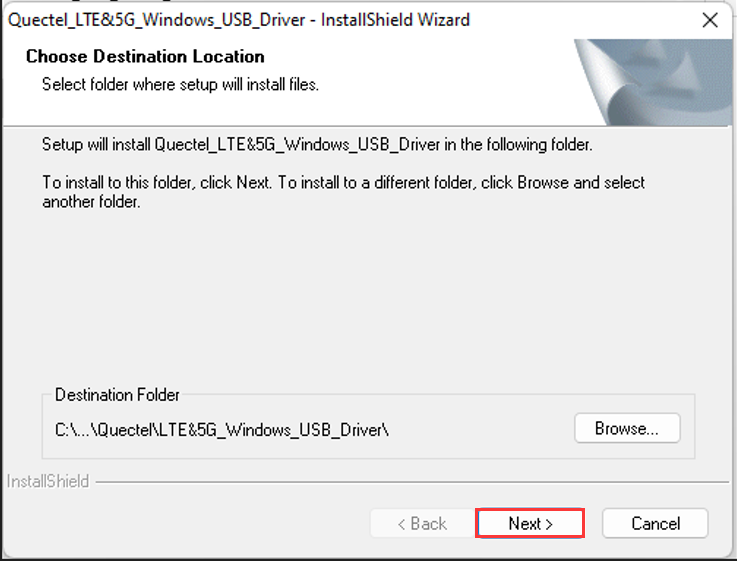
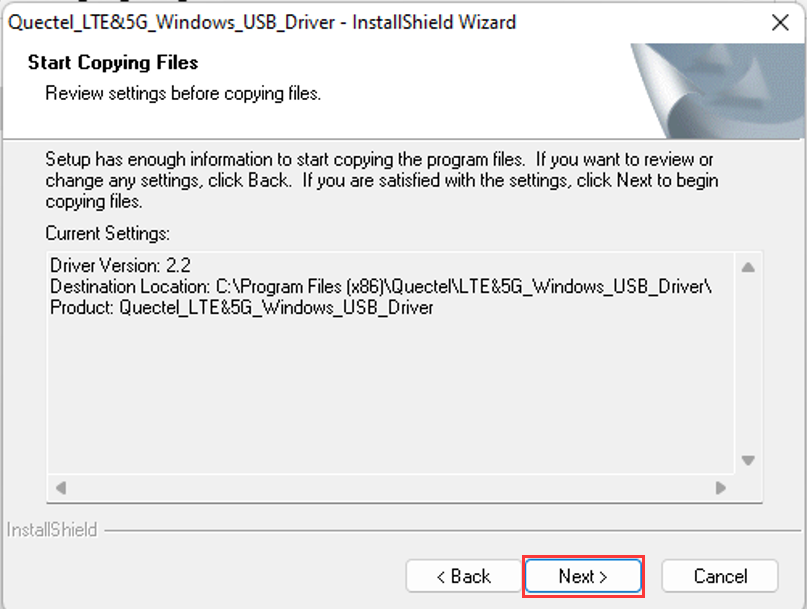
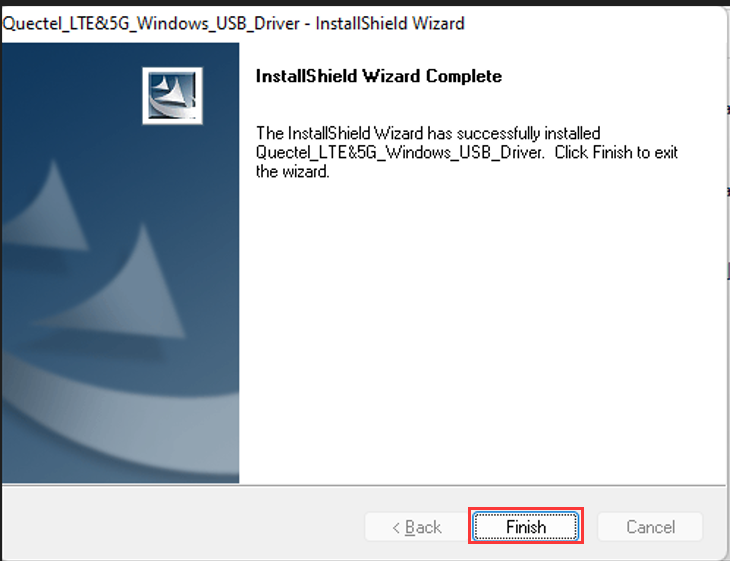
- 2-2. After the installation is complete, right-click Device Manager> Expand the Network adapters page and check whether the 4G module model is identified. If the 4G module model is identified, the installation is successful.
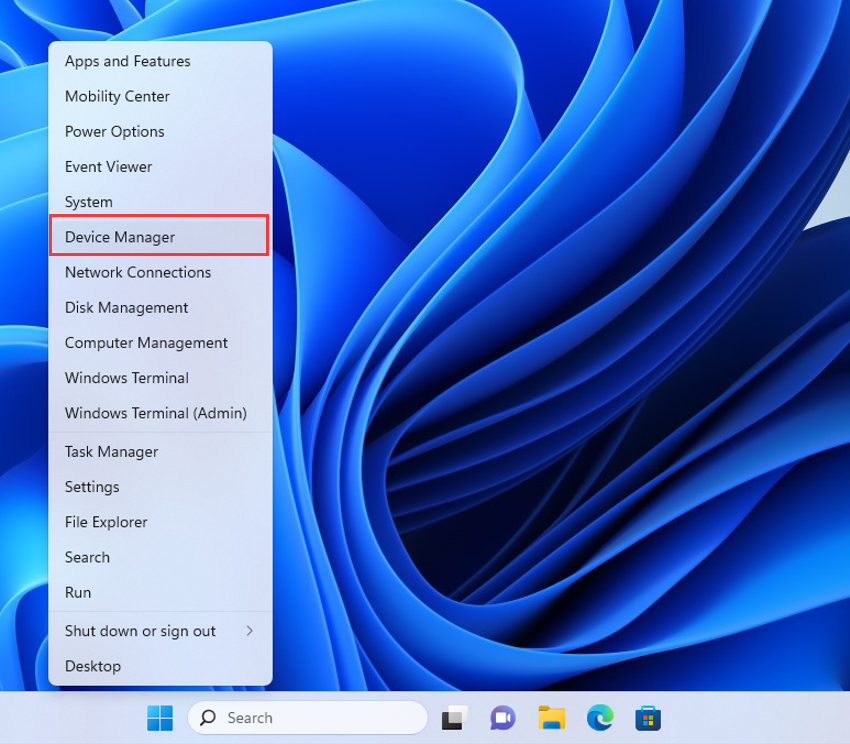
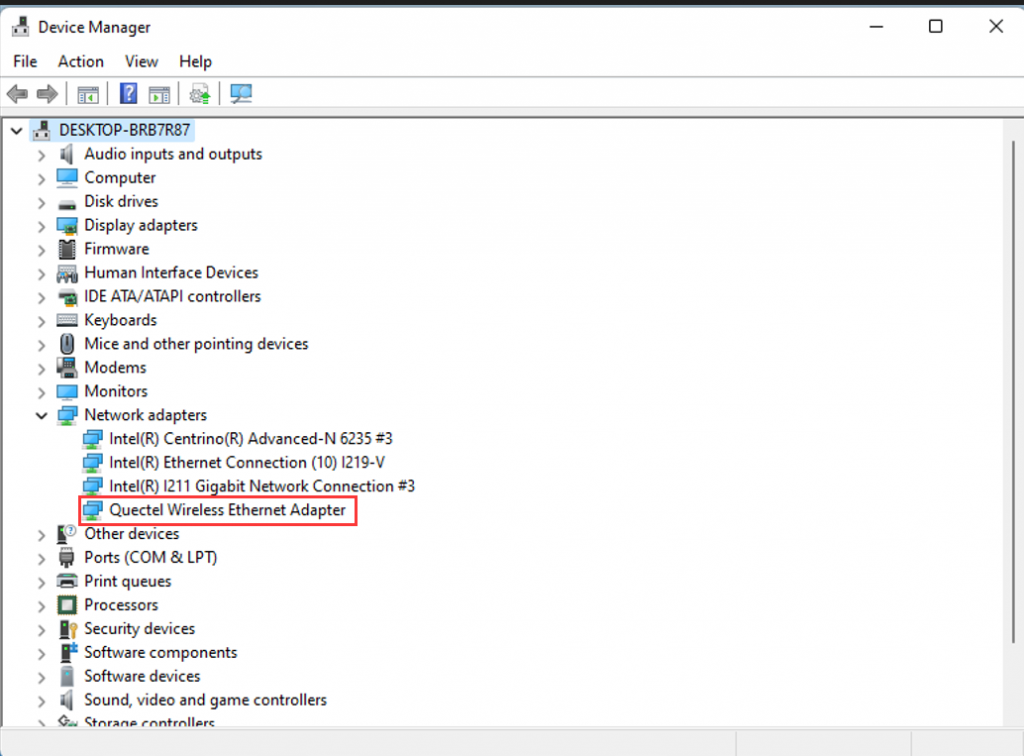
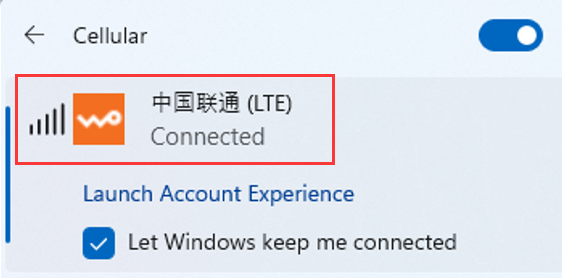
- 2-3, restart the computer and disconnect the wired network and WIFI connection, in the environment with 4G network coverage, the system will automatically connect to the 4G network. PS: In Windows, the network priority is
1. Wired Network (RJ45)
2. Wireless Internet (WIFI)
3.4G Network (LTE)
Troubleshooting steps for computer not recognizing hard drives after expanding SSD/HDD
How to Enable Administrator Users and Set Administrator Passwords in the Win10-Win11 System?
