
How to install Windows 11 on a computer that does not support Windows 11?
author: VENOEN
2023-12-04
How do I install Windows 11 on a computer that does not support Windows 11?
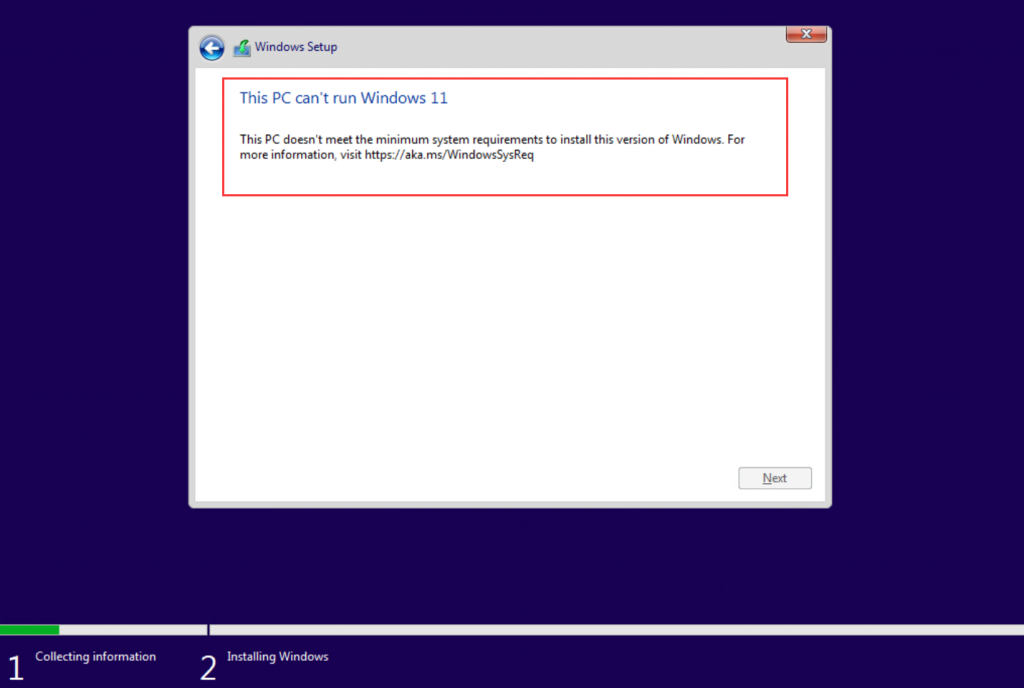
When we install Windows11 system, "This PC can't run Windows11" appears
This PC doesn't meet the minimum system requirements to install this version of Windows.Formore information, If "visit // aka.ms/WindowsSysReq" is displayed, it indicates that the hardware of our computer does not meet the requirements for installing Windows11. Here is how to install it when the requirements are not met. Tips: This tutorial is only for technical communication, such as computer hardware is low when we recommend installing a lower version of the operating system to run more stable, such as Windows10.
This PC doesn't meet the minimum system requirements to install this version of Windows.Formore information, If "visit // aka.ms/WindowsSysReq" is displayed, it indicates that the hardware of our computer does not meet the requirements for installing Windows11. Here is how to install it when the requirements are not met. Tips: This tutorial is only for technical communication, such as computer hardware is low when we recommend installing a lower version of the operating system to run more stable, such as Windows10.
1. Preparation
- rufus 4.1 or later
- >8G capacity USB flash drive
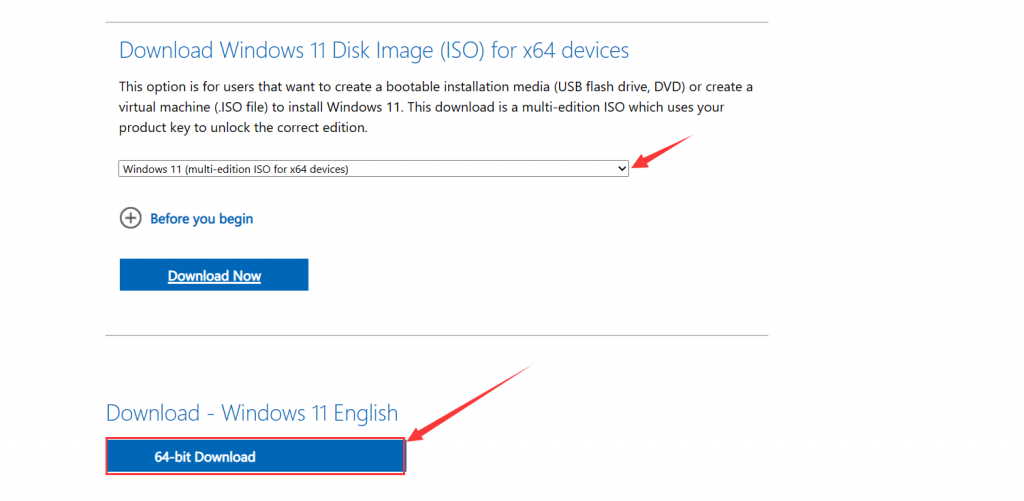
- Windows11 ISO file, Download address:Download Windows11 (microsoft.com)
- 2. Make installation media
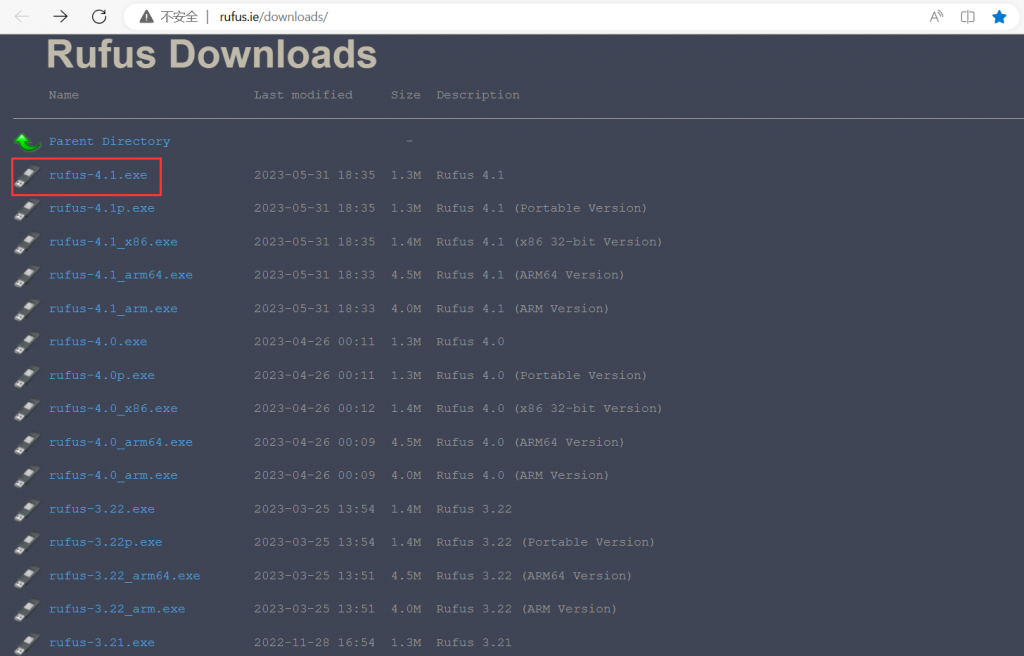
2-1. Download and install rufus 4.1. This article uses rufus 4.1 as an example. Download address:Index of /downloads (rufus.ie)
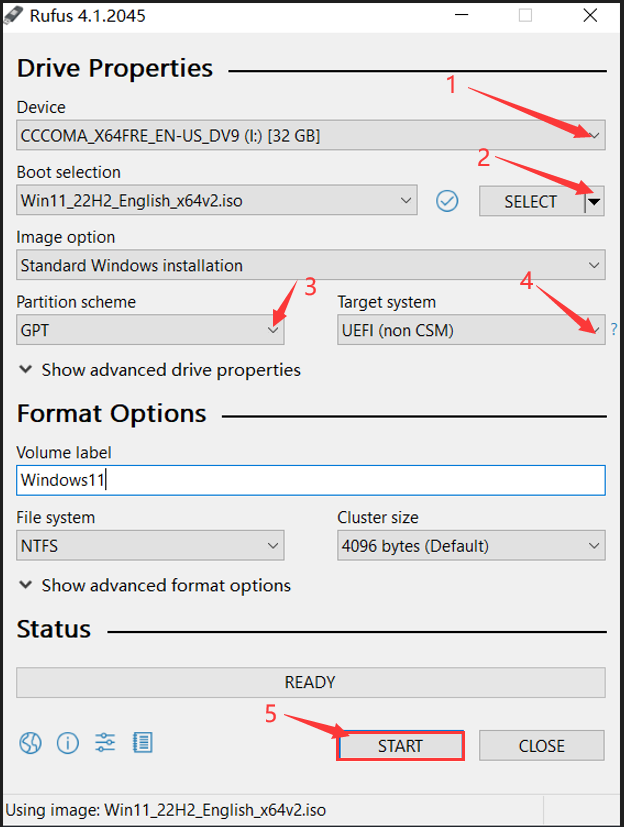
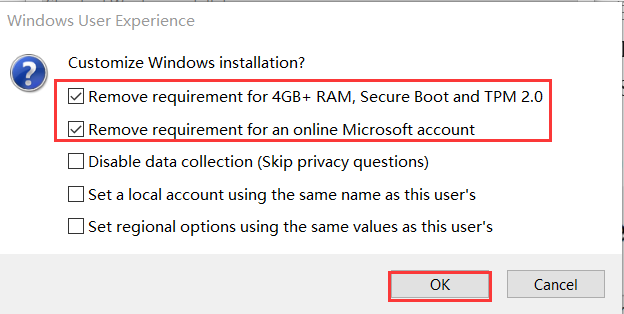
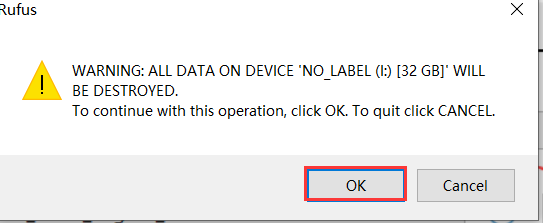
- Insert the USB flash drive and remember the drive letter of the USB flash drive, run rufus, SELECT the USB flash drive in Device, select Windows11 iso file in Select, and select GPT in Partition scheme. In the Target system, select UEFI (non CSM) and click START. The system will bounce off the custom system, Check Remove requirement for 4GB+ RAM, Secure Boot and TPM 2.0 and Remove requirement for an online Microsoft account, click OK to write the file, Wait for the write to complete and remove the USB flash drive.
- 3. System installation
Tips: We recommend disconnecting the wired and wireless network connections before installing the system to save installation time! This blog post is installed with the network disconnected.
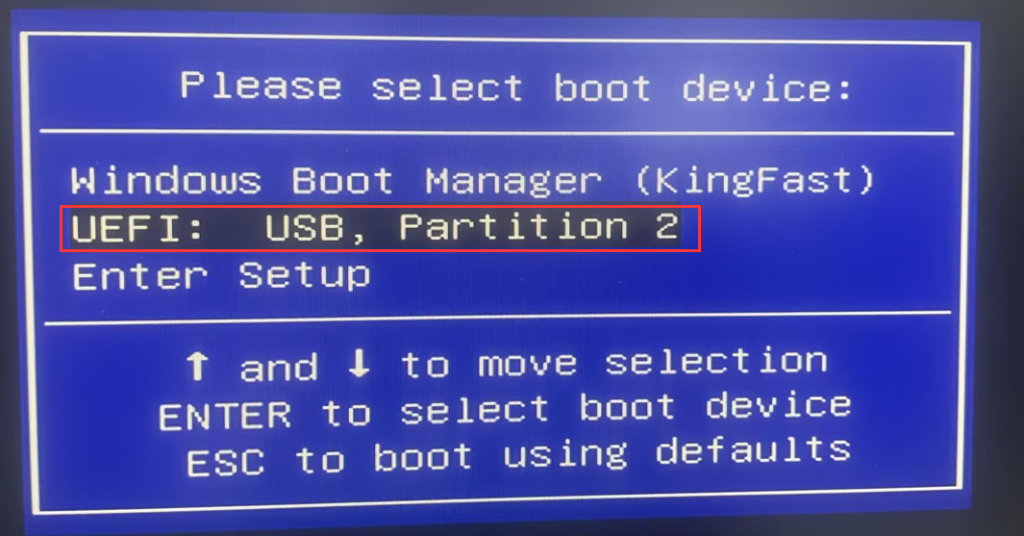
3-1. Insert the USB flash drive into the USB port on which the system model needs to be installed. Press the PC switch button to power on the USB flash drive and quickly press F7 or F11 on the keyboard (depending on the model) to Enter the startup menu. Follow the prompts to install, the following is the installation screenshot:
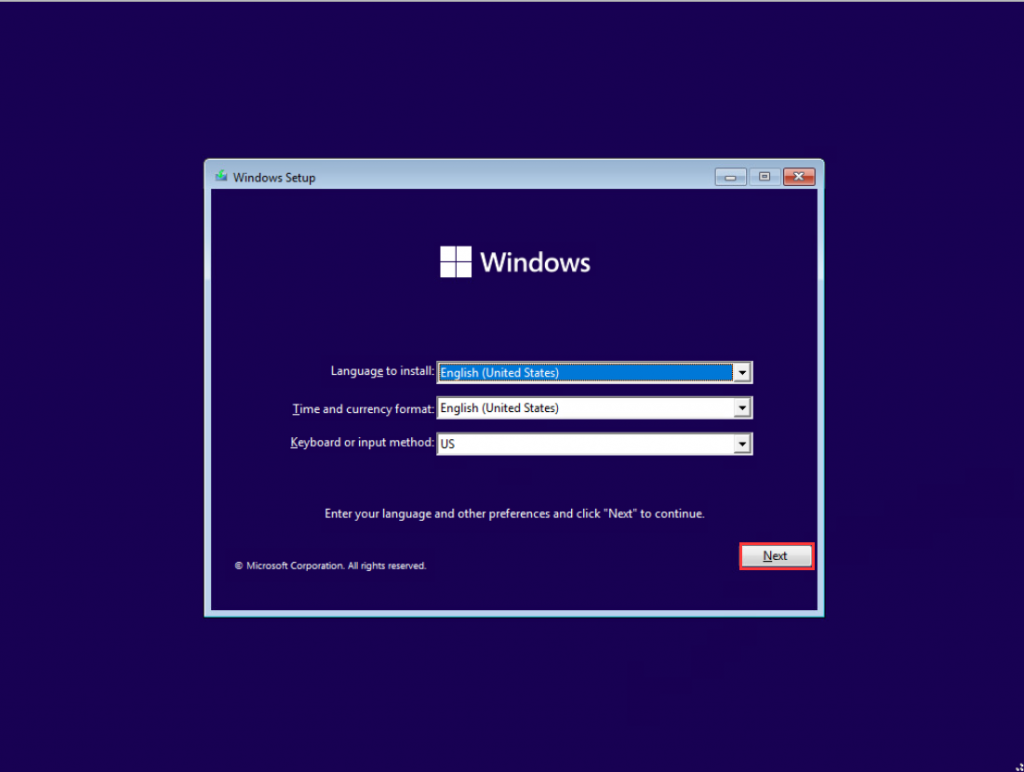
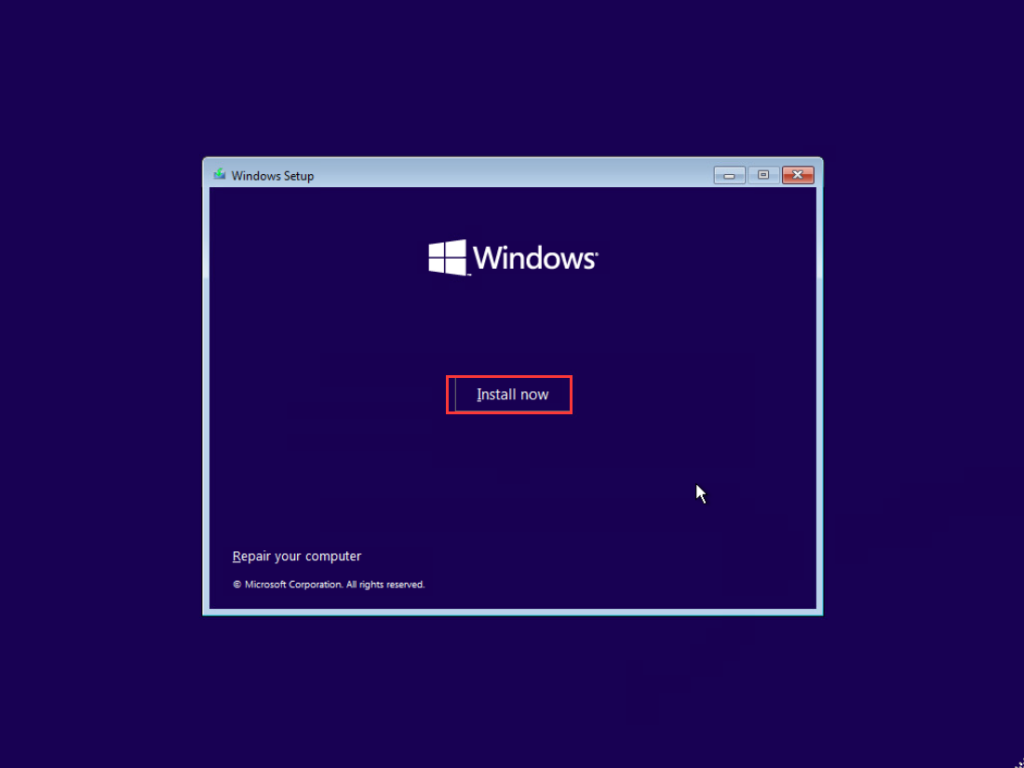
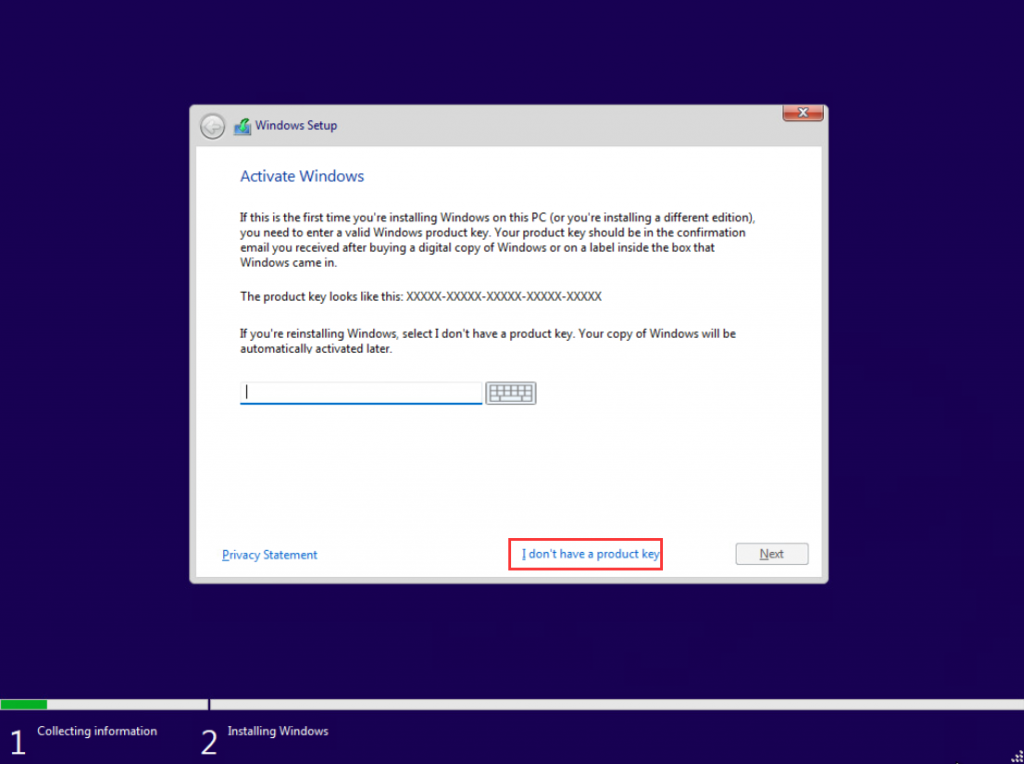
- 3-2, enter Windows11 license, license you can go to Microsoft official purchase or consult your hardware supplier to obtain, if no license can click "I don't have a product key" to enter the next step.
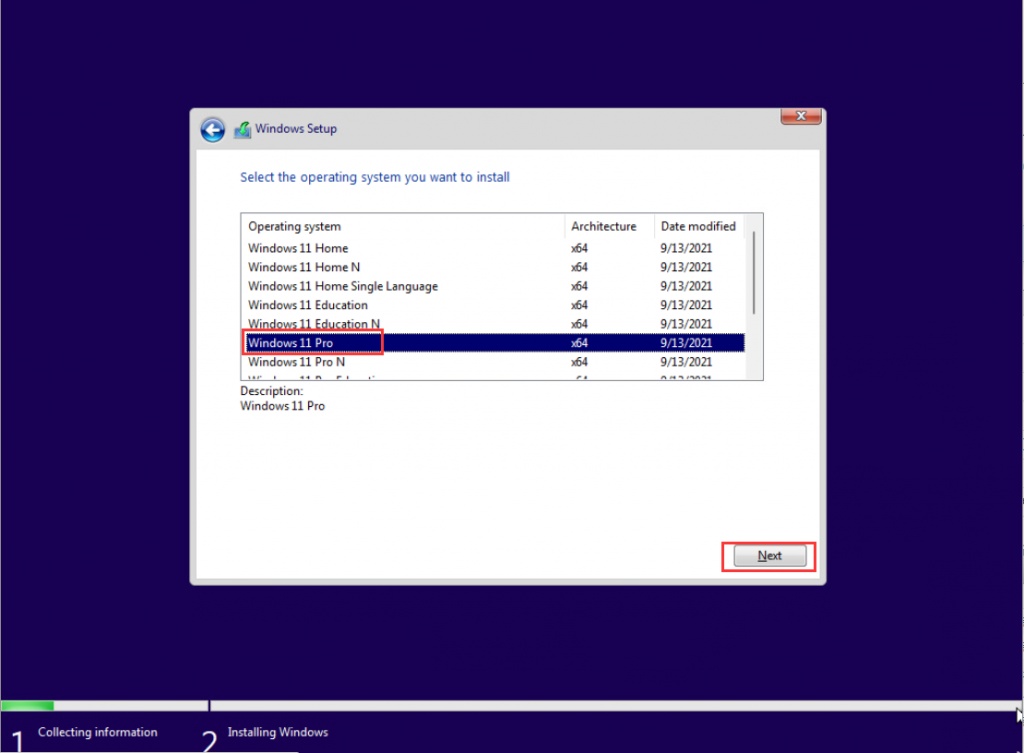
- 3-3, select the required system version, and click "Next". (Note: the selected system version must be the same as the license version, otherwise activation failure will occur!)
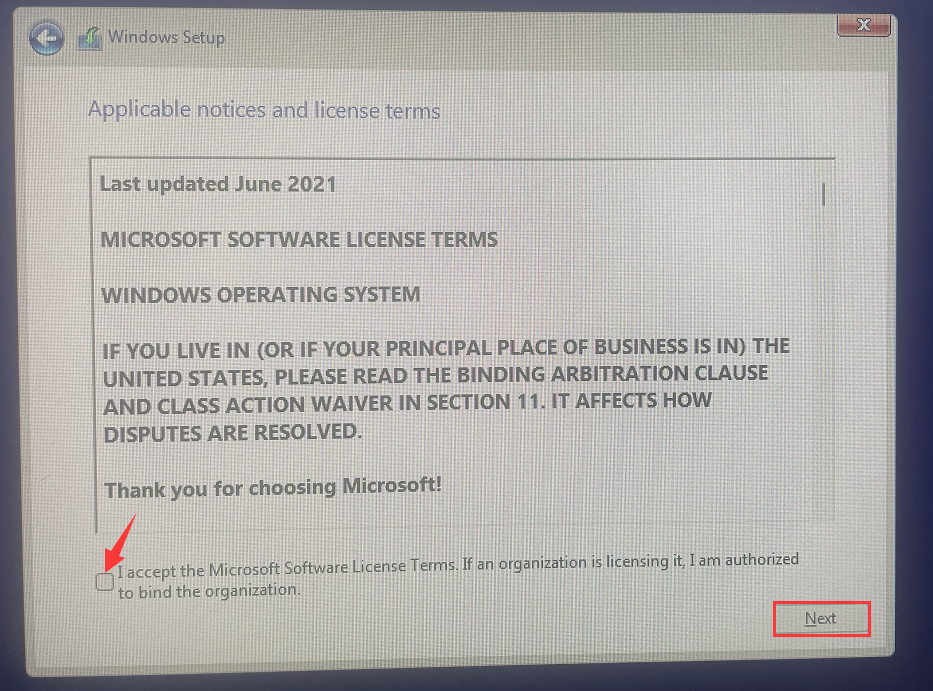
- Check the license terms and select Custom Installation.
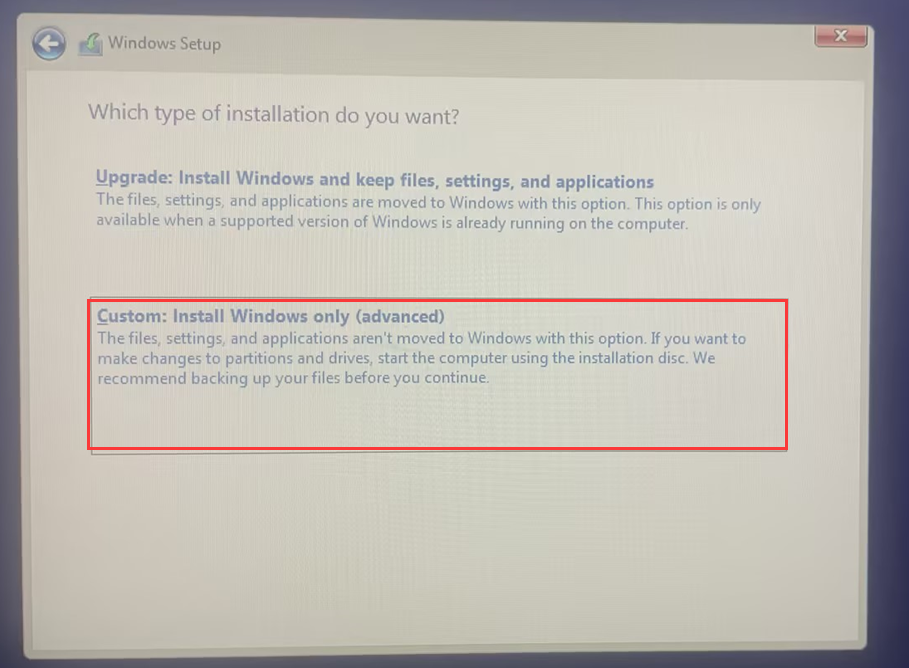
- If a new hard disk has partitions, delete all partitions from the new hard disk. Note: Deleting the hard disk partition will delete the original hard disk data, please make sure that the important data has been backed up before operation!
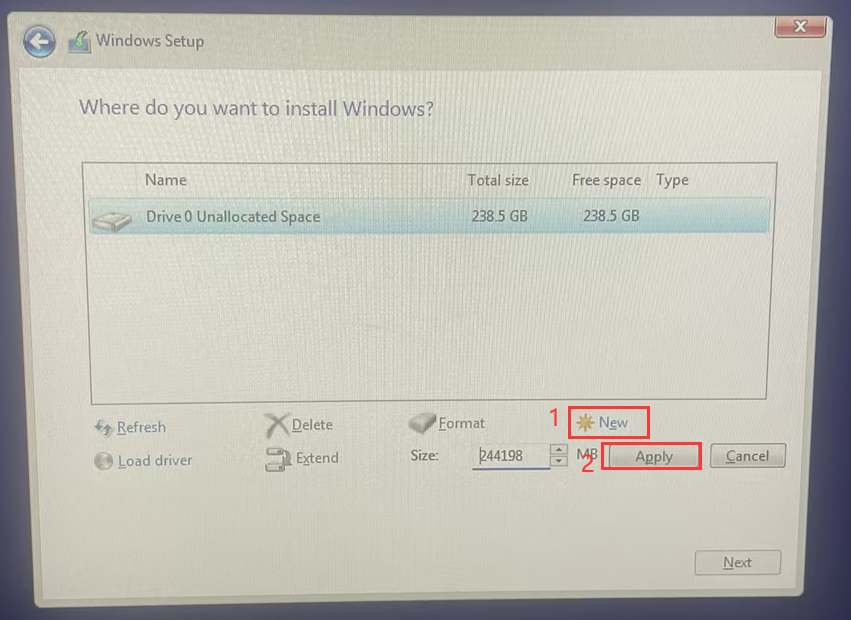
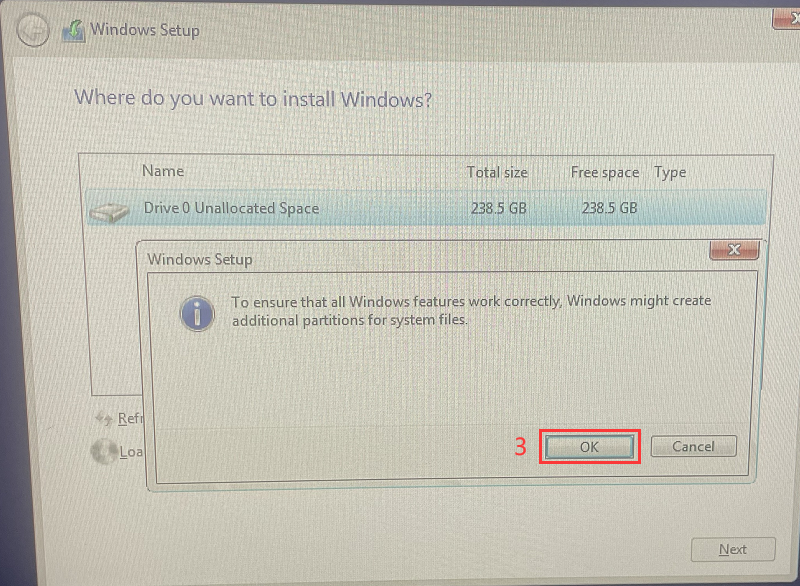
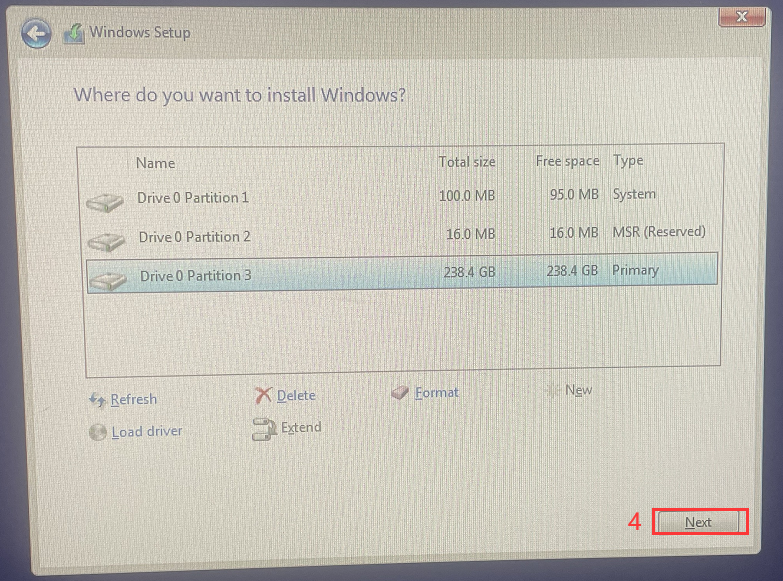
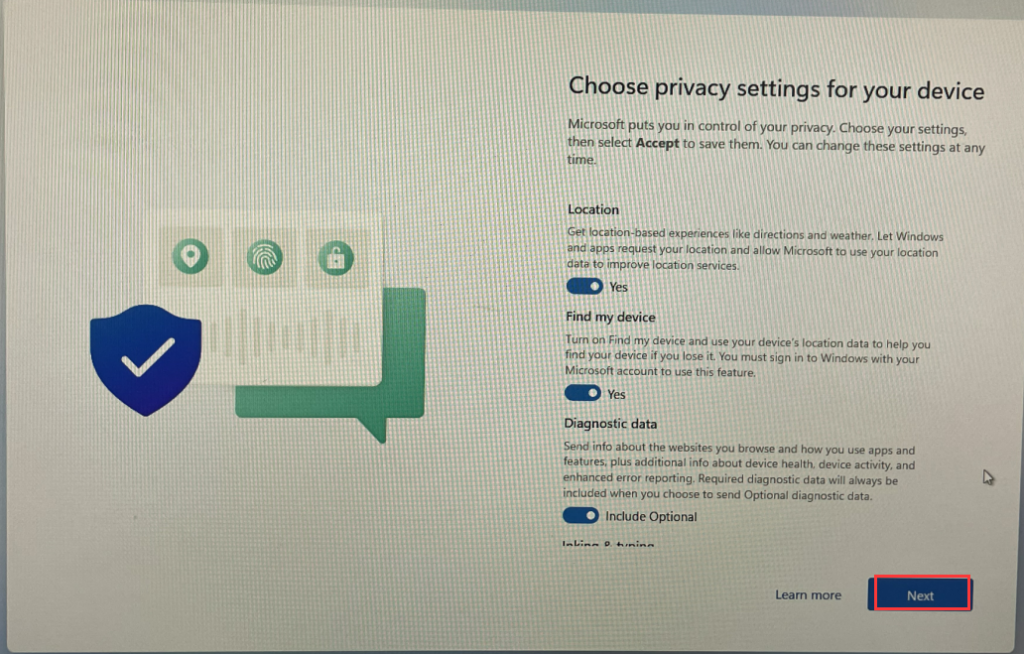
- After the system deployment is complete, the USB flash drive will be removed from the computer, and choose to restart the computer. After the restart, the system configuration wizard will be displayed.
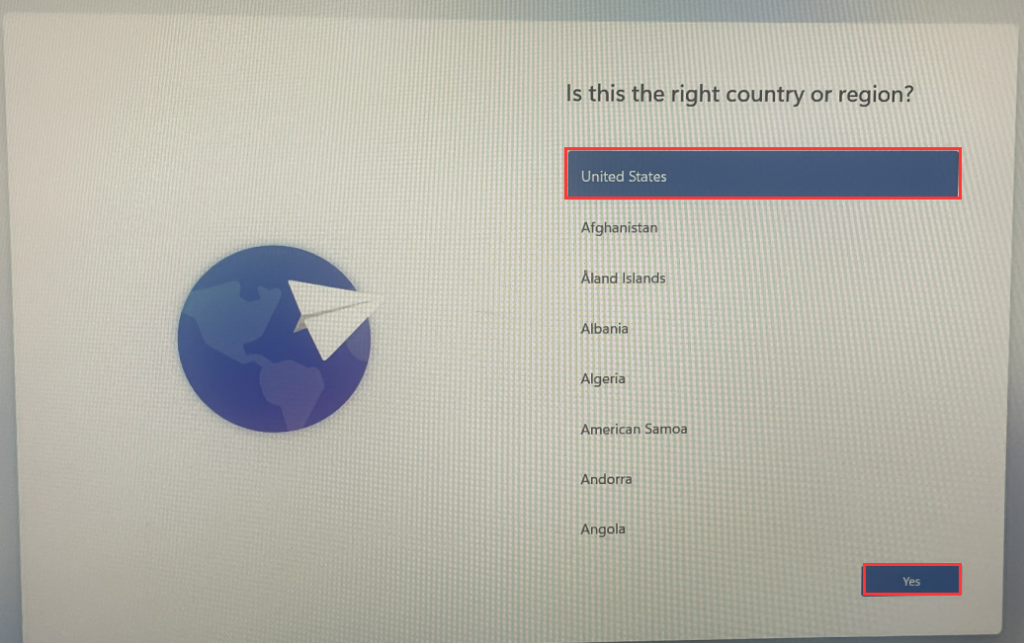
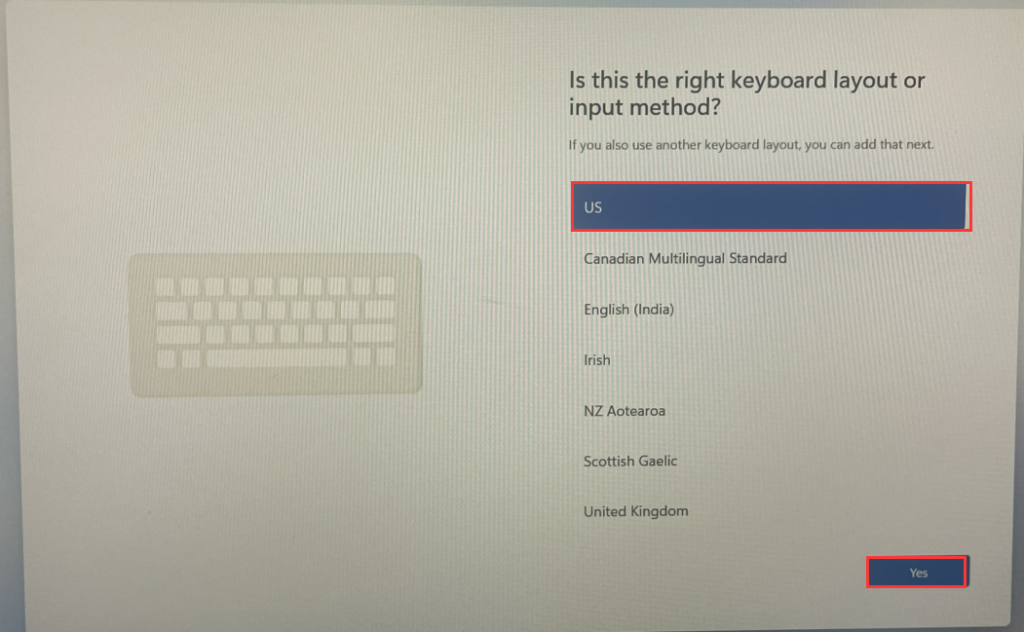
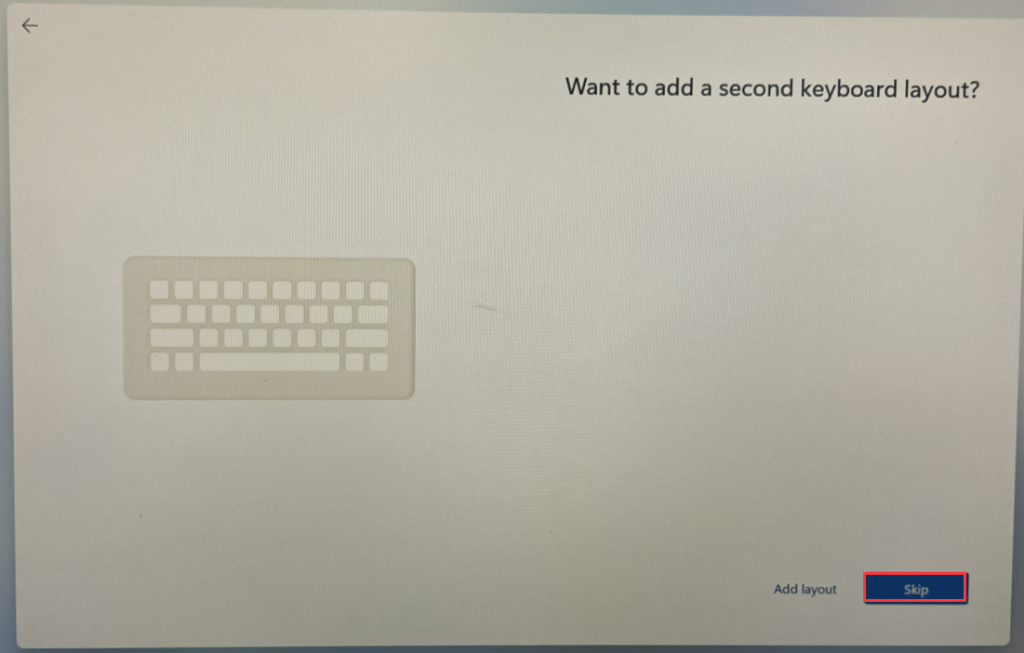
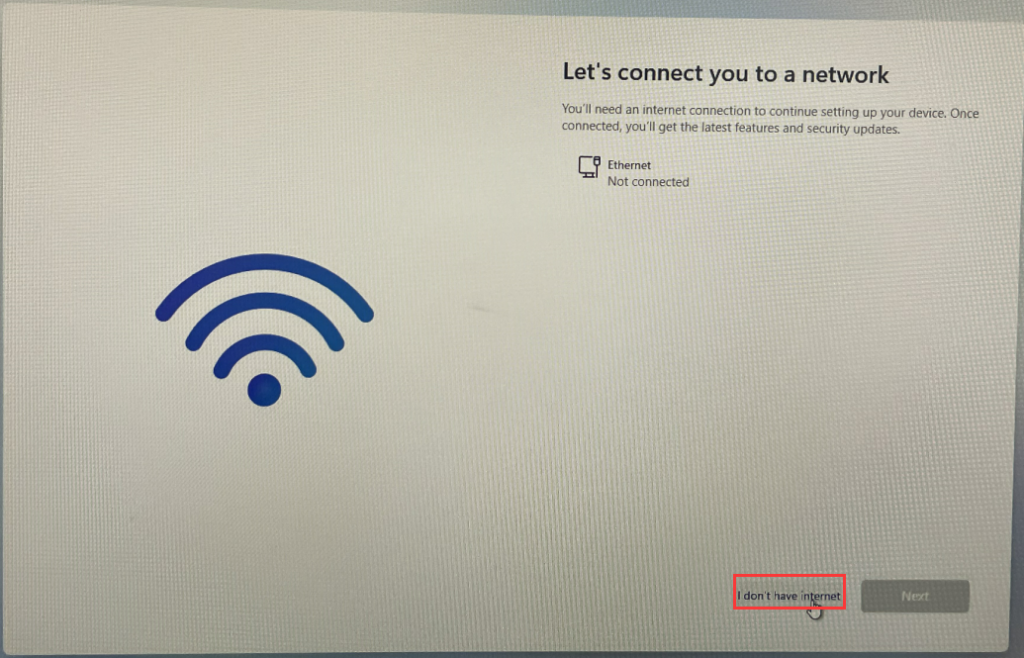
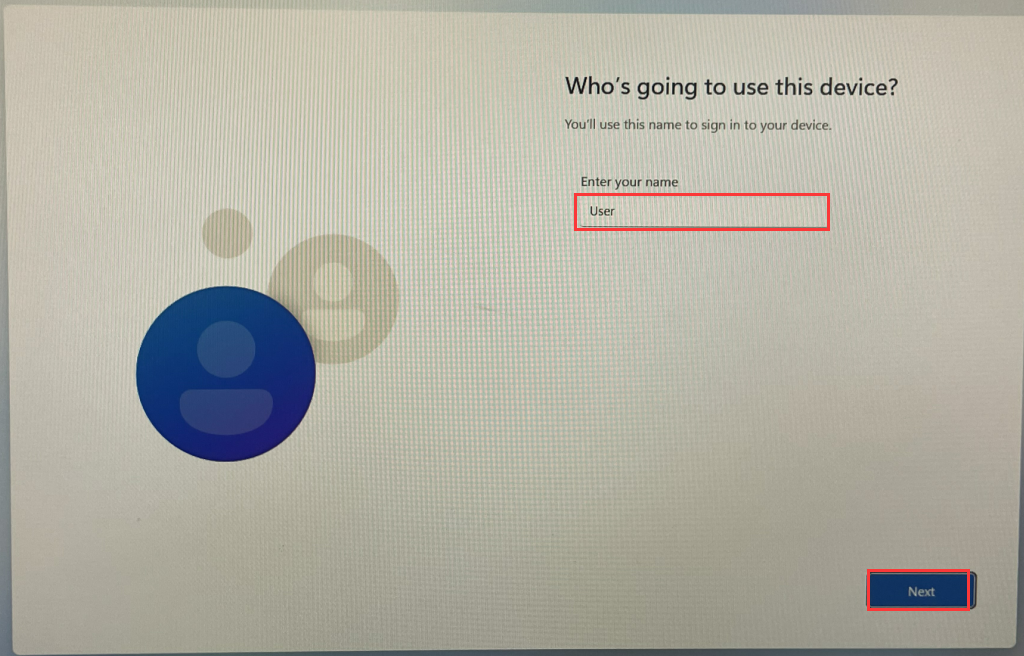
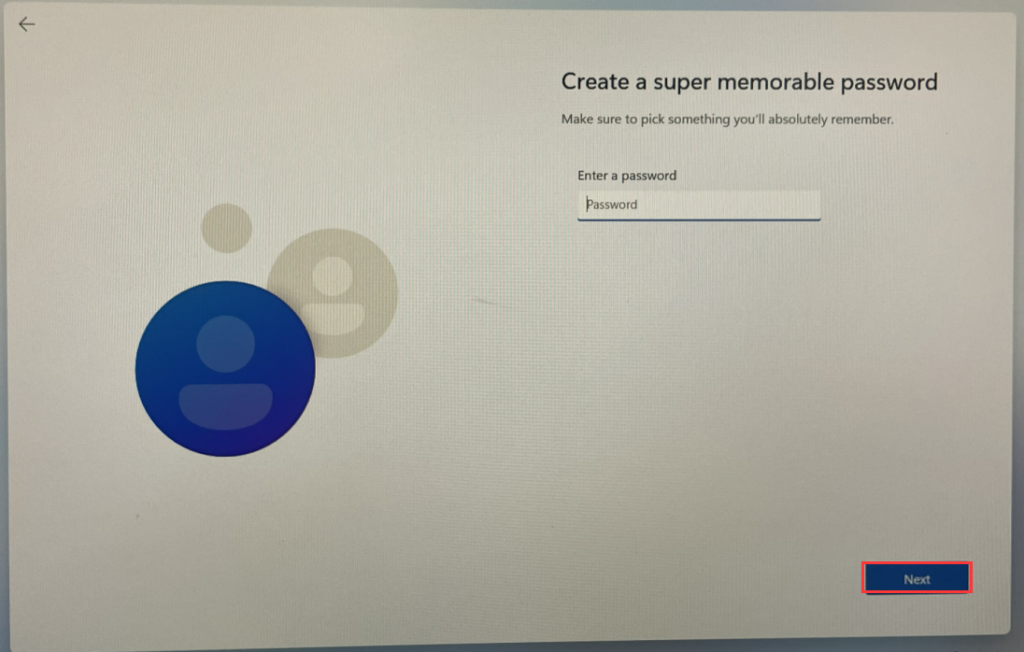
- Enter the user name and password, if you do not need to set a password, please click Next.
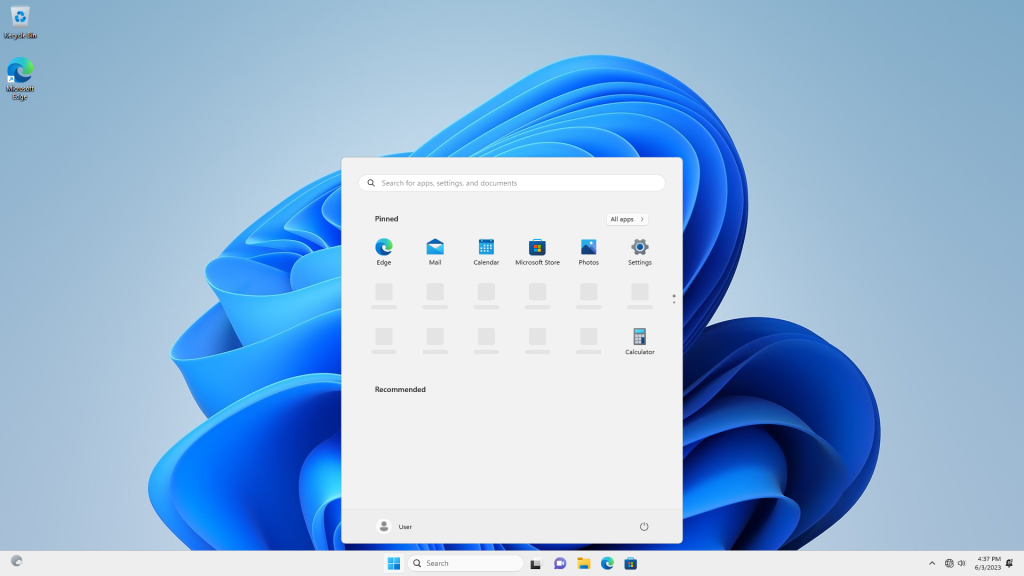
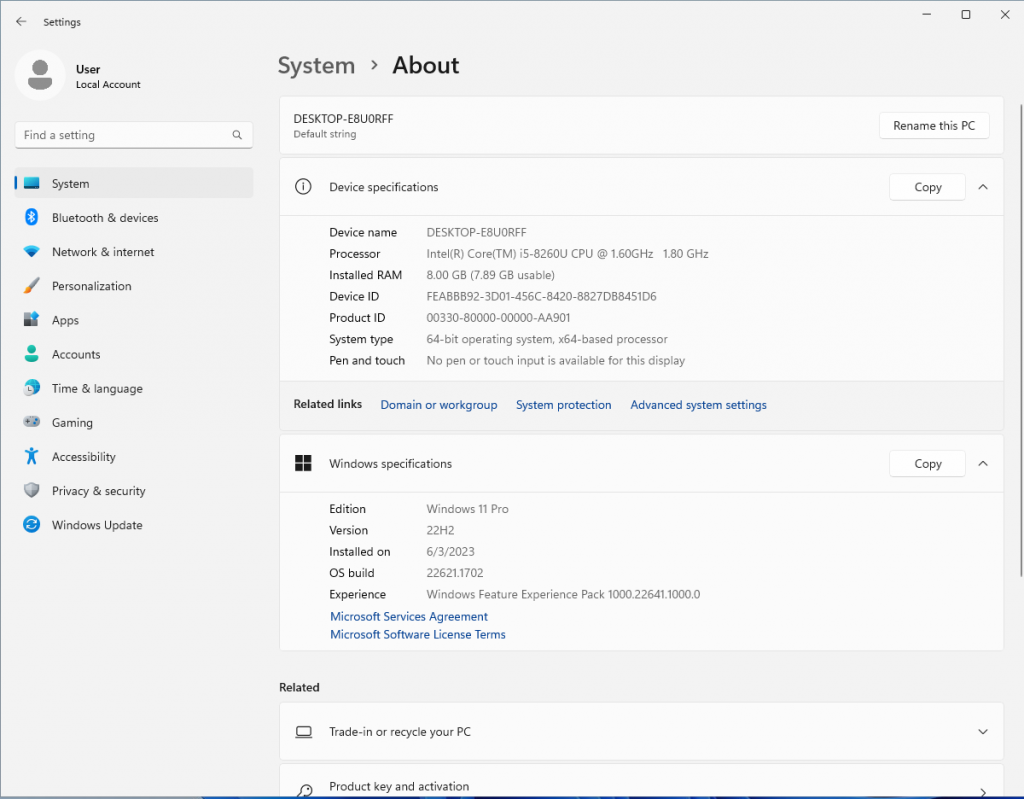
The system has been installed. You may need to manually install some drivers to check whether the operating system is successfully activated.
Solution to network failure after Windows update July patch (KB5028185)
Troubleshooting steps for computer not recognizing hard drives after expanding SSD/HDD
