
How to extend the CAN bus?
author: VENOEN
2025-09-26
How to extend CAN bus?
Overview: Most industrial computers on the market usually only support serial ports (such as RS232, RS485, RS422). As industrial computer application scenarios become more widespread, existing bus standards can no longer meet all user needs. Through market research, we found that there is currently a large demand for CNA bus on the market. To solve this problem, we will introduce how to implement this bus standard on industrial computers that do not support CAN bus.
Applicable models:
All K4 series
05B-i5-5500U
H4 series
The following conditions must be met
MPCIE to CAN card (supports 2-way CAN bus)
2 3-wire DB-9pin serial ports
The motherboard comes with MPCIE full-height slot
The serial port on the chassis is removable
MPCIE to CAN card specifications:
05B-i5-5500U
H4 series
The following conditions must be met
MPCIE to CAN card (supports 2-way CAN bus)
2 3-wire DB-9pin serial ports
The motherboard comes with MPCIE full-height slot
The serial port on the chassis is removable
MPCIE to CAN card specifications:


- Perfectly compatible with industrial computer interface: using standard MiniPCle interface;
Communication method with industrial computer: USB2.0 pin in MiniPCle interface;
Power supply method: MiniPCle interface 3.3V power supply, power consumption 200mA;
Number of CAN channels: 2-channel isolated CAN interface;
CAN bus voltage and resistance: CAN-H, CAN-L voltage 2.5V, CAN-H, CAN-L resistance 120Ω;
CAN supports both CAN2.OA and CAN2.0B protocols and complies with ISO/DIS11898-1/2 standards;
CAN baud rate: programmable and arbitrarily set, ranging from 10Kbps to 1Mbps;
Maximum frame traffic: single channel can be up to 20,000 frames/second (1M baud rate, standard remote frame)
CAN channel adopts signal isolation, DC/DC power isolation, isolation voltage: 3000VDC;
CAN interface EMC level: contact discharge ±4KV, group pulse ±1KV;
Supports Windows operating systems and Linux operating systems such as WinXP, Win7-Win11;
Installation method: standard MiniPcle card slot, small size, plug and play;
Working temperature -40~85°C;
The standard MiniPCIe board size is 30mm (width)*51mm (length).
1. Hardware installation (this article takes H4 as an example)
1-1. Disassemble the machine when the power is off, and remove the unused COM cable from the motherboard. In this article, COM4 and COM6 are removed to install the CAN port.
1-2. Insert the MPCIE to CAN card into the MPCIE slot of the motherboard and secure it with screws.
1-3. Fix CAN1 to the COM6 port of the chassis, and install CAN2 to the COM4 port of the chassis.
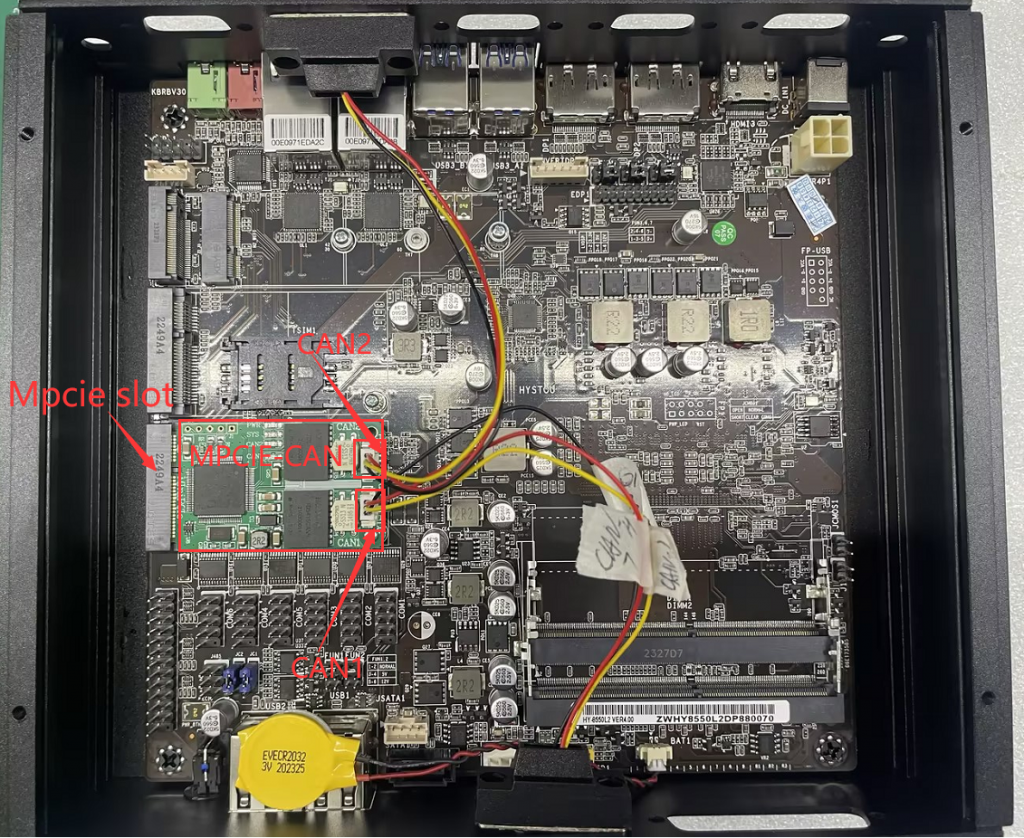
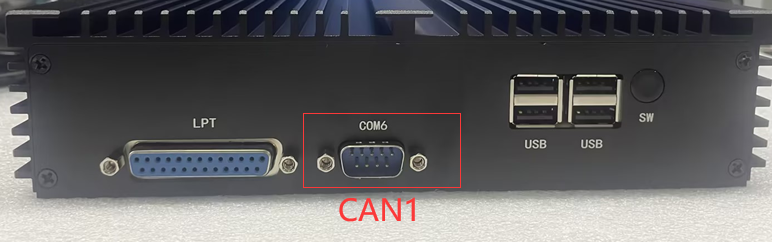
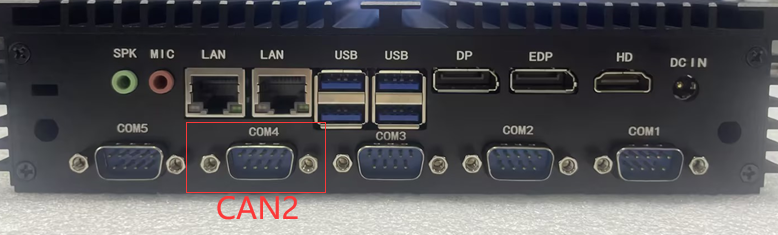
- 2. CAN pin definition
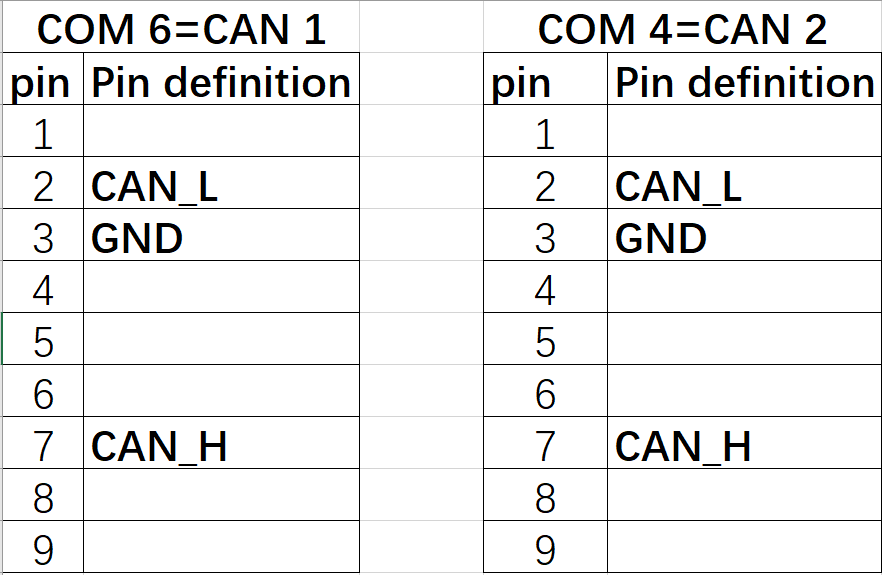
2-1. Based on the hardware installation position, it can be concluded that COM6 has been changed to CAN 1. The CAN bus is a 3-wire DB9pin type. Pin2 is defined as CAN_L, pin3 is defined as GND, and pin7 is defined as CAN_H. Please connect external devices according to the pin definition. .
2-2. Based on the hardware installation position, it can be concluded that COM4 has been changed to CAN 2. The CAN bus is a 3-wire DB9pin type. Pin2 is defined as CAN_L, pin3 is defined as GND, and pin7 is defined as CAN_H. Please connect external devices according to the pin definition. .
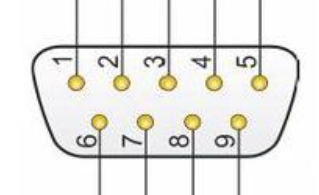
- 3. Driver installation (this article uses Windows 11 as an example)
3-1. Driver download address:
Link: //pan.baidu.com/s/1dv7hBXu-CToczrnZV9DHdw
Extraction code: HYSZ
Usually you only need to download the USB driver installation tool Setup(V1.40).exe driver.

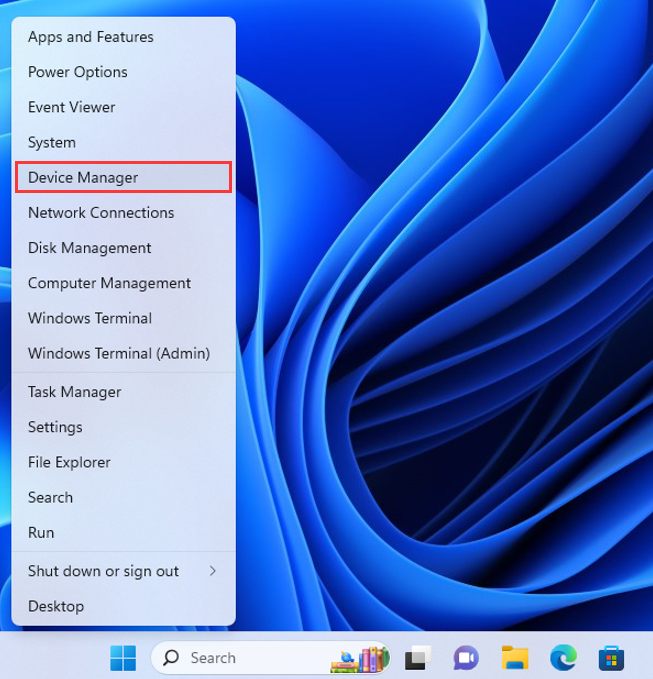
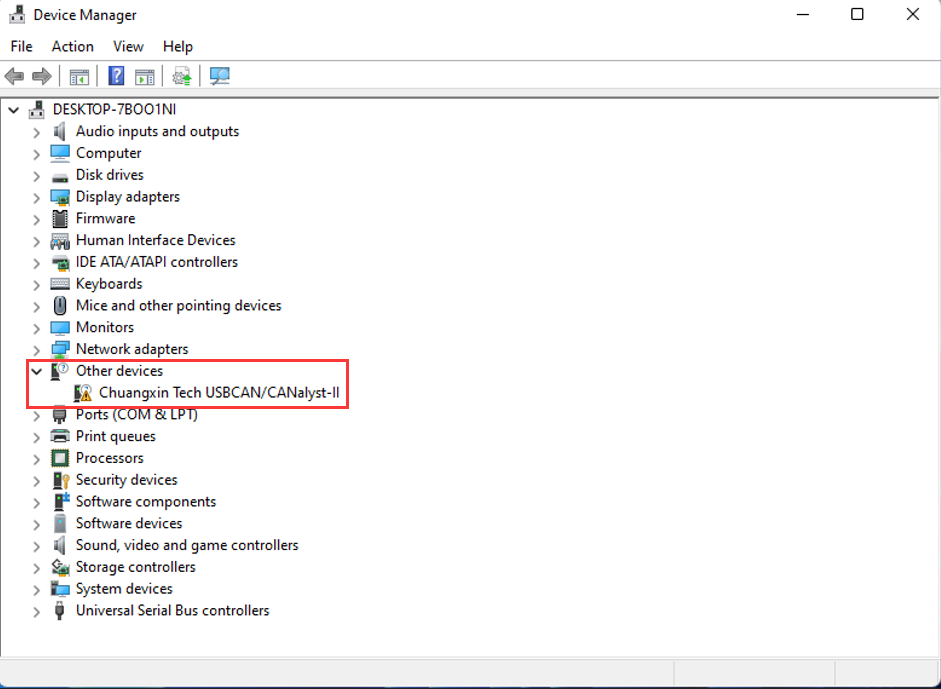
- 3-2. Right-click the Windows start menu and enter Device Manager to check whether the module model is recognized. If Chuangxin Tech USBCAN/CANalyst-ll is recognized, it means that the module is installed normally.
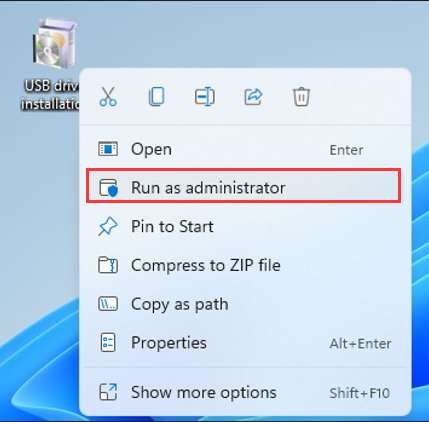
- 3-2. Right-click USB driver installation tool Setup(V1.40).exe, select Run as administrator, there are three plug-ins, just install them one by one with Nest.
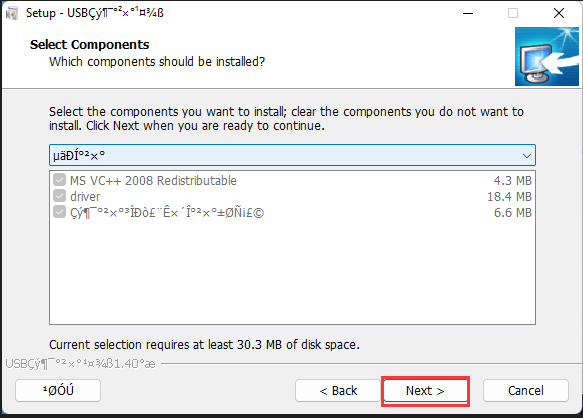
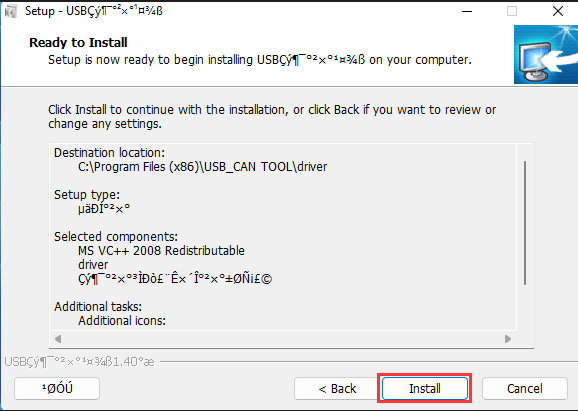
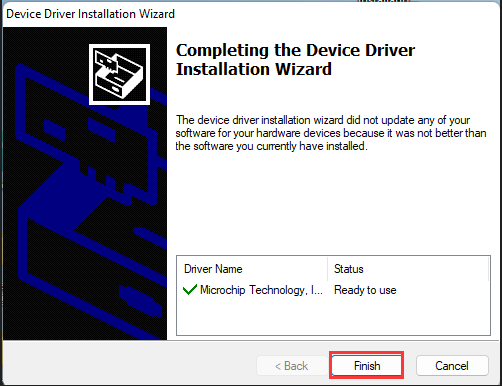
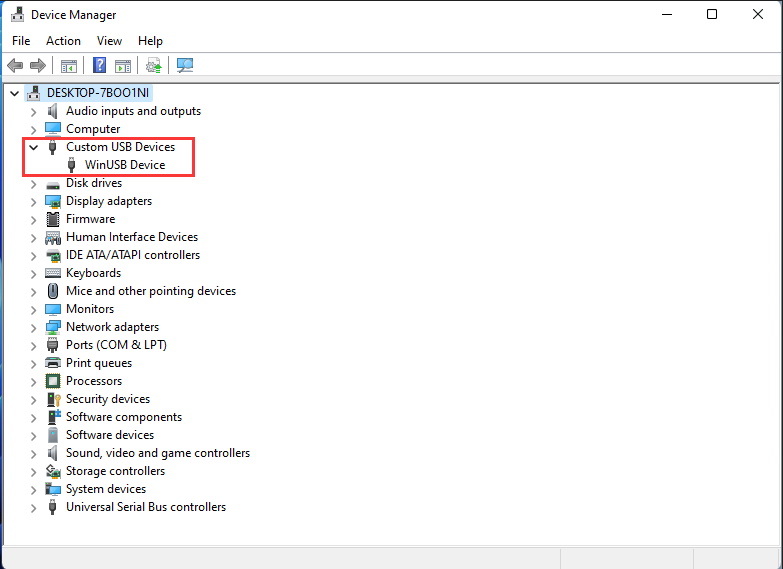
- At this point, the driver installation is completed. You can enter Device Manager to verify whether the driver is installed successfully. If Custorm USB Devices>WinUSB Device is recognized, it means the installation has been successful.
How to install the Lubuntu operating system?
How to configure multiple networks (Ethernet, WLAN, 4G) to connect to the Internet, Windows domains, or both simultaneously under the Windows 10-11 system?
