
How to upgrade Windows 11 on a Windows 10 system?
First, make sure that your computer meets the requirements for upgrading Windows 11. The following are the minimum system requirements for upgrading Windows 11:
Processor: 1GHz or faster 64-bit capable processor (dual-core or multi-core) or system-on-a-chip (SoC)
Memory: 4 GB RAM
Storage: 64 GB or larger storage device
System firmware: supports UEFI secure boot + GPT format partition
TPM: Trusted Platform Module (TPM) version 2.0
Graphics card: Supports DirectX 12 or higher, supports WDDM 2.0 driver
Monitor: High-definition (720p) display greater than 9 inches diagonally, 8-bit per color channel
1. Download and run WindowsPCHealthCheckSetup.msi to check whether the computer is eligible for Windows 11 upgrade. Download address:
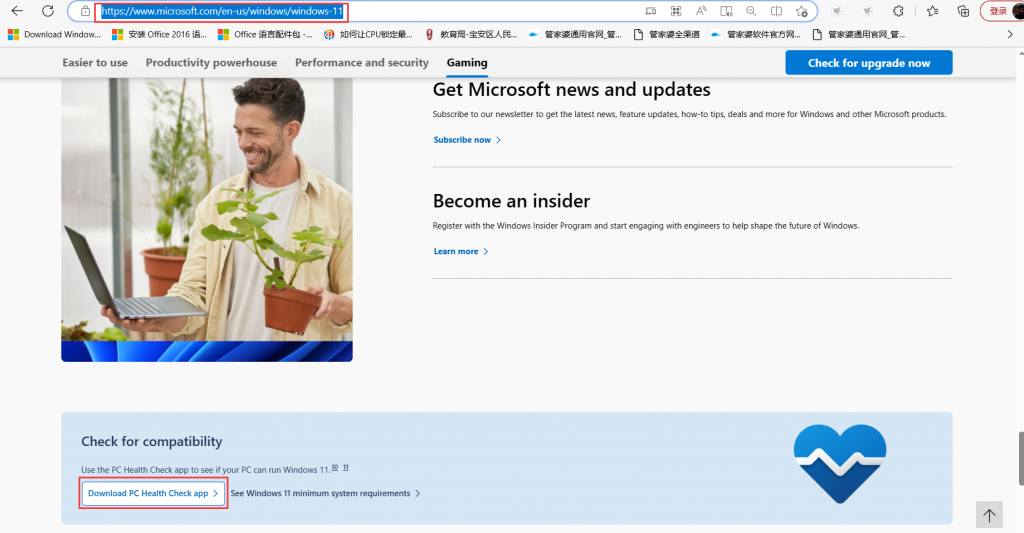
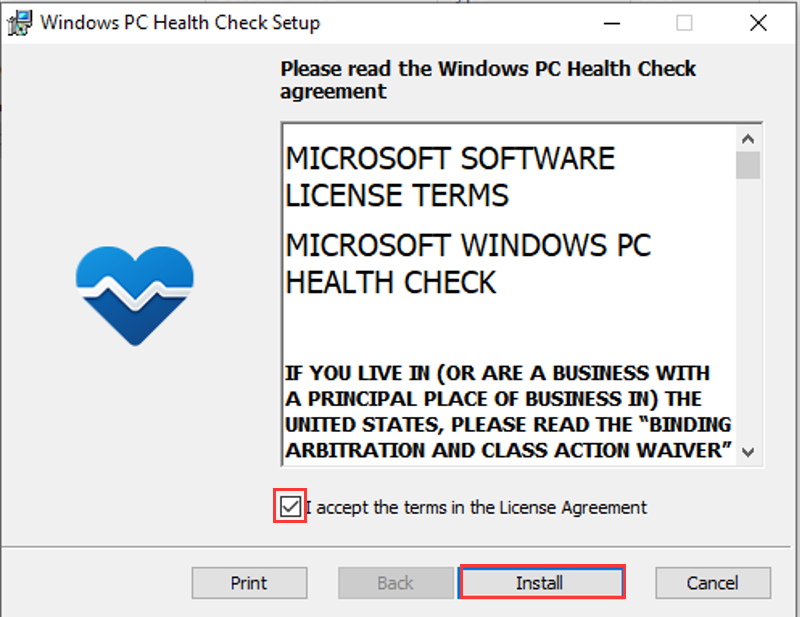
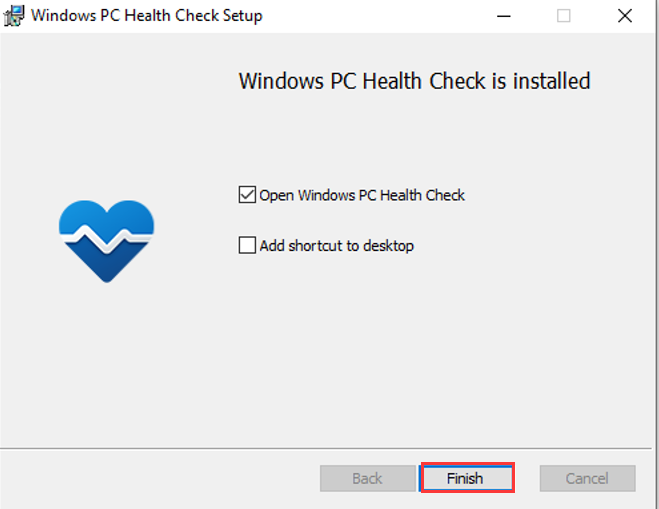
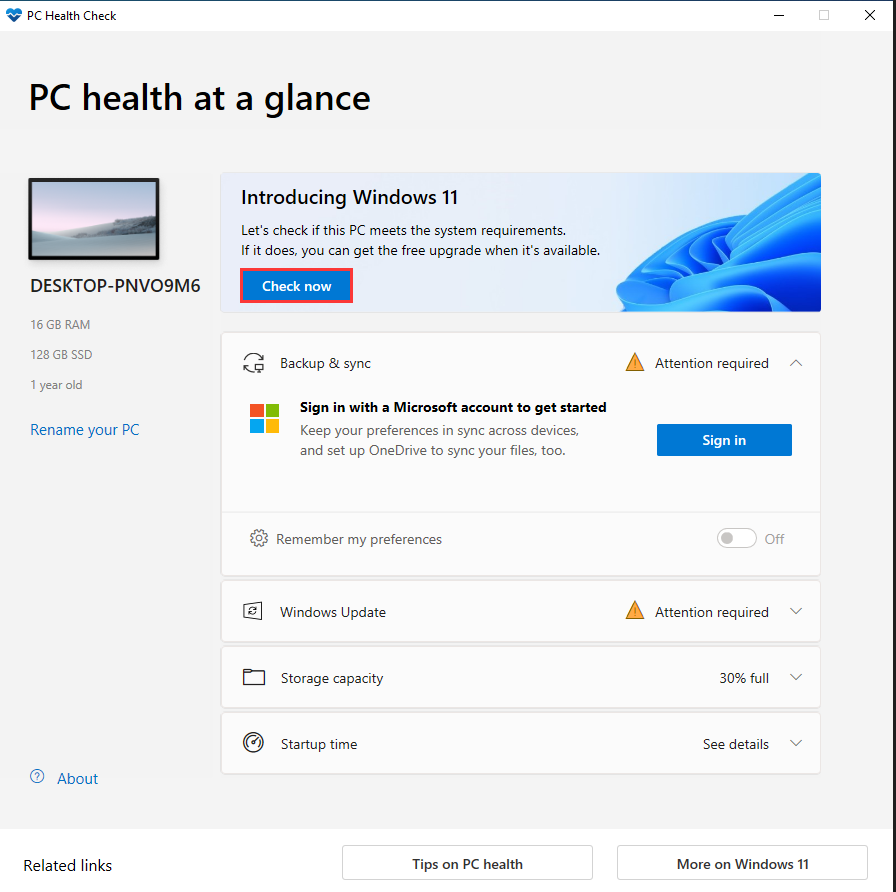
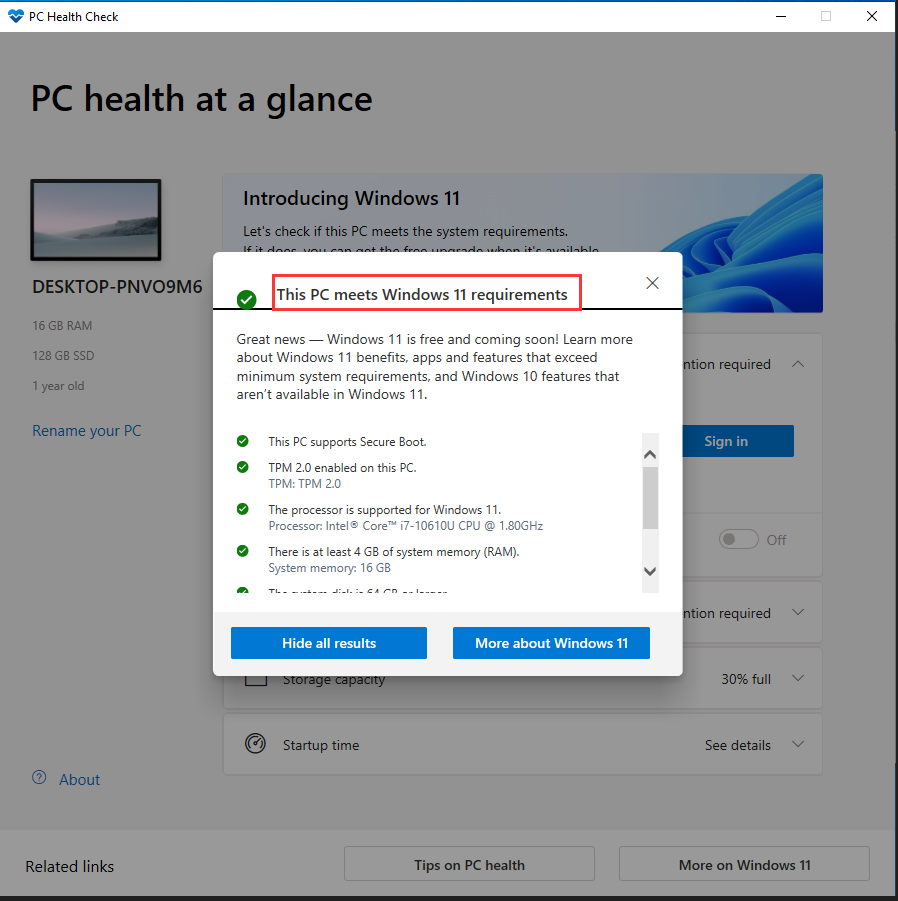
Click Check now in the Windows PC Health Check Setup tool and wait for the check results. When the prompt "This PC meets Windows 11 requirements" is displayed, it means that the computer meets all the conditions for upgrading to Windows 11.
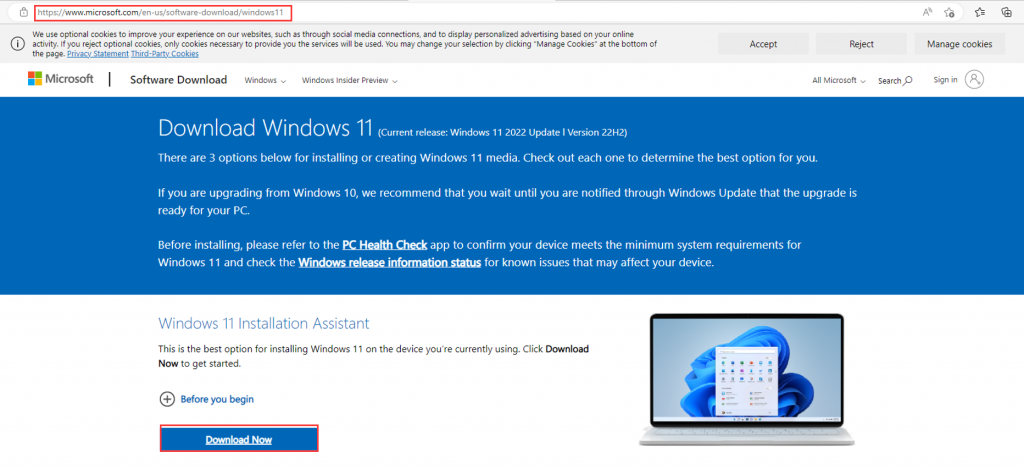
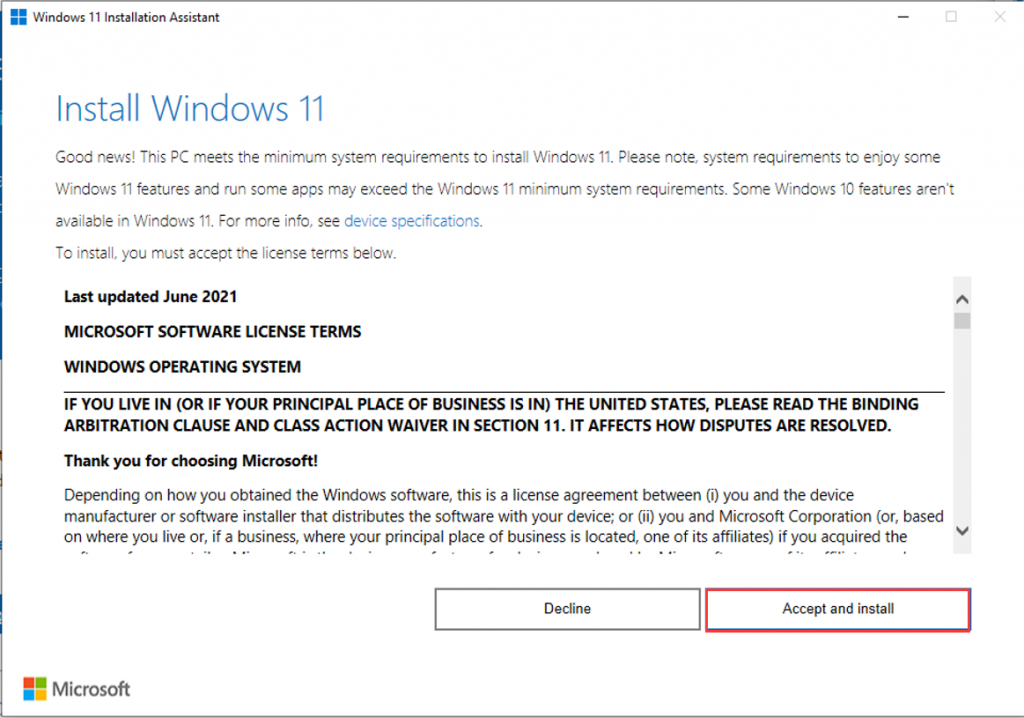
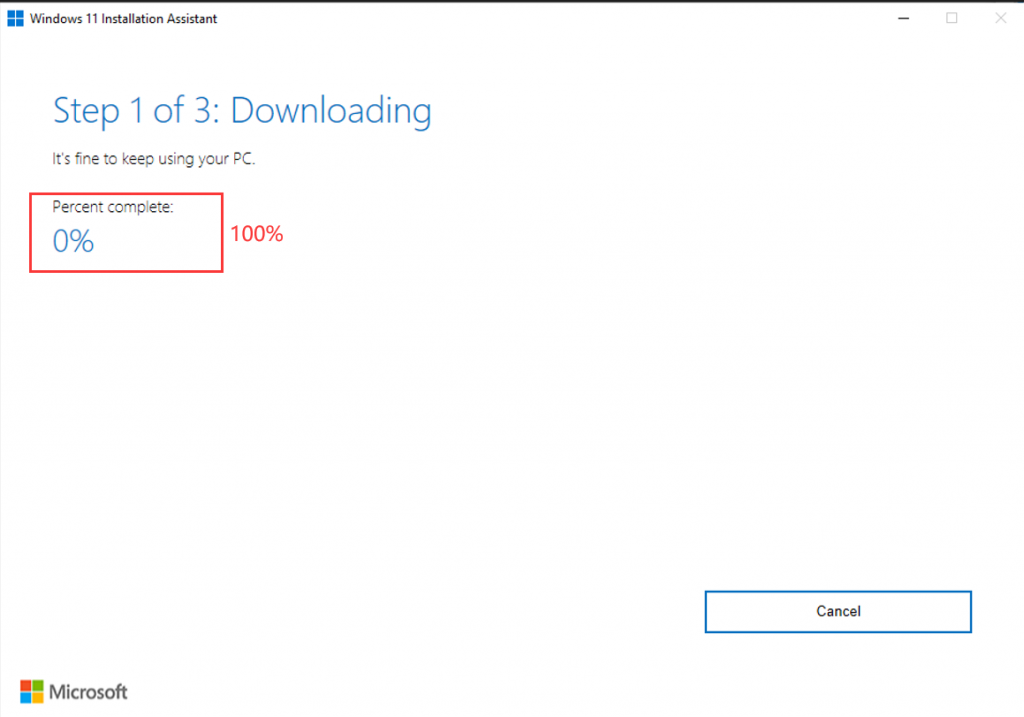
- 2. Download Windows 11 Installation Assistant, download address: Download Windows 11 (microsoft.com) After the download is complete, run Windows 11 Installation Assistant, click Accept and install, the tool will automatically download the files required for Windows 11, and wait until the progress reaches 100%. Select Restart now and wait for the restart to be completed to automatically update to Windows 11 (Note: Do not cut off power during the update process, please keep the computer connected to the Internet). This method usually will not affect the data and applications in your computer.
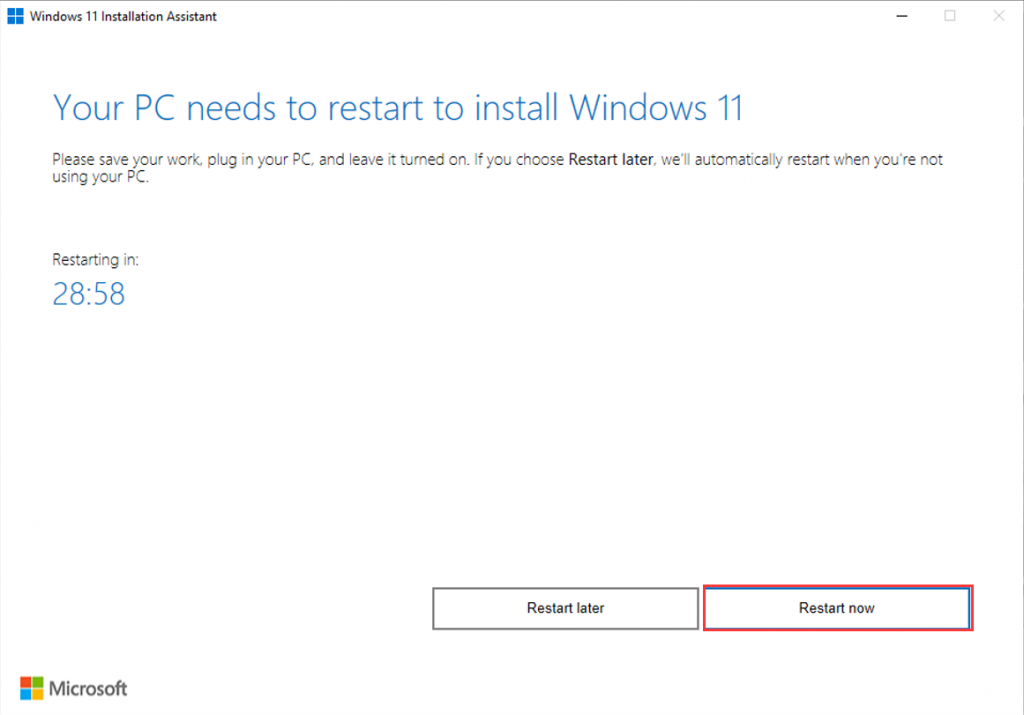
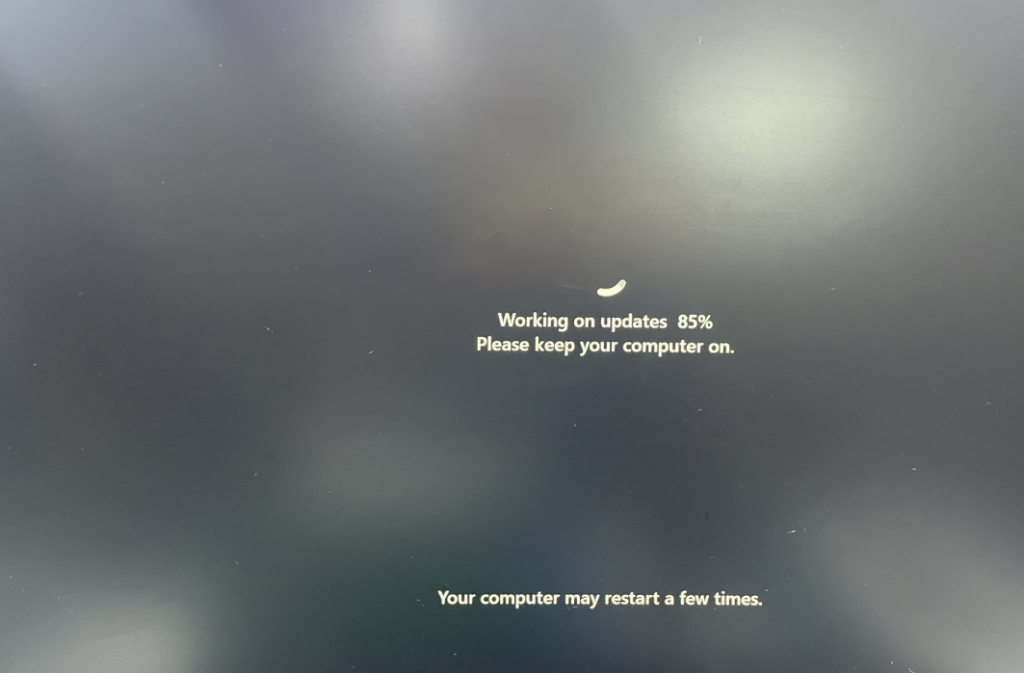
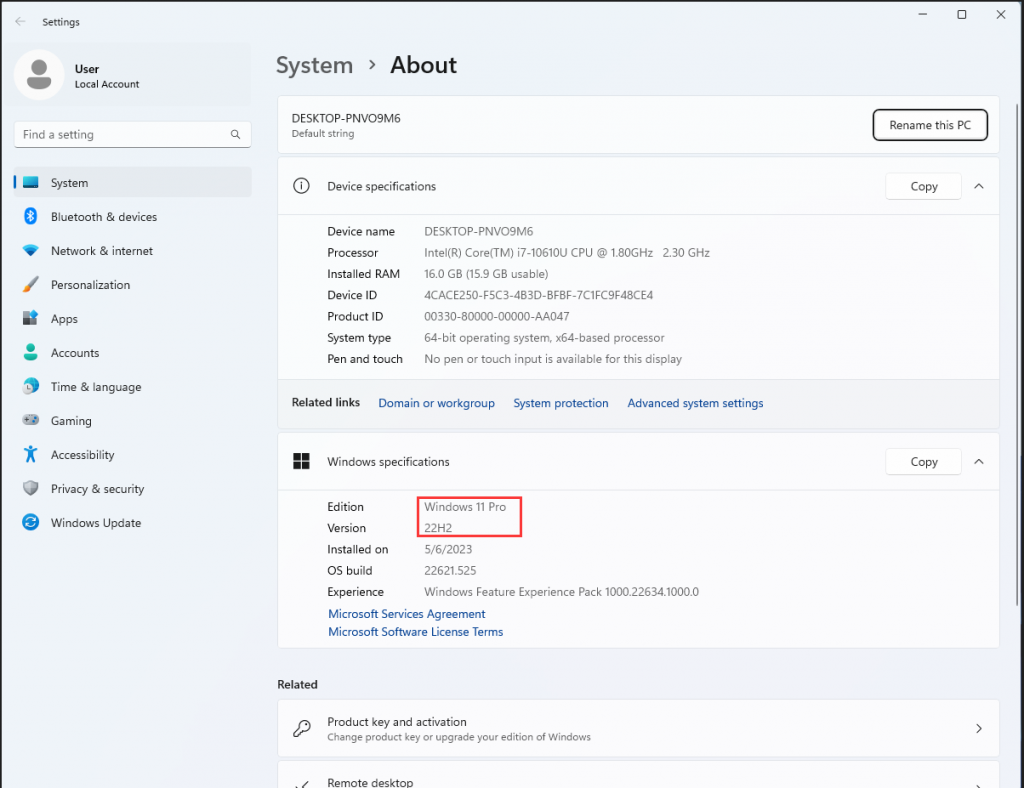
Congratulations, you successfully updated to Windows 11 after restarting!
Windows 10 or 11 system startup disk production and installation guide
J1900 series model, stuck on Windows welcome page, unable to access system desktop solution
