
How to use the MemTest86 tool to check if RAM is functioning properly?
Overview: When we use computers on a daily basis, we may encounter freezing, blue screens, or other unknown errors during computer operation.
Generally, you can start troubleshooting from the following points:
1. Check whether the operating system is damaged. You can try to restore the system or reinstall the system to troubleshoot.
See link for system restore steps:Restoring factory settings on Windows 10 systems
See the link for the steps to reinstall the system.:Windows 10 or 11 system startup disk production and installation guide
4. Try to update the BIOS version to troubleshoot
5. Try to replace the motherboard and CPU to troubleshoot
Larger than 8G U disk
Networked PC
Download MemTest86
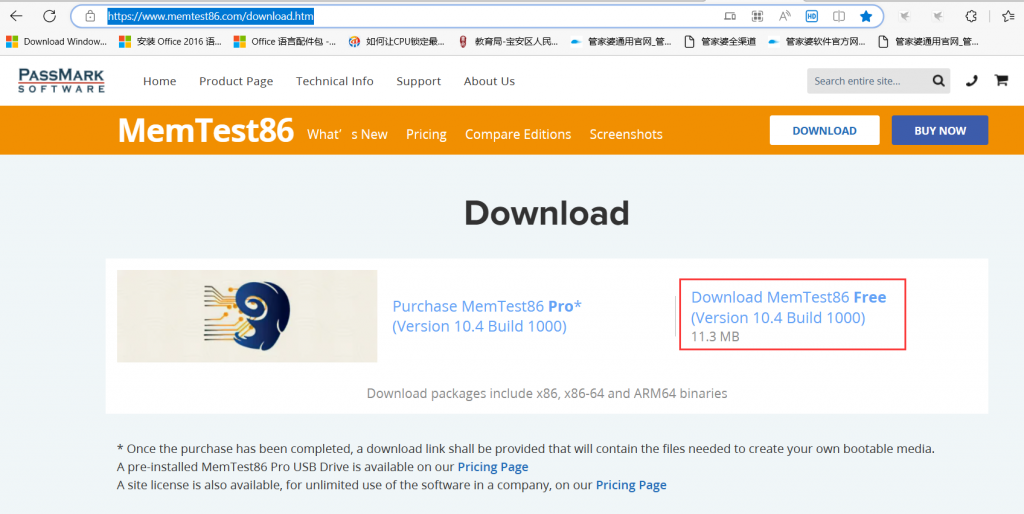
1. Download MemTest86, download address
- 2. Insert the U disk into the USB port of the computer, unzip memtest86-usb .zip, run imageUSB.exe after decompression, and select the U disk just inserted (Note: This operation will delete all data in the U disk. Please confirm that the data has been backed up before making it. !)>Select Write>Yes>Yes to start production, wait for the firmware to be written successfully, and click Exit after the writing is successful.
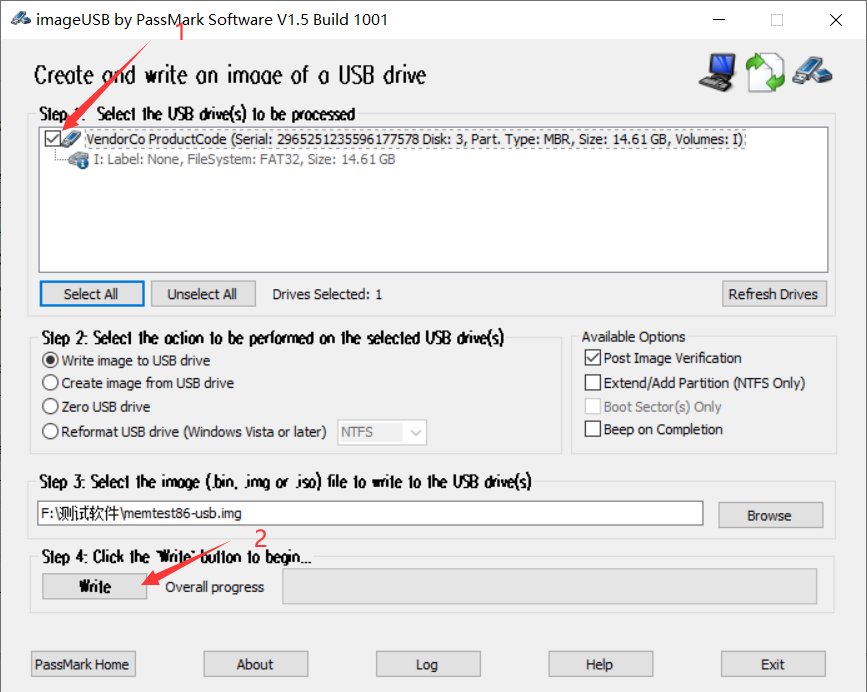
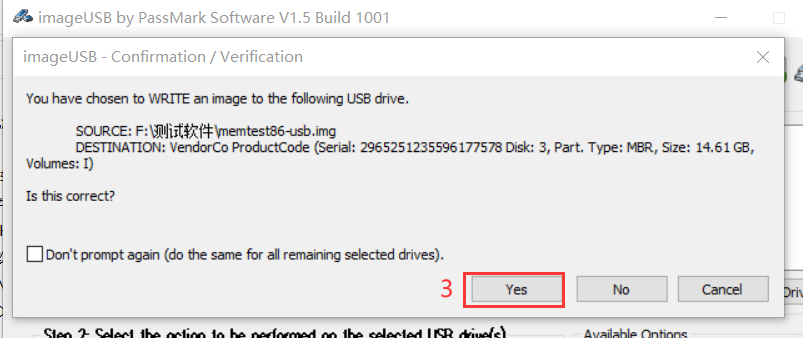
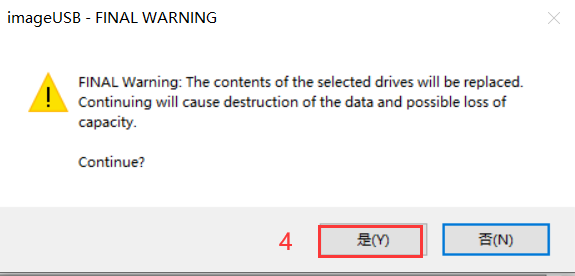
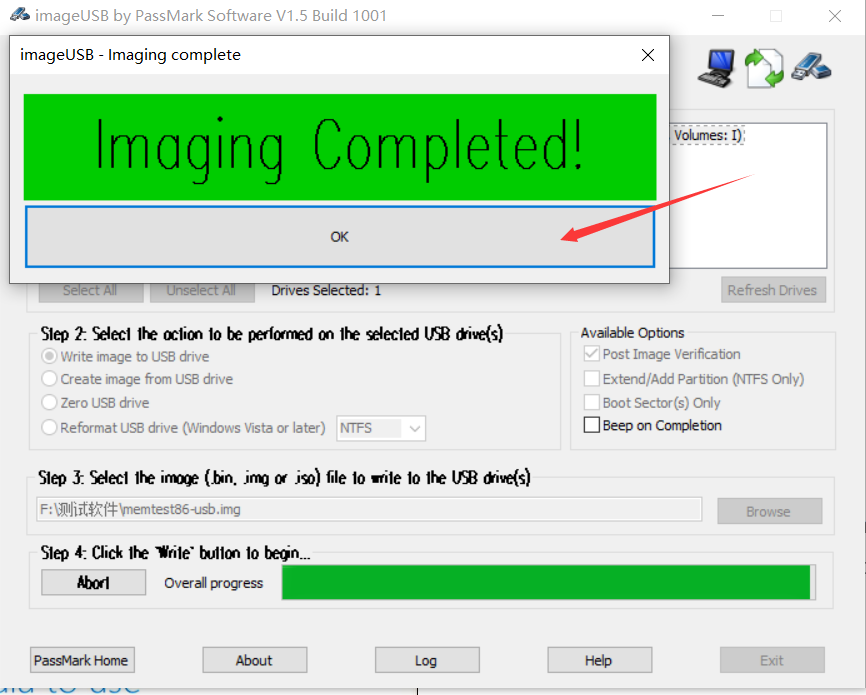
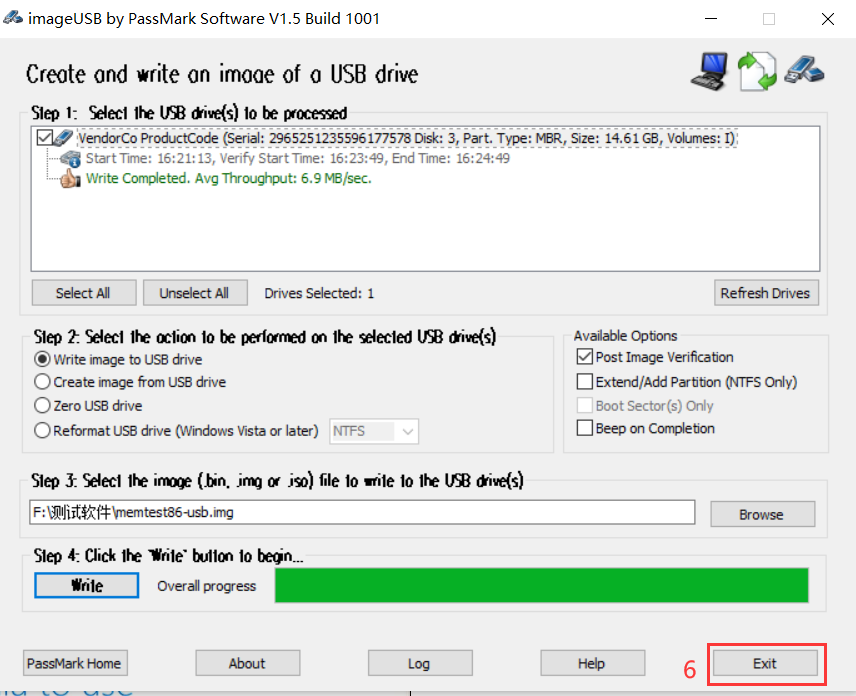
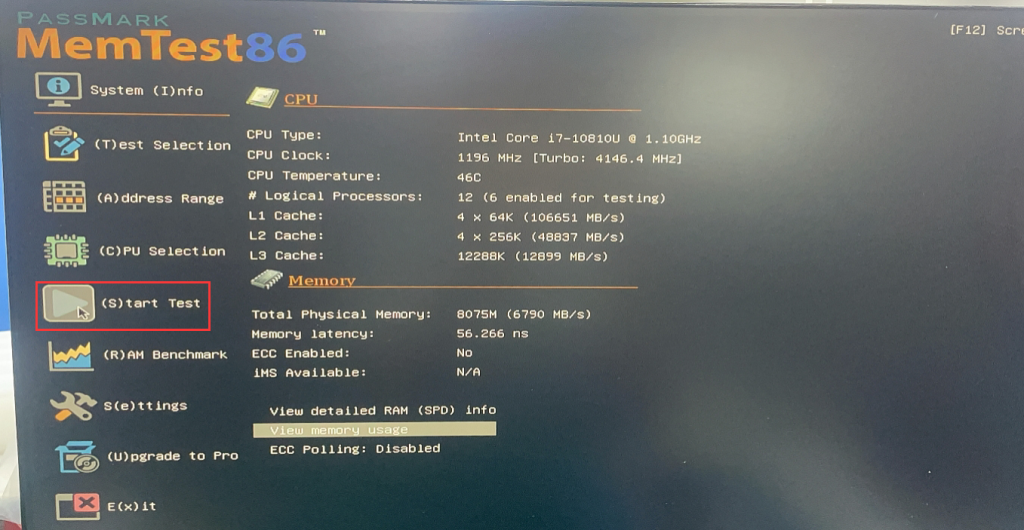
- 3. Insert the successfully written U disk into the USB port of the model to be tested, press the switch button to turn on the machine and quickly press the F7 or F11 key on the keyboard to enter Boot Setup. Select the U disk with UEFI: prefix to enter MemTest86, and enter MemTest86 through the keyboard. Use the arrow keys or mouse to select Config>(S)tart Test to start testing. This test process usually takes more than 4 hours to complete. (The detection time will be different depending on the memory capacity and configuration)
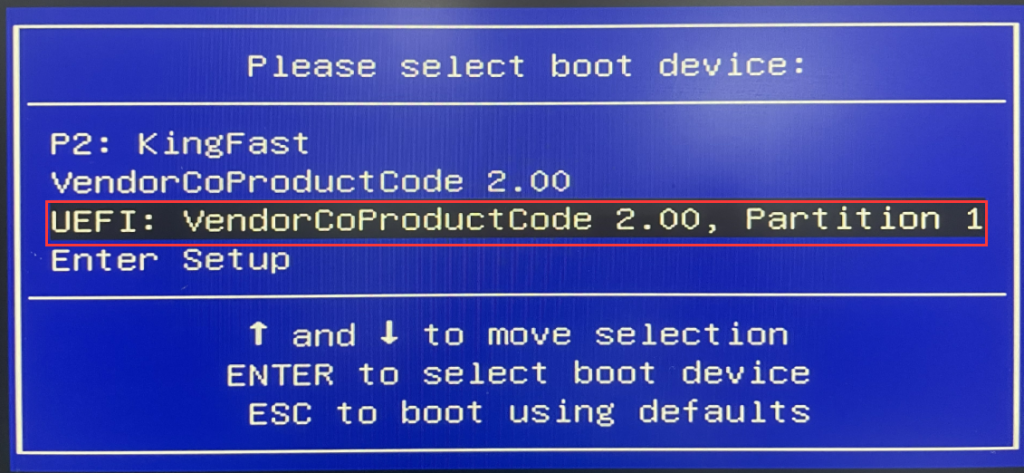
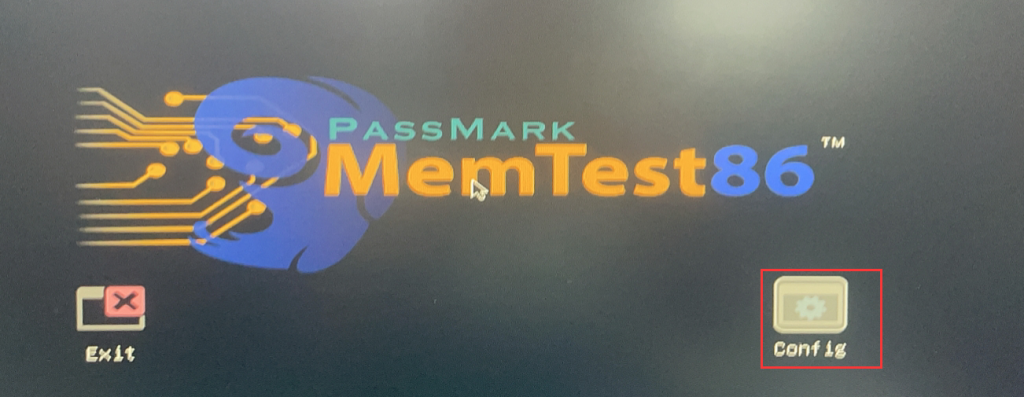
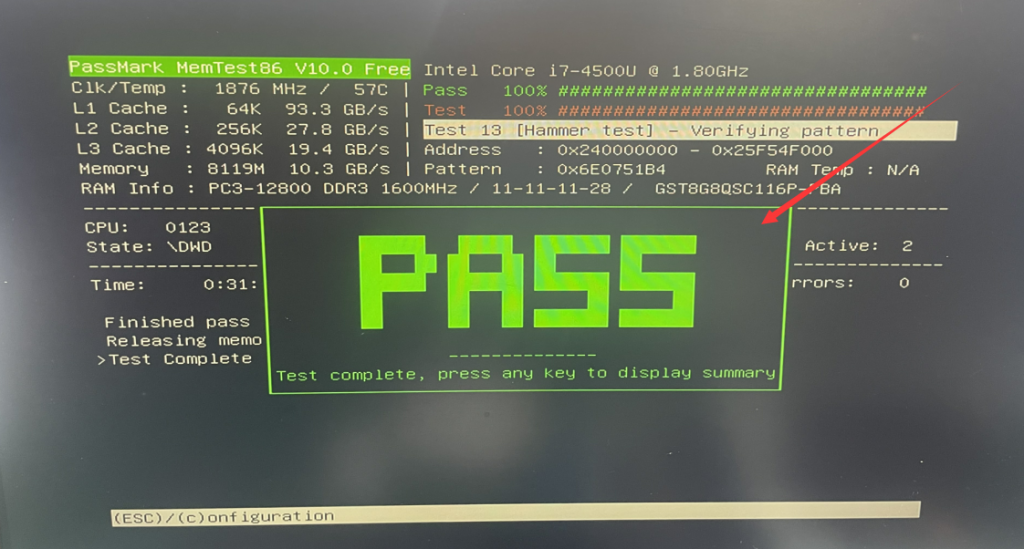
- 4. Wait for the test to be completed. If the word PASS appears, it means the memory module is normal.
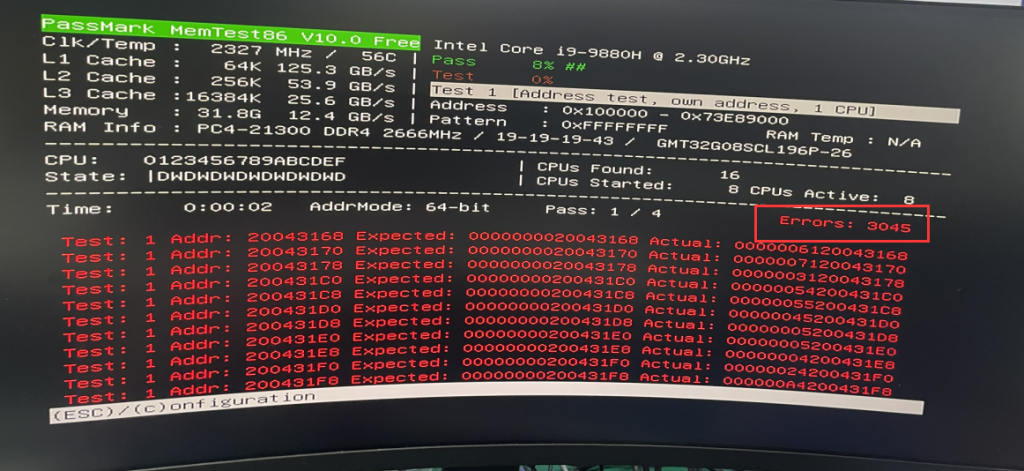
If the word Errors appears, it means that the memory module is abnormal. You can try to replace the memory module to solve the problem.
Prompt Reboot and Select proper boot device troubleshooting steps
Windows 10 or 11 system startup disk production and installation guide
