
What should I do when the Blue Screen of Death occurs in Windows 11? Error code WHEA_UNCORRECTABLE_ERROR
When we use Windows operating system, the more common fault is blue screen, Win11 system WHEA_UNCORRECTABLE_ERROR termination code problem how to solve? Next, I will introduce the solution of the Win11 system blue screen error code WHEA_UNCORRECTABLE_ERROR, hoping to help users solve the blue screen problem.
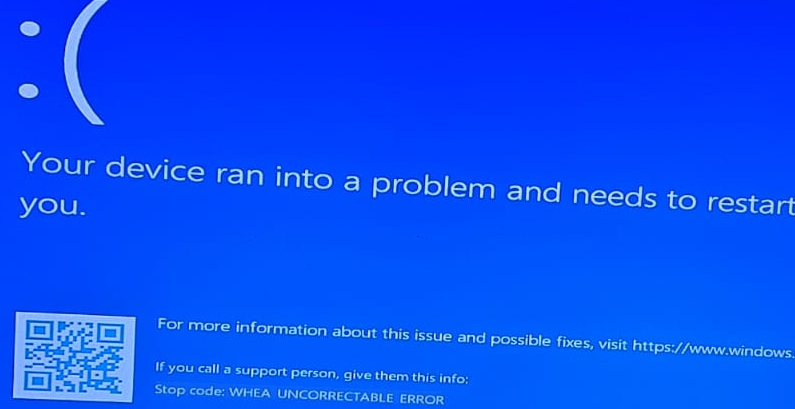
Win11 system blue screen error code WHEA_UNCORRECTABLE_ERROR solution:
Fix 1: Perform disk check using chkdsk
1, just hold down the Windows and R key combination to open the "Run" dialog box.
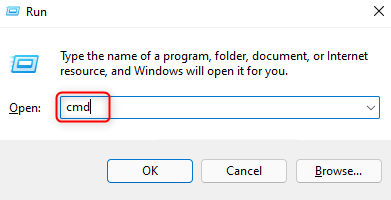
2. Type cmd and press Ctrl + Shift + Enter to open the command prompt as an administrator.
3. Type the following command, then press Enter to execute it.
chkdsk /f /r C:
4, press the Y key on the keyboard to schedule a check at the next system restart.
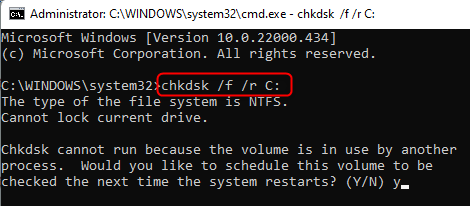
5. Restart your computer. When booting, the disk check process begins.
6. Wait for this check to complete. After the check is completed successfully, your system will start.
Fix 2: Update the display adapter
1. Press Windows + R to open and run.
2. Type devmgmt.msc and press Enter to open Device Manager.
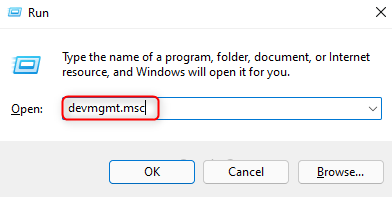
3. Click the down arrow next to the display adapter to expand.
4. Right-click your display adapter and select Update Driver.

5. Select Options Browse my computer to find driver software.
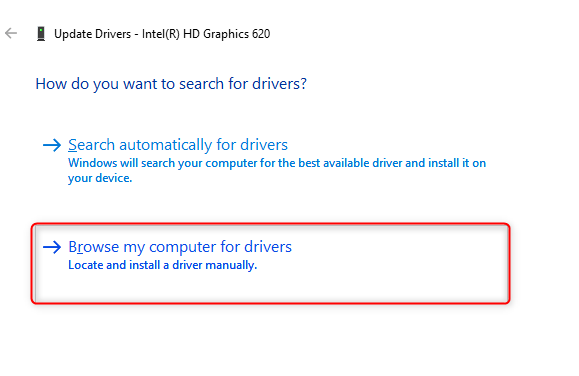
6. In the next window, click Let me select from the list of available drivers on my computer.
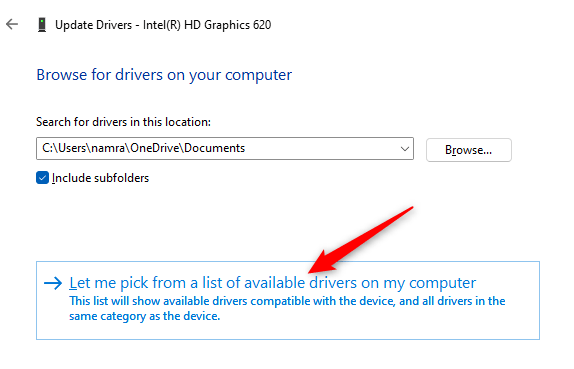
7. You will see a list of compatible drivers. Select it and click Next.
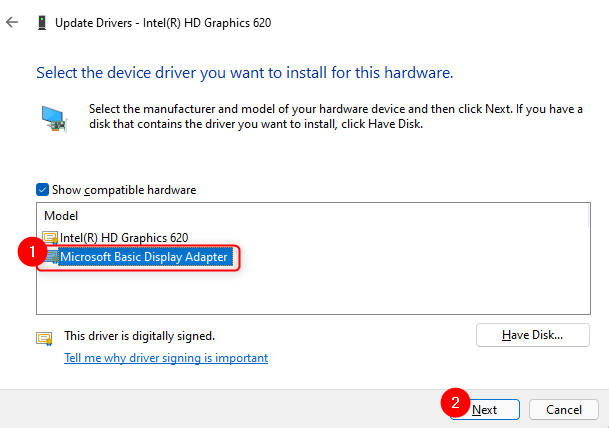
8. Now your driver software will be updated to the latest version.
9. Restart your PC and check that the error has been fixed.
Fix 3: Uninstall the faulty driver
1. Open the device Manager by following steps 1 and 2 in Repair 2 above.
2. Check whether there is a yellow exclamation mark driver in the device manager.
3. Right-click any such driver and select Uninstall Device.
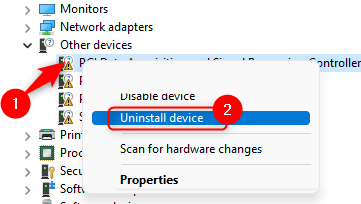
4. In the window that appears, confirm the uninstallation.
5. Refresh the device manager after the uninstallation process. Sometimes this type of driver can be the cause of the error.
6. Restart the PC and check whether the problem is resolved.
Fix 4: Run Windows Memory Diagnostics
1. Open and run Windows + R.
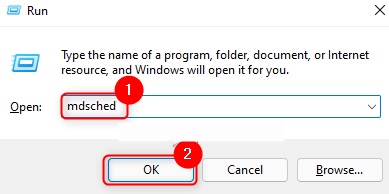
2. Enter mdsched and click OK to open Windows Memory Diagnostic.
3. In the Windows Memory Diagnosis window, click the Restart Now and Check for Problems (recommended) option.
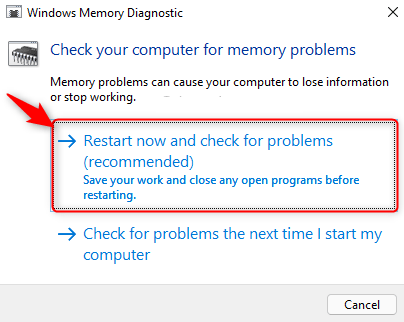
4. Restart your computer and begin the diagnostic process.
5, after the process is complete, Windows will automatically restart and display the test results.
Fix 5: Uninstall the latest Windows update
If you experience this issue after performing a Windows update, try uninstalling the latest update to check if it helps overcome the blue screen error.
1. Use Windows and R key to open and run.
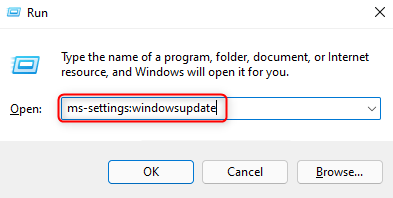
2. Enter ms-settings:windowsupdate and press Enter to open the Windows Update page.
3. Click Update History in the More Options section.
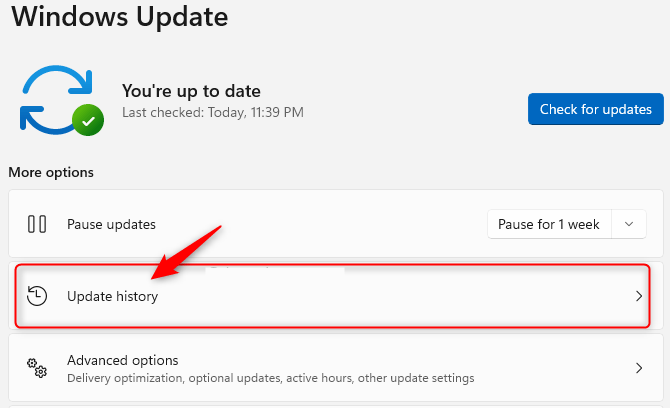
4. Select the option Uninstall Update to view and uninstall the latest update.
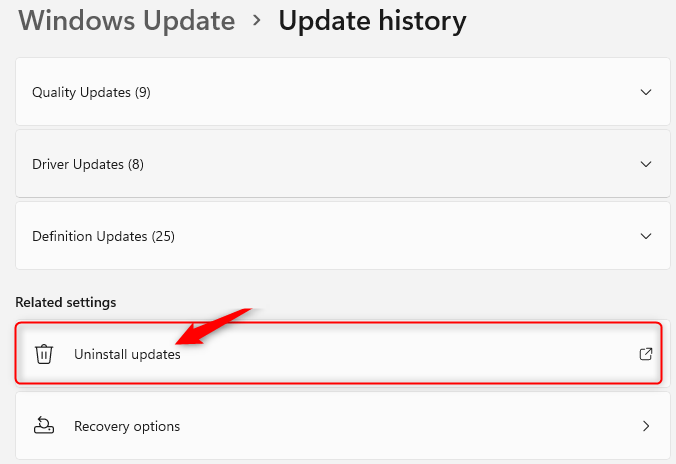
5, here, right-click the latest Windows update in the list and click Uninstall to remove it.
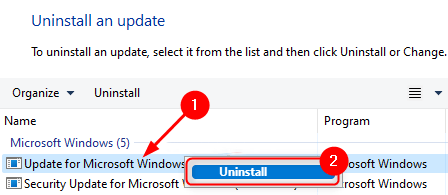
6, restart your PC and check that the problem has been resolved after deleting the latest Windows update.
Solution to the problem of taskbar disappearing and desktop stuck after Windows 11 update
Common configuration guidelines in BIOS for H4T-10th generation models
