
[Windows 10/11] How to back up data normally if you cannot enter the system?
author: VENOEN
2025-06-27
[Windows10/11] How to back up data normally when I cannot enter the system?
Fault symptoms:
Due to various reasons, the computer cannot enter the system normally, and important data cannot be backed up.
Solution:
The computer cannot enter the system properly and cannot enter the safe mode. If the account password is remembered, you can try the following methods.
Steps:
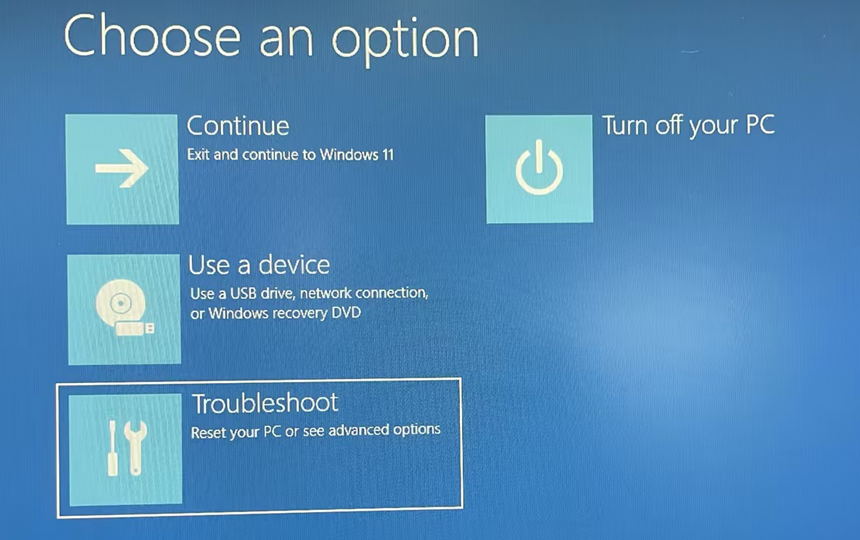
1. Force power off three times, and select "Troubleshoot" after starting, as shown in the figure:
1. Force power off three times, and select "Troubleshoot" after starting, as shown in the figure:
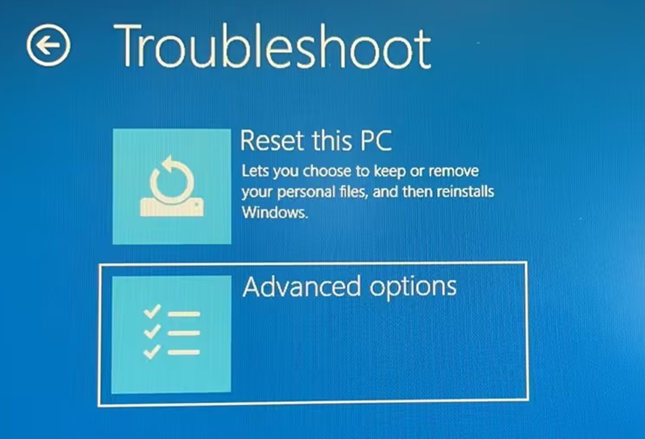
- 2. Select Advanced options, as shown in the figure
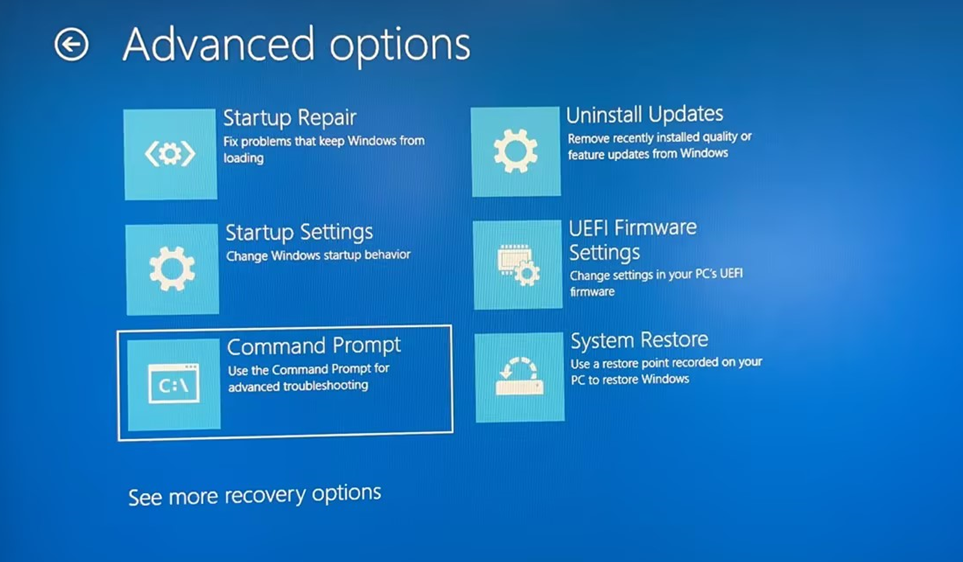
- 3. Select "Command Prompt", as shown in the figure:
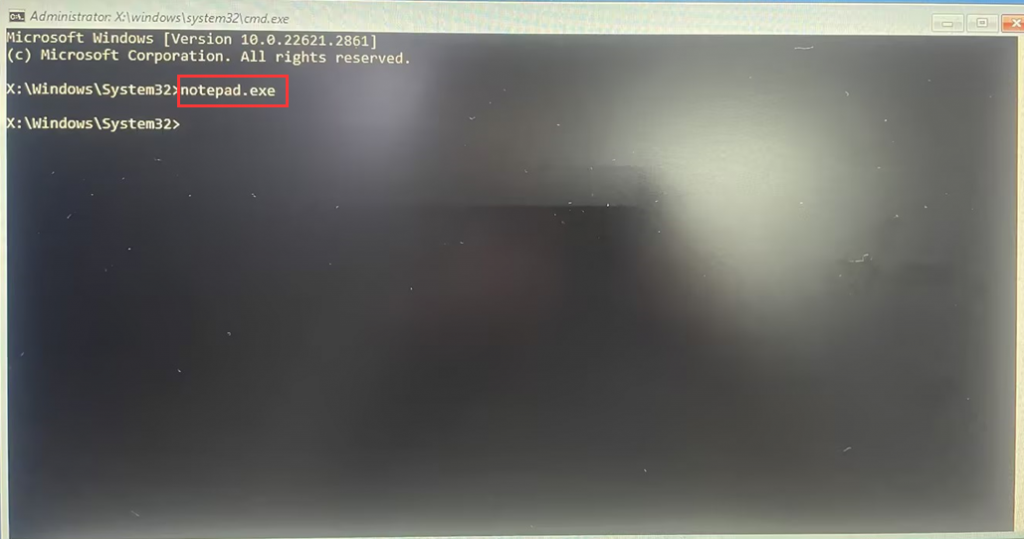
- 4. Pop up the command prompt, enter "notepad.exe" and press enter, as shown in the following figure:
- 5. Pop Untitled - File - Open, as shown in the following figure:
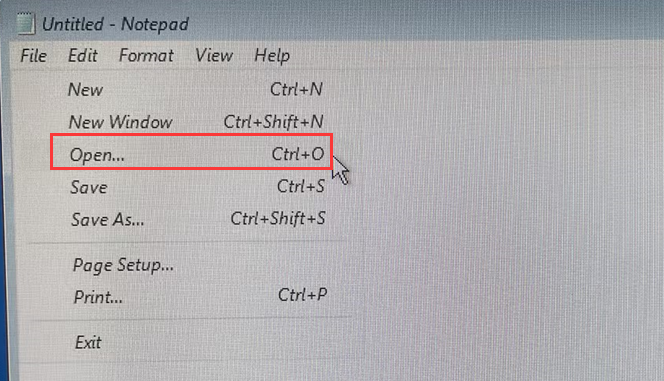
- 6. Prepare a USB flash drive that can be used normally and insert it into the USB port of the computer (tips: Please select a USB flash drive of appropriate capacity according to the size of the data, the capacity of the USB flash drive is recommended to use 64G or 128G);
- 7. Click "This PC" on the left side of the window bar - back up according to the disk capacity or internal data, find the files that need to be backed up, copy them into the USB flash drive and paste them normally.
Note: Because the paste and copy progress bar is not displayed, please wait patiently for a large file. If you cannot see the copied file on the USB flash drive page, refresh the file. It is recommended to copy the file instead of moving it directly.
Desktop file location: C:\Users\ account name \Desktop.
As the picture shows:
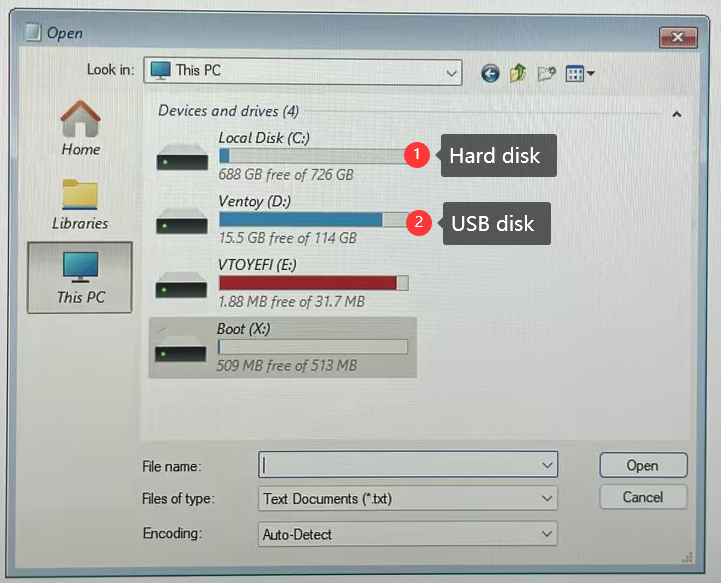
- 8. If you cannot see the Files that need to be backed up, change the default txt file type to All Files, as shown in the following figure:
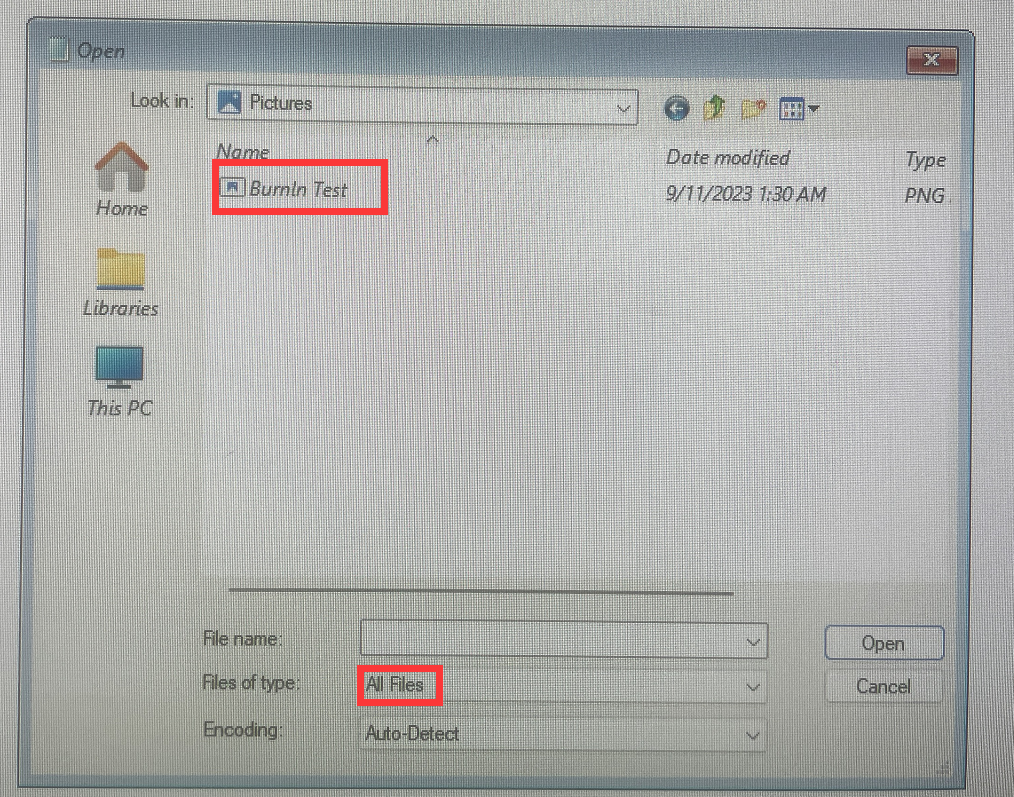
- 9. After the operation is complete, close Notepad - type exit and press enter, as shown in the following figure:
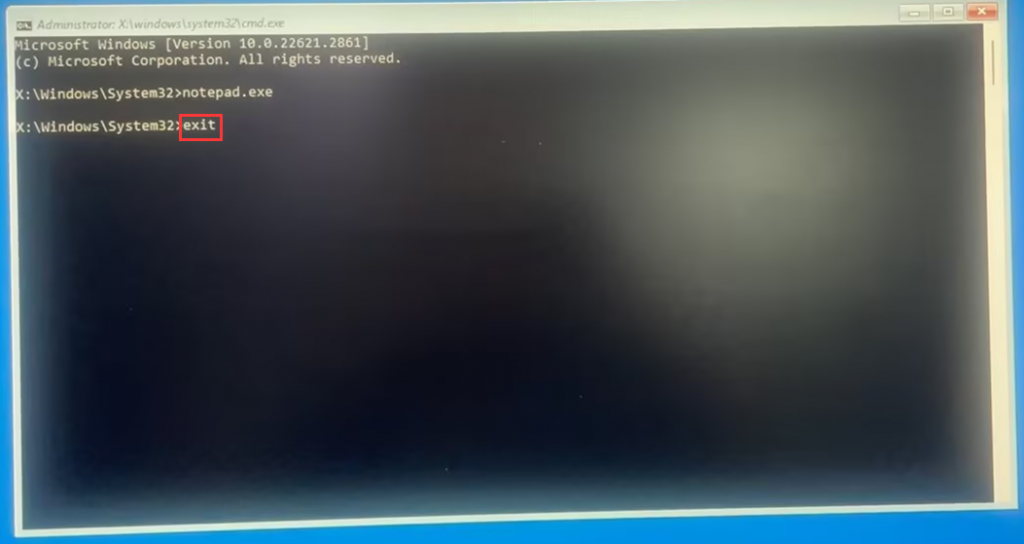
- 10. Select "Turn off your PC", as shown below:
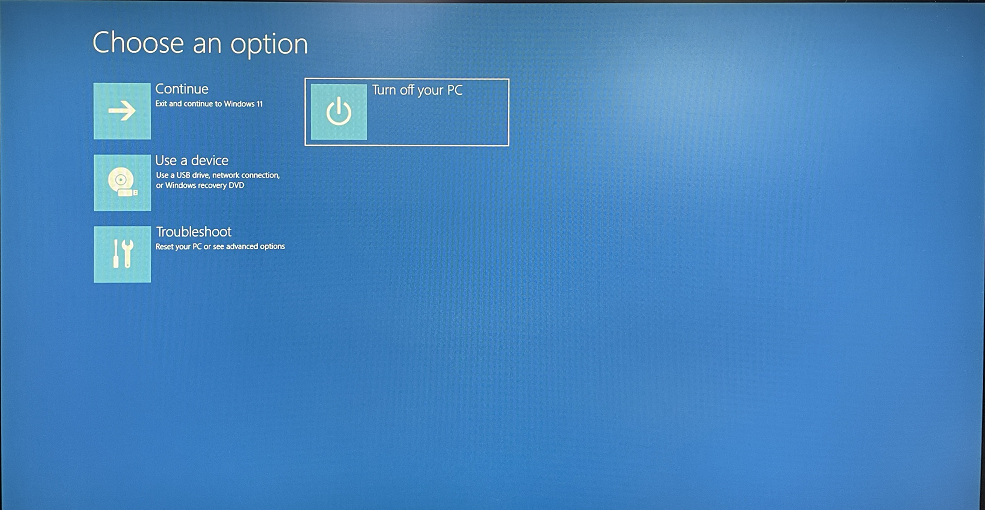
- 11. Find a normal machine to test whether the data in the U disk is copied out normally, and determine that there is no data in the machine before considering the operation to reinstall the system.
How to turn off the computer sleep function in the mini computer BIOS?
How to skip networking and enter the operating system when Windows 11 PRO 23H2 is pre-installed?
