
How to turn off the computer sleep function in the mini computer BIOS?
author: VENOEN
2025-06-27
How to turn off computer sleep function in minicomputer BIOS?
Overview:
By default, the sleep function is enabled in the BIOS of the minicomputer. In the Windows10 or Windows11 operating system, if the computer is in standby mode for 30 minutes, the computer automatically enters the sleep state. Automatic sleep mainly has the following aspects of significance:
Energy saving: Entering a low power consumption state when not in use, reducing energy consumption, for long-term operation of equipment, can save considerable power.
Extend the life of the hardware: Let the hardware rest when it is not working, reduce the loss caused by long-term operation, such as reducing the aging speed of electronic components, help to extend the overall service life of the computer.
Data security: Entering the sleep state can avoid data loss or damage caused by accidental operations or other circumstances, and play a certain role in data protection.
Fast recovery: When you need to use it again, you can wake up relatively quickly and restore to the previous working state, without affecting the user experience and improving work efficiency.
Environmental protection: Reduce energy waste, more friendly to the environment, in line with the concept of sustainable development.
System stability: Proper sleep can help the system clear some temporary data and cache, and maintain the stable operation of the system.
Considering that the mini industrial host should be different scenarios, some users need the computer to run 7*24 hours uninterrupted, you can enter the BIOS to turn off the automatic sleep function.
Extend the life of the hardware: Let the hardware rest when it is not working, reduce the loss caused by long-term operation, such as reducing the aging speed of electronic components, help to extend the overall service life of the computer.
Data security: Entering the sleep state can avoid data loss or damage caused by accidental operations or other circumstances, and play a certain role in data protection.
Fast recovery: When you need to use it again, you can wake up relatively quickly and restore to the previous working state, without affecting the user experience and improving work efficiency.
Environmental protection: Reduce energy waste, more friendly to the environment, in line with the concept of sustainable development.
System stability: Proper sleep can help the system clear some temporary data and cache, and maintain the stable operation of the system.
Considering that the mini industrial host should be different scenarios, some users need the computer to run 7*24 hours uninterrupted, you can enter the BIOS to turn off the automatic sleep function.
Disabling steps:
Step 1 Press the SW button and quickly press the Del key on the keyboard to enter the BIOS Setup.
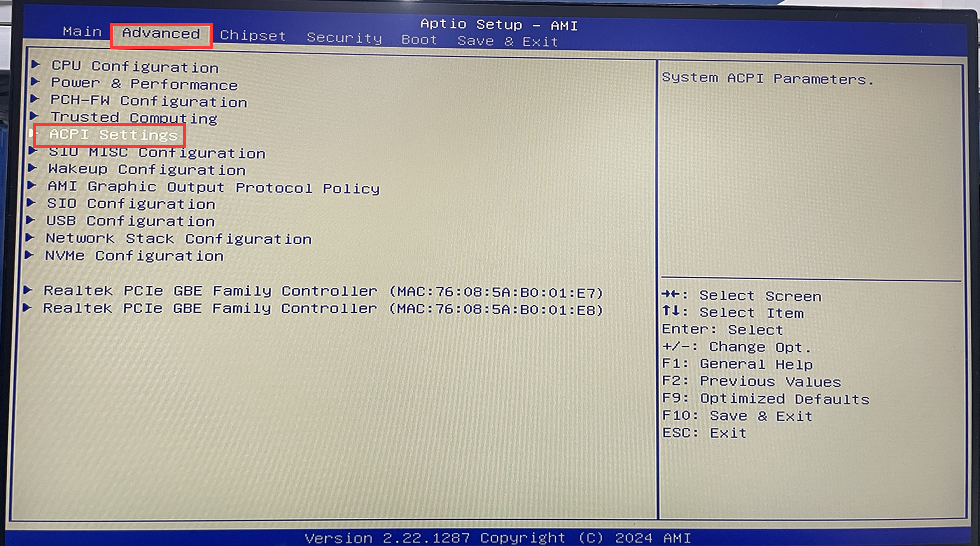
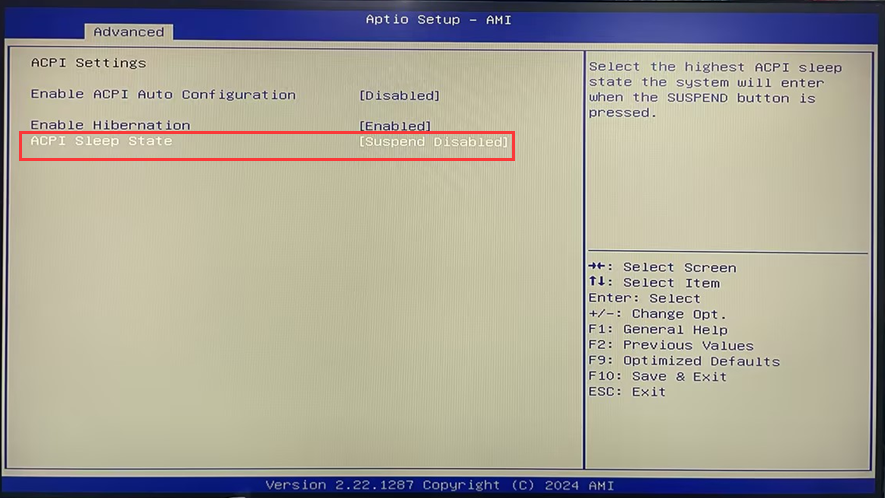
Step 2: After entering the BIOS, choose Advanced>ACPI Settings> Set ACPI Sleep State to [Suspend Disabled].
Step 1 Press the SW button and quickly press the Del key on the keyboard to enter the BIOS Setup.
Step 2: After entering the BIOS, choose Advanced>ACPI Settings> Set ACPI Sleep State to [Suspend Disabled].
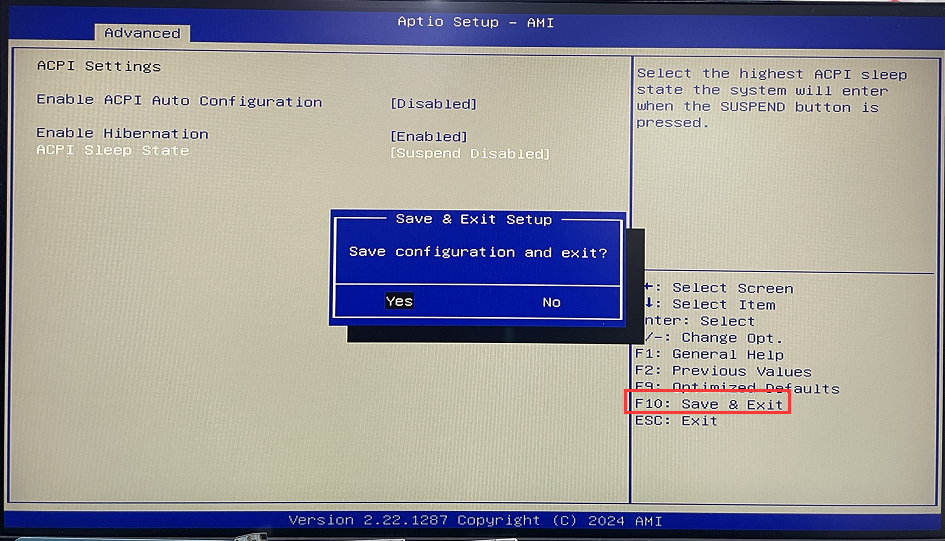
- Step 3: Press F10 to Save & Exit after the configuration is complete.
How to enter safe mode in Windows 10 (Steps to enter safe mode)
[Windows 10/11] How to back up data normally if you cannot enter the system?
