
[M3-13th Gen] configuration timer boot steps
author: VENOEN
2025-08-08
Step for configuring the M3-13 generation to start up at a scheduled time
Step 1 Press the SW button and quickly press the Del key on the keyboard to enter the BIOS Setup.
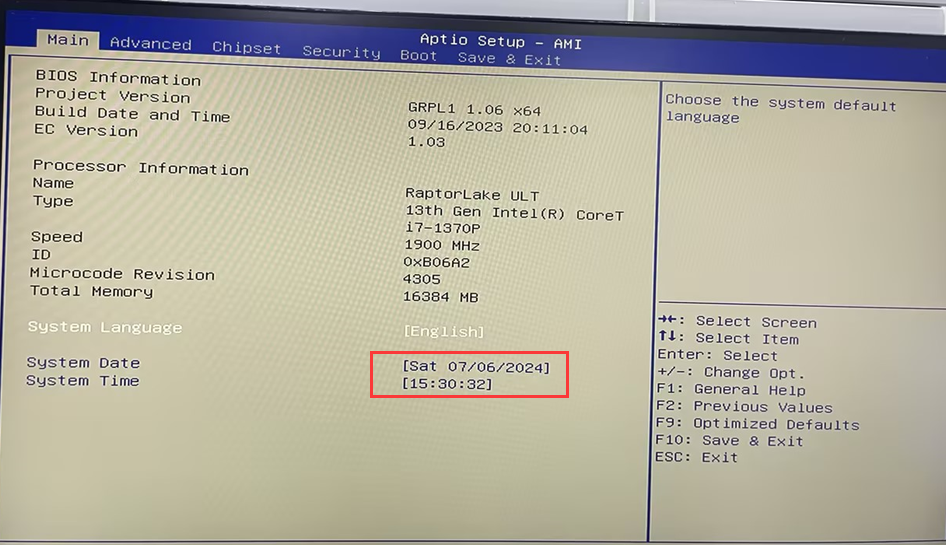
Step 2: Go to the Main page and check whether the System Date and System Time are correct. If they are incorrect, set the date and time to the correct values. After the Settings are complete, press F10 to save the Settings and exit.
Step 2: Go to the Main page and check whether the System Date and System Time are correct. If they are incorrect, set the date and time to the correct values. After the Settings are complete, press F10 to save the Settings and exit.
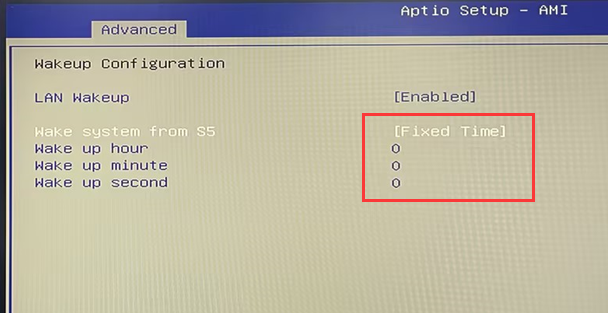
- Step 3: After the restart, press Del to enter the BIOS again. Choose Wakeup Configuration> Set Wake system from S5 to [Fixed Time]. Set the specified time in Wake up hore\wake up minute\wake up second. If you need to start at 8 am, enter 8 in Wake up hour;
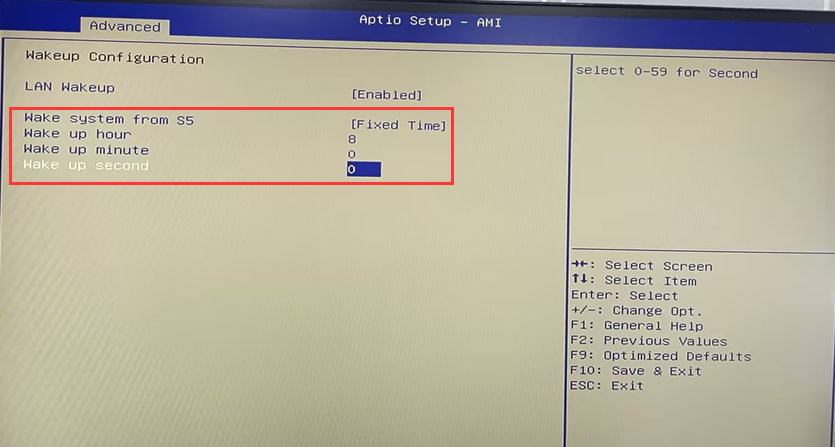
- Step 4: Press F10 to save the configuration and exit.
[F9-12th Gen] Configure Auto power on steps
[H4 ] Steps to check the hard disk in BIOS (M.2 NVME/M.2 SATA/MSATA/SATA)
