
How to check CPU speed (operating frequency) under Windows 11 system
author: VENOEN
2025-07-02
How to Check the CPU Speed (Working Frequency) in Windows11?
CPU operating frequency overview:
CPU operating frequency, also commonly known as the main frequency, refers to the speed of the digital pulse signal oscillation inside the CPU, the unit is Hertz (Hz), which determines the number of instructions that the CPU can execute per second. The higher the operating frequency, the more data the CPU can process per unit time, and the performance is relatively stronger.
For example, a 3.0GHz CPU means that it can generate 3 billion clock cycles per second, and each clock cycle the CPU can complete a certain operation.
However, the CPU's operating frequency is not always fixed; it dynamically adjusts according to the current workload and system requirements.
Maximum repulse
Maximum frequency is a technology proposed by Intel, which refers to the highest frequency that the CPU can automatically boost. When running high-load tasks with a single thread or a few threads (such as large games, video rendering, etc.), the CPU will automatically increase its operating frequency beyond its default base frequency if heat dissipation and power supply conditions permit, in order to provide stronger performance.
For example, the base frequency of a certain CPU is 2.5GHz, and the maximum Rui frequency is 4.5GHz. In some high-intensity computing scenarios, it can automatically boost to 4.5GHz to speed up processing.
It should be noted that the maximum rui frequency is usually not maintained for a long time, because too high a frequency will bring more heat and power consumption. In addition, mini PCS, due to their compact size and heat dissipation conditions, may not be comparable to standard desktop computers or high-performance laptops in terms of hardware configuration and heat dissipation capacity. When the CPU runs at a high load for a long time, in order to prevent overheating from damaging the hardware, the system automatically takes measures to reduce the temperature, resulting in the failure to reach the official maximum working speed.
To make this more intuitive, let's say you're playing a game that requires a lot of CPU performance. During the game, complex scene calculations may trigger the CPU to increase from the default frequency to the maximum frequency, making the game run more smoothly. However, if it continues to be in this high load state, the CPU frequency may decrease due to heat dissipation and other reasons to ensure the stability of the system.
View CPU speed in Task Manager
After entering the Windows11 desktop, press Ctrl+Shift+Esc to enter the Task Manager, and choose Performance>CPU> Speed> to view the current CPU speed (working frequency).
CPU operating frequency, also commonly known as the main frequency, refers to the speed of the digital pulse signal oscillation inside the CPU, the unit is Hertz (Hz), which determines the number of instructions that the CPU can execute per second. The higher the operating frequency, the more data the CPU can process per unit time, and the performance is relatively stronger.
For example, a 3.0GHz CPU means that it can generate 3 billion clock cycles per second, and each clock cycle the CPU can complete a certain operation.
However, the CPU's operating frequency is not always fixed; it dynamically adjusts according to the current workload and system requirements.
Maximum repulse
Maximum frequency is a technology proposed by Intel, which refers to the highest frequency that the CPU can automatically boost. When running high-load tasks with a single thread or a few threads (such as large games, video rendering, etc.), the CPU will automatically increase its operating frequency beyond its default base frequency if heat dissipation and power supply conditions permit, in order to provide stronger performance.
For example, the base frequency of a certain CPU is 2.5GHz, and the maximum Rui frequency is 4.5GHz. In some high-intensity computing scenarios, it can automatically boost to 4.5GHz to speed up processing.
It should be noted that the maximum rui frequency is usually not maintained for a long time, because too high a frequency will bring more heat and power consumption. In addition, mini PCS, due to their compact size and heat dissipation conditions, may not be comparable to standard desktop computers or high-performance laptops in terms of hardware configuration and heat dissipation capacity. When the CPU runs at a high load for a long time, in order to prevent overheating from damaging the hardware, the system automatically takes measures to reduce the temperature, resulting in the failure to reach the official maximum working speed.
To make this more intuitive, let's say you're playing a game that requires a lot of CPU performance. During the game, complex scene calculations may trigger the CPU to increase from the default frequency to the maximum frequency, making the game run more smoothly. However, if it continues to be in this high load state, the CPU frequency may decrease due to heat dissipation and other reasons to ensure the stability of the system.
View CPU speed in Task Manager
After entering the Windows11 desktop, press Ctrl+Shift+Esc to enter the Task Manager, and choose Performance>CPU> Speed> to view the current CPU speed (working frequency).

- Use a third-party tool
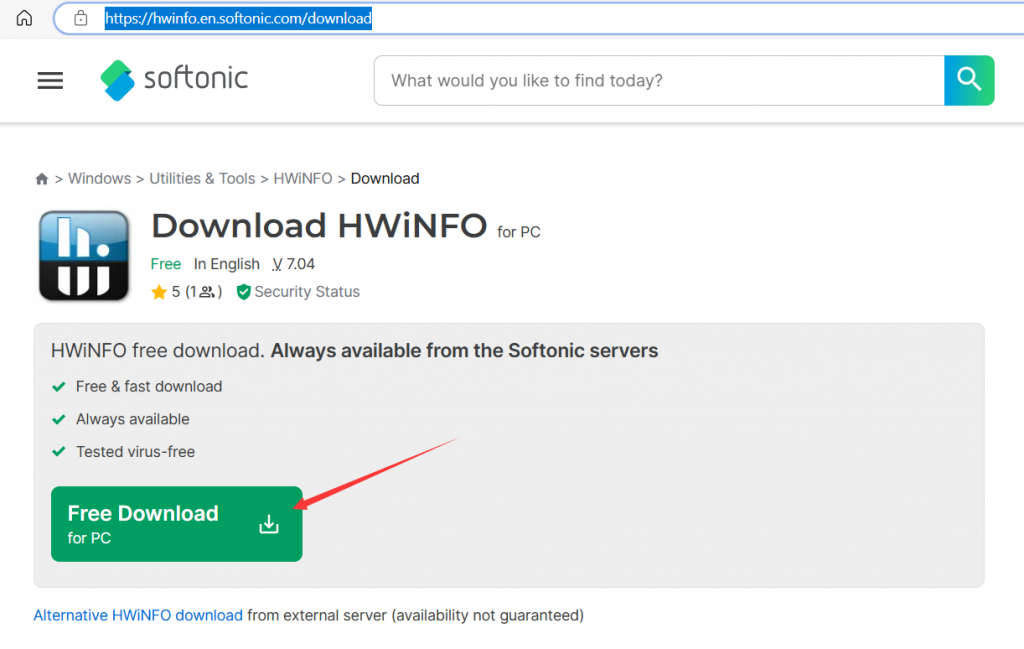
- Here recommend HWiNFO this tool, download address:Download HWiNFO - free - latest version (softonic.com),Click Free Download to download;
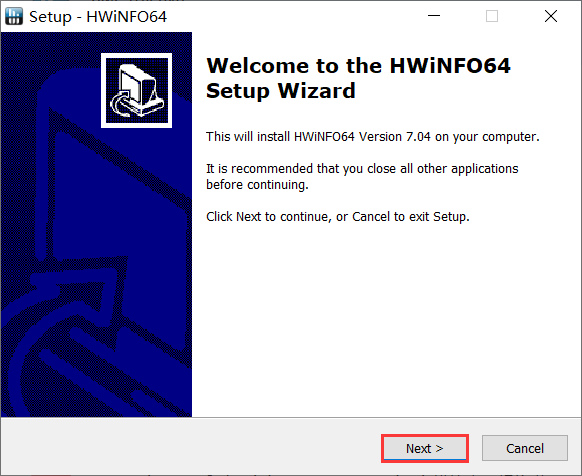
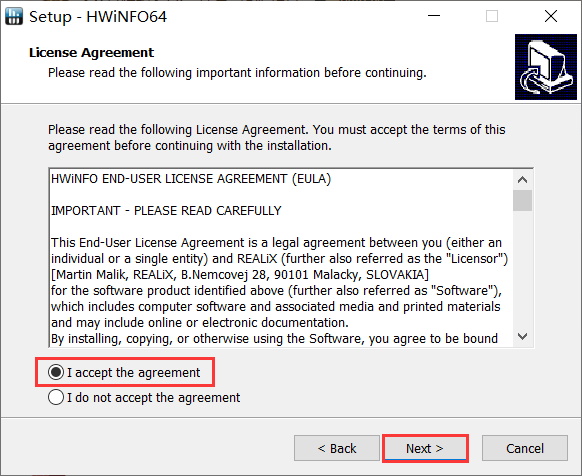
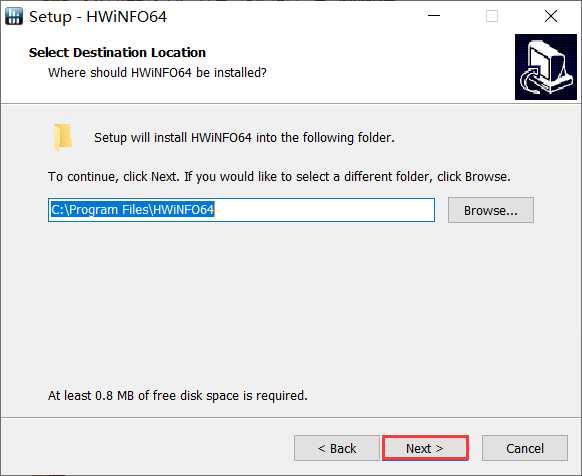
- After the download is complete, double-click hwi_704.exe to install it. The following is the installation screenshot.
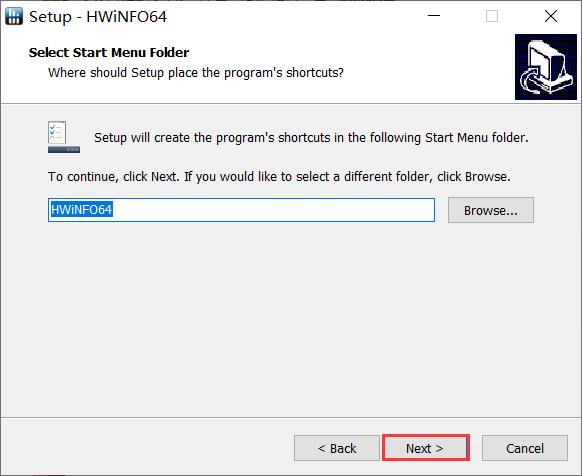

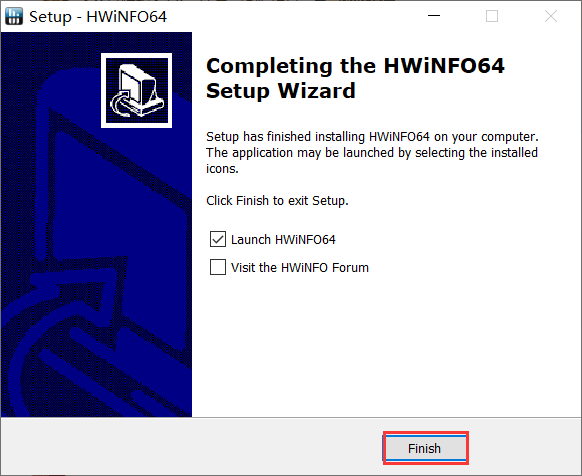
- Run the software after installation;
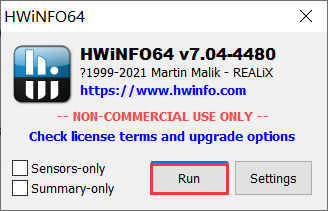
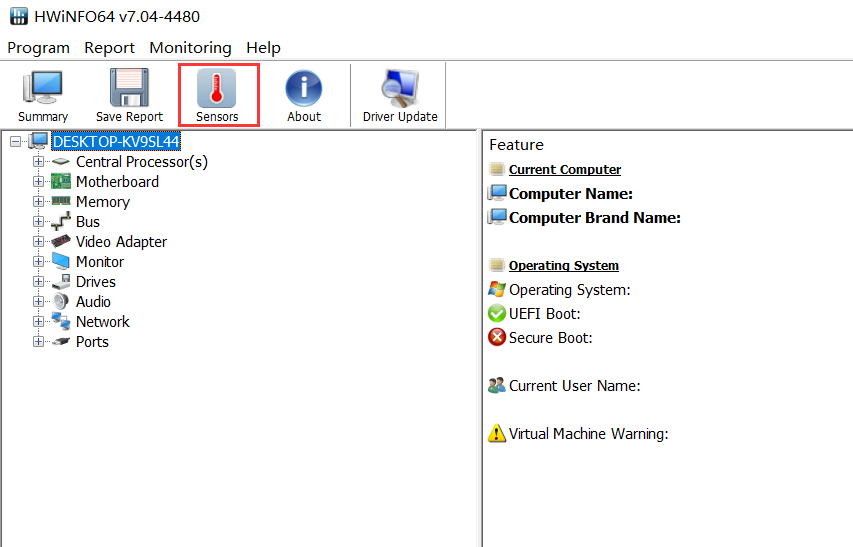
- In the software, click Sensors and find the Core Clocks option to check the operating frequency of the CPU.

Mini computer serial port self-loop test steps under Windows system (RS232, RS422, RS485)
How to use Bluetooth in Windows 11
