
[K4-4th/8th gen] front USB 3.0 port does not recognize USB peripherals. Product troubleshooting steps
author: VENOEN
2025-08-08
K4-4th/8th gen The USB peripheral product is not identified by the front USB3.0 port
Fault symptom description:
USB peripheral products (such as U disk, mobile hard disk, USB printing device) are connected to the USB front 3.0 port, the computer does not recognize the USB peripheral products, and can be recognized normally when connected to the USB2.0 and post-USB3.0.

- Fault cause analysis, possible causes:
Connection problems: The cable between the front port and the motherboard may be loose, damaged, or improperly connected.
For example, the connection cable is pulled during installation or transportation, causing the interface to loosen.
Insufficient power supply: The power supply to the front port may not meet the requirements of some high-power USB peripherals.
For example, it is connected to an external hard drive that requires a large current drive.
Port damage: The front USB port itself may be physically damaged.
It may be caused by external force impact or improper insertion during use.
BIOS setup problem: The BIOS Settings for the front USB port may be incorrect.
For example, the front port is disabled.
Check procedure (please check step by step) :
1. Check the cable: In the power off state, use a screwdriver (PH2) to remove the four screws at the bottom of the chassis to open the chassis, and check whether the cable between the front USB 3.0 port and the mainboard is firmly connected. Try to re-plug the front USB3.0 cable and start the test again.
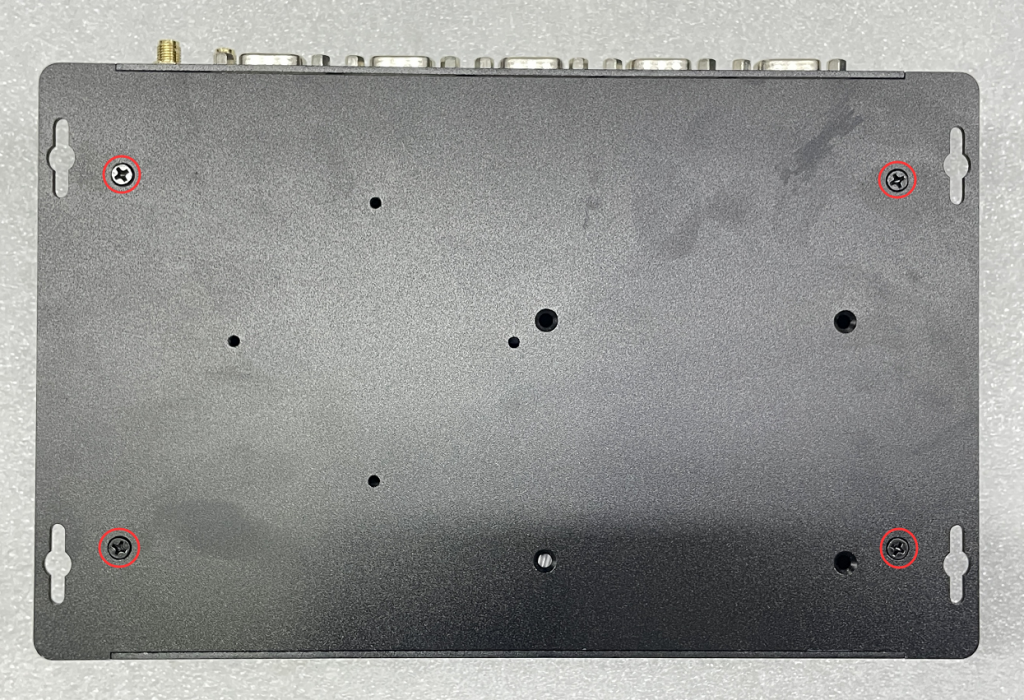
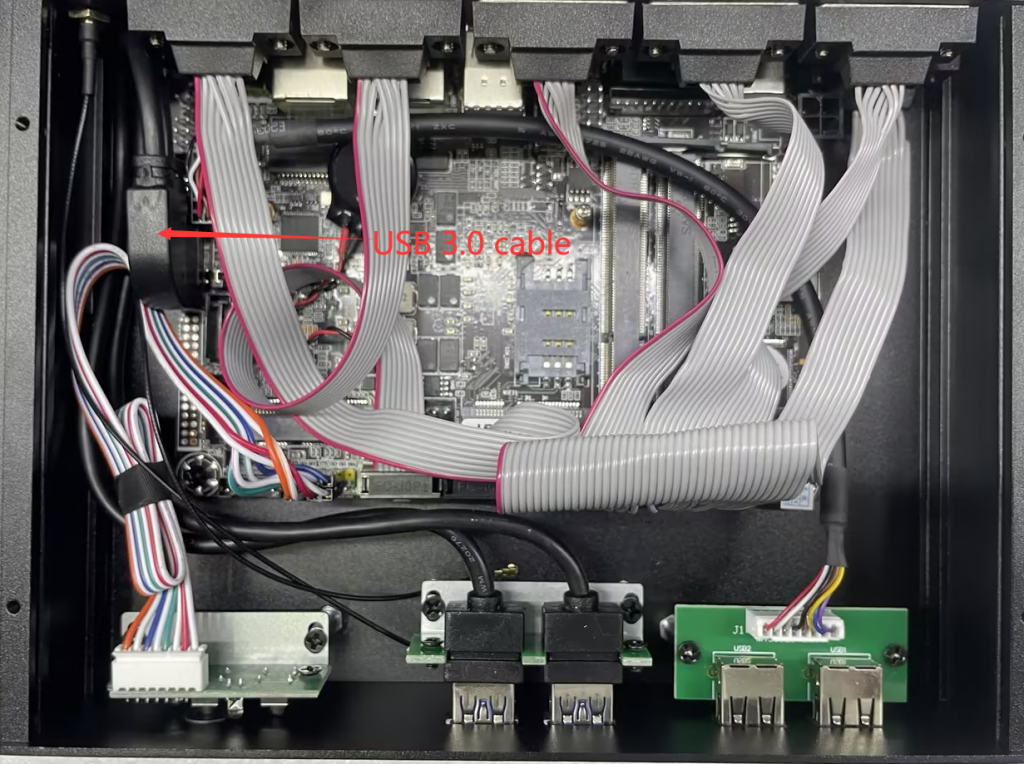
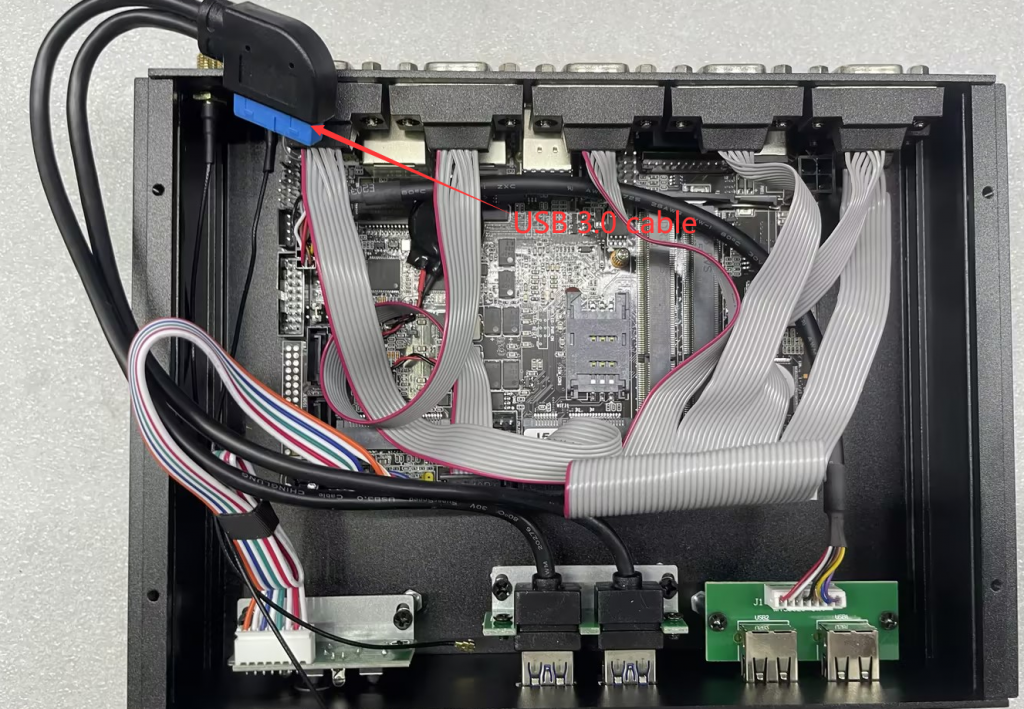
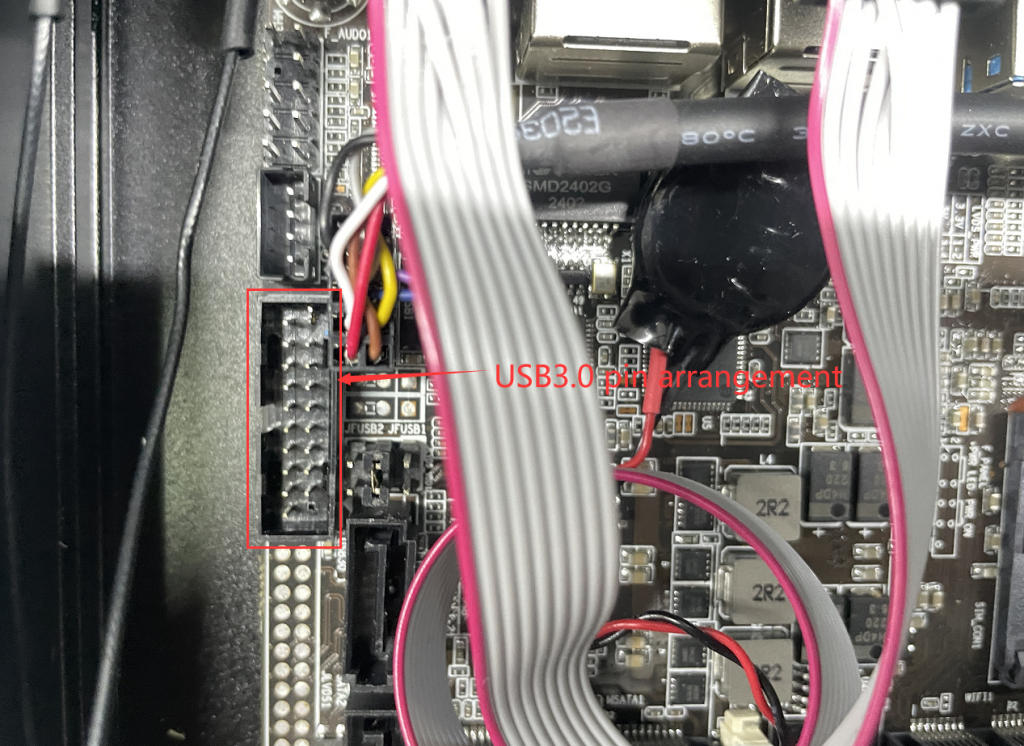
- 2. Test the power supply: Connect a low-power USB device (such as a USB flash drive) to the front USB3.0 port to see whether it can be identified. If it can be identified, the high power device may be unavailable due to insufficient power supply.
3. Check the port appearance: Check the front USB 3.0 port for physical damage, such as deformation, foreign bodies, or bent pins.
Press the SW button to start the system. When the startup LOGO is displayed, press Del on the keyboard to enter the BIOS. Press F9 to restore the BIOS default values.
5. Reinstall the USB driver: Uninstall the driver of the USB controller in the device Manager, then rescan for hardware changes, and let the system reinstall the driver.
[Windows 10/11] How to solve the problem of system restore failure
Method for querying motherboard SN serial number and UUID number on Windows 10 and Ubuntu systems
