
[Windows 11/10]Log in to the system and create a Microsoft account
author: VENOEN
2025-07-30
[Windows11] system login \ create Microsoft account
After logging into your Microsoft account, you can enjoy some of the following features and conveniences:
Sync Settings and data: Personalize Settings such as desktop backgrounds, theme colors, browser favorites, and automatically sync these Settings across devices for a consistent experience across multiple devices.
Use OneDrive cloud storage: Easily access and synchronize files across different devices.
Download and manage applications: You can download and purchase applications in the Microsoft Store and centrally manage purchase and download records.
Access to XBox-related services: If you're using the Xbox gaming platform, it's easy to set up and manage.
Associate other Microsoft services, such as Outlook email and Microsoft 365, to manage and use these services in a unified manner.
Login \ Create Microsoft account
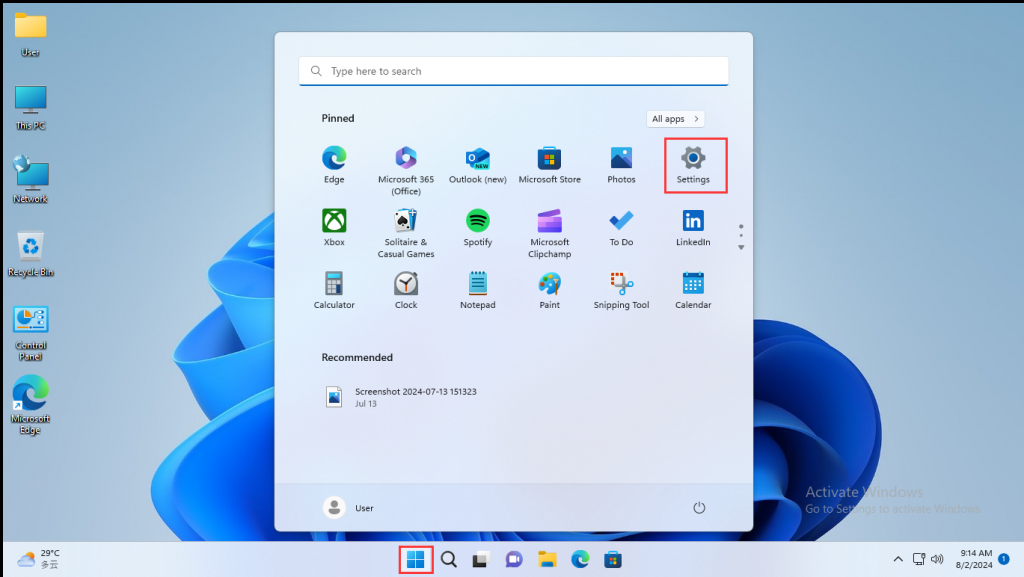
Step 1: Click [Start] and select Settings.
Use OneDrive cloud storage: Easily access and synchronize files across different devices.
Download and manage applications: You can download and purchase applications in the Microsoft Store and centrally manage purchase and download records.
Access to XBox-related services: If you're using the Xbox gaming platform, it's easy to set up and manage.
Associate other Microsoft services, such as Outlook email and Microsoft 365, to manage and use these services in a unified manner.
Login \ Create Microsoft account
Step 1: Click [Start] and select Settings.
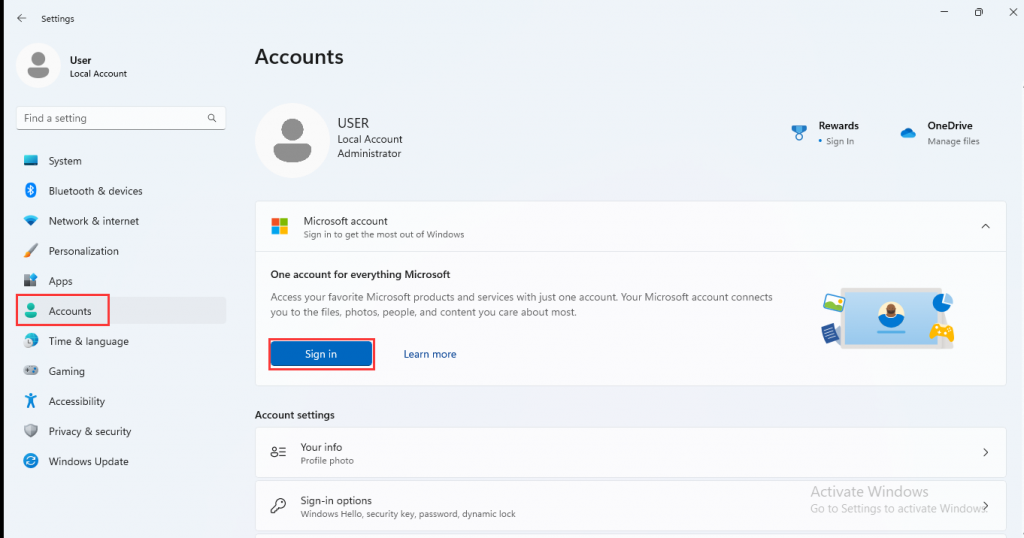
- Step 2: Select [Accounts]>Microsoft account>Sign in;
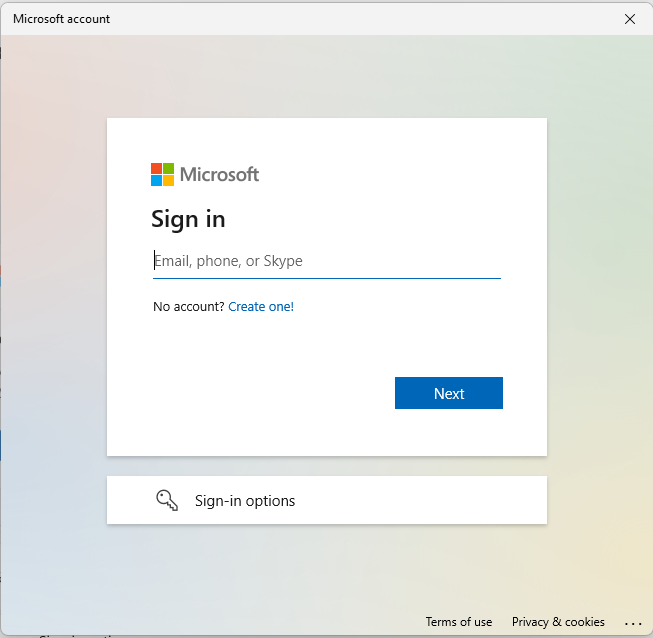
- Step 3: Log in to your email, phone number, or Skype account that you use for other Microsoft services such as Outlook, Office, etc.
If you do not have a Microsoft account, click [Create one]
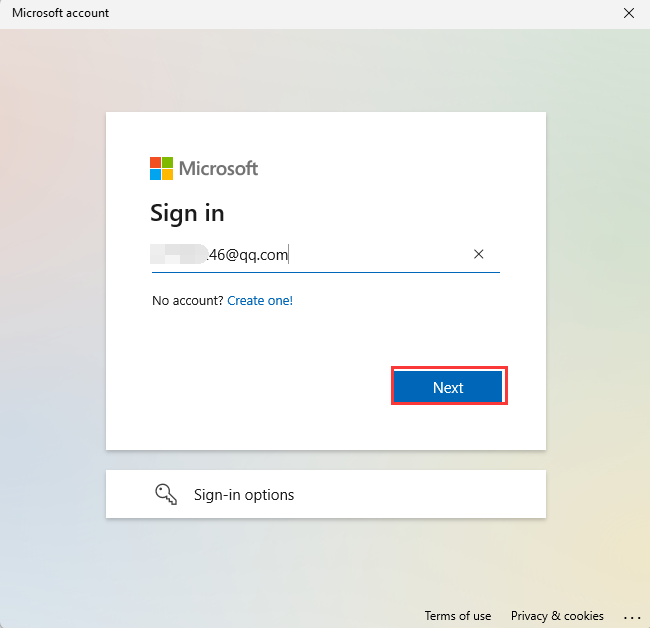
- Step 4: Enter your email address (this will be your Microsoft account login) and click [Next].
If you do not have an email address, you can also use a phone number or get a new email address.
- Step 5: Please enter the Microsoft account password you want to use and click [Next].
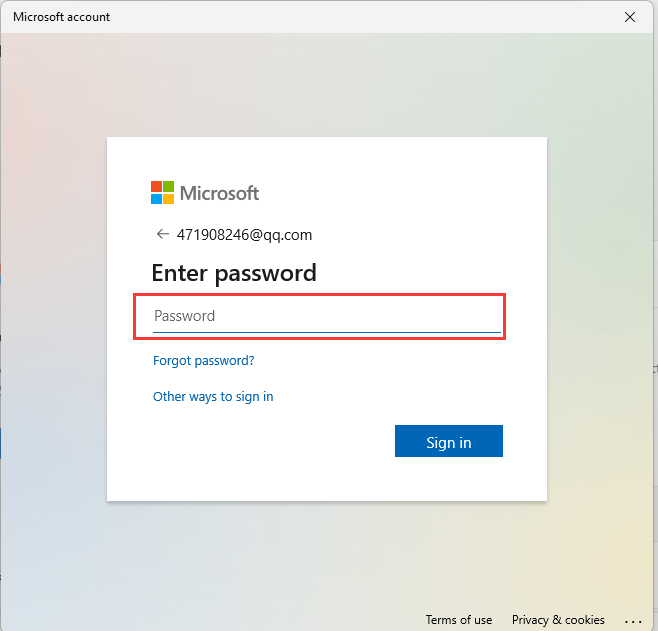
- Step 6: In order to improve the speed and security of login, Windows may require you to use a PIN code to log in, please click [Next];
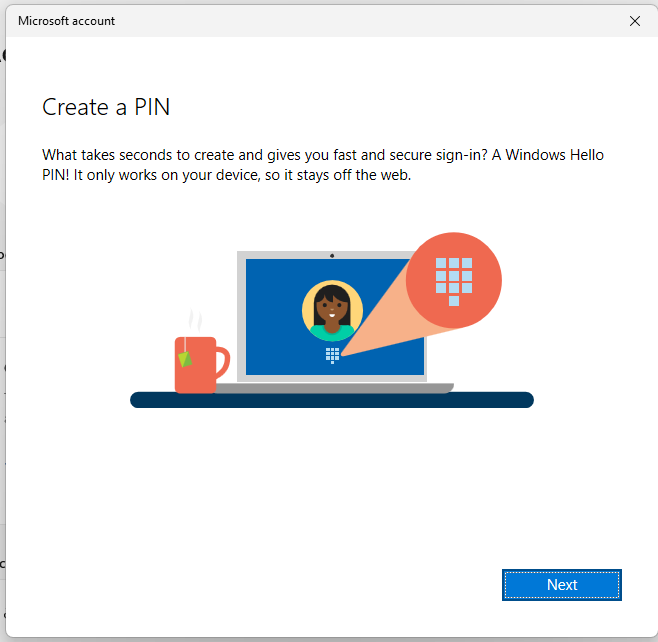
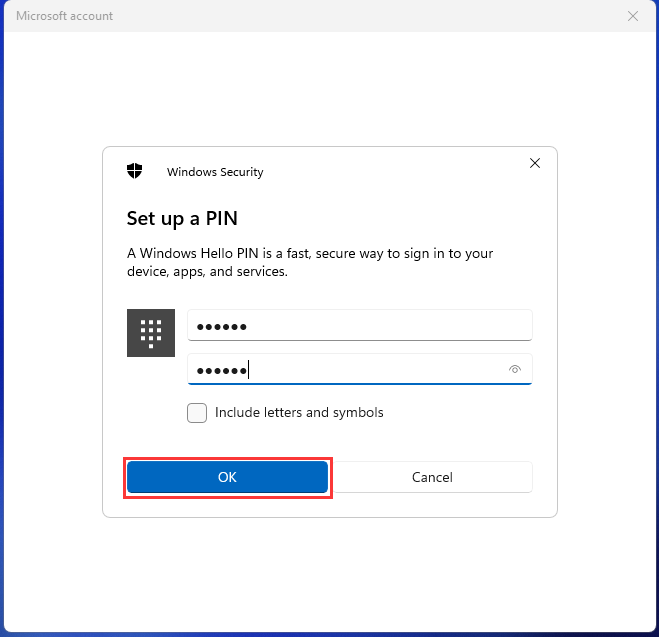
- Step 7: Set the PIN you want to use and click [OK]. This PIN will be used to log in to Windows later;
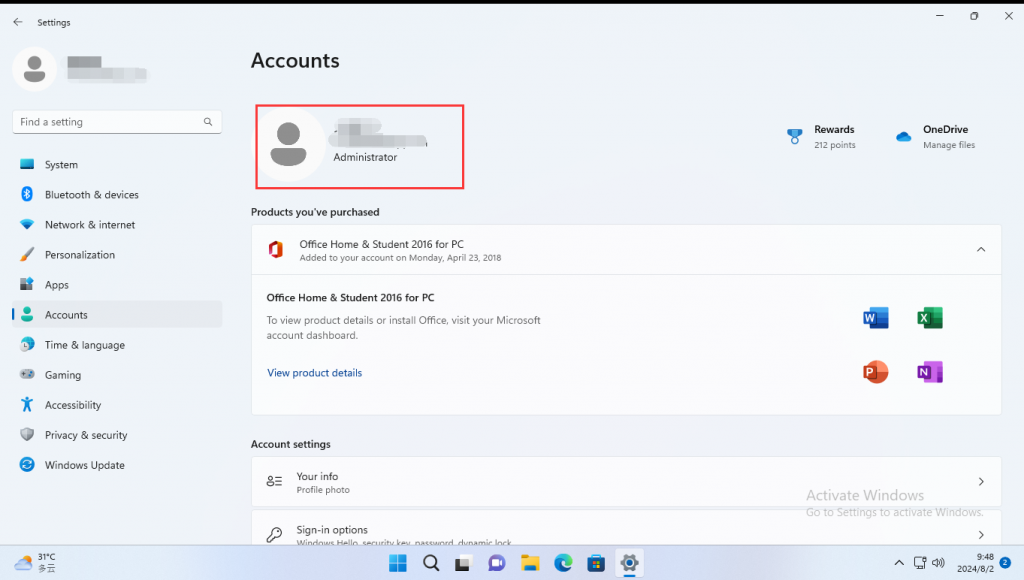
- Step 8: Microsoft account login complete. Your Microsoft account name will appear in your message.
- PS: If you have forgotten your Microsoft account password, you can reset it by following the link steps.
- Reset a forgotten Microsoft account password - Microsoft Support
[Windows 11/10] How to uninstall applications, Windows update files, drivers
[Windows 11]Create a system restore point and restore steps
