
[Windows 11/10] How to uninstall applications, Windows update files, drivers
author: VENOEN
2025-06-19
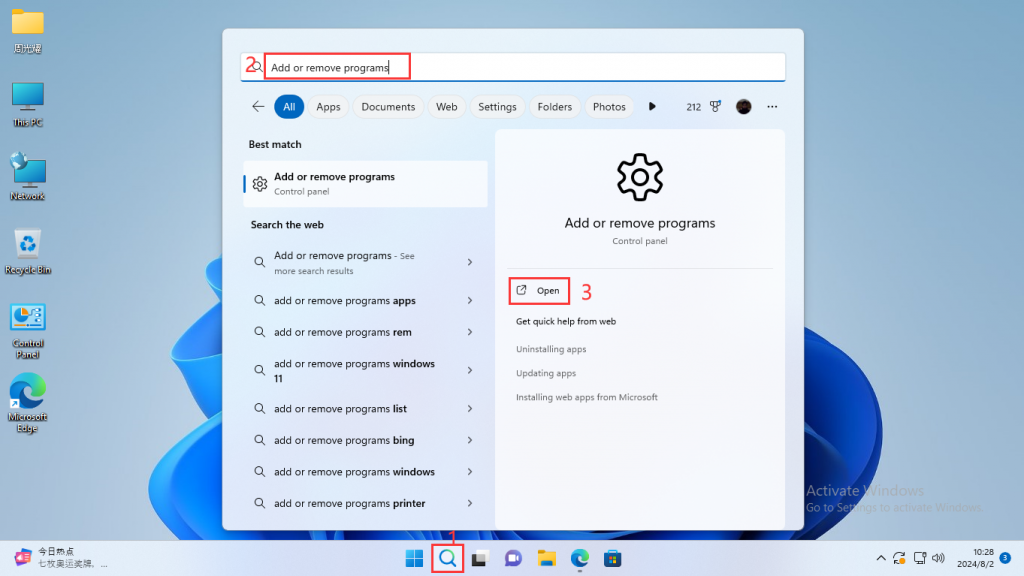
- Step 1: Type Add or Remove Programs in the Windows search bar and click Open.
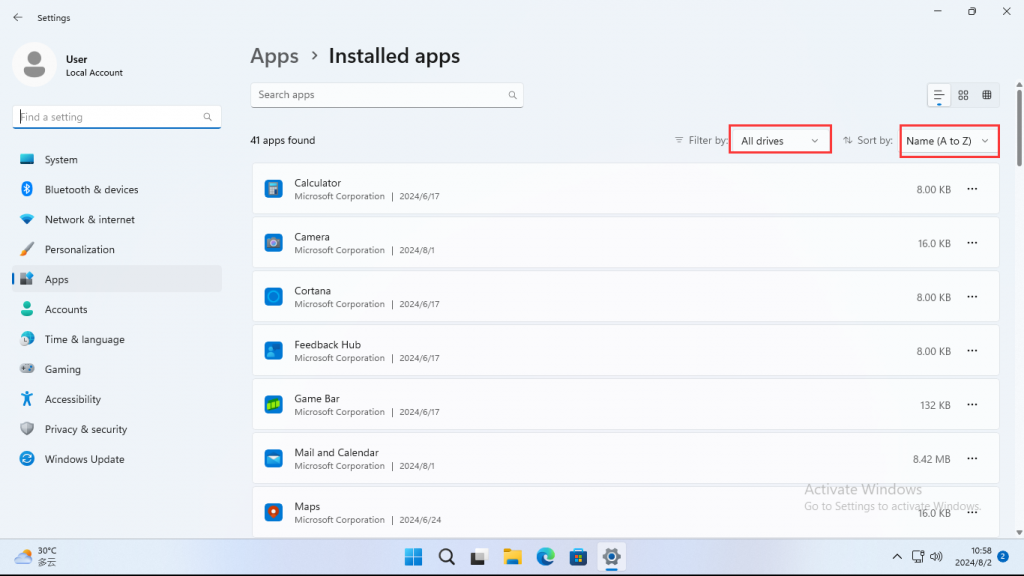
- Step 2: In applications and features, you can select name, size, or installation date as the sort, and select all disk drives or specific disk drives as the filter;
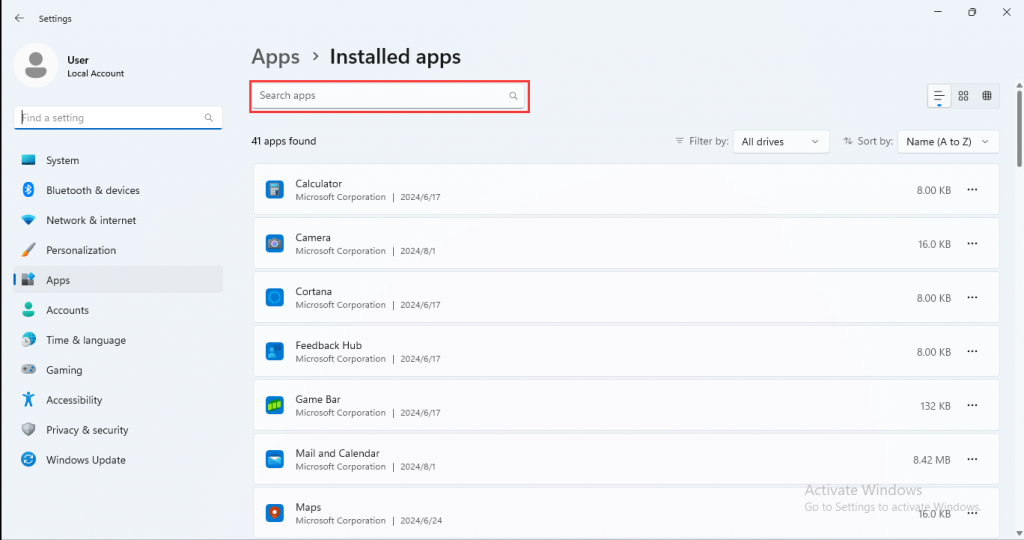
- Step 3: You can also enter the text (or keywords) that you want to uninstall the deleted program in the field of the search application, and you will see the search results in the list below;
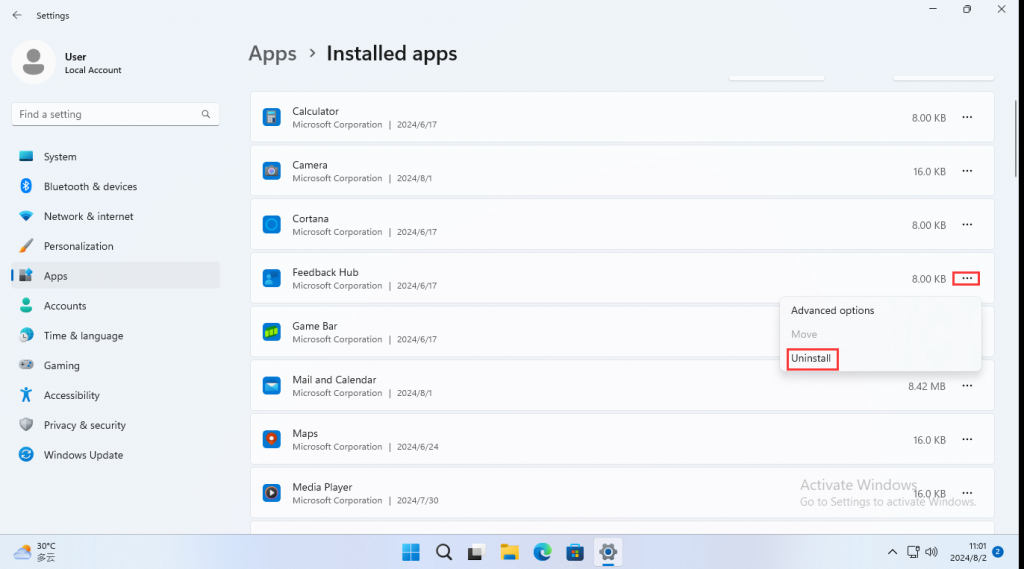
- Step 4: Select next to the deleted application you want to uninstall [...] Then click [Uninstall].
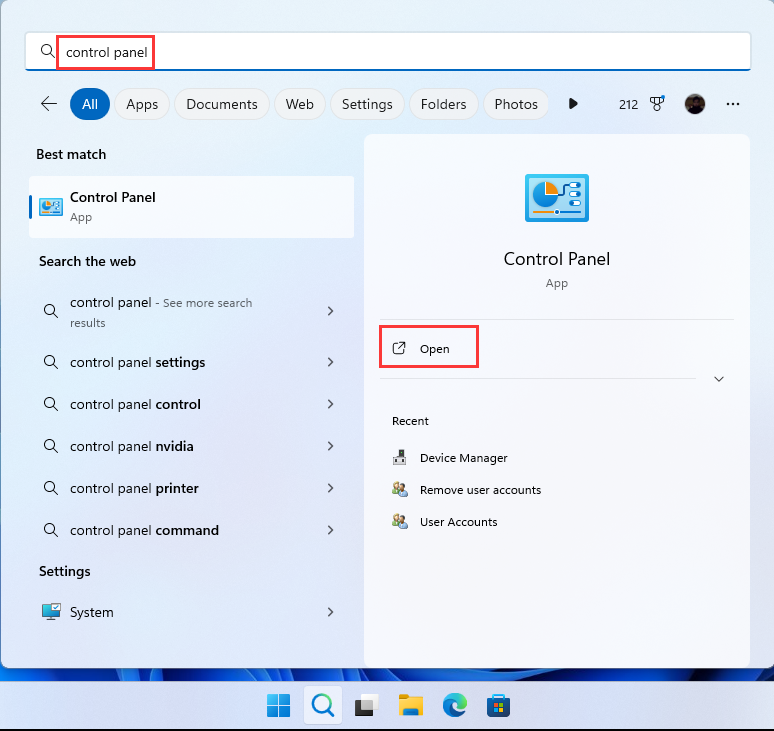
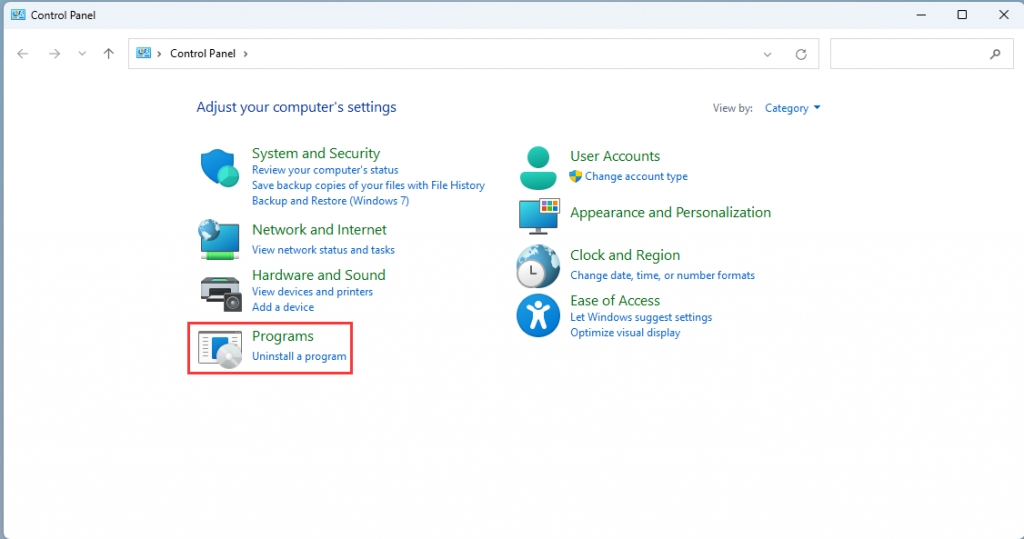
- Step 2: Tap [Programs].
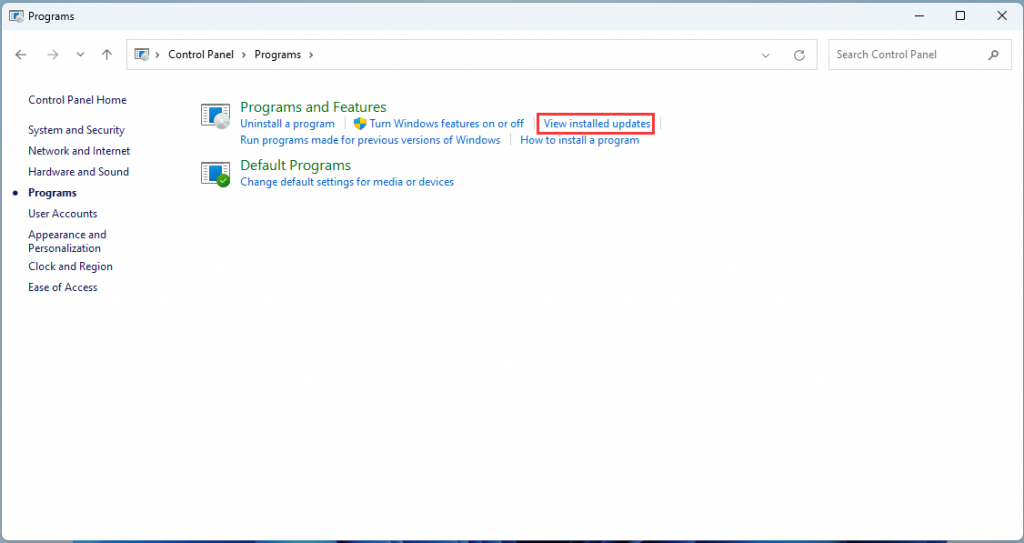
- Step 3: Click [View installed updates].
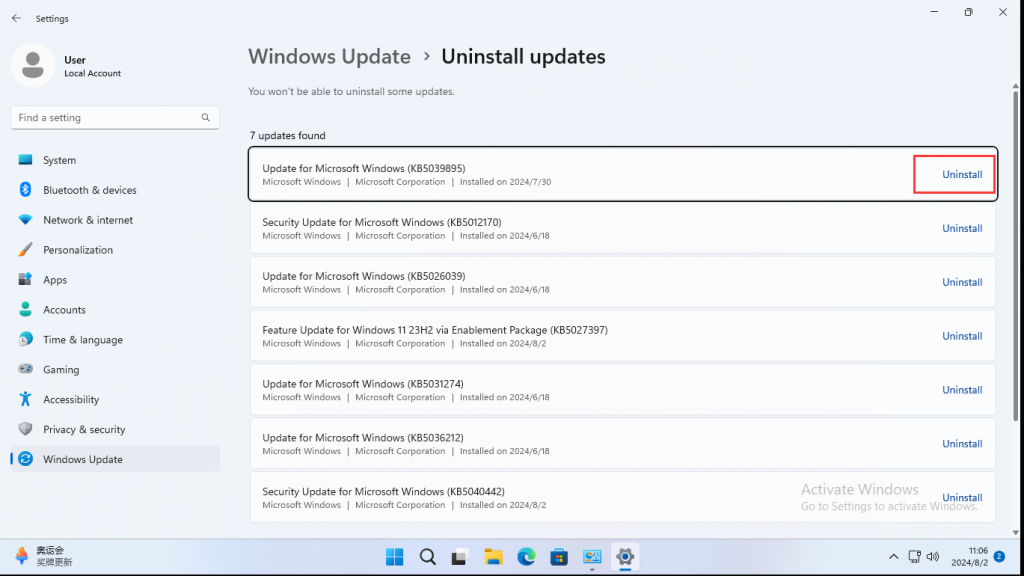
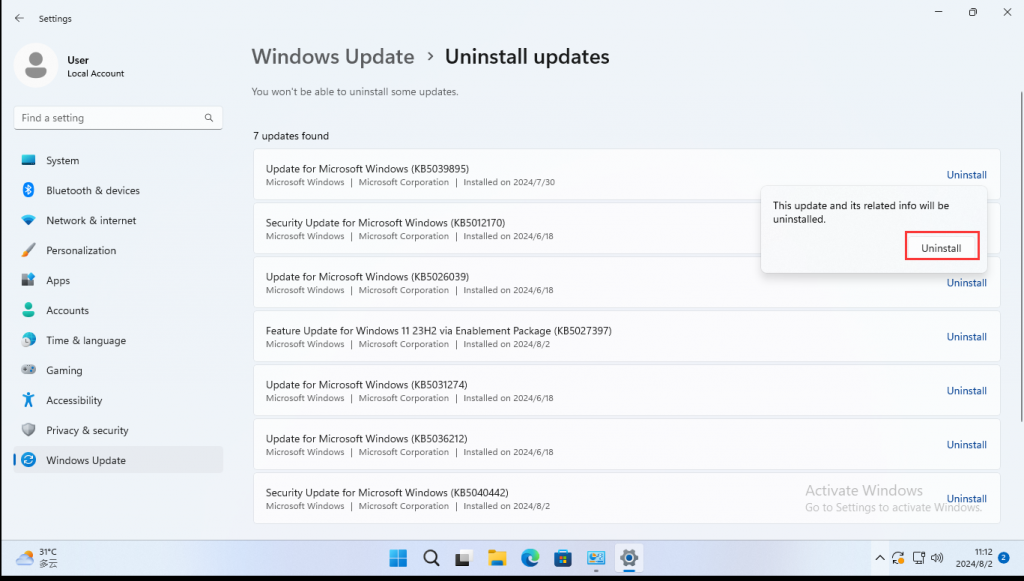
- Step 4: Select the update file to Uninstall and click [Uninstall].
- Step 5: "This update and its related info will be uninstalled" is displayed. Click [Uninstall] to uninstall the update.
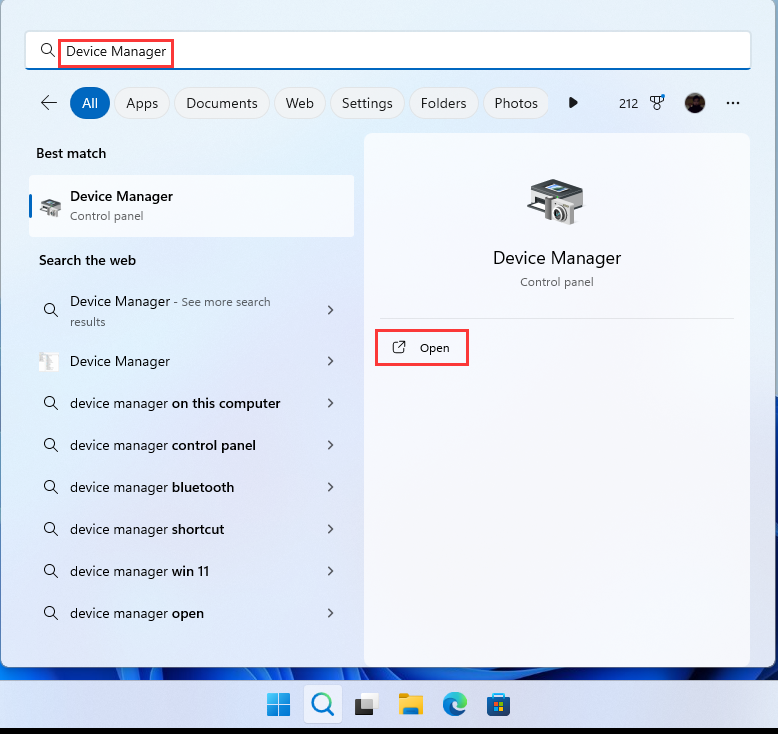
- Step 1: Enter [Device Manager] in the Windows search box and click [Open].
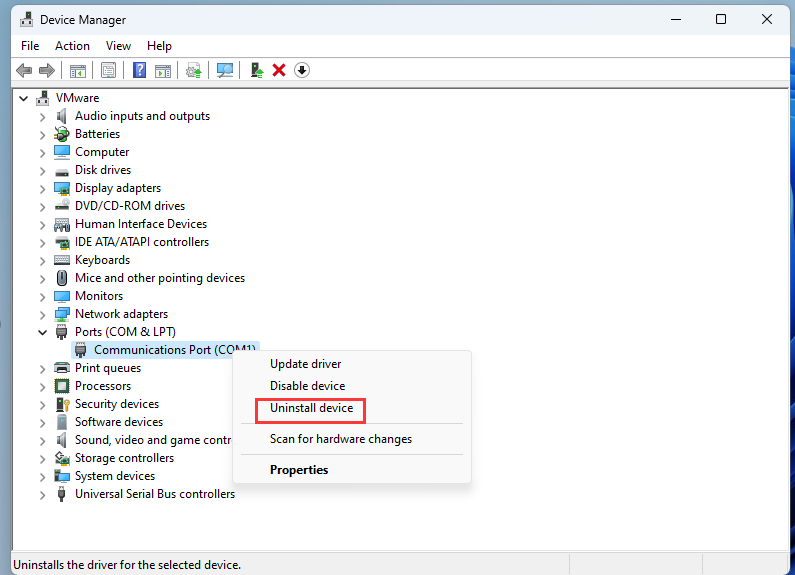
- Step 2: Right-click the device you want to uninstall the driver from, and then click [Uninstall device].
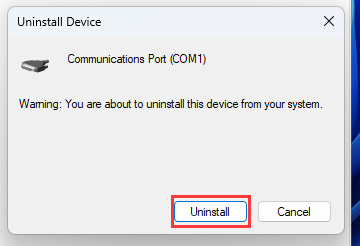
- Step 3: Confirm whether to uninstall, click [Unistall] to uninstall the driver.
[Windows11] Rest this PC
[Windows 11/10]Log in to the system and create a Microsoft account
