
The computer automatically enters the BIOS page when it boots up, but cannot enter the operating system. Troubleshooting steps
author: VENOEN
2025-06-20
When the system starts, the BIOS page is displayed automatically, and the OS troubleshooting procedure cannot be displayed
Problem Description: After you press the SW button to display the startup LOGO, the BIOS page is displayed automatically, and the operating system desktop cannot be displayed.
The possible reasons for this phenomenon are:
The hard disk is not installed, the hard disk is loose, the metal contacts are oxidized, or the hard disk is incompatible with the mainboard.
The operating system is not installed on the hard disk, or the startup mode of the operating system is inconsistent with that of the BIOS.
BIOS parameters are incorrectly configured.
The hard disk slot is abnormal or the mainboard circuit is faulty.
Troubleshooting Procedure: (Using M9 as an example)
Step 1: In the BIOS, check whether the hard disk is properly identified and whether the hard disk name and capacity are normal.
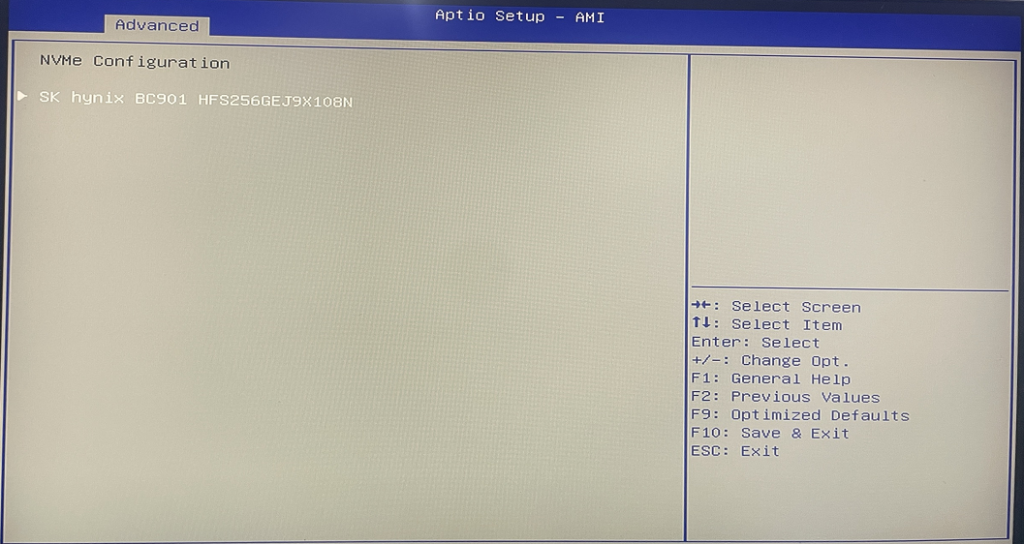
Procedure for querying NVME SSDS: After entering the BIOS, choose Advanced> NVME Configuration> On this page, check whether NVME SSDS are identified.
The operating system is not installed on the hard disk, or the startup mode of the operating system is inconsistent with that of the BIOS.
BIOS parameters are incorrectly configured.
The hard disk slot is abnormal or the mainboard circuit is faulty.
Troubleshooting Procedure: (Using M9 as an example)
Step 1: In the BIOS, check whether the hard disk is properly identified and whether the hard disk name and capacity are normal.
Procedure for querying NVME SSDS: After entering the BIOS, choose Advanced> NVME Configuration> On this page, check whether NVME SSDS are identified.
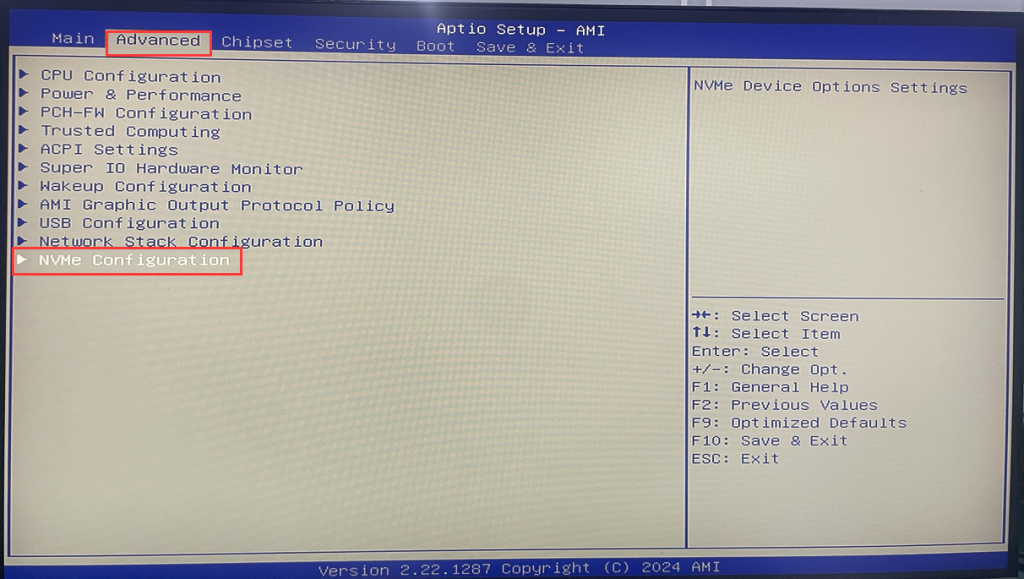
- As shown in the following figure, the NVME SSD is identified normally.
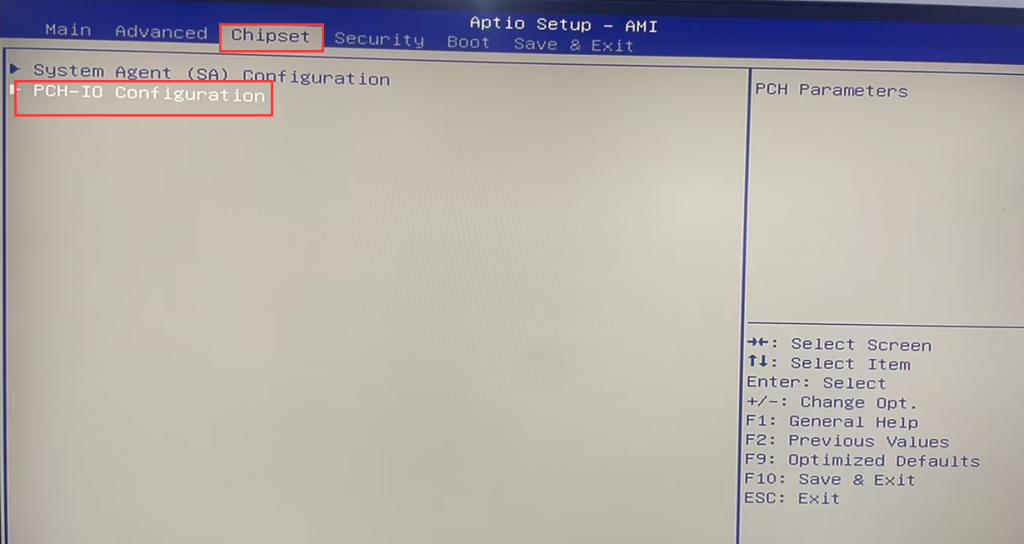
- Step 2: M.2 SATA/ 2.5-inch SATA disk Query Procedure After entering the BIOS, choose Chipset>PCH-IO Configuration>SATA Configuration> Check whether the disk name and capacity are identified in Serial ATA Port 0 and Serial ATA Port 1.
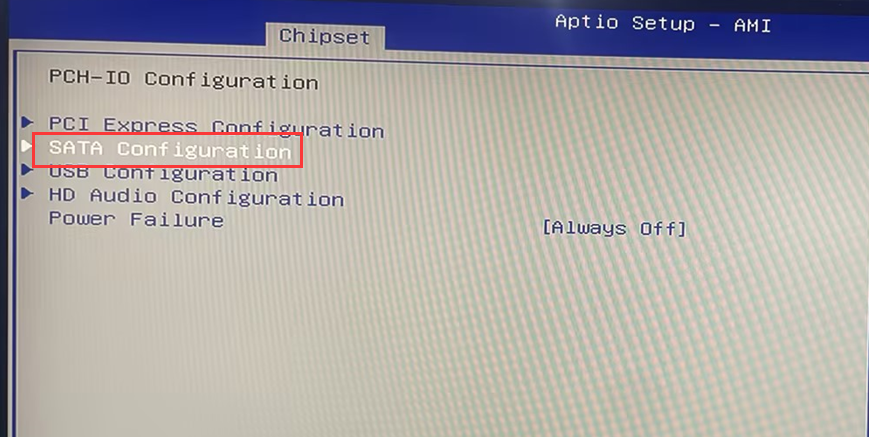
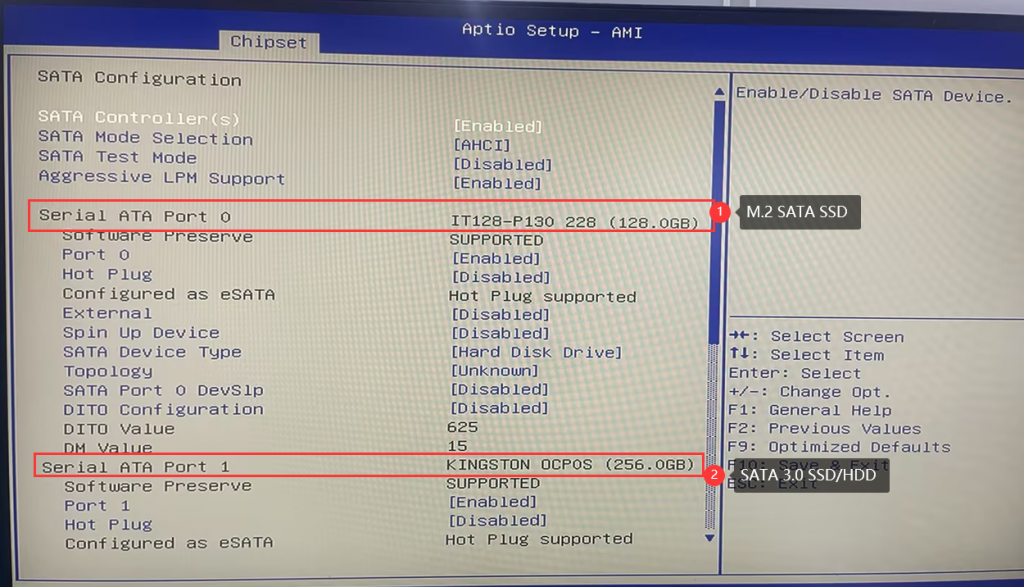
- PS: Enter the corresponding channel based on the type of the hard disks that you have installed. Serial ATA Port 0 corresponds to M.2 SATA disks, and Serial ATA Port 1 corresponds to 2.5-inch disks.
If hard disks can be detected normally in the BIOS, go to Boot>Boot Option #1 to check whether the hard disk prefix of Windows Boot Manager (hard disk name) is identified. If not, check whether the option is set to [Disabled]. If the configuration is [Disabled], press Enter to select a hard drive prefixed with Windows Boot Manager (hard drive name). If the hard drive prefixes with Windows Boot Manager (hard drive name) cannot be identified under this option, the operating system may not be installed on the hard drive. Or the operating system is damaged. Reinstall the operating system.
[H4-12th] Power-on auto-start configuration
How to enable Secure Boot in BIOS
