
【Intel 11th generation or above CPU】How to configure boot option priority in BIOS
author: VENOEN
2025-06-16
[intel 11th-generation CPU or later] How to configure the boot priority in the BIOS
Overview:
Since the 11th generation of intel products, the BIOS supports only UEFI boot mode, and is no longer compatible with the traditional Legacy mode. If no UEFI partition on a storage device, such as a hard disk, USB flash drive, or portable hard disk, does not support UEFI Boot mode, the device cannot be identified in Boot>Boot option Priorities and cannot be set to the boot priority.
UEFI is seen as the successor to BIOS, a more advanced firmware interface standard that represents the direction of computing technology. Intel, as a leader in the chip industry, promotes the popularity of UEFI boot mode to help the technology upgrade and development of the entire computer industry, improving the overall performance and reliability of computer systems.
Here's how to configure boot priority in the BIOS. This article uses the M9 series model as a demonstration:
Since the 11th generation of intel products, the BIOS supports only UEFI boot mode, and is no longer compatible with the traditional Legacy mode. If no UEFI partition on a storage device, such as a hard disk, USB flash drive, or portable hard disk, does not support UEFI Boot mode, the device cannot be identified in Boot>Boot option Priorities and cannot be set to the boot priority.
UEFI is seen as the successor to BIOS, a more advanced firmware interface standard that represents the direction of computing technology. Intel, as a leader in the chip industry, promotes the popularity of UEFI boot mode to help the technology upgrade and development of the entire computer industry, improving the overall performance and reliability of computer systems.
Here's how to configure boot priority in the BIOS. This article uses the M9 series model as a demonstration:

- Step 1: In the power-off state, install or insert the storage device whose priority needs to be configured, such as SSDS and USB flash drives.
Step 2: Press the SW button to start the mini-host. During the startup process (when the startup Logo is displayed), press Del to enter the BIOS setting screen.
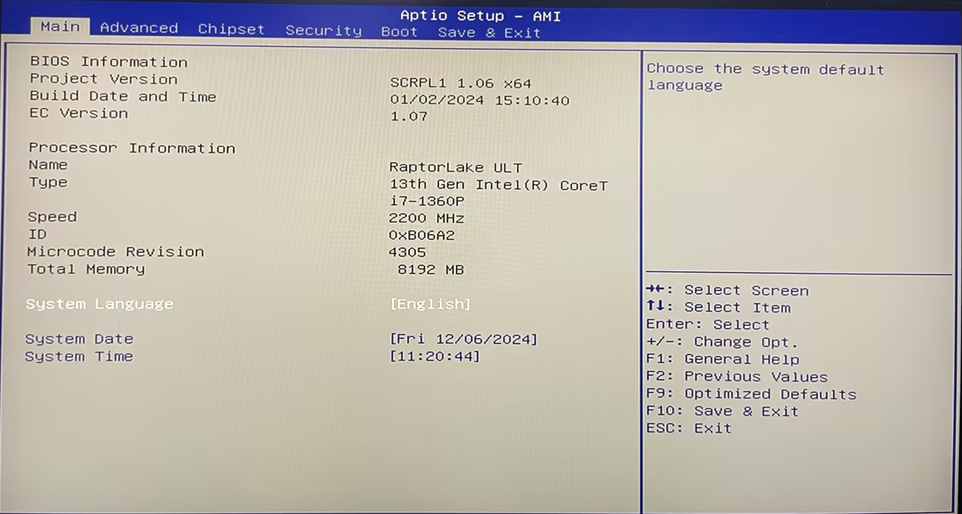
- Step 3: On the BIOS configuration page, select Boot>Boot Option #1 by using keyboard arrow keys, and press Enter to select the storage device whose priority you want to configure.

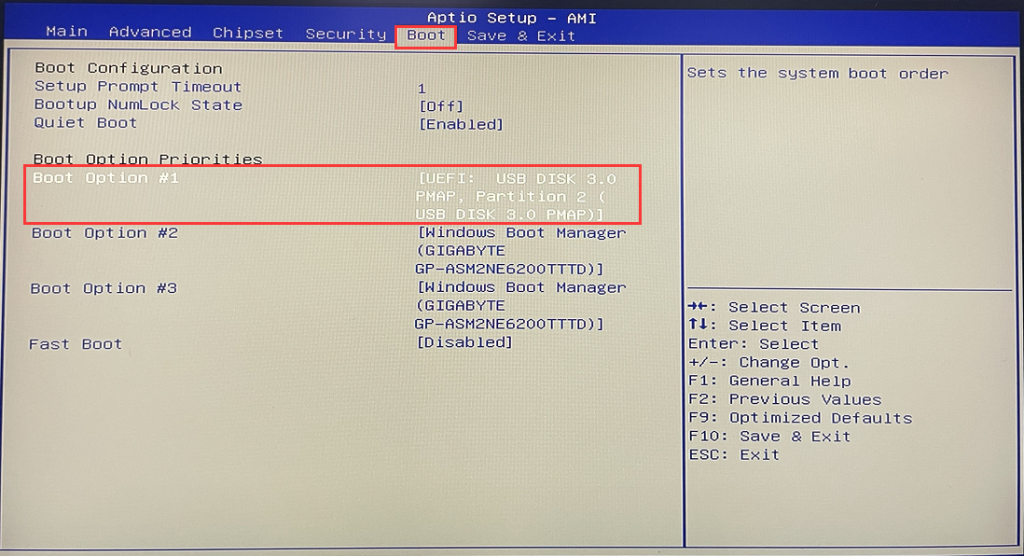
- Step 4: After the configuration is complete, use the keyboard arrow keys to move to the Save & Exit menu, select Save Changes and Exit, and press Enter to save and exit.

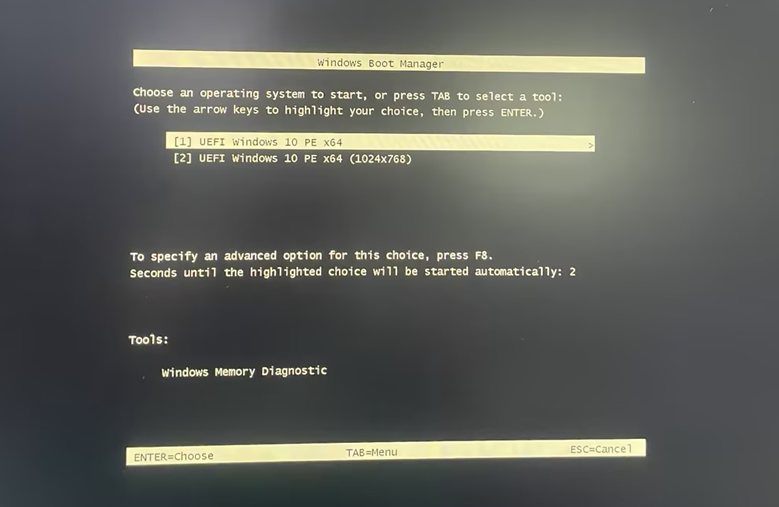
- Step 5: The system will automatically restart and enter the newly configured priority boot disk.
[K4-8th]Switch RS485 working mode
How to check the project version in BIOS
