
[M3-12/13 generation] Scheduled startup and shutdown configuration steps
author: VENOEN
2025-06-16
[M3-12/13 generation] Configuration steps for scheduled startup and scheduled shutdown
Demonstration model project version: GRPL1 1.08x64
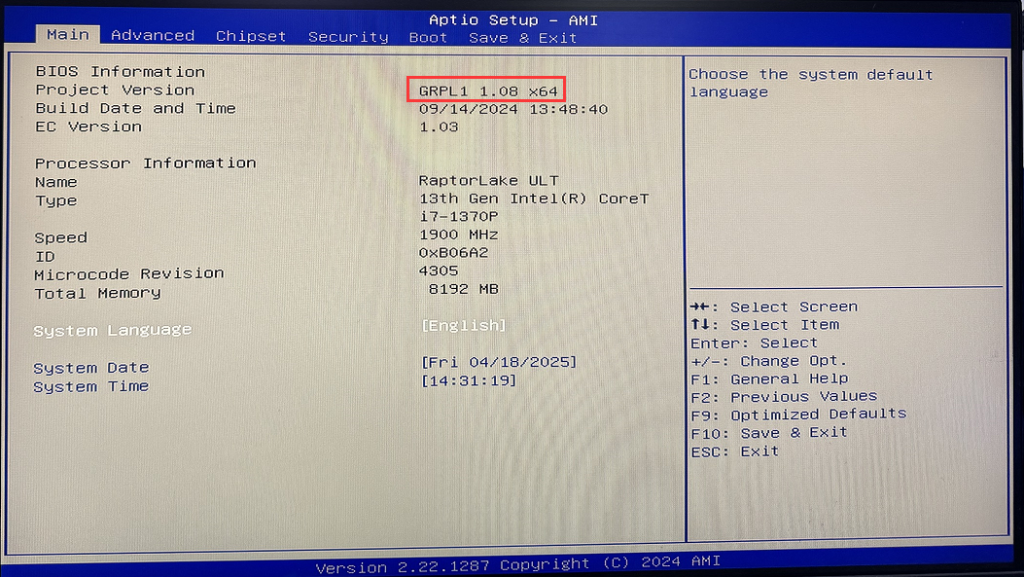
Timed startup
Step 1: Press the SW button to power on. After powering on, quickly press the Del key on the keyboard to enter the BIOS Setup.
Step 2: Select Advanced>Wakeup Configuration> in sequence to configure Wake system from s5 as [Fixed Time];
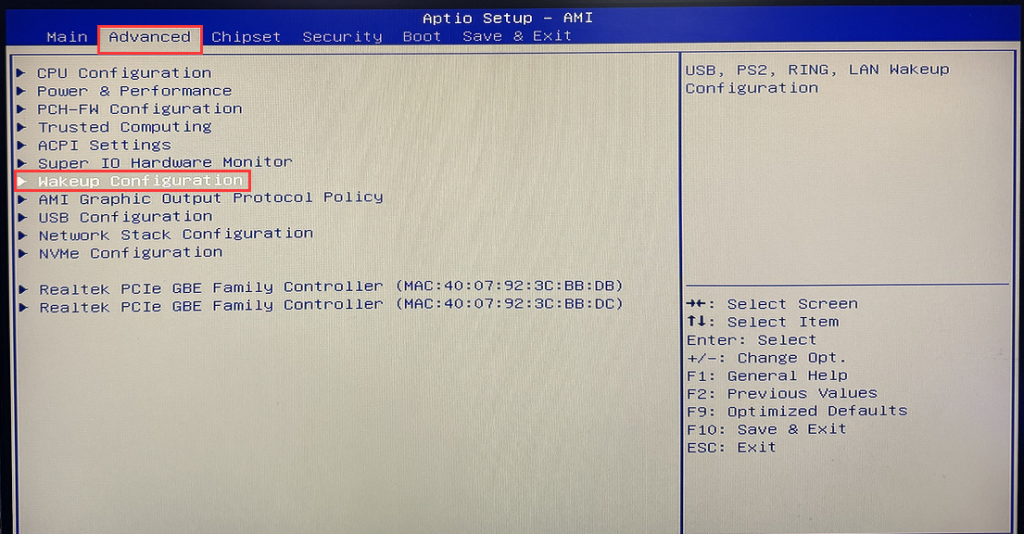
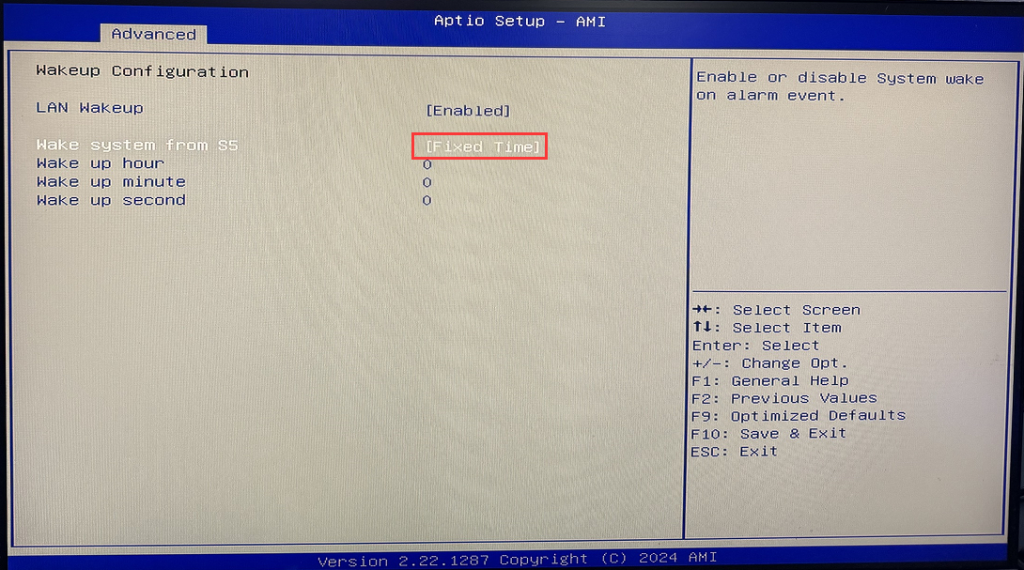
- Step 3: Configure the corresponding time in Wake up hour,Wake up minute, and Wake up second, such as 14:36
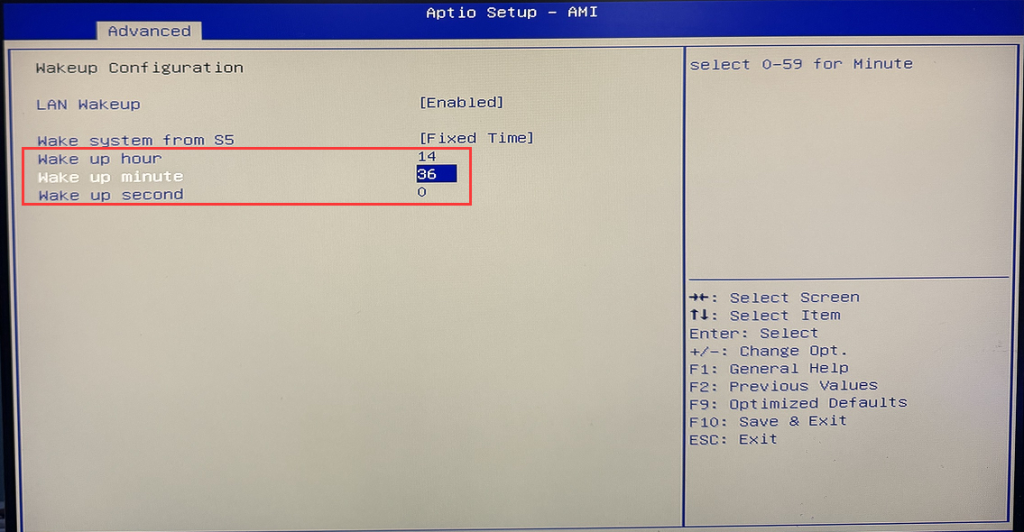
- Step 4: After the configuration is completed, press F10 to save and exit.
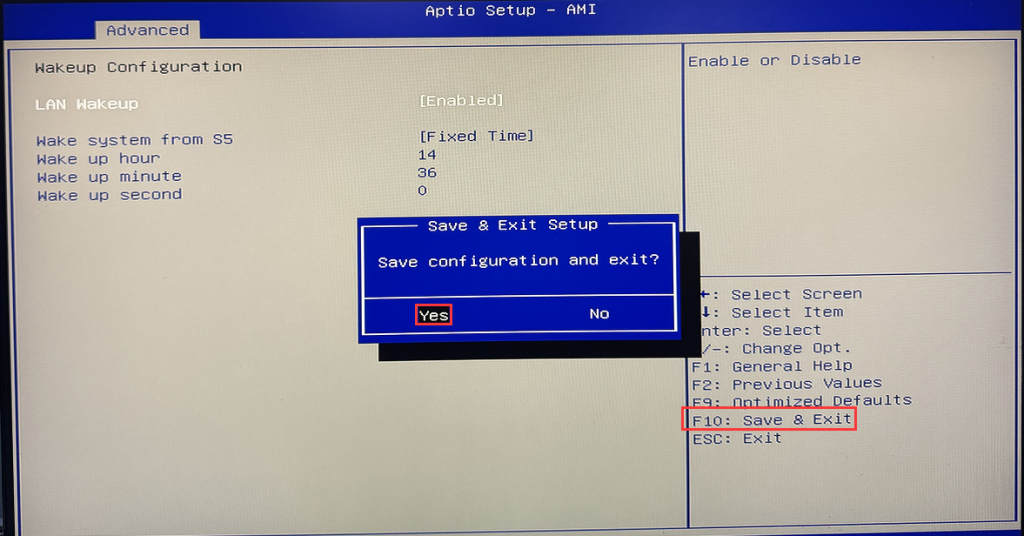
Note: Under normal circumstances, when the power supply is continuous and stable, the computer will be turned on at the designated time every day.
Timed shutdown
Description: Applicable to Windows-like systems and implemented through third-party tools
Description: Applicable to Windows-like systems and implemented through third-party tools
Step 1: After entering the Windows desktop, download and install wise Auto Shutdown; Download link:

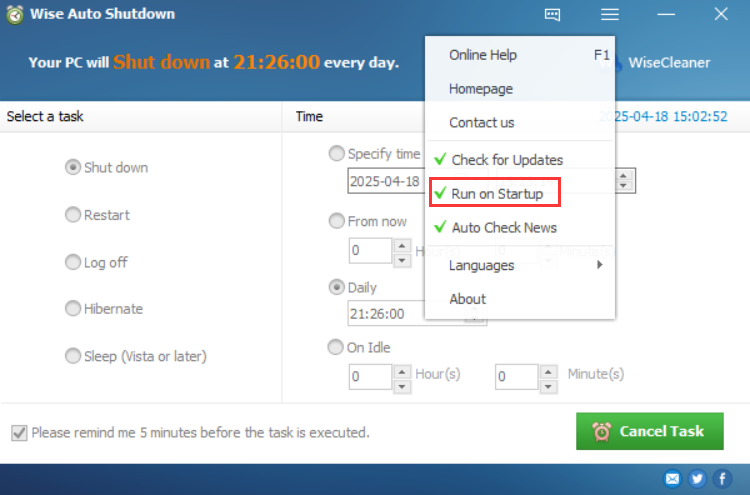
- Step 2: After the installation is completed, Run wise Auto Shutdown and configure wise Auto Shutdown as Run on Startup;

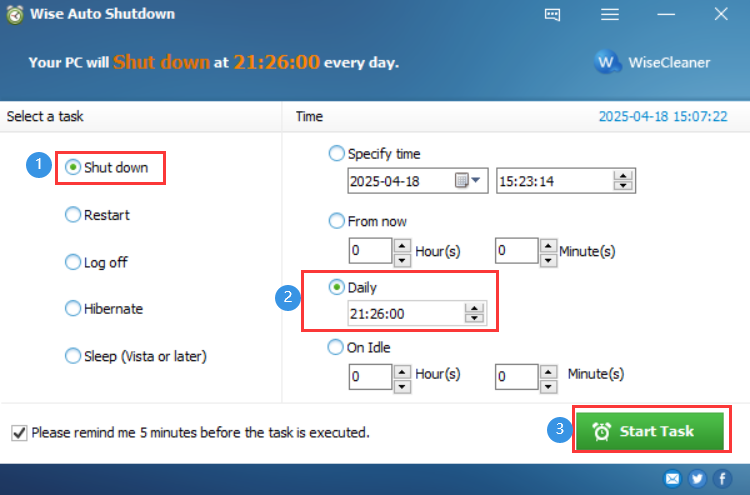
- Step 3: Select Select a task(e.g., Shut down) according to the requirements, choose Daily in Time and configure the corresponding time;
- Configuration 4: After confirming that there are no errors, click Start Task;
The possible reasons and solutions for the mini computer not displaying when it is powered on
[H4-12th] Power-on auto-start configuration
