
Industrial Tablet PC (Resistive Touch Screen) Screen Calibration
Industrial tablet computer (resistive touch screen) screen calibration
Notes: Before calibration, please ensure that the resistive screen driver has been properly installed. If the driver is not installed, please contact the platform customer service for assistance!
Step 1: Click on the Notification Area / System Tray (in the lower right corner of the taskbar) to reveal the hidden icons.
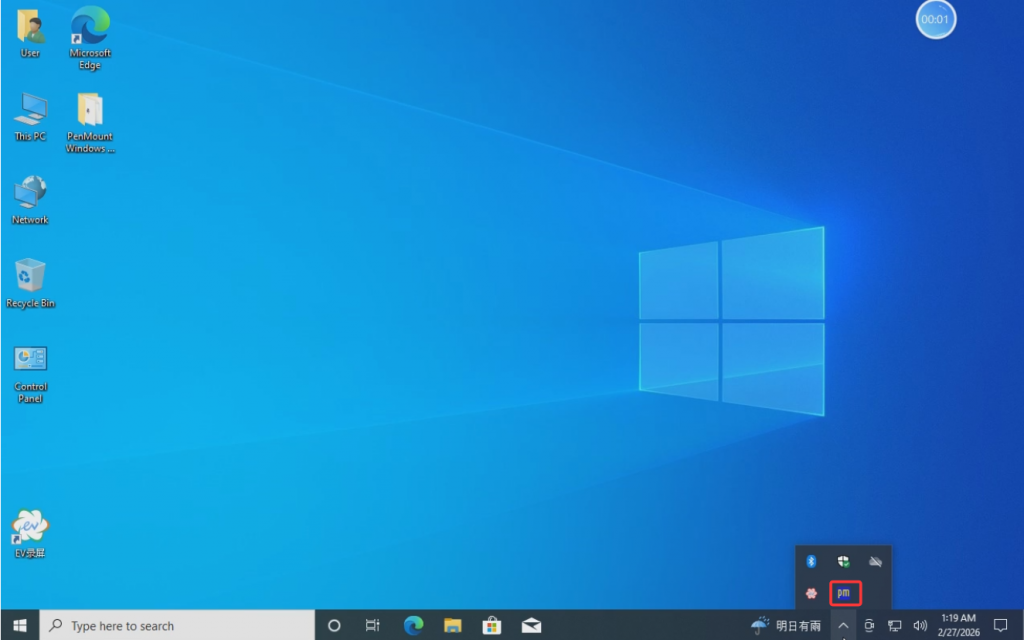
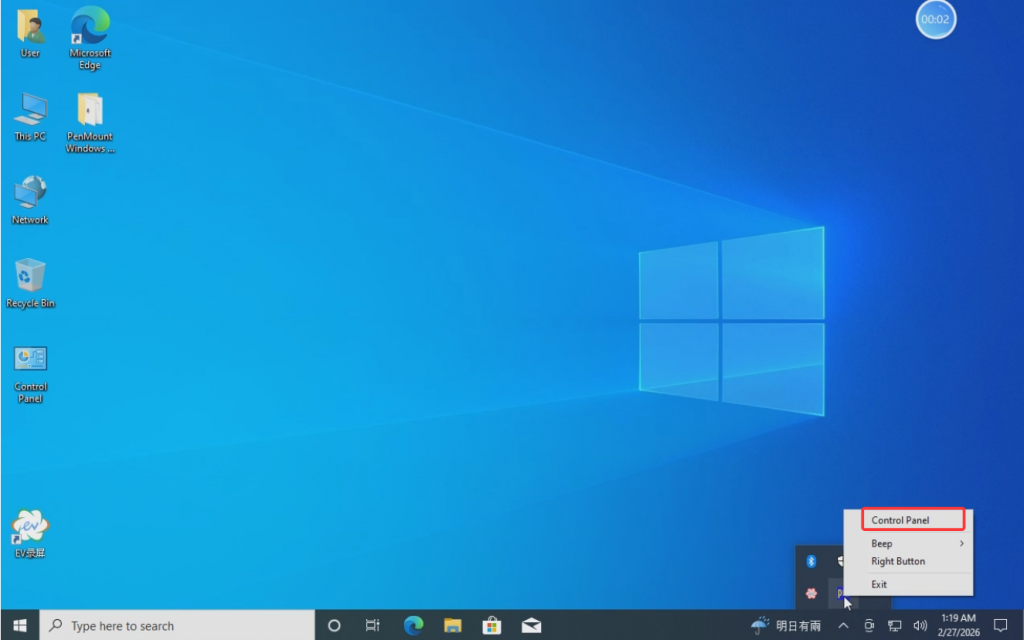
Step 2: Right-click on the PM icon and select "Control Panel" to enter the PenMount Control Panel.
Step 3: In the "Device" section, select "Configure"
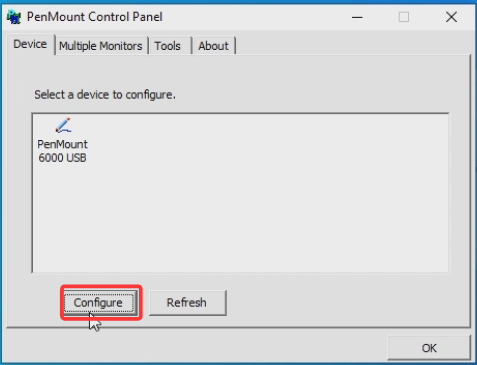
Then click on "Standare Calibration"
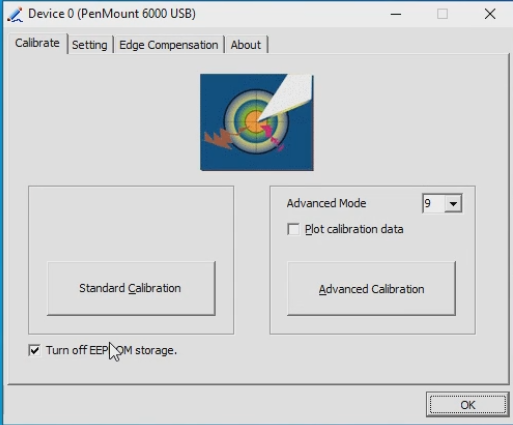
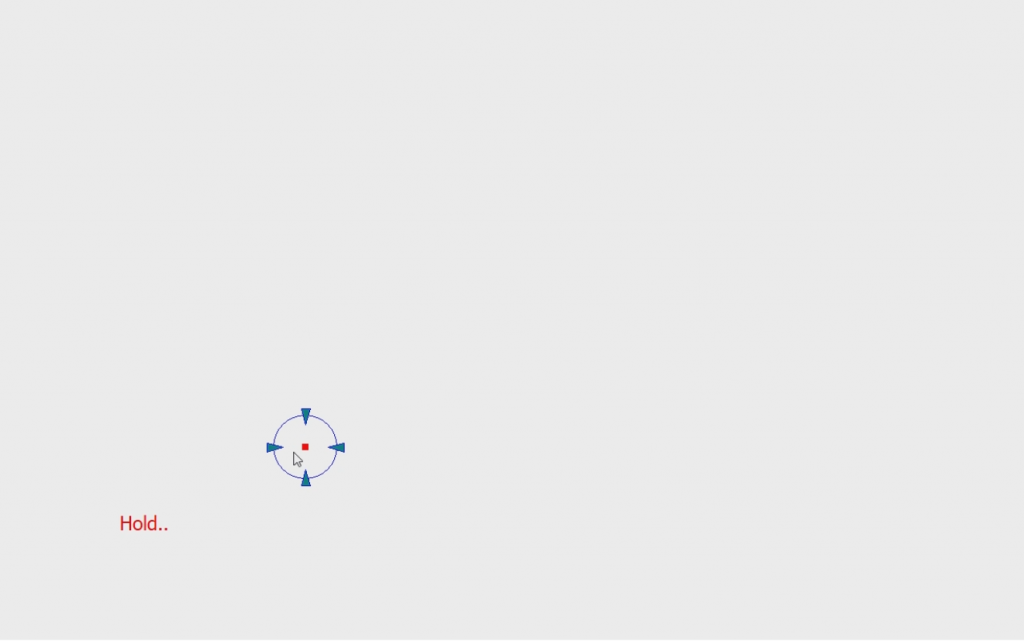
Step 4: Enter the calibration page. Use the standard resistance pen and follow the system prompts to click on the calibration points in sequence to complete the calibration (each calibration point usually requires clicking for 5 seconds to 10 seconds to complete the calibration).
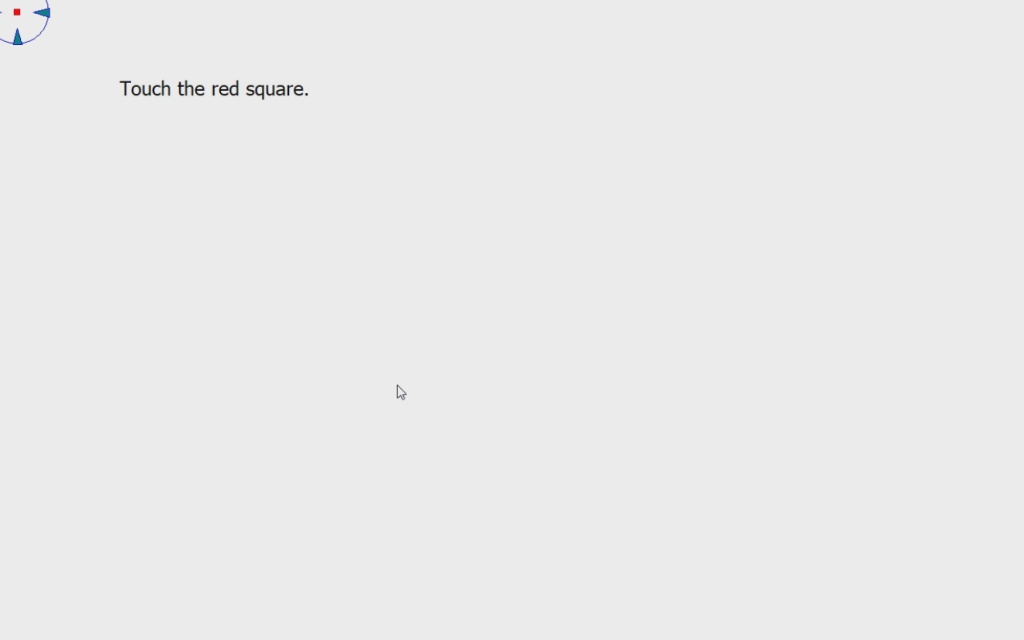
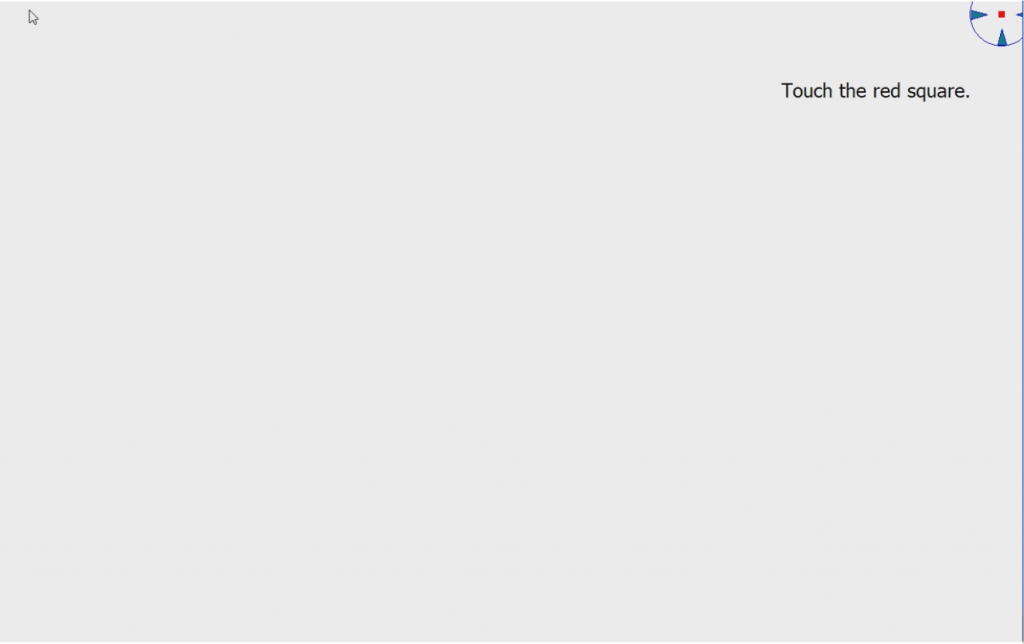
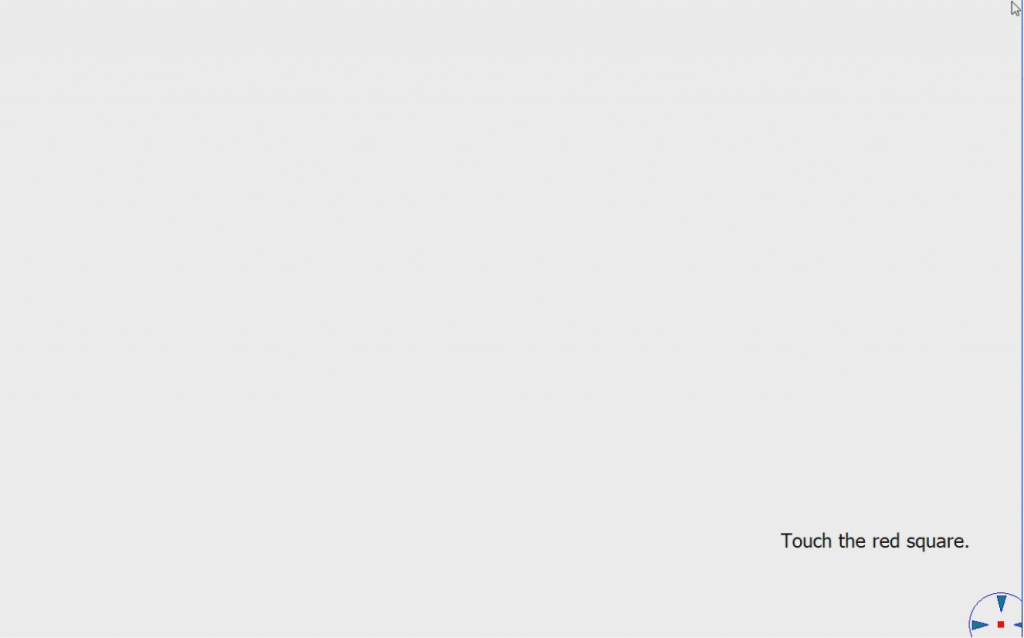
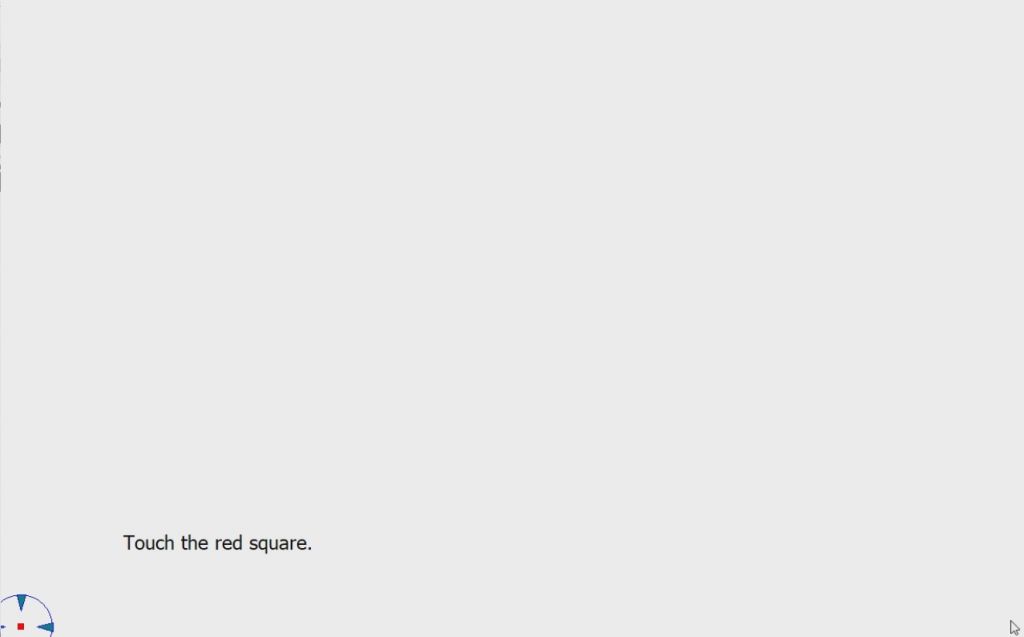
Step 5: After calibration is completed, return to the system desktop to verify if the touch sensitivity is normal. If the sensitivity does not meet the requirements, you can calibrate again.
Guide to Creating a Local User on Windows 11 Pro
GT-Ultra5-135H / Ultra7-165H Auto Power-On Configuration Steps
