
H6-12th automatically powers on after power failure; BIOS configuration guide
H6-12th – Automatic Power-On After Power Failure, BIOS Configuration Guide
I. Function Description
The "Automatic Power-On after Power Failure" function (AC Power Failure Recovery) allows the mini PC to automatically start and boot into the operating system after a power outage without manual intervention. This function is commonly used in the following scenarios:
-
🖥️ Unattended servers or industrial computers – Automatically resume operation after a power outage
-
📹 Video surveillance hosts – Automatically restart after power returns, maintaining continuous recording
-
🏠 Home NAS / home servers – Avoid having to manually go to the machine room to power on
-
🏭 Factory automation equipment – Work with UPS failure recovery processes
II. Preparation
-
✔ Mini PC connected to a monitor and keyboard
-
✔ Computer is powered off or can be restarted
-
✔ No tools or software required, only keyboard operation
III. Operation Steps (4 steps in total)
💡 Tip: Use the keyboard arrow keys ↑↓←→ to navigate, press Enter to confirm, and F10 to save and exit.
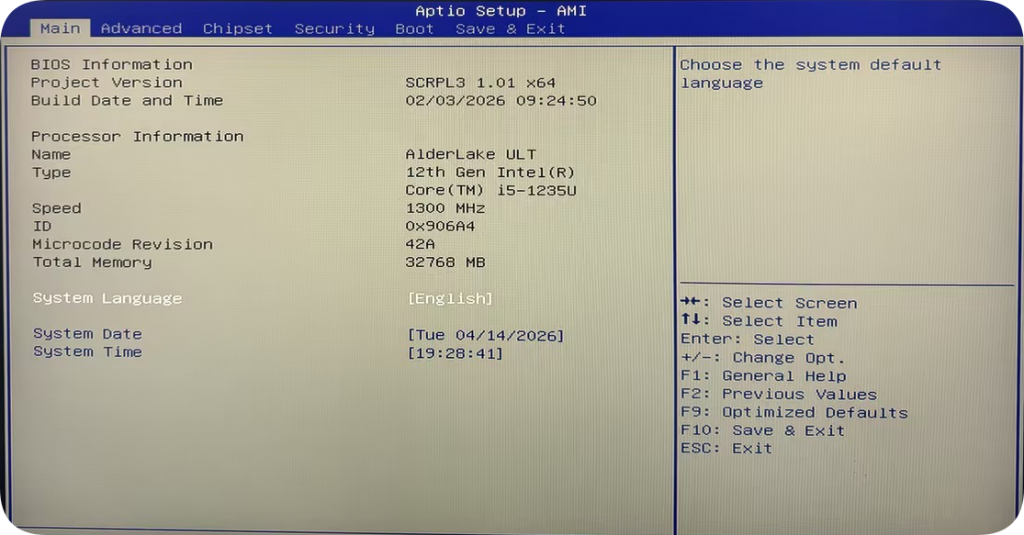
STEP 1 – Power on and enter the BIOS setup interface
-
Turn on the mini PC. Immediately and repeatedly press the 【Del】 key when the boot screen (AMI Logo) appears.
-
If you do not enter BIOS, restart and try again (you must press the key within 1-3 seconds after power-on).
-
Once successfully entered, you will see the BIOS setup interface with a menu bar at the top.
STEP 2 – Enter the Chipset menu
-
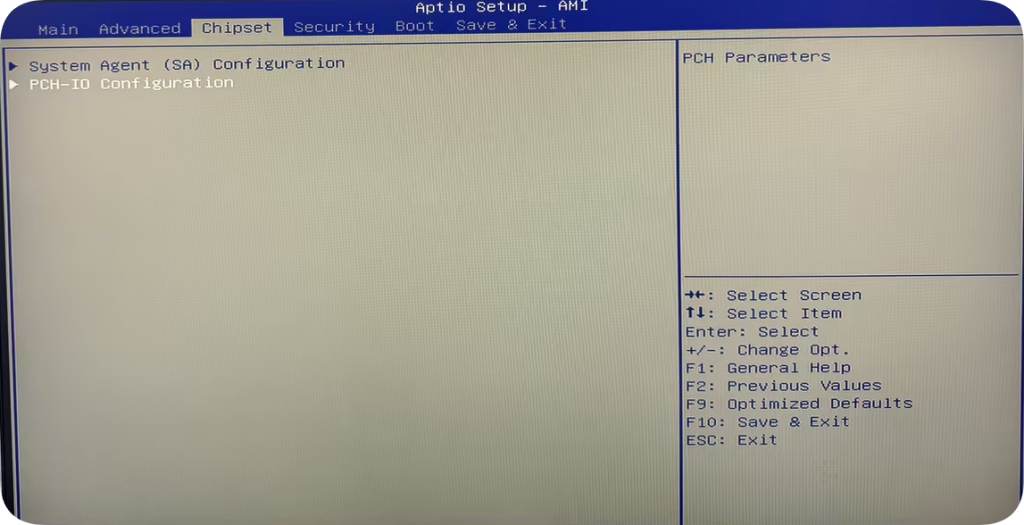
In the top menu bar, use 【←】【→】 to move the cursor to 【Chipset】 .
-
Press 【Enter】 to confirm and enter the Chipset configuration page.
-
You will see several sub-options. Find and select 【PCH-IO Configuration】 .
STEP 3 – Set Power Failure to Always ON
-
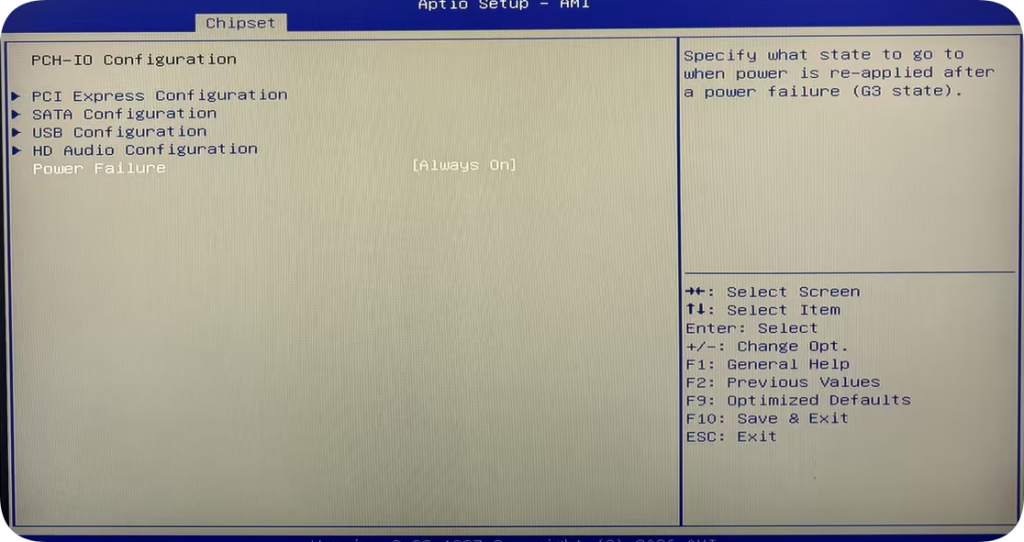
After entering the PCH-IO Configuration page, use 【↑】【↓】 to locate the 【Power Failure】 option.
-
Press 【Enter】 to open the option menu, then select 【Always ON】 .
-
After confirmation, the value on the right side of the Power Failure line will change to Always ON.
Power Failure Option Description
| Option Value | Behavior Description |
|---|---|
| Always ON | The device automatically powers on when AC power is restored ← Select this |
| Always OFF | The device stays off when AC power is restored; you need to manually press the power button |
STEP 4 – Press F10 to save the configuration and exit BIOS
-
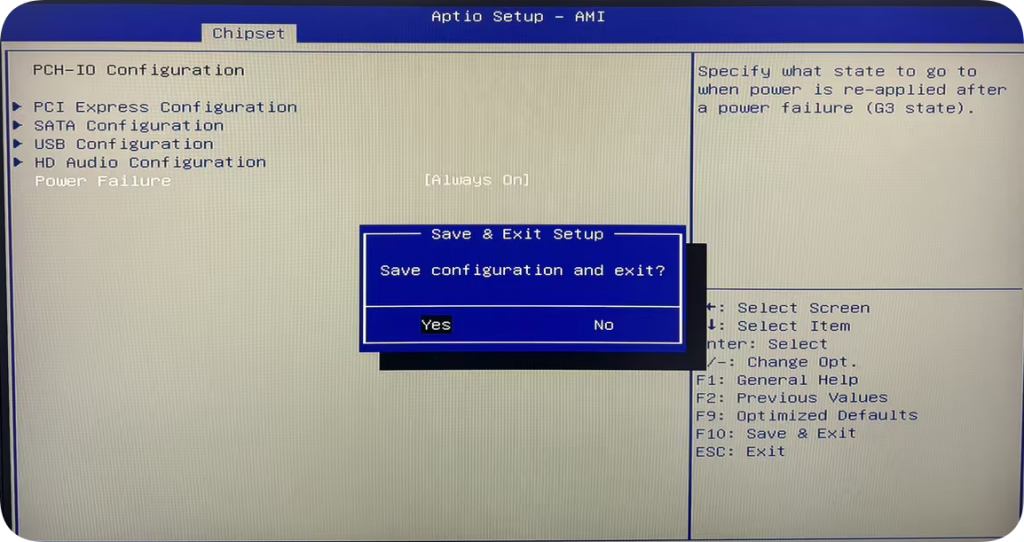
After confirming that Power Failure is set to Always ON, press the 【F10】 key.
-
A confirmation dialog will appear. Select 【Yes】 or press 【Enter】 to confirm saving.
-
The computer will automatically restart, and the BIOS configuration will take effect.
-
After restarting, the operating system will load – configuration complete ✅
IV. Verify the Configuration
-
Ensure the operating system has started and is running stably.
-
Unplug the power cord of the mini PC from the power strip or extension cord (simulating a power outage).
-
Wait about 3-5 seconds, then plug the power cord back in.
-
Observe whether the mini PC automatically powers on within 5-10 seconds (power indicator lights up).
-
If it powers on automatically → configuration successful. If not → re-check the setting in Step 3.
💡 Tip: If the mini PC is connected to a UPS (uninterruptible power supply), note that the UPS may also have its own power recovery settings, which should be checked.
V. Frequently Asked Questions (FAQ)
Q: I pressed Del but didn't enter BIOS. What should I do?
A: Try repeatedly pressing the key rapidly the moment the AMI Logo appears, or in Windows go to Settings > Update & Security > Recovery > Restart now to enter Advanced Startup options, then select UEFI Firmware Settings.
Q: I set Always ON, but the PC still does not automatically power on after a power failure.
A: Please confirm: ① F10 was successfully saved (do not unplug power directly without saving); ② The power adapter is correctly connected; ③ Some UPS devices have a delay after power restoration – wait more than 30 seconds before checking.
Q: Does this operation affect normal power-on/off?
A: No, normal use is not affected. Pressing the power button to turn on, shut down, or restart works as usual. This setting only triggers automatic power-on when AC power is fully disconnected and then restored.
GT-Ultra Series (Ultra5-135H/Ultra7-165H) BIOS Update Guide
How to Use the GT-Core Ultra Series to Remotely Manage Computers via AMT
