
Build RAID process in BIOS
author: VENOEN
2025-09-06
(Applicable to H4, H6, H7, P12B)
Establish RAID conditions
The motherboard and BIOS must support the establishment of RAID
Two or more SATA protocol SSD/HDDs (can be MSATA, M.2 SATA, 2.5-inch SATA hard drives) must be installed on the motherboard. It is recommended to use hard drives with the same capacity, so that the hard drive space can be fully utilized.
Precautions:
If there is important data in the hard disk, please back it up in advance. Setting up RAID will delete all data in the original hard disk.
Operating systems installed in AHCI or other modes cannot run in RAID mode, and the system must be reinstalled in RAID mode to start normally.
After setting up a RAID, only the operating system installation in UEFI mode is supported.
1. Press the computer power button and quickly tap the Del key to enter BIOS Setup.
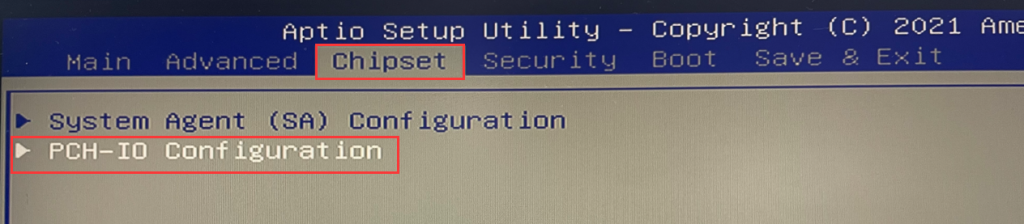
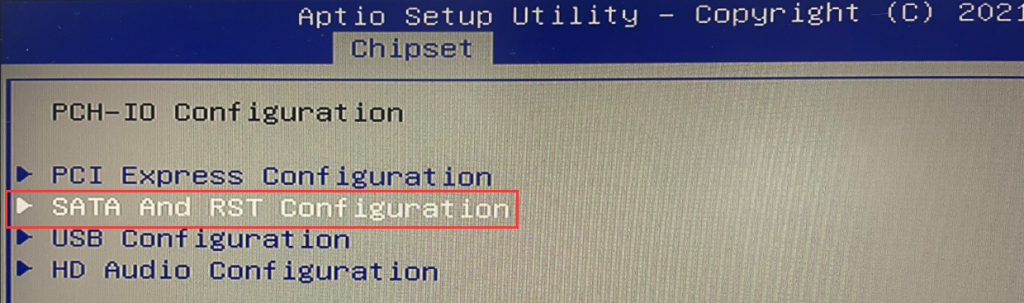
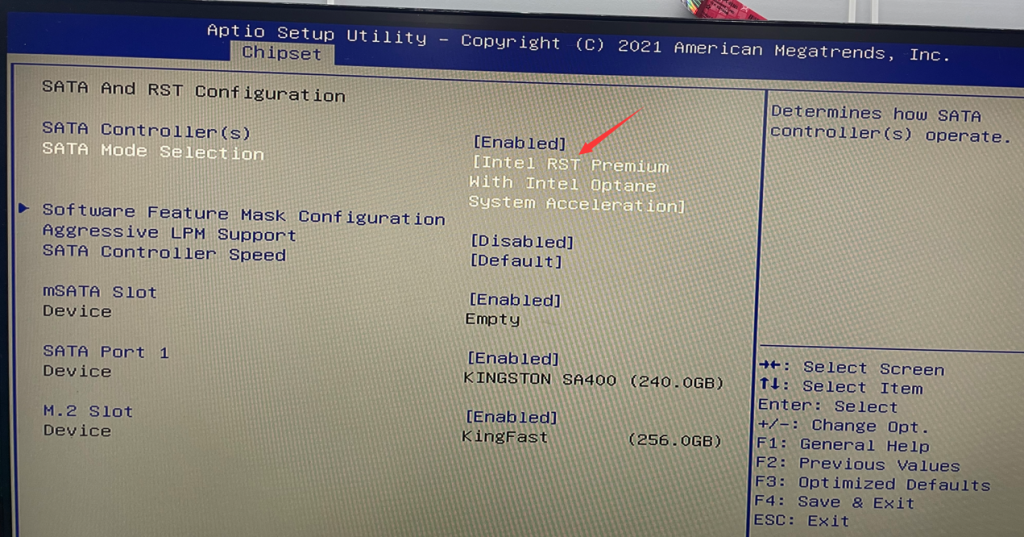
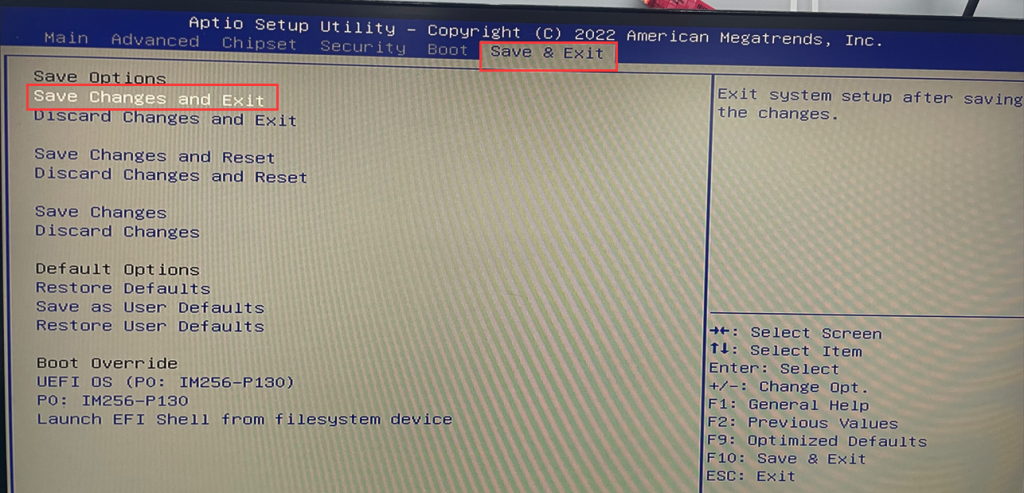
2. In Bios, select Chipset>PCH-IO Configuration>SATA And RTS Configuration>Set SATA Mode Selection to Intel RST Premium with Intel Optane System Acceleration>Press the Esc key on the keyboard to exit the current page>Save & Exit
The motherboard and BIOS must support the establishment of RAID
Two or more SATA protocol SSD/HDDs (can be MSATA, M.2 SATA, 2.5-inch SATA hard drives) must be installed on the motherboard. It is recommended to use hard drives with the same capacity, so that the hard drive space can be fully utilized.
Precautions:
If there is important data in the hard disk, please back it up in advance. Setting up RAID will delete all data in the original hard disk.
Operating systems installed in AHCI or other modes cannot run in RAID mode, and the system must be reinstalled in RAID mode to start normally.
After setting up a RAID, only the operating system installation in UEFI mode is supported.
1. Press the computer power button and quickly tap the Del key to enter BIOS Setup.
2. In Bios, select Chipset>PCH-IO Configuration>SATA And RTS Configuration>Set SATA Mode Selection to Intel RST Premium with Intel Optane System Acceleration>Press the Esc key on the keyboard to exit the current page>Save & Exit
- 3. After restarting, quickly tap the Del key to enter the BIOS, and select intel(R) Rapid Storage Technology>Cerate RAID Volume>RAID Level: RAID 0 or RAID1 or RAID5 (this mode requires 3 SATA hard drives to set up). In this tutorial, Take RAID0 as an example. You can choose according to your needs >Select Disks: and use the "space bar" to select the hard disk >Create Volume.
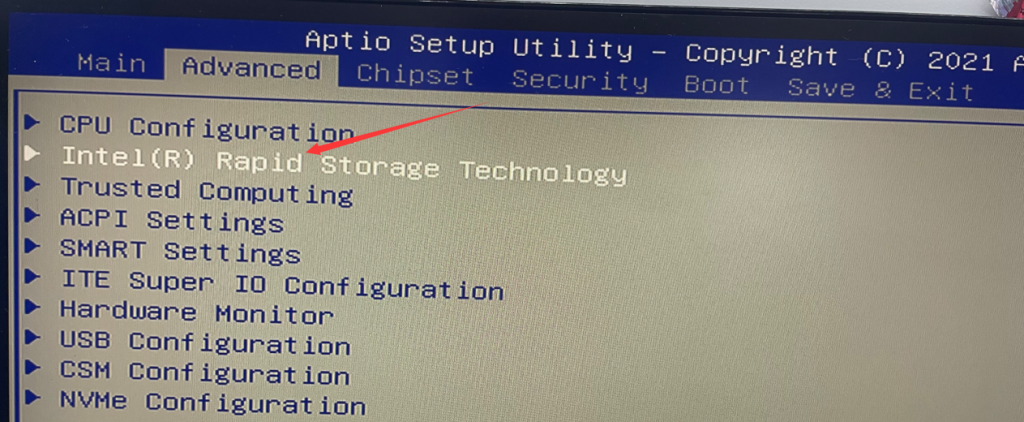
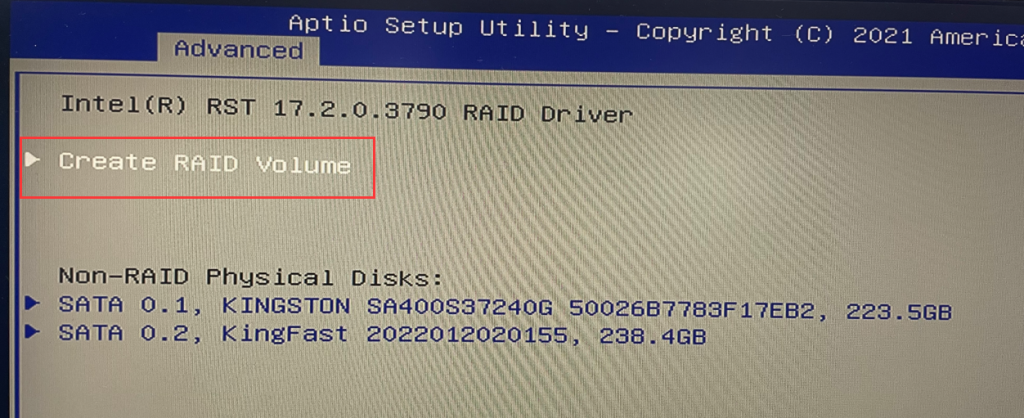
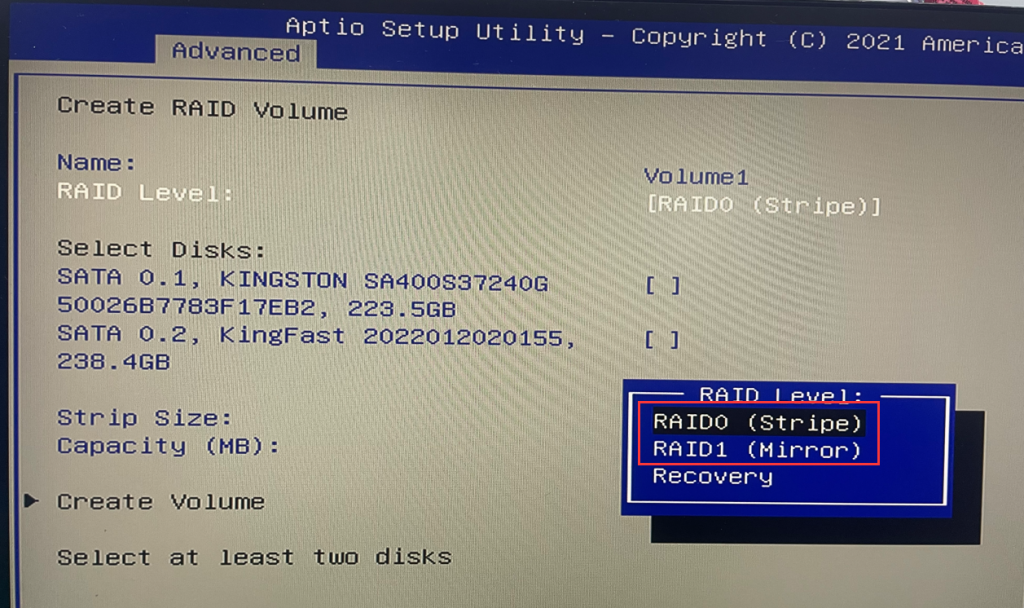
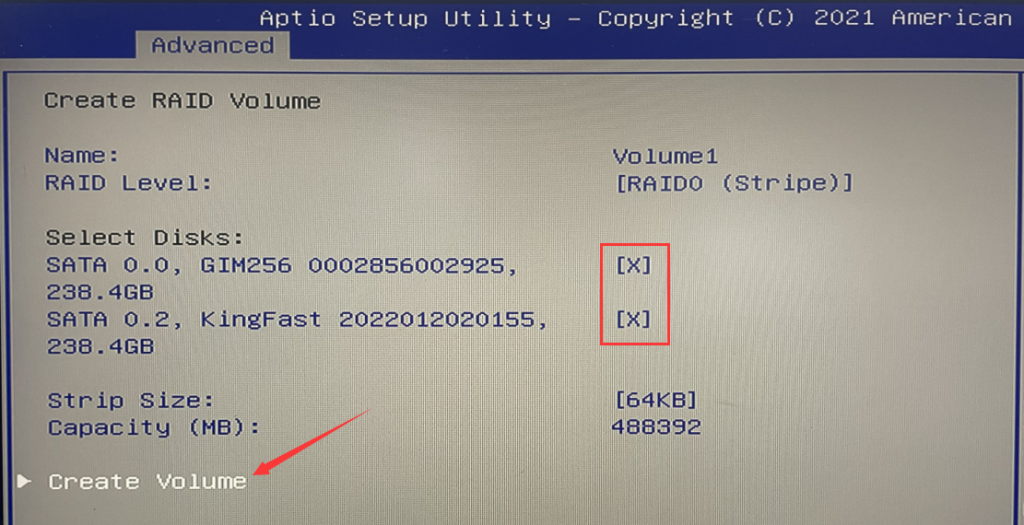
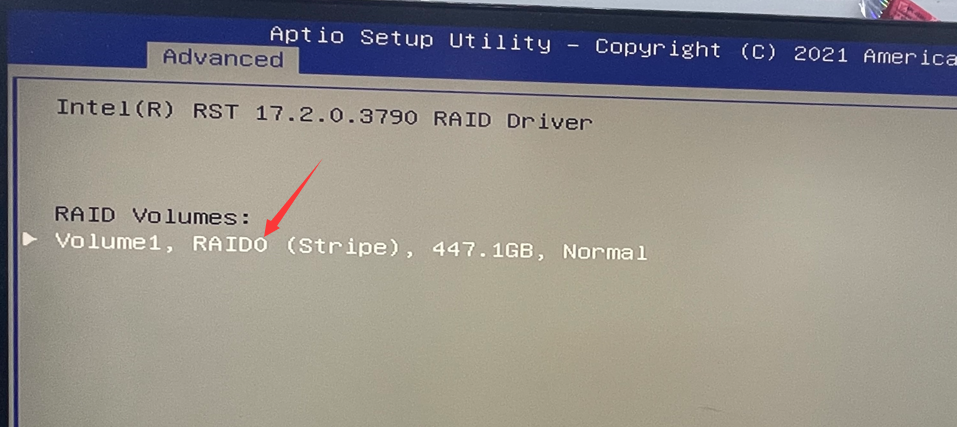
- 4. Introduction to RAID0, RAID1, and RAID5:
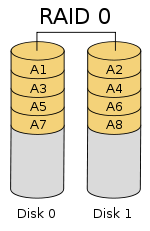
RAID0 is a simple data striping technology without data verification. Not actually a true RAID as it does not provide any form of redundancy strategy. RAID0 stripes the disks to form a large-capacity storage space, disperses the data in all disks, and realizes concurrent read access of multiple disks in an independent access manner. Because I/O operations can be performed concurrently, the bus bandwidth is fully utilized. Coupled with the fact that no data parity is required, RAID0 performance is the highest among all RAID levels. Theoretically, the read and write performance of a RAID0 consisting of n disks is n times that of a single disk. However, due to limitations of various factors such as bus bandwidth, the actual performance improvement is lower than the theoretical value.
RAID0 has the advantages of low cost, high read and write performance, and 100% high storage space utilization, but it does not provide data redundancy protection. Once the data is damaged, it cannot be recovered. Therefore, RAID0 is generally suitable for applications that have strict performance requirements but low data security and reliability, such as video, audio storage, temporary data cache space, etc.
- RAID1
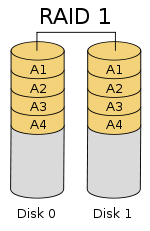
RAID1 is called mirroring. It writes data to the working disk and the mirror disk completely and consistently. Its disk space utilization is 50%. RAID1 has an impact on response time when writing data, but has no impact when reading data. RAID1 provides the best data protection. Once the working disk fails, the system automatically reads data from the mirror disk without affecting user work. The working principle is shown in Figure 3.
RAID1 is just the opposite of RAID0. It is to enhance data security and make the data on the two disks completely mirrored, thereby achieving good security, simple technology, and convenient management. RAID1 is fully fault-tolerant, but is expensive to implement. RAID1 is used in applications that require high sequential read and write performance and attach great importance to data protection, such as data protection for email systems.
- RAID5
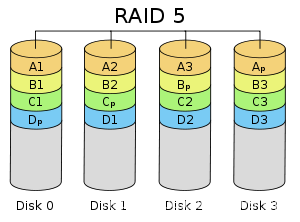
RAID5 disks store data and verification data at the same time. Data blocks and corresponding verification information are stored on different disks. When a data disk is damaged, the system can use other data blocks and corresponding verification information of the same strip to data to reconstruct corrupted data. Like other RAID levels, RAID5 performance will be significantly affected when rebuilding data.
RAID5 takes into account various factors such as storage performance, data security and storage cost. It can be understood as a compromise between RAID0 and RAID1. It is currently the best overall performance data protection solution. RAID5 can basically meet the needs of most storage applications, and most data centers use it as a protection solution for application data.
How to Change Language in Windows 11 English System
Update BIOS under DOS system
