
Debian11 Installation Guide
author: VENOEN
2025-09-25
- Preparation:
8G and above capacity USB flash drive
Debian11 ISO image file
Rufus (image file writing tool)
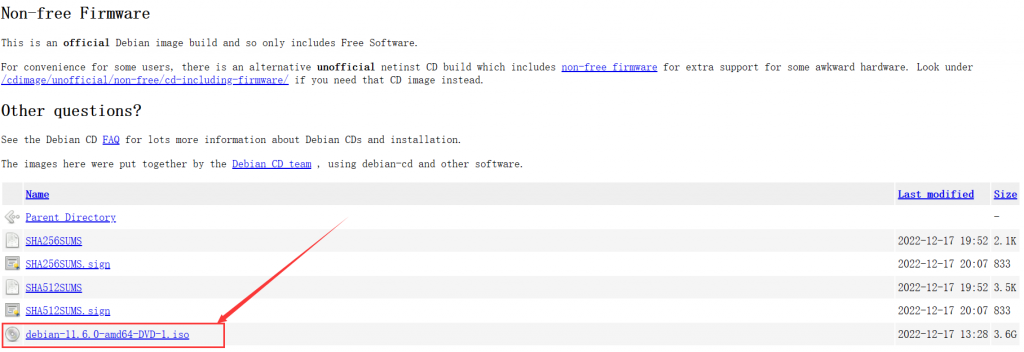
1. Download the Debian11 ISO image file, download address: Index of /debian-cd/current/amd64/iso-dvd
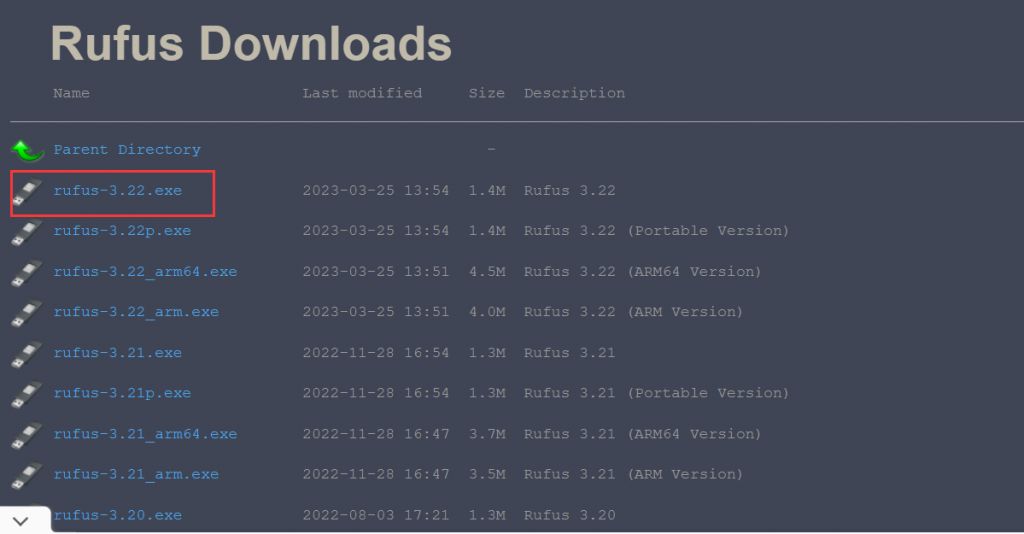
- 2. Download Rufus, download address: Index of /downloads (rufus.ie)
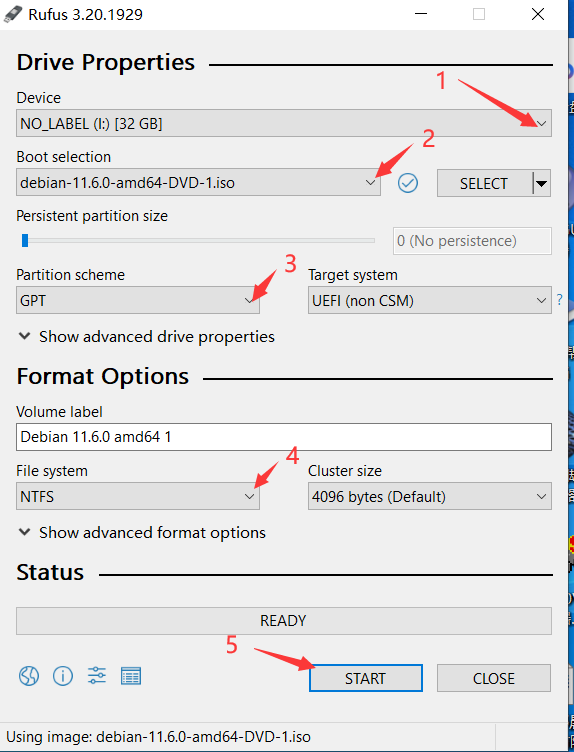
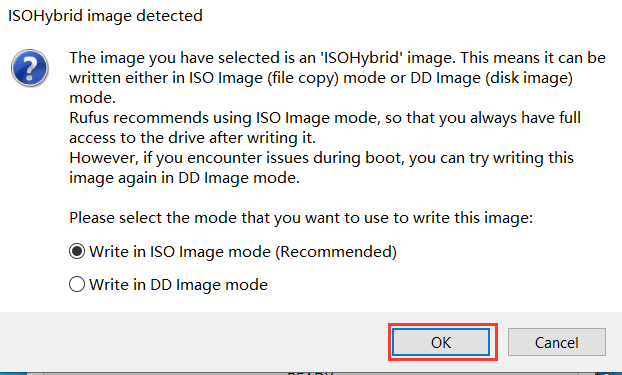
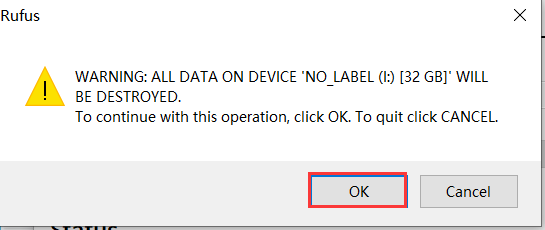
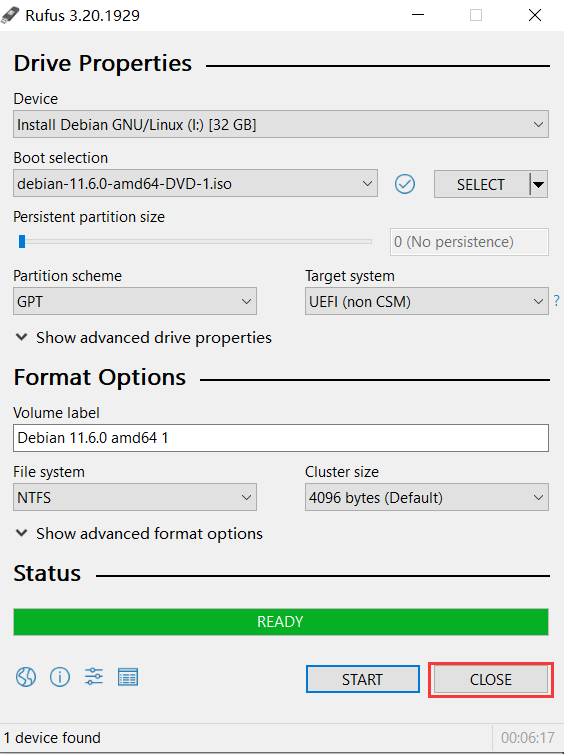
- 3. Insert the USB flash drive and run Rufus. Select the newly inserted U disk in Device, click SELECT to select the Debian ISO image file, select GPT format for Partition scheme, and select NTFS format for File system. Click START, it is recommended to write in ISO mode, click OK. Tip: This operation will delete all data in the USB flash drive. If there is important data in the USB flash drive, please back it up in advance. Click OK after confirmation.
Wait for the writing to be successful. After the writing is successful, READY will display green, as shown in the figure below. The writing has been successful. Click CLOSE to exit.
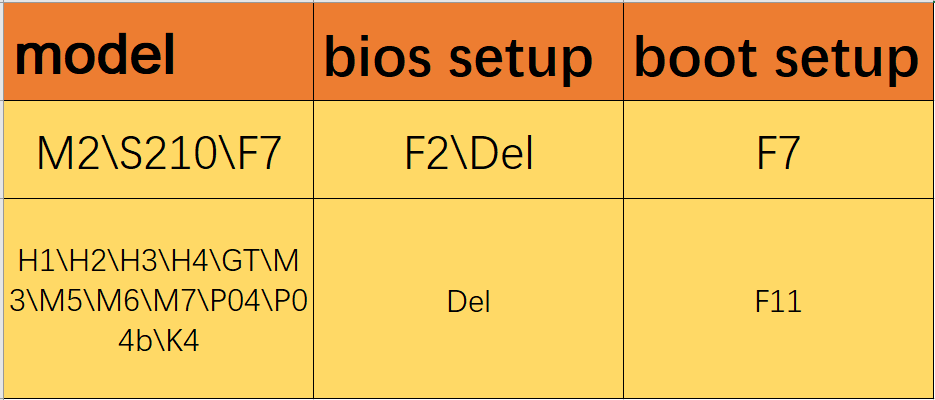
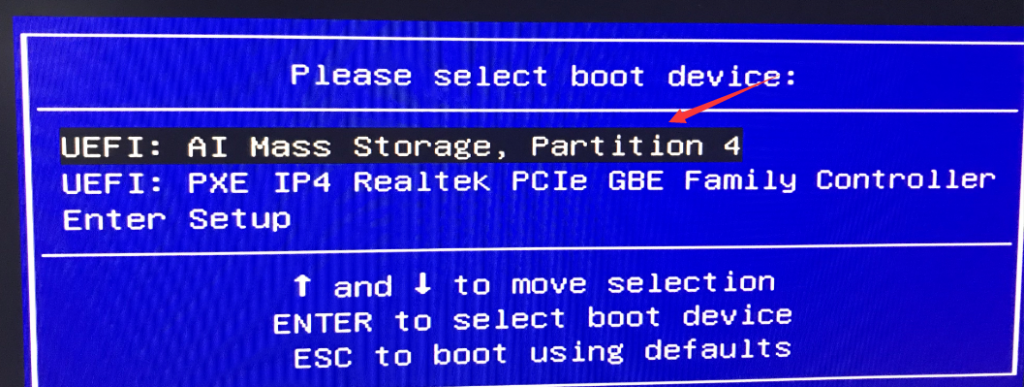
- 4. Insert the Debian installation medium (U disk) into the USB port where the Debian system needs to be installed, press the switch button and quickly tap the F7 or F11 key (depending on the model) to enter the Boot Setup page, select U with the UEFI: prefix Press Enter to enter the installation wizard.
- 5. Select install, and select the installation language, (listed with English in this tutorial) country, keyboard layout, etc. according to your needs.
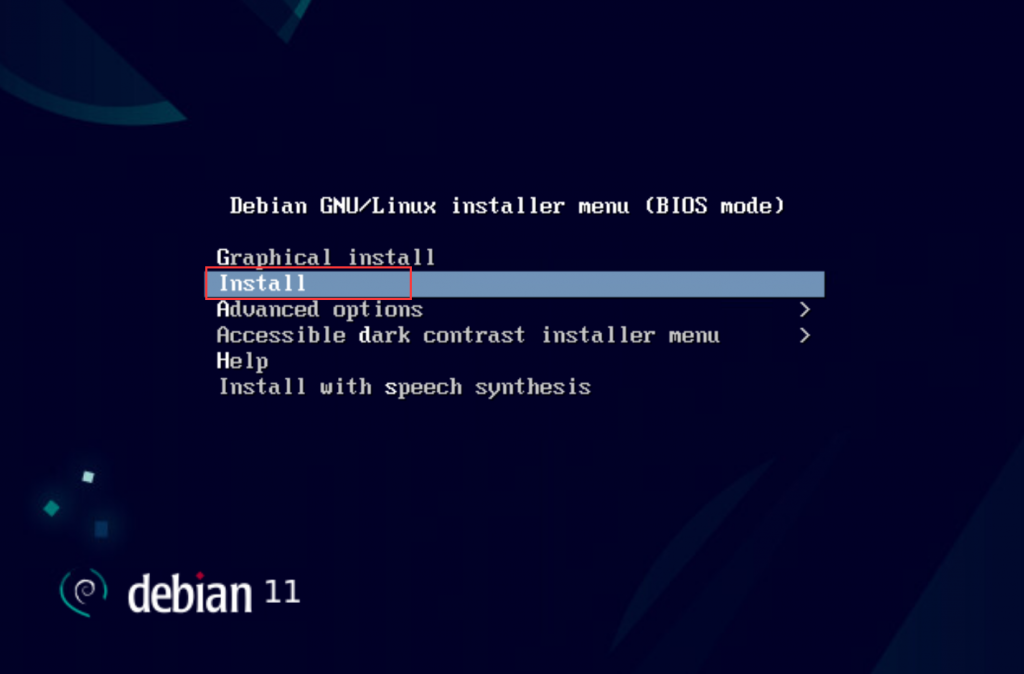
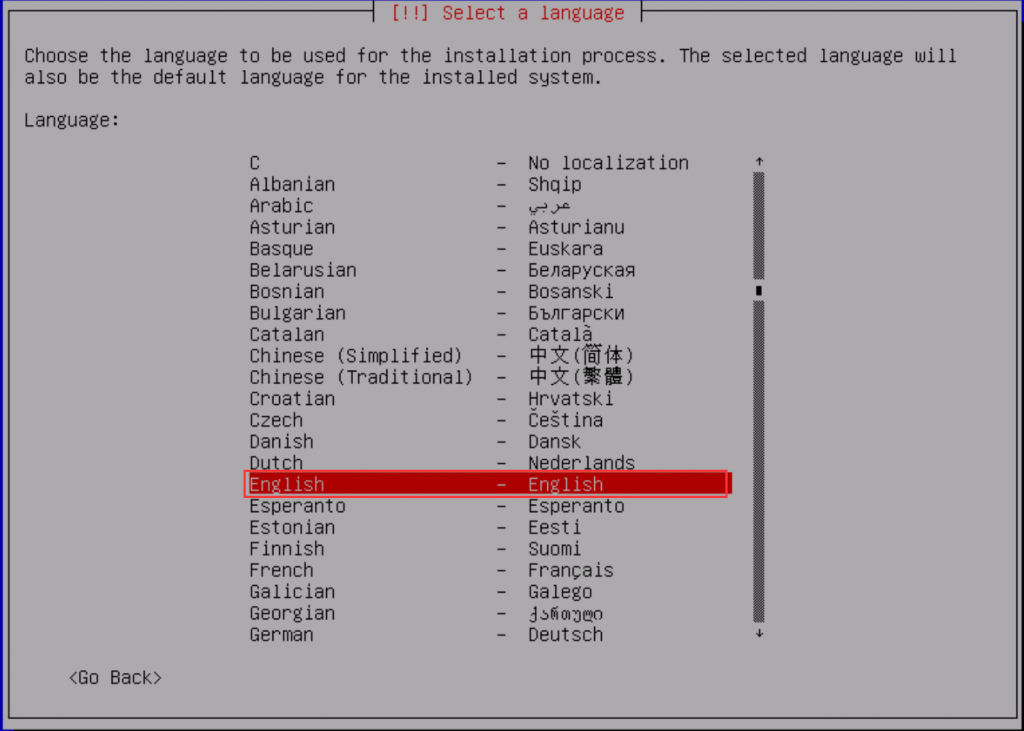
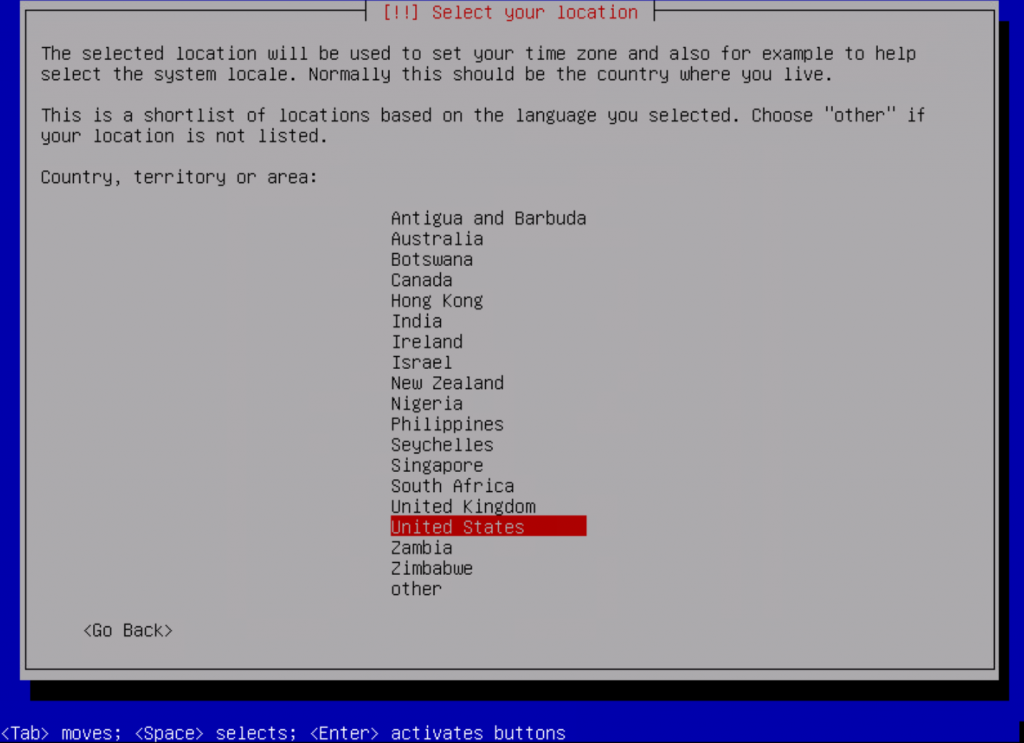
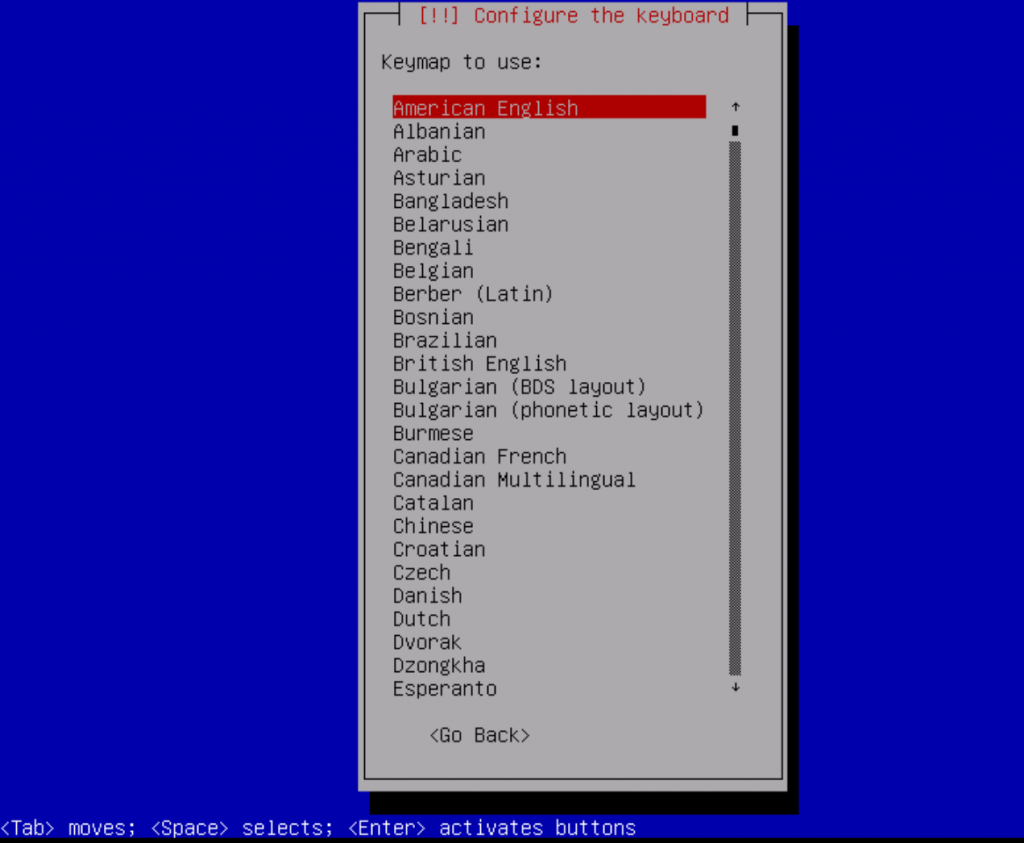
- 6. The system will automatically identify the network card. Here we recommend disconnecting the network to install it to save download time.
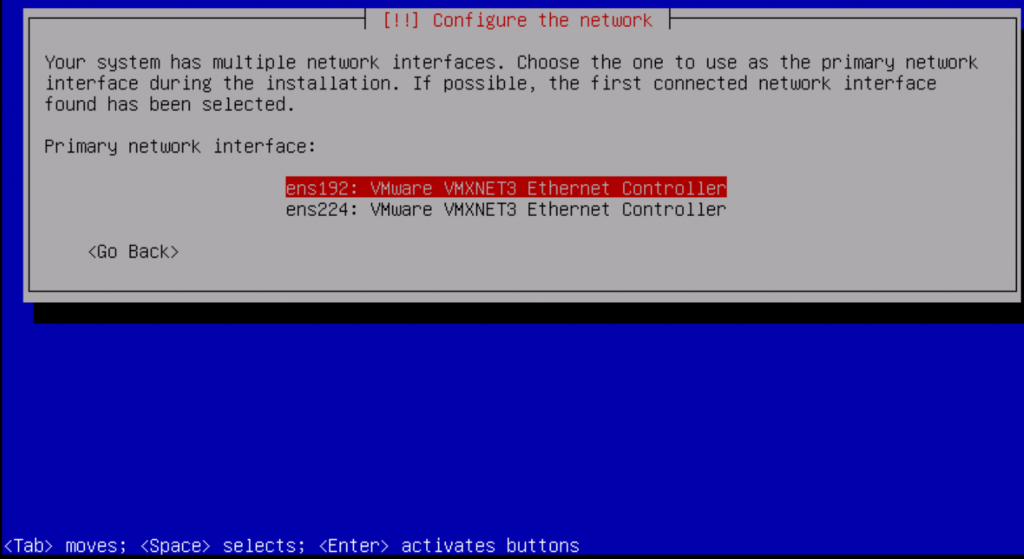


- 7. Enter the system host name and user name.
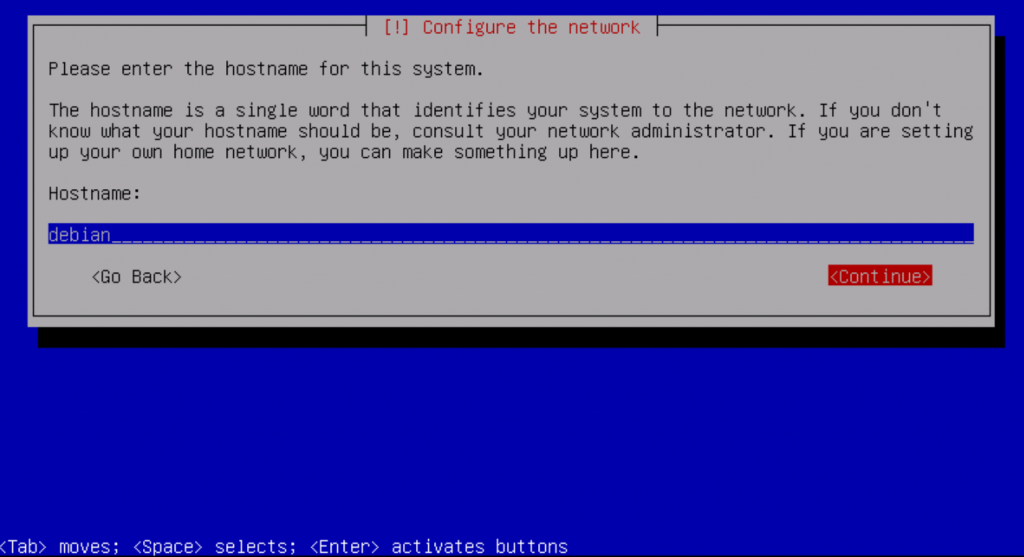
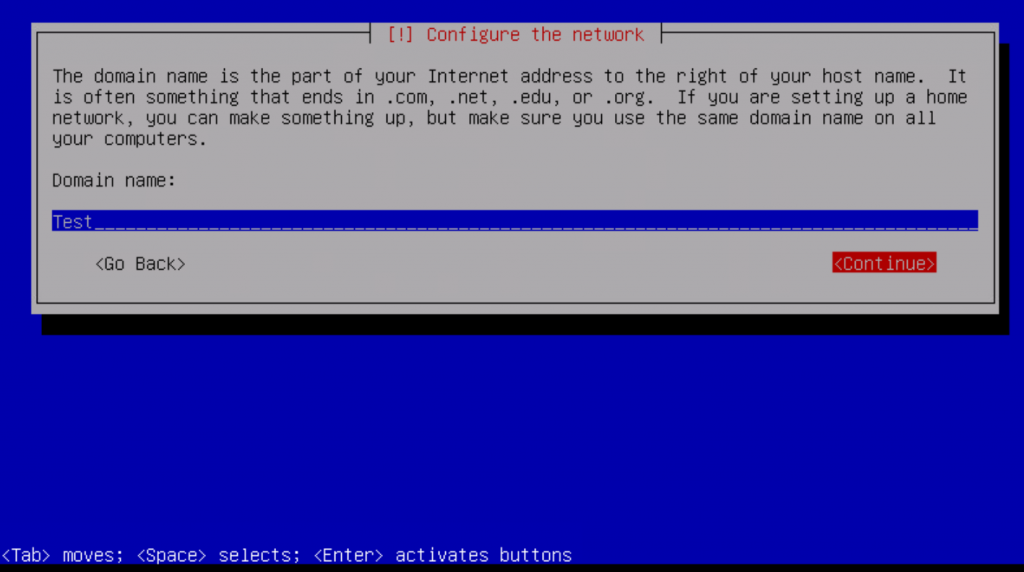
- 8. Set the root password and confirm the root password.
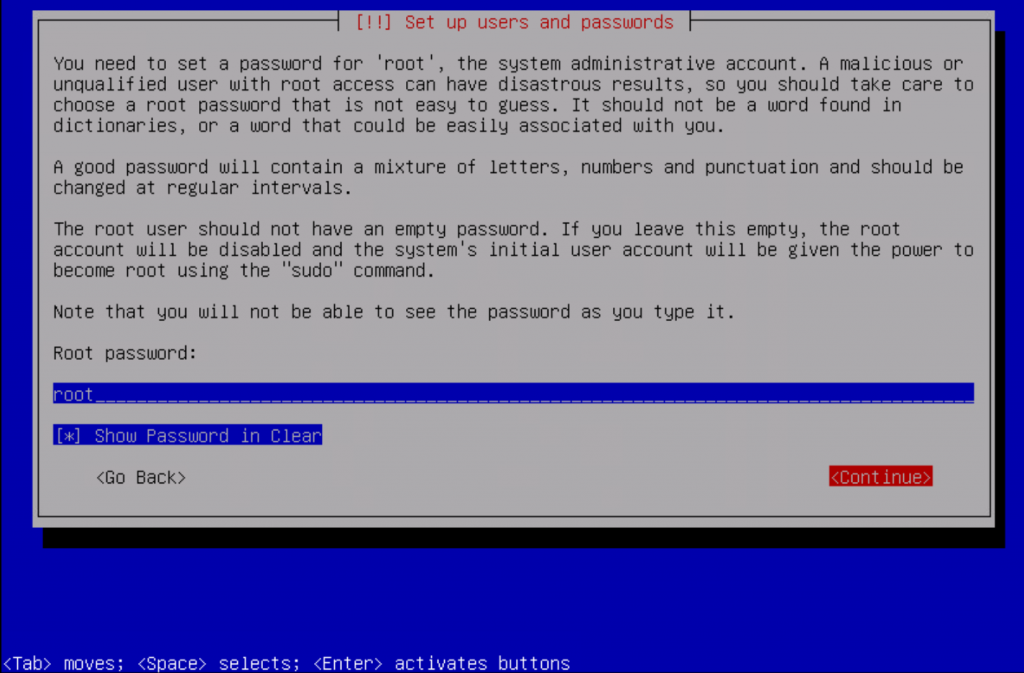
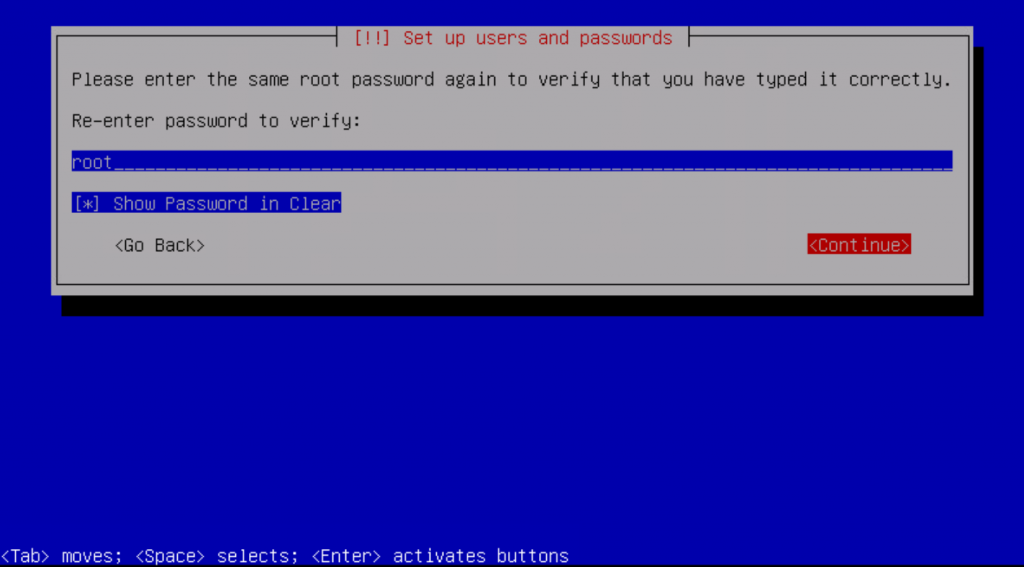
- 9. Create a user and set a user password.
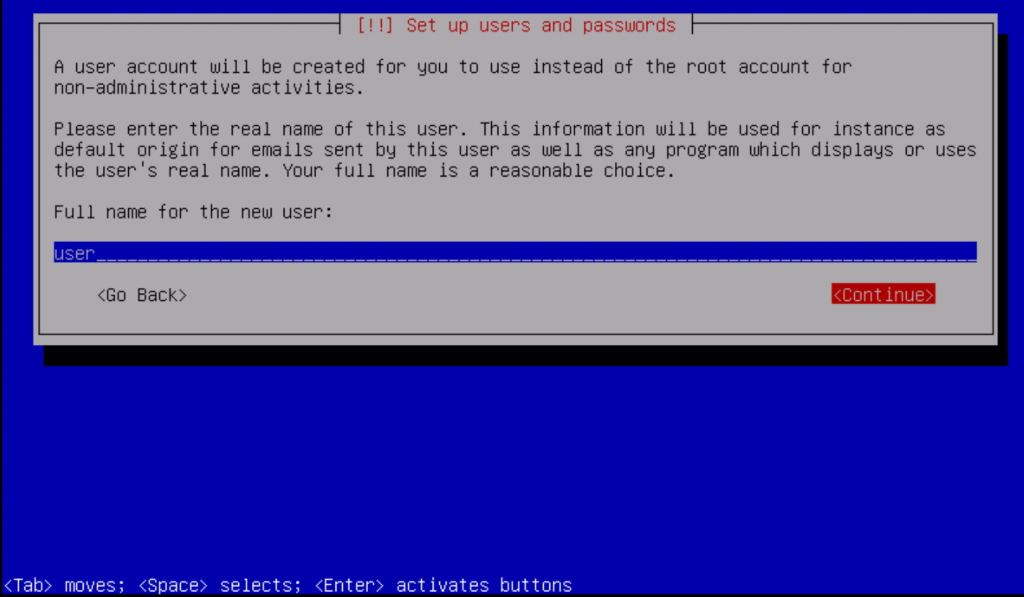
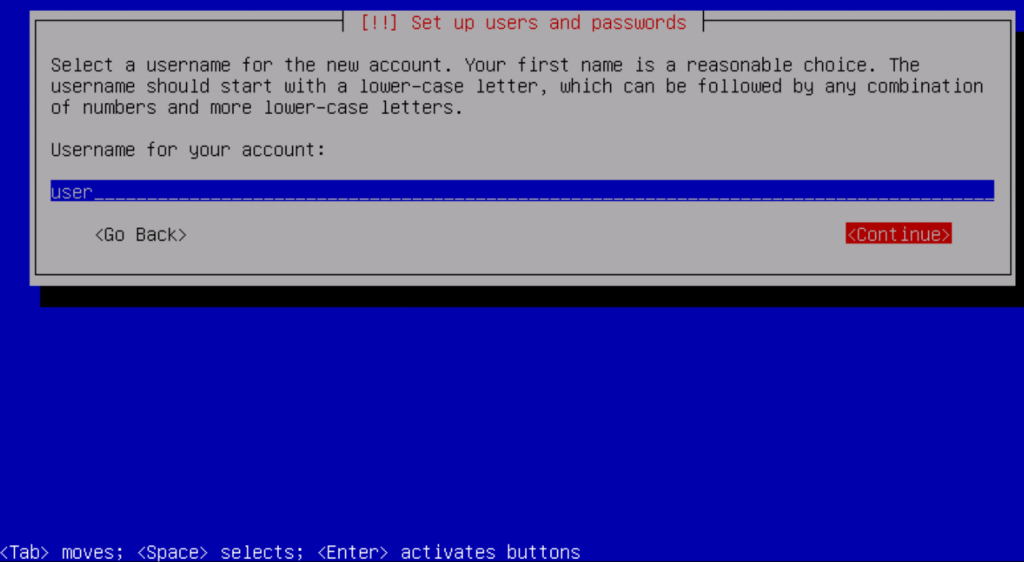
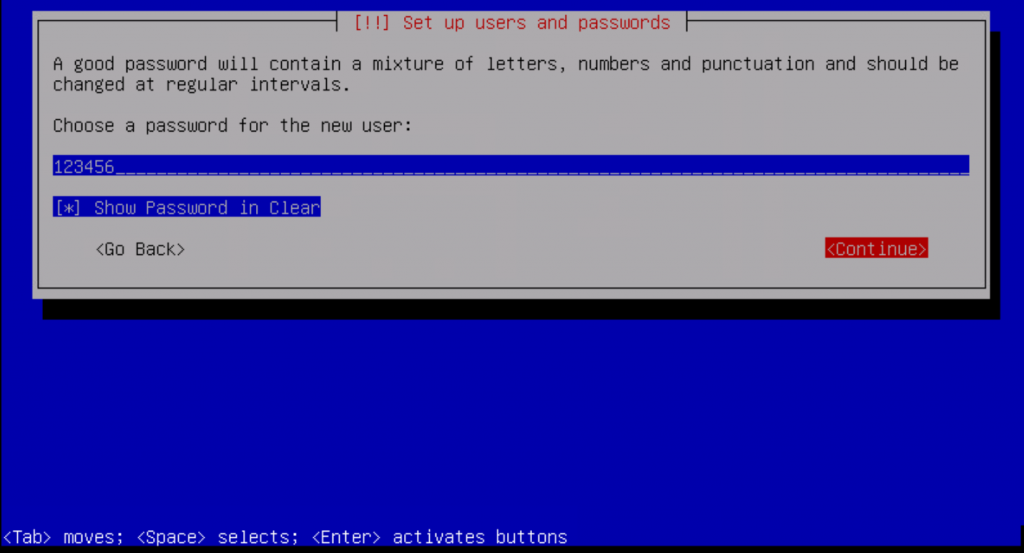
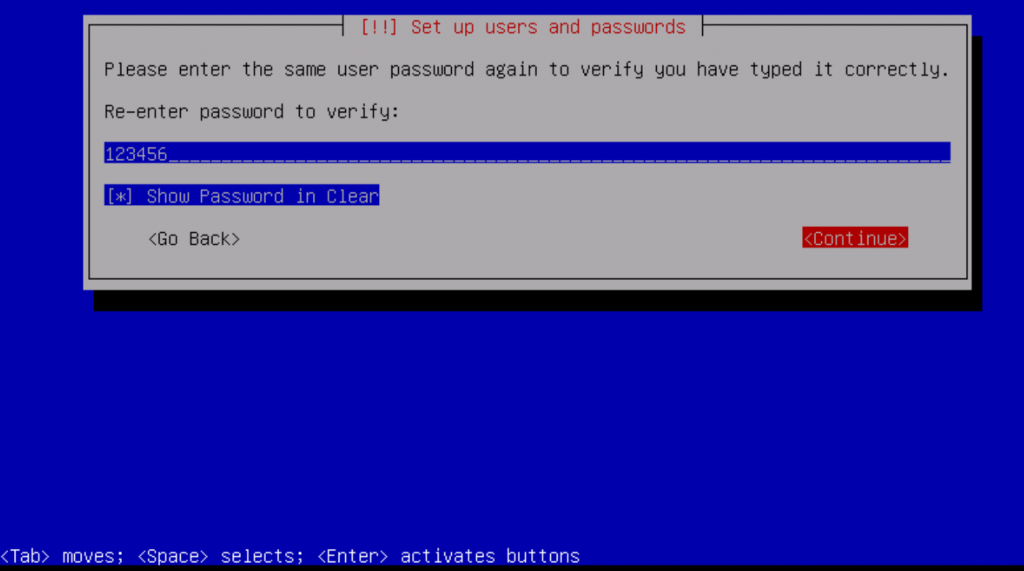
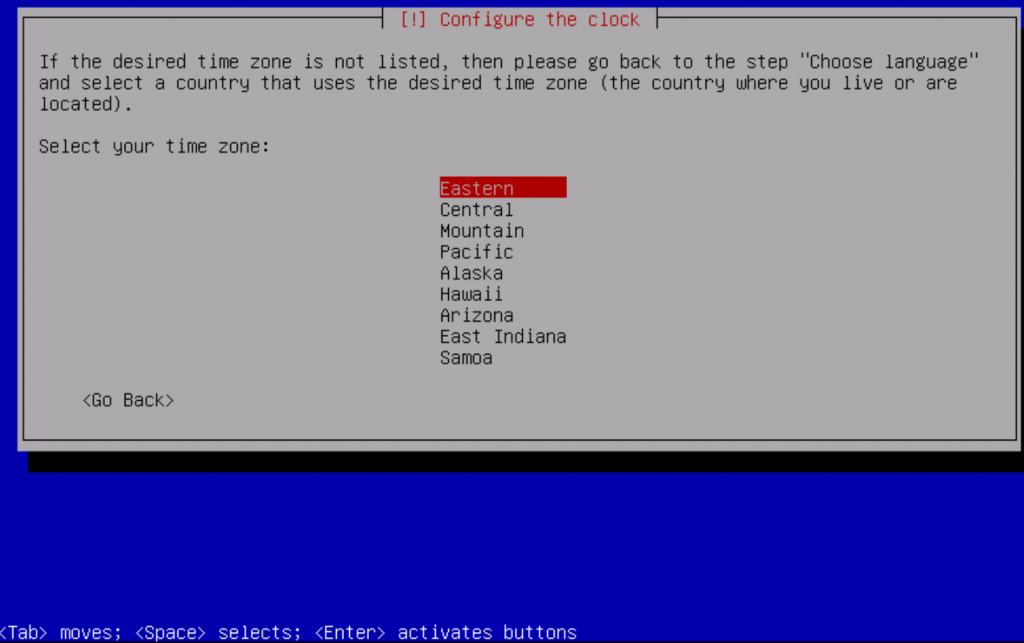
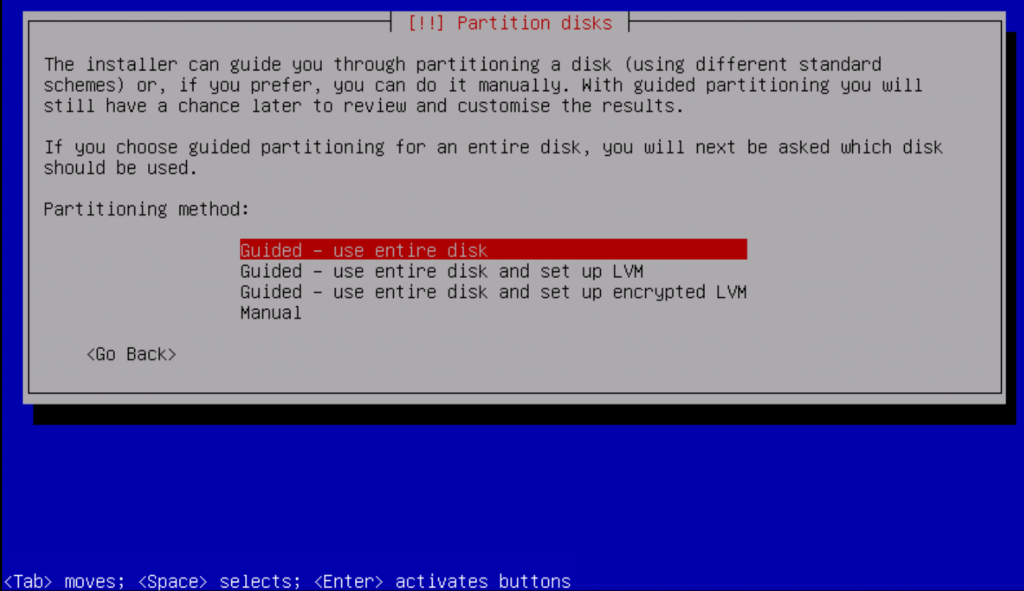
- 10、选择>Eastern>Guided - use entire disk>Finish partitioning and urite changes to disk>All files in one partition (recommended for new users)>Finish partitioning and urite changes to disk>Yes>开始安装。
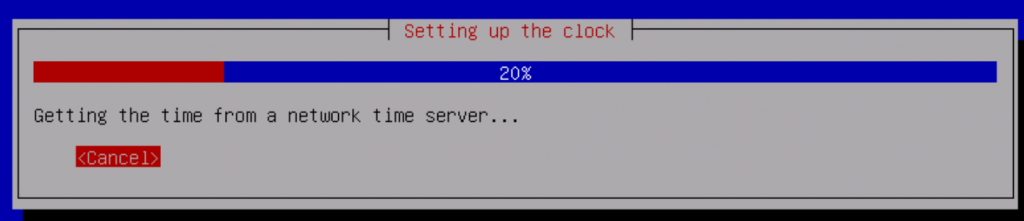
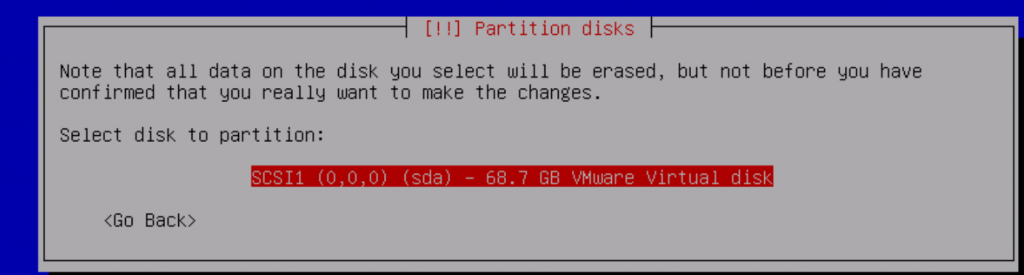
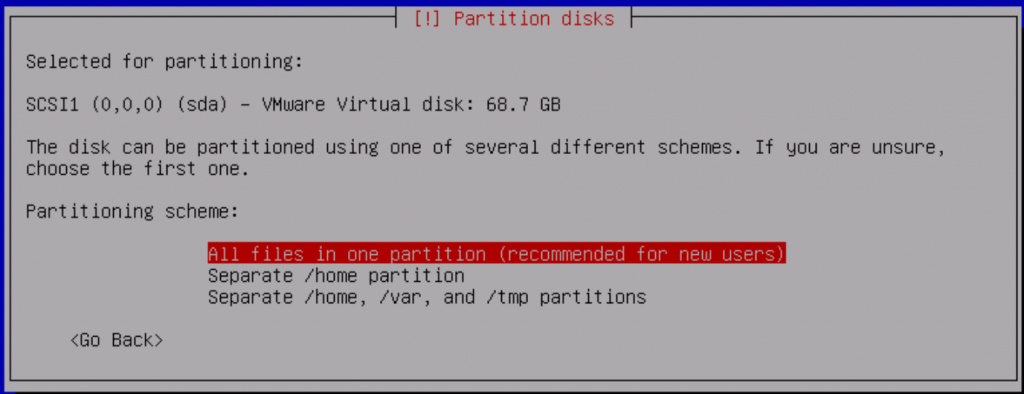
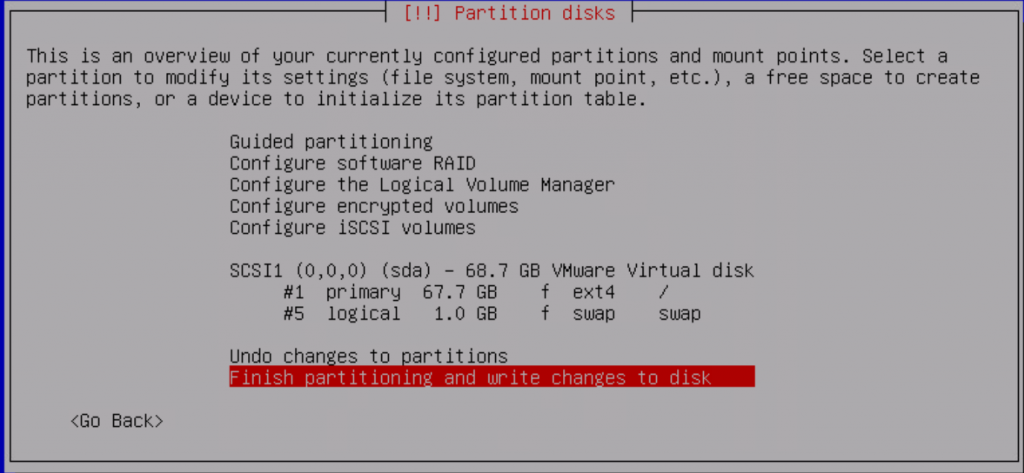
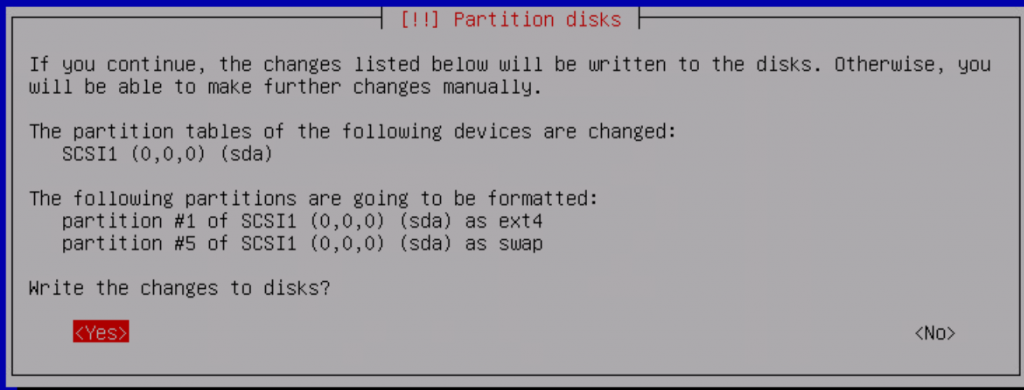
- 11. Asked whether you need to insert additional installation media, select No. Asked whether to select network mirroring, select No. Asked whether to refer to the software package survey, select No.
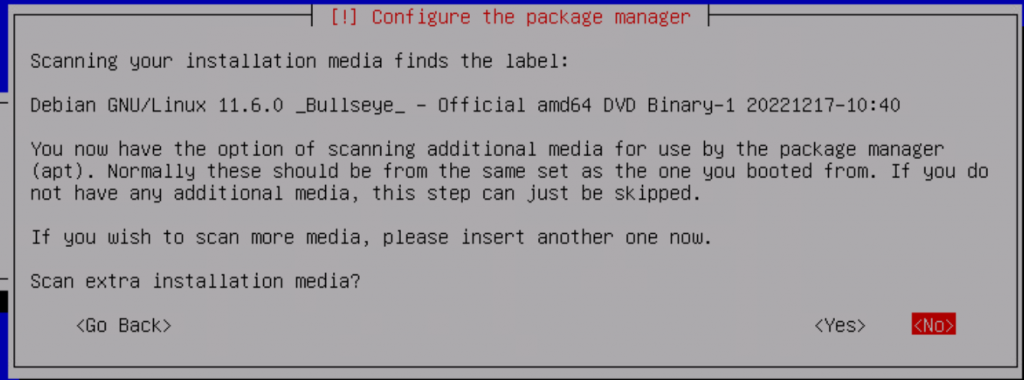
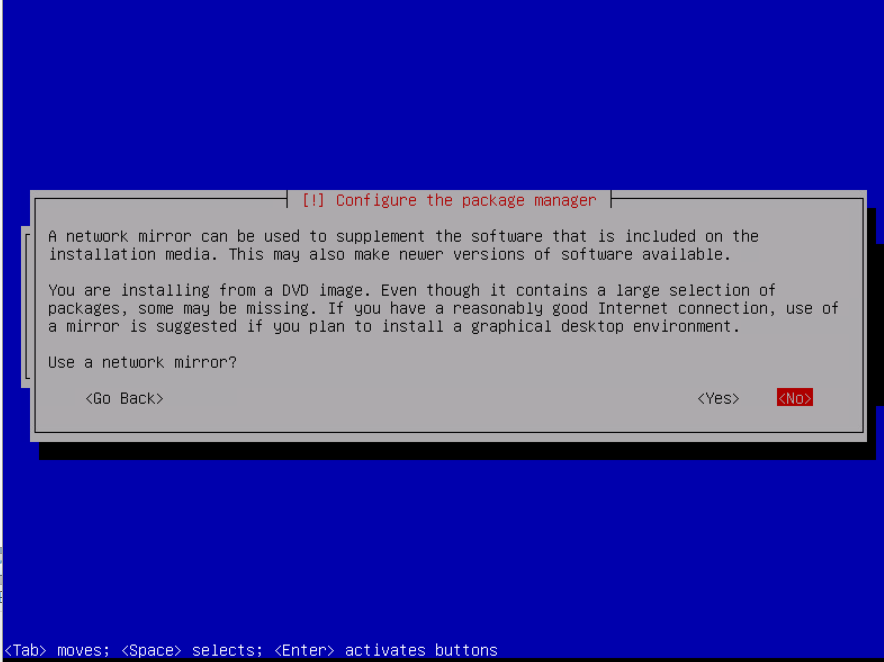
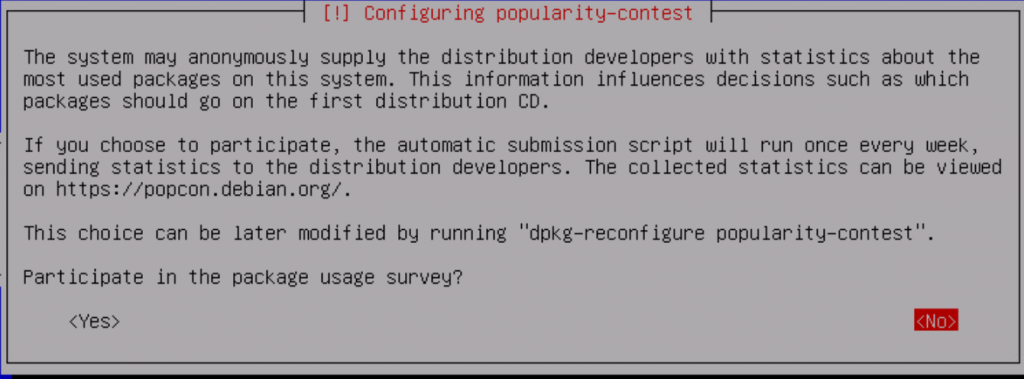
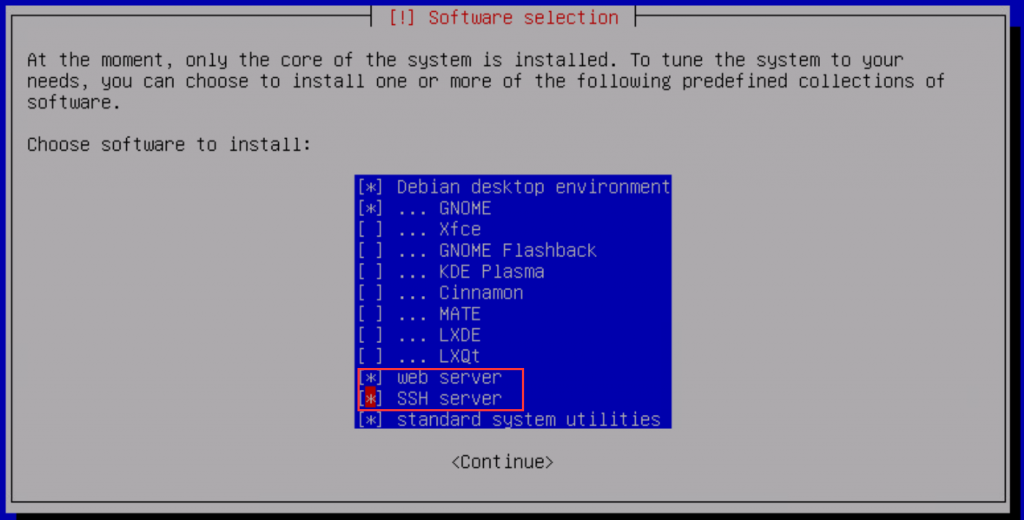
- 12. Select the required functions according to your needs. It is recommended to check web server and SSH server. Asked Install the GRUB boot loader to your primary drive? Select Yes.
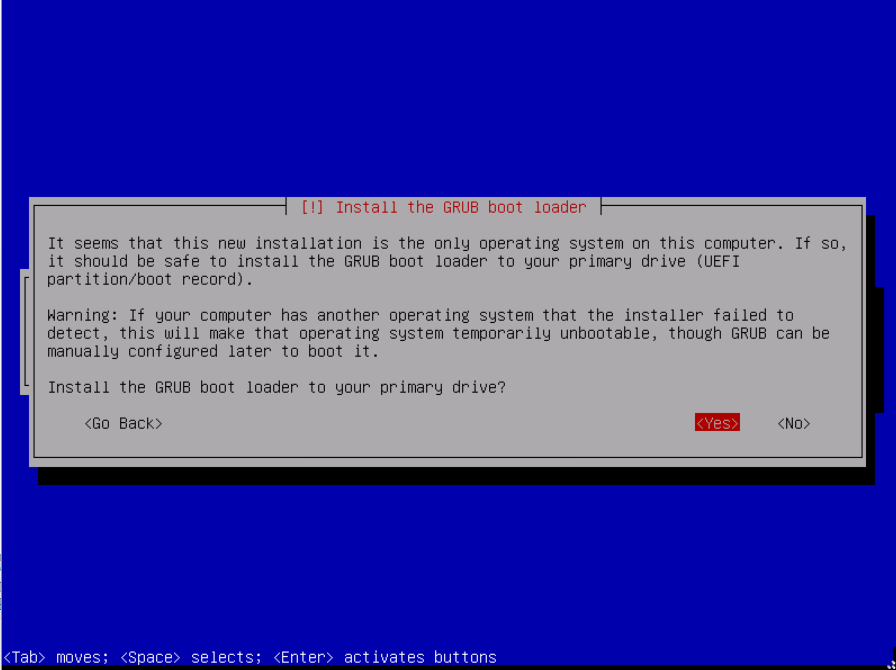
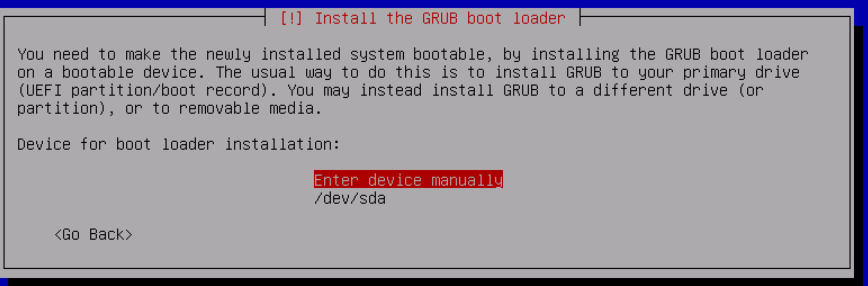
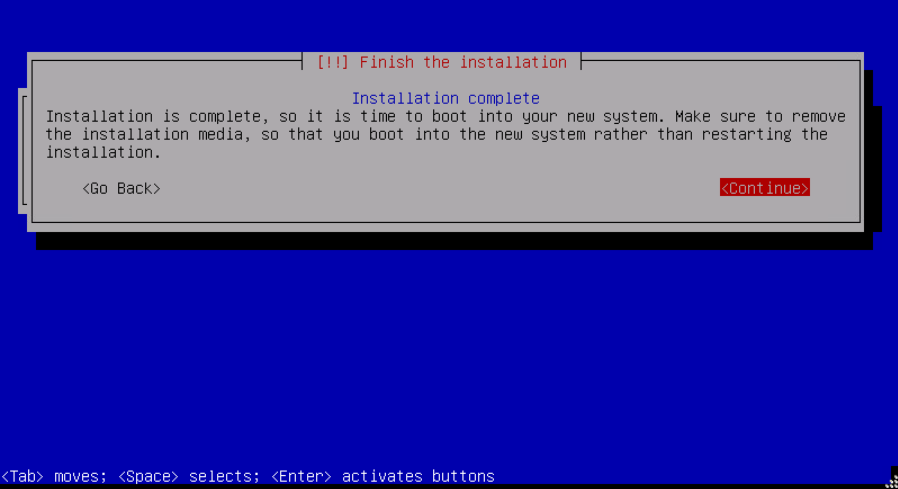
- 13. As shown in the picture below, the installation is successful. After removing the installation media, click Continue to restart. After restarting, you will automatically enter the Debian desktop.
Switch FTPM to TPM enable Bluetooth guidance in H4T BIOS
Hard disk expansion and partitioning steps for Windows systems
