
Delete unnecessary local user accounts under Windows 11 system
Delete redundant local user accounts in Windows11
Important note: This solution may involve data in the machine, please make sure to back up before operation; Personal important data includes but is not limited to the following documents: File data (such as Word, photos, videos, etc.), account information (such as browser favorites, Microsoft account activated office, software activation code, etc.), some important software installation packages (such as paid software, professional software, industry software, etc.) Normal backup is to save all the partitions in the current machine, which is very important to you. Copy it to the U disk, mobile hard disk or upload to the web disk and other storage space, such as data is very important, it is recommended that after backup, copy it to other normal use of the computer to open the view for verification.
Knowledge point analysis
There are multiple accounts in the machine, you need to delete an unused account, Win11 system can follow the following steps;
Note: Before deleting an account, ensure that the data in the account to be deleted is backed up before deleting the account.
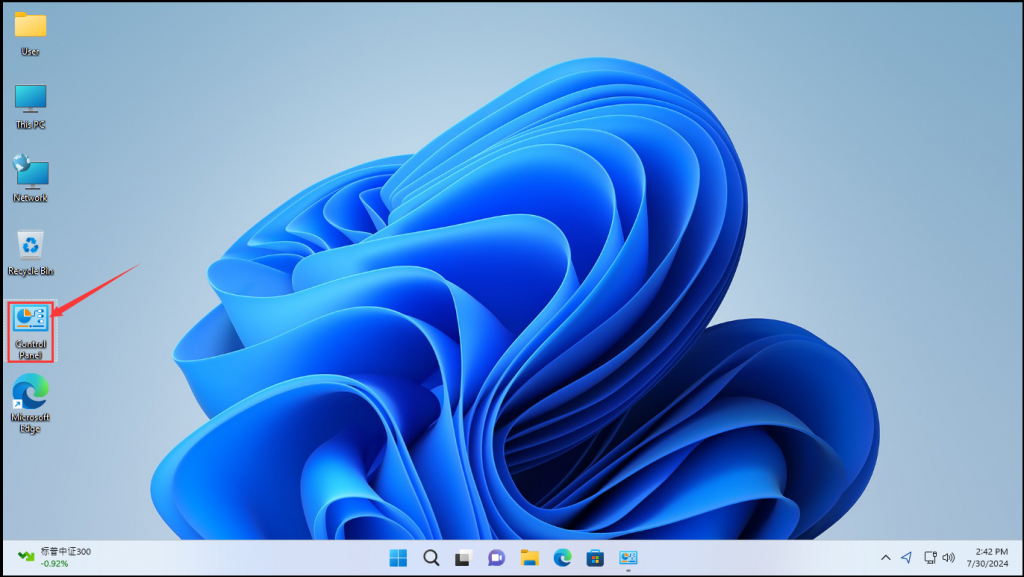
Step 1: After entering the Windows desktop, double-click Control Panel to enter the Control Panel. If there is no Control Panel on the desktop, search for Control Panel in the taskbar to enter the Control Panel.
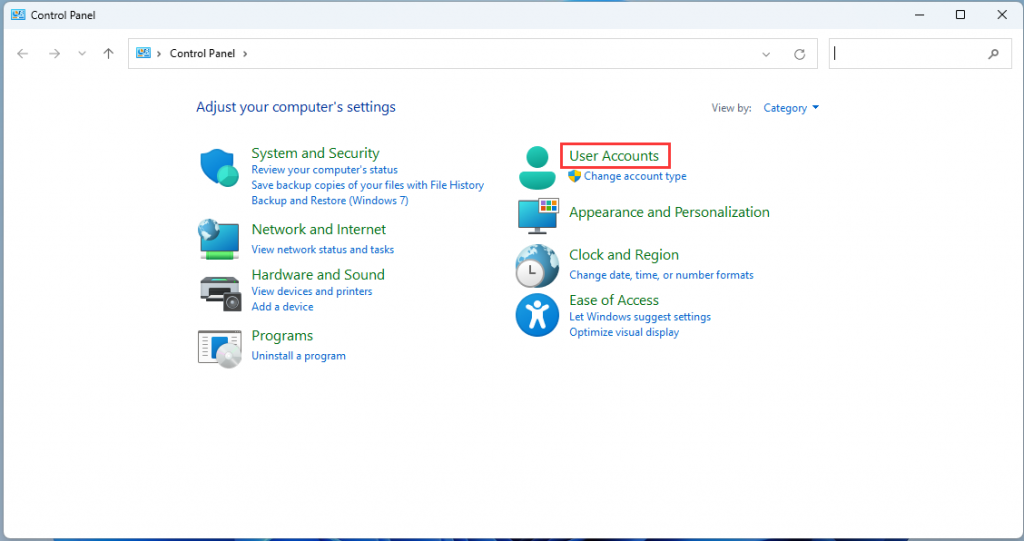
- Step 2: Select User Accounts.
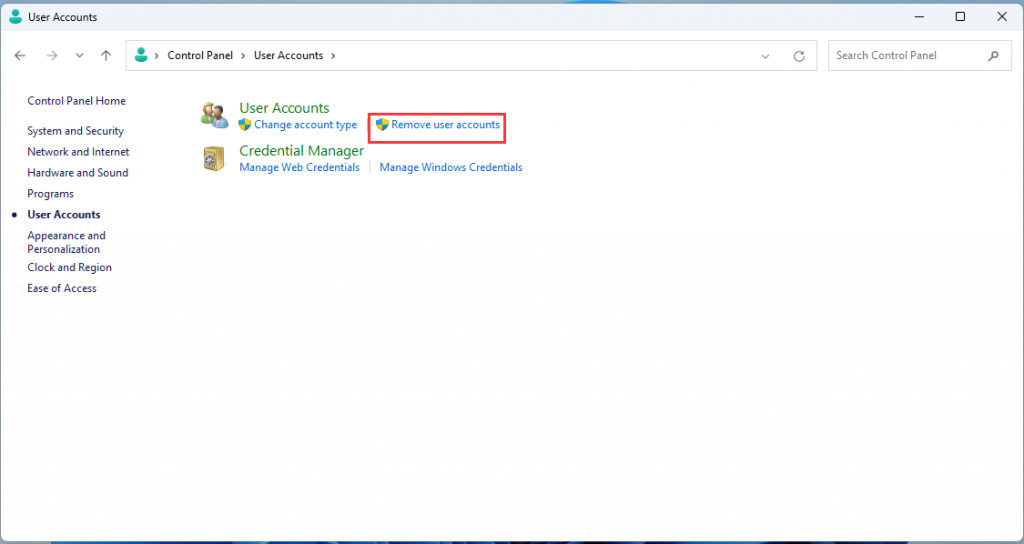
- Step 3: Select Remove user accounts.
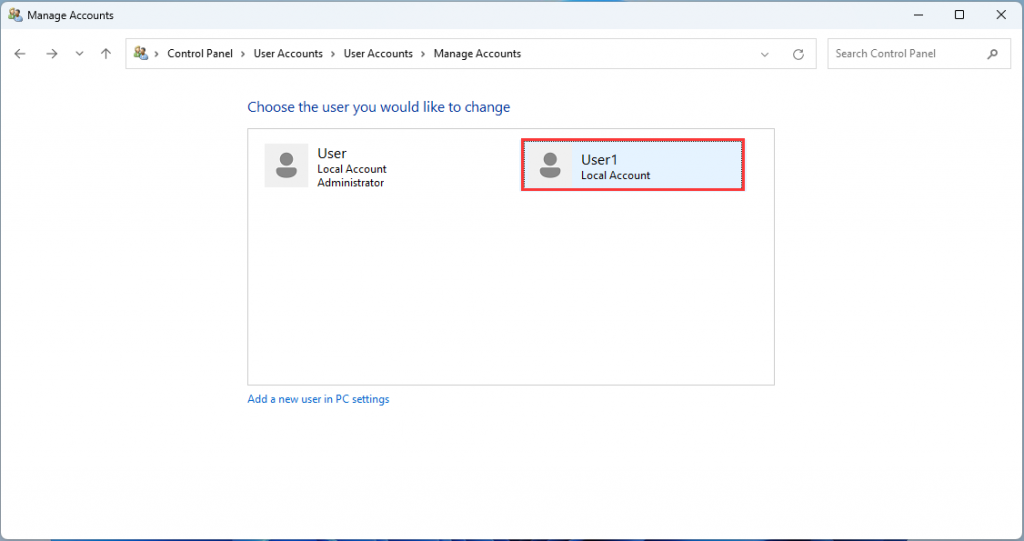
- Step 4: Select the user account that you want to delete. This section uses User1 as an example.
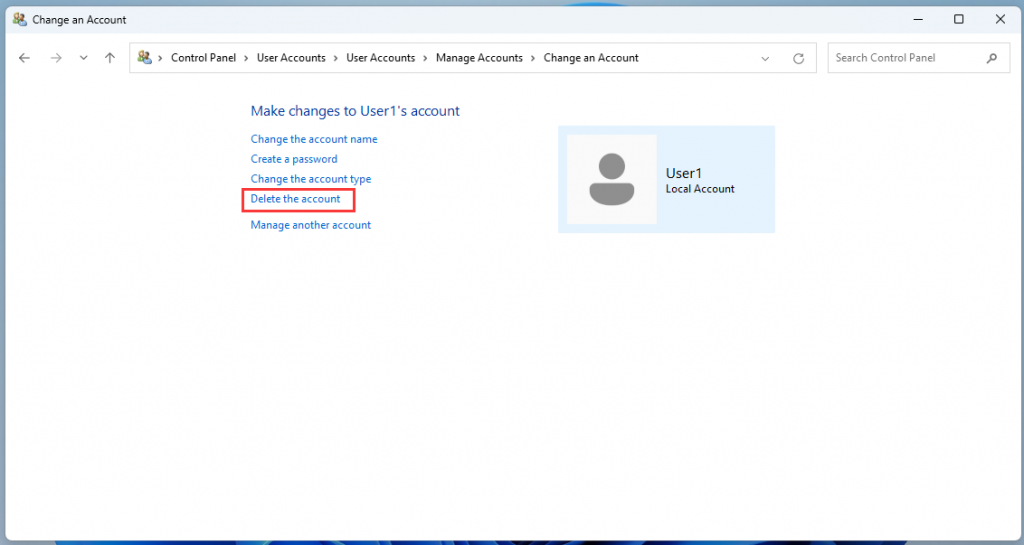
- Step 5: Click Delete the account;
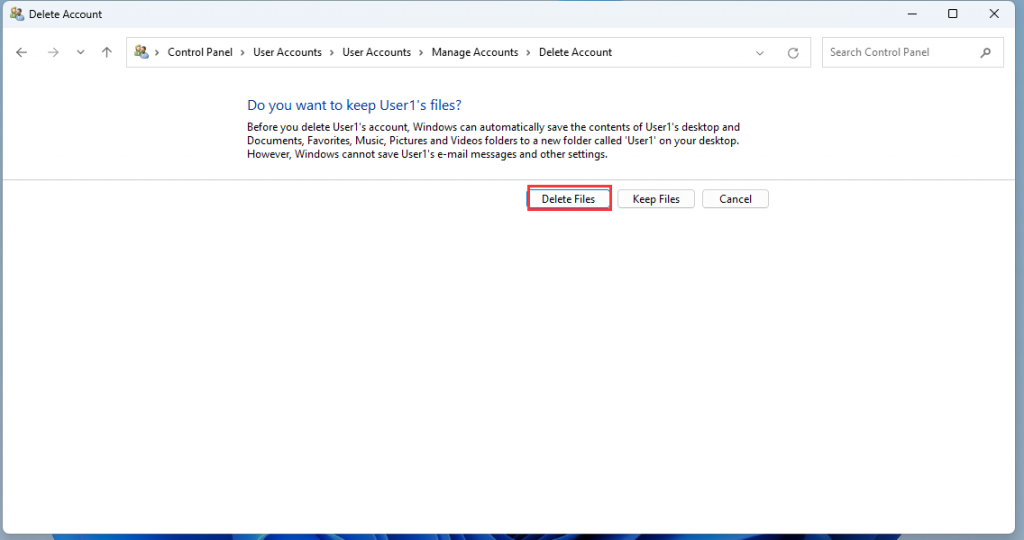
- Step 6: Click Delete Files;
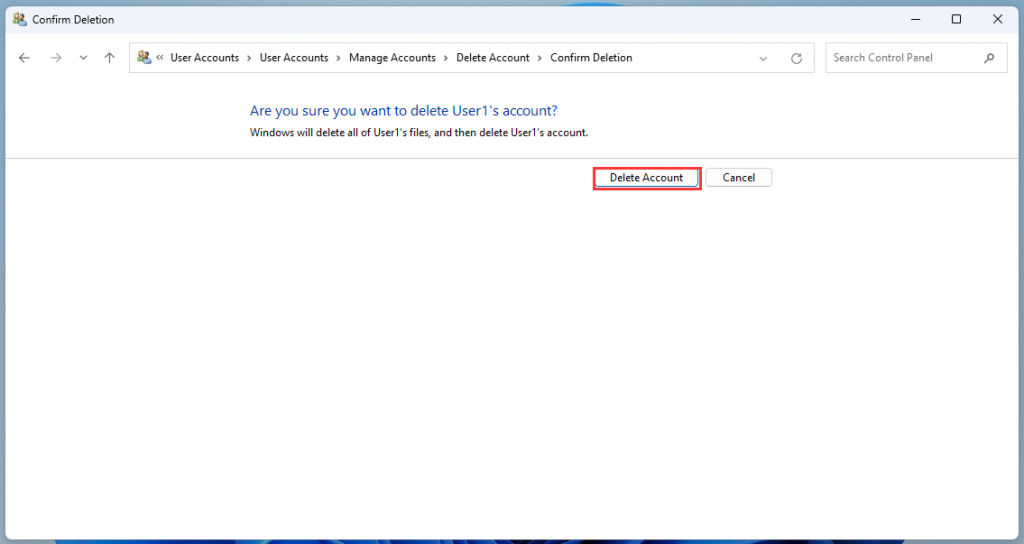
- Step 7: Click Delete Account.
EFI Shell Steps to update BIOS in mode
Mini computer reports "Verification failed: (0X1A) Security Violation" when booting from USB drive. Solution
