
General solution for automatic repair of startup prompts after Win10/Win11 system update
author: VENOEN
2023-11-23
Common Solutions for Automatic Repair Prompt after Updating Win10/Win11 System on Startup:
Symptom:
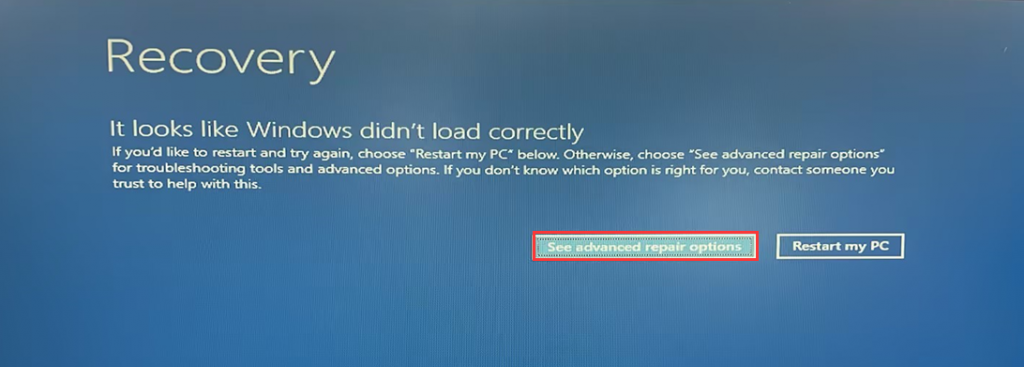
After updating the system, some users are prompted with "automatic repair" and cannot enter the system, as shown in the following figure:
Cause analysis:
Some of Microsoft's updates can lead to such problems.
Solution:
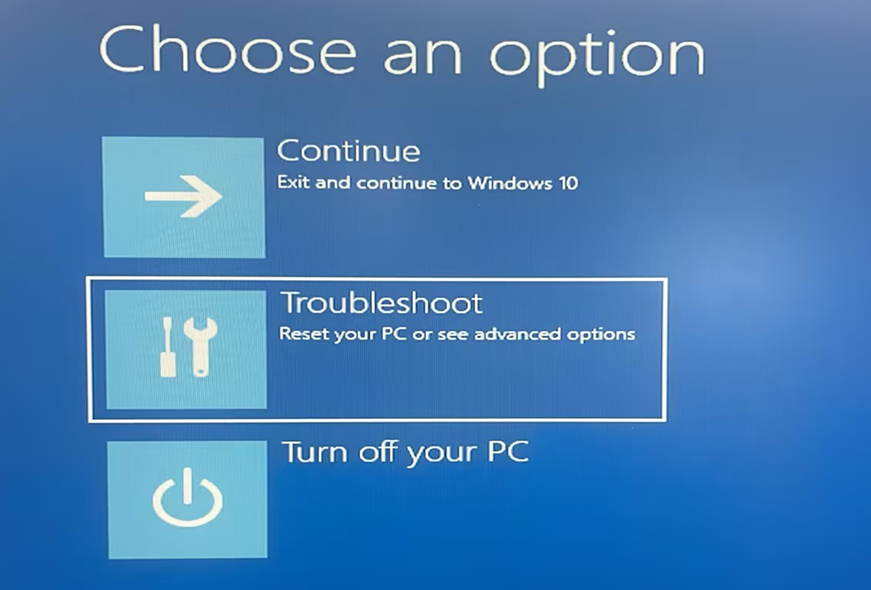
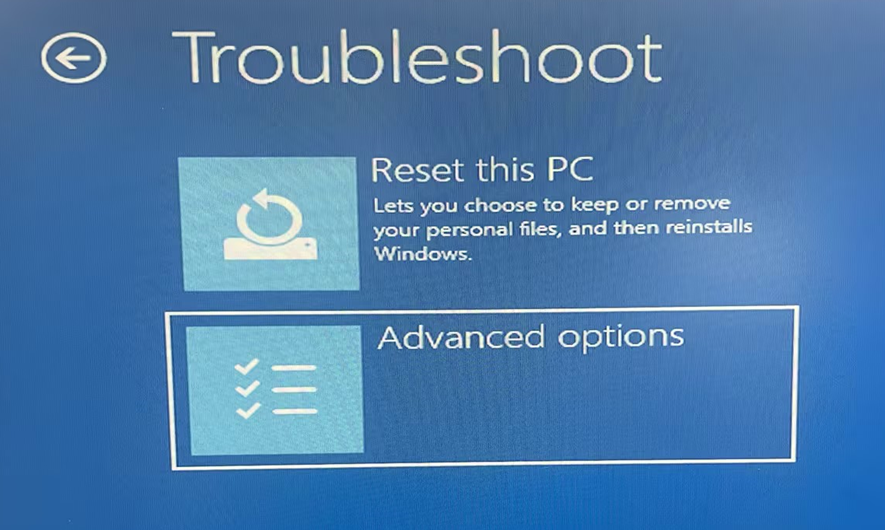
1. Select "See advanced repair options"> "Troubleshoot>Advanced options"> "Uninstall Updates"> "Uninstall latest quality" step by step.
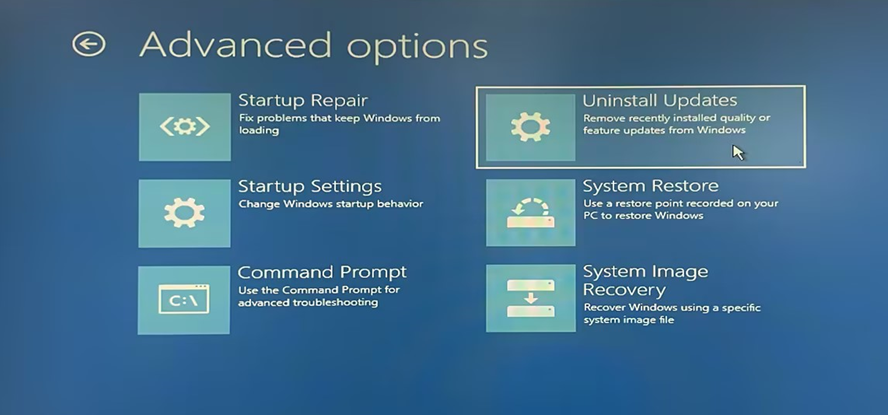
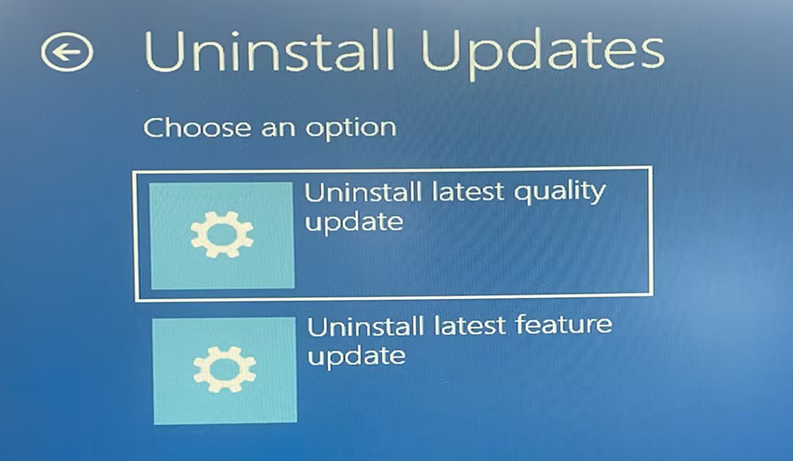
- 2. Then select the corresponding account according to the prompts and enter the account password (if no password has been set, you can ignore it), and choose "Uninstall quality update".
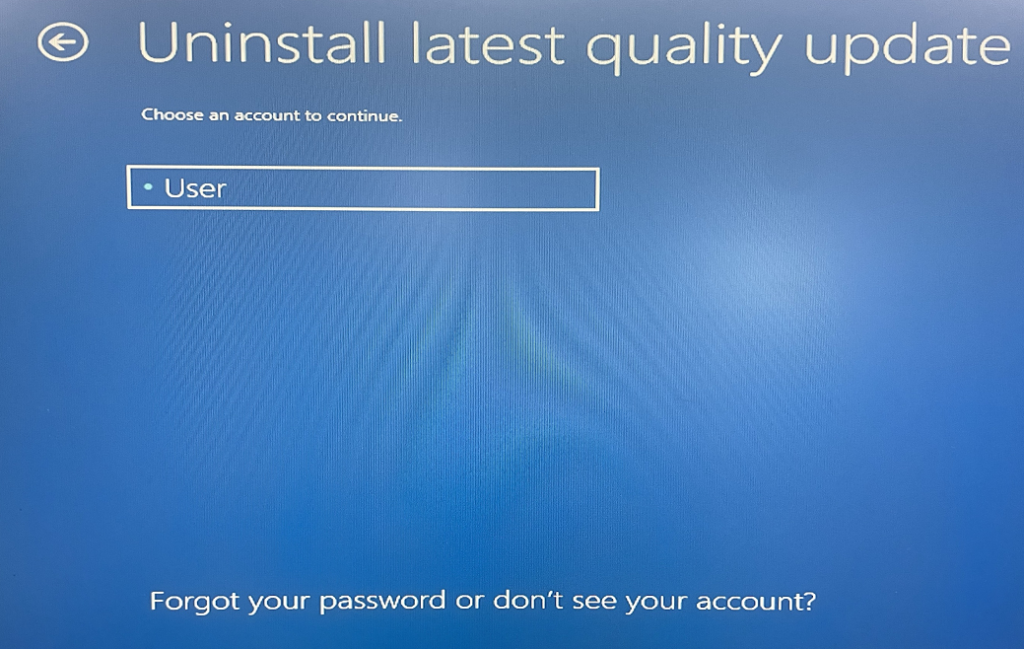
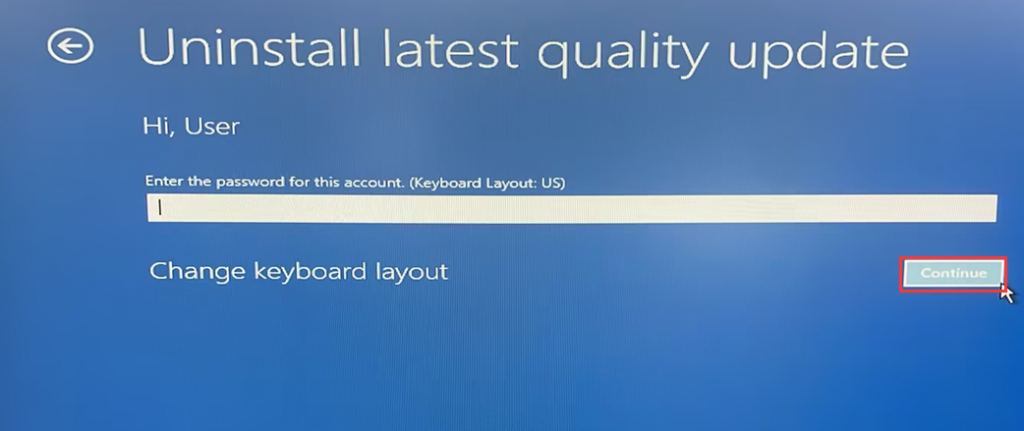
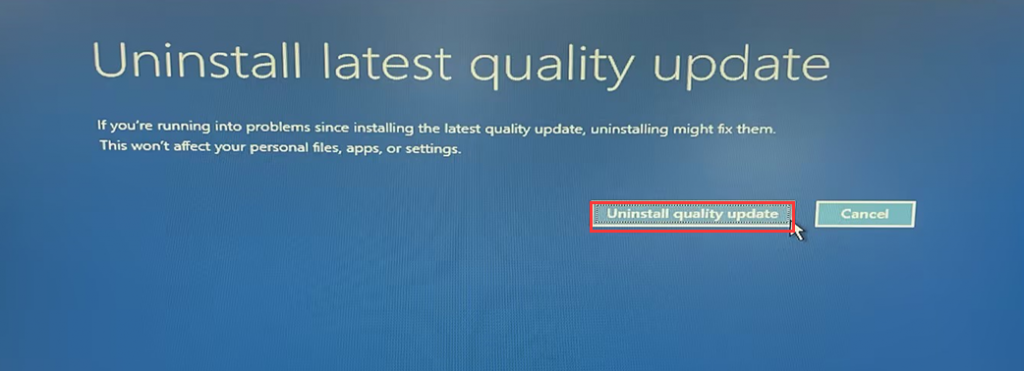
- 3. After uninstallation is complete, click "Done". Then click "Continue" to start the system normally.
4. If the issue remains unresolved, it is recommended to reset or reinstall the operating system. Important Note: You need to back up all data on your computer (including various account information) before resetting or reinstalling the operating system to avoid any loss.
How to use DiskGenius to clone a hard drive?
Solution to Frequent Reset of Motherboard BIOS
