
H4- Summary of Common QA Issues
author: VENOEN
2023-11-27
- H4-Summary of common QA questions
- Note: The following QA questions are common problems and solutions we found during the testing and after-sales process. These solution steps will not solve the problem in all cases, but they have been proven to solve the problem for many customers. If you have tried all the steps listed below and your HYSTOU mini PC still does not start up properly, you may contact HYSTOU customer support for assistance with further troubleshooting or to obtain a warranty replacement.
- Q: What should I do if my computer restarts repeatedly during the startup process and cannot enter the operating system desktop?
- A: 1. Please confirm that you are using the original factory standard power adapter. The original factory standard power adapter specification is 12V 6A (72W). The power consumption of this model can reach up to 65W when it is started or fully loaded. If the maximum power supply of the power adapter you use is less than 72W, the power supply may be insufficient, causing the computer to fail to operate normally;
- 2. Please confirm whether the operating system is damaged and try to see if you can enter Windows safe mode. If you can enter Windows safe mode, it is most likely caused by your operating system. For how to enter Windows safe mode, see the link (applicable to Windows 10/11):
- 3. Try to restore the operating system according to the link steps to solve the problem. For the restoration steps, see the link:
- 4. Try to reinstall the operating system to solve the problem. For the steps to reinstall the operating system, see the link (applicable to Windows 10/11):
- 5. Try to disassemble and replace the machine to confirm the normal RAM test. This model is suitable for DDR4 260pin SODIMM 2400-3200MHz RAM.
- Q: What should I do if the computer's EDP port is not displayed or the EDP port is silent?
- A: 1. Please confirm that the EDP port cable is correctly connected to the monitor;
- 2. The EDP port only supports the use of DP cables to directly connect to the monitor. If other types of conversion cables (such as DP to HDMI, DP to VGA, DP to DVI, etc.) are used, there may be no display;
- 3. The EDP port only supports video transmission, not audio transmission. If you need to transmit audio and video at the same time, please use HDMI or DP port to connect to the monitor;
- 4. The EDP port does not support hot plugging. You can try to plug in the DP cable when the machine is turned off and then turn it on again;
- Q: What should I do if I cannot enter the operating system desktop after the computer is turned on and directly enters BIOS Setup?
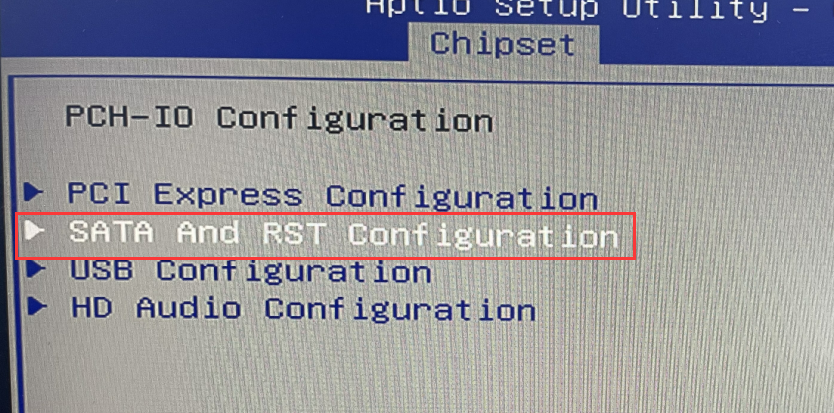
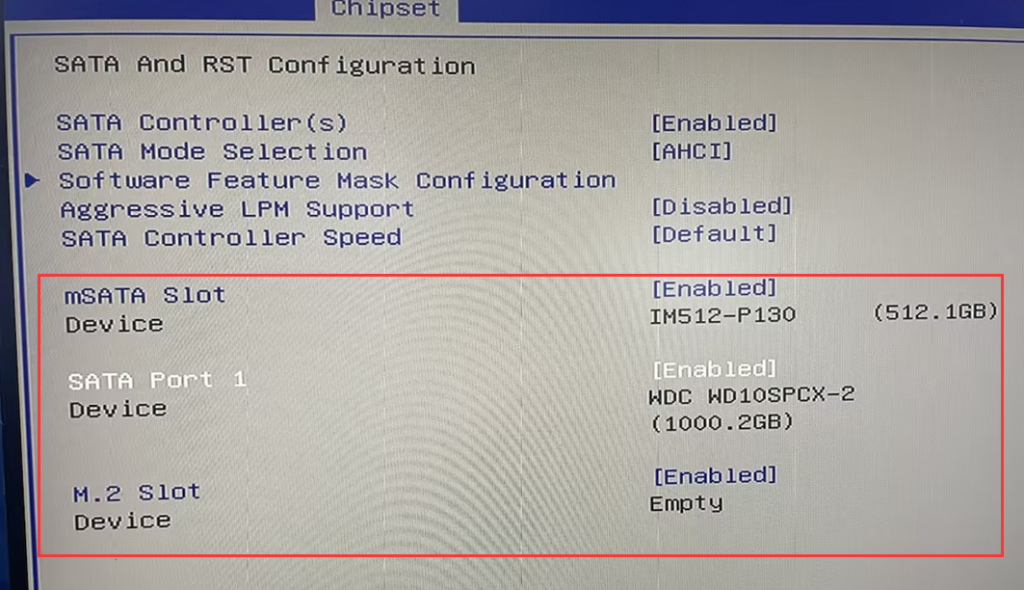
- A: 1. After entering the BIOS, select Chipset>PCH-IO Configuration>SATA And RST Configuration>Check whether your system disk is recognized in MSATA Slot, SATA port 1, M.2 SLot (applicable to SATA storage solution query) );
- 2. After entering the BIOS, select Advanced > Check whether your system hard disk is recognized under the NVME Configuration menu (applicable to NVMe storage solutions).
- 3. If the relevant hard disk can be recognized in the BIOS, it may be caused by damage to the operating system. Try reinstalling the system to test. If no hard drive is recognized in the BIOS, the hard drive itself may be faulty or loose. Try disassembling and reinstalling the hard drive while the power is off, or replace the hard drive with a confirmed normal one and then enter the BIOS again to query.
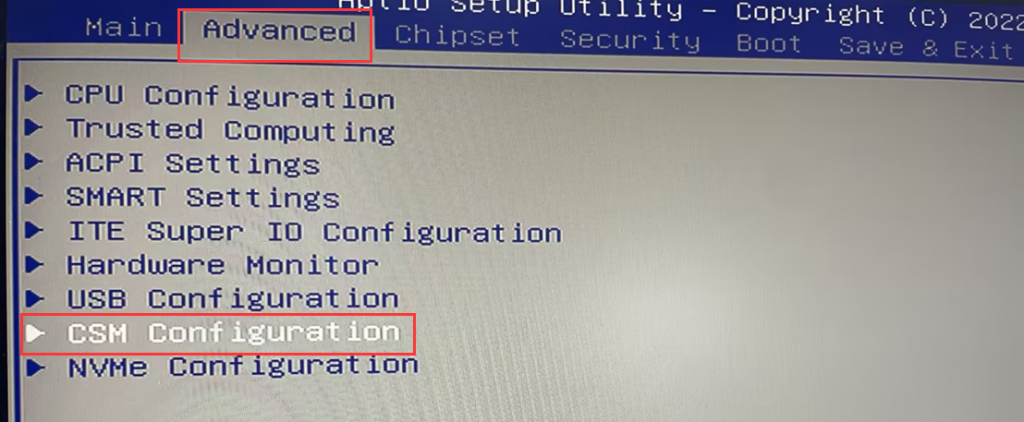
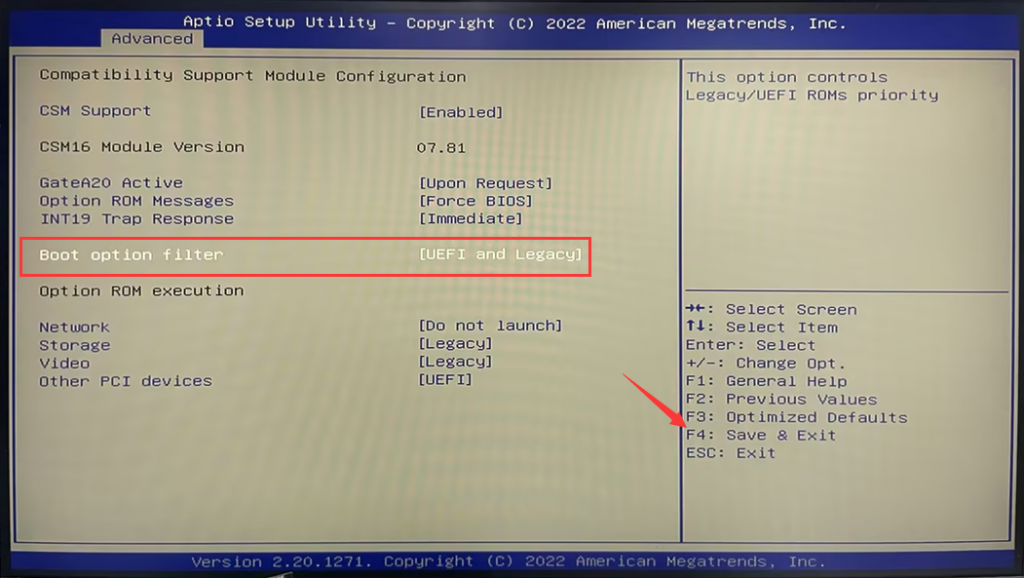
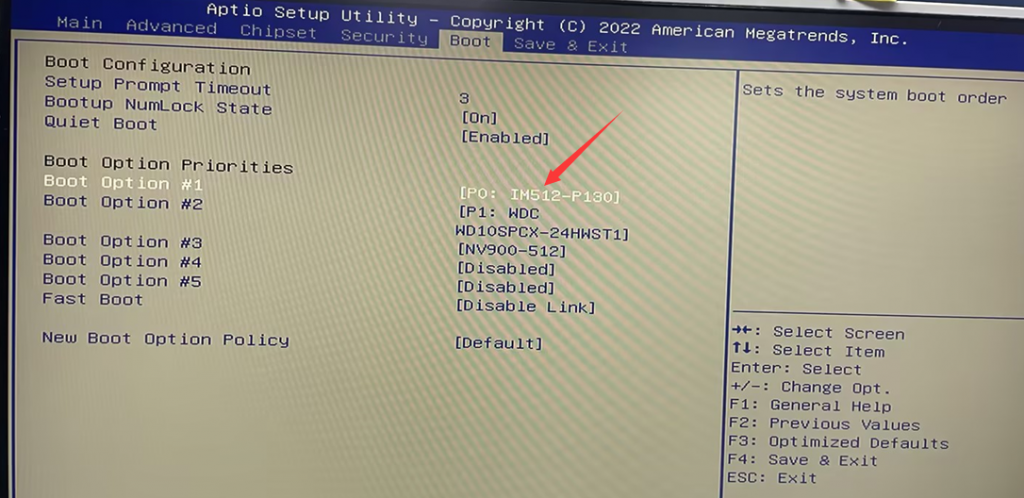
- 4. The BIOS of this model only supports UEFI boot mode by default. If your hard disk uses a cloned system in legacy mode, you need to change several references in the BIOS to boot successfully. Change steps: When the computer is turned off, press the power button to turn it on and quickly tap the Del key on the keyboard to enter the BIOS. After entering the BIOS, select Advanced>CSM Configuration>Configure the Boot option filter to UEFI and Legacy. After the settings are completed, press F4 to save and exit. . Press the Del key on the keyboard again to enter the BIOS, select Boot>select your system disk in Boot Option #1, and press F4 to save and exit after the settings are completed.
- Q: How to switch the RS485 serial port working mode?
- A: 1. This model supports 4 groups of RS232 or 2 groups of RS485. The factory default is 6 groups of RS232. If you need to use RS485, please follow the link steps to switch. Because this model is more complicated to switch to RS485, you must switch before purchasing. Contact our customer service and RS485 can be configured before leaving the factory.
[Windows 11/10] How to create and use installation media to reinstall Windows 11/10 via USB drive
How to use DiskGenius to clone a hard drive?
