
How to Change Language on Windows 10 System
author: VENOEN
2025-09-15
- Preparation:
Make sure you are connected to the internet
Save the document you are editing
1. Enter the Windows 10 desktop and click "Start">Settings>Time & Language>language>Add a language.
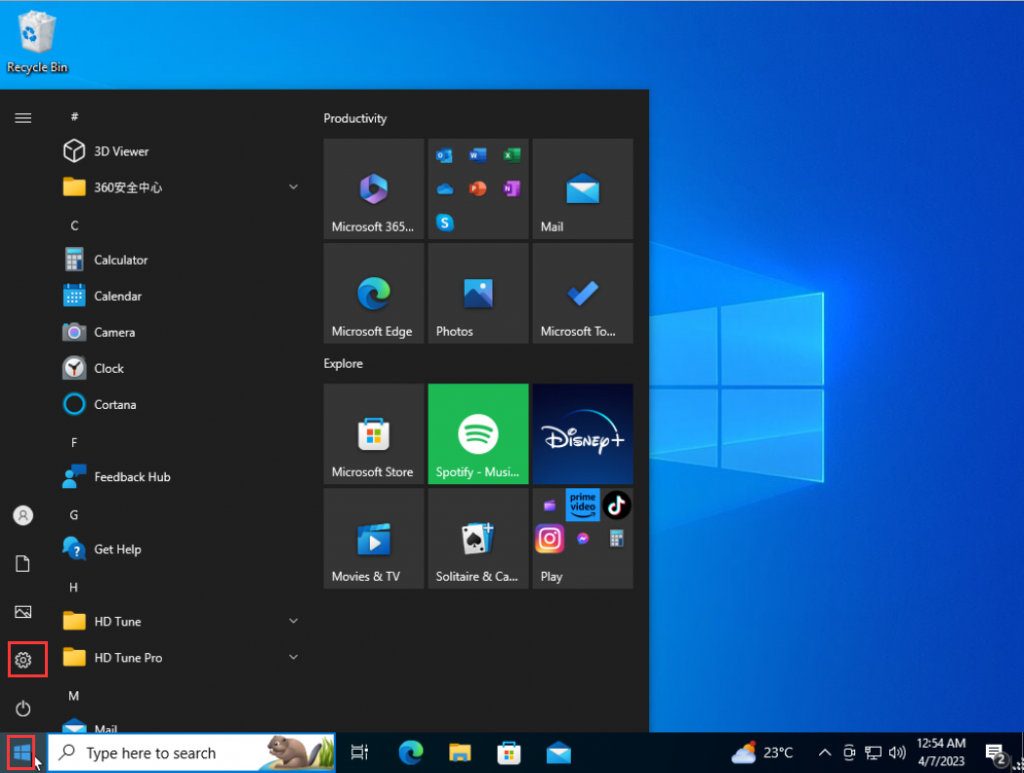
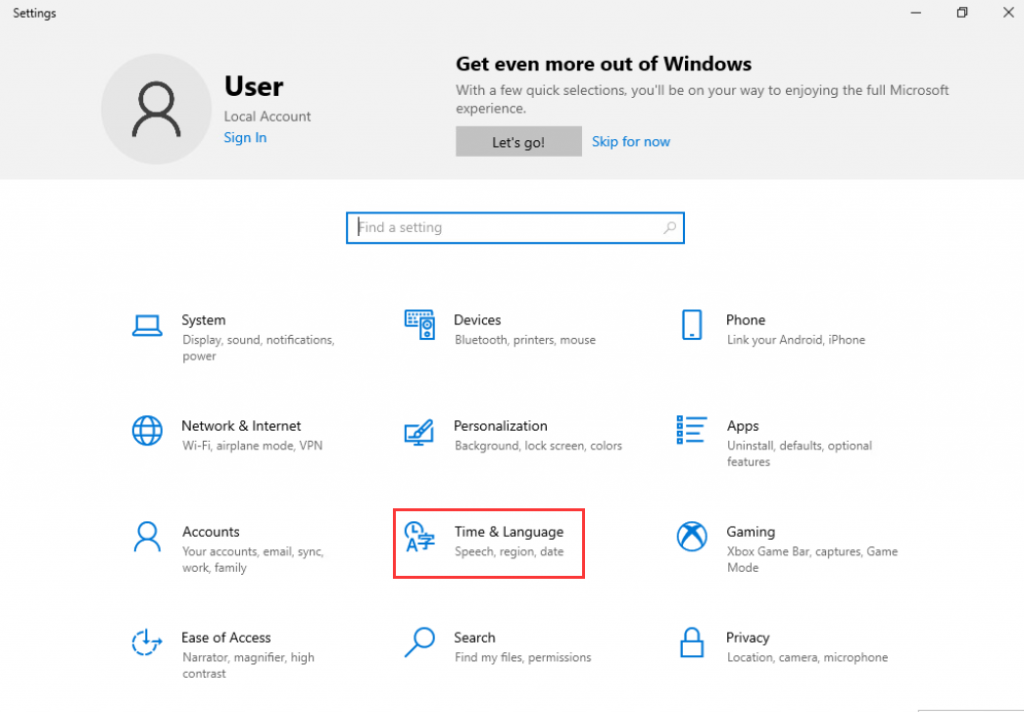
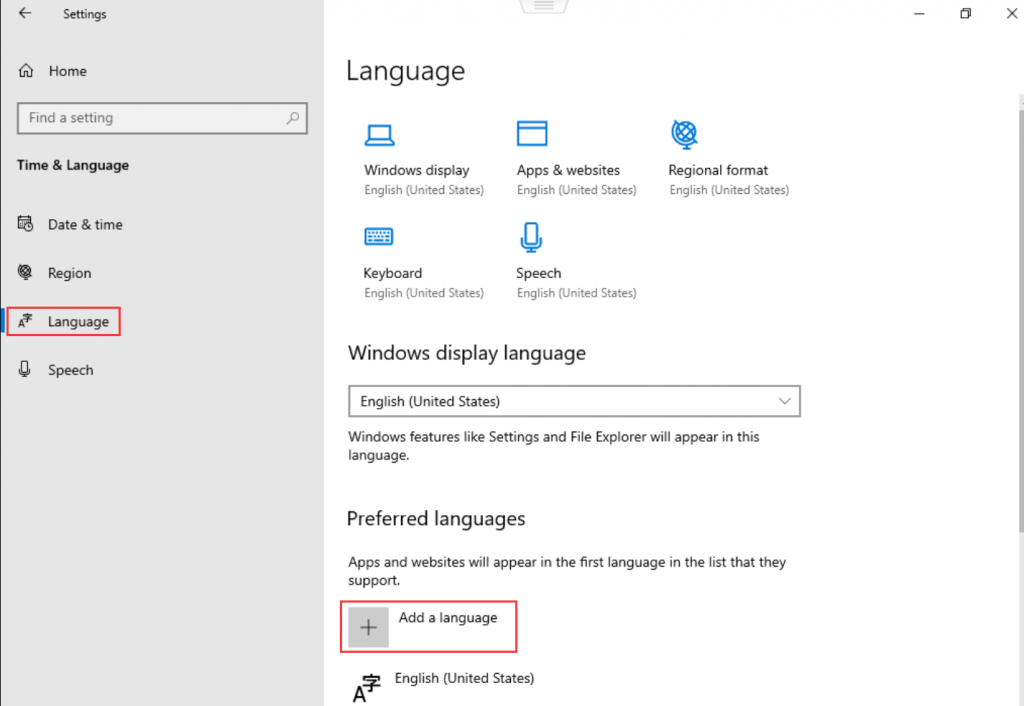
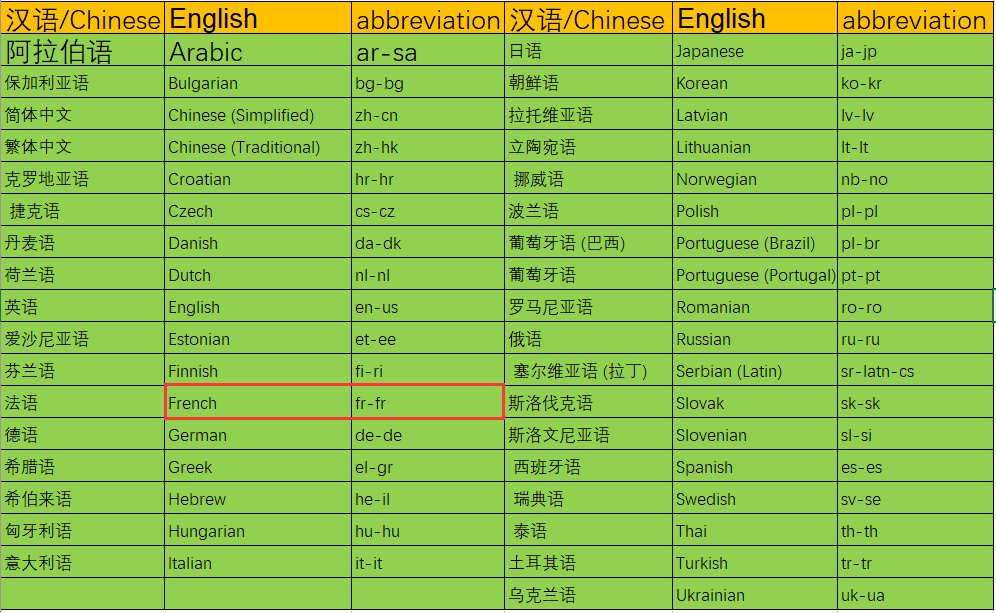
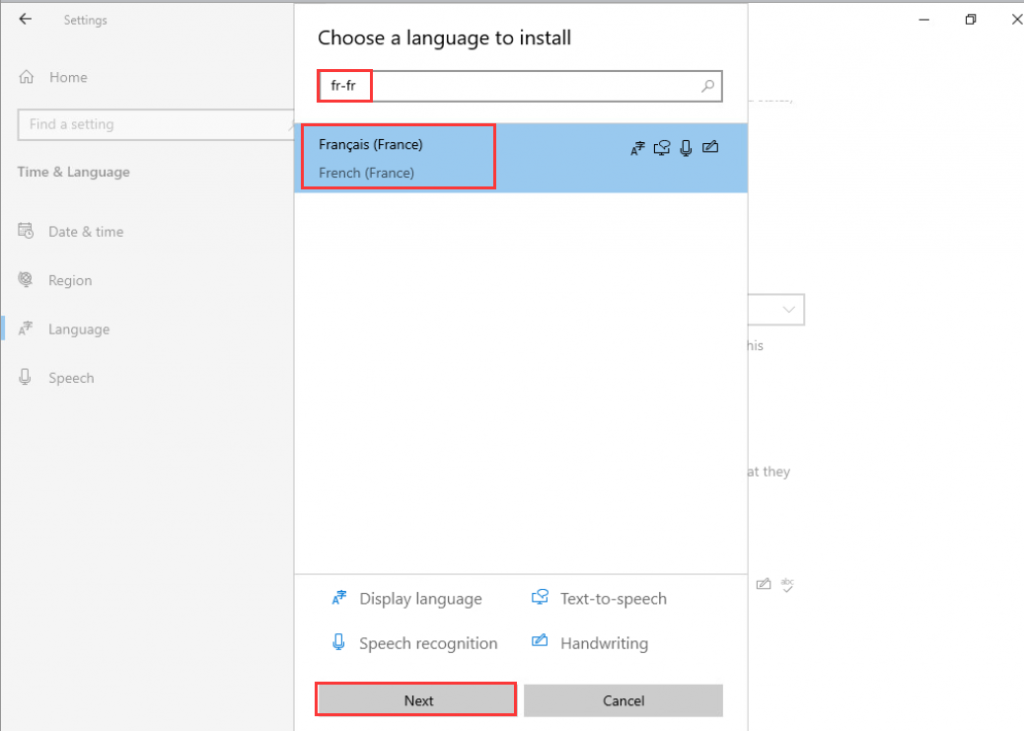
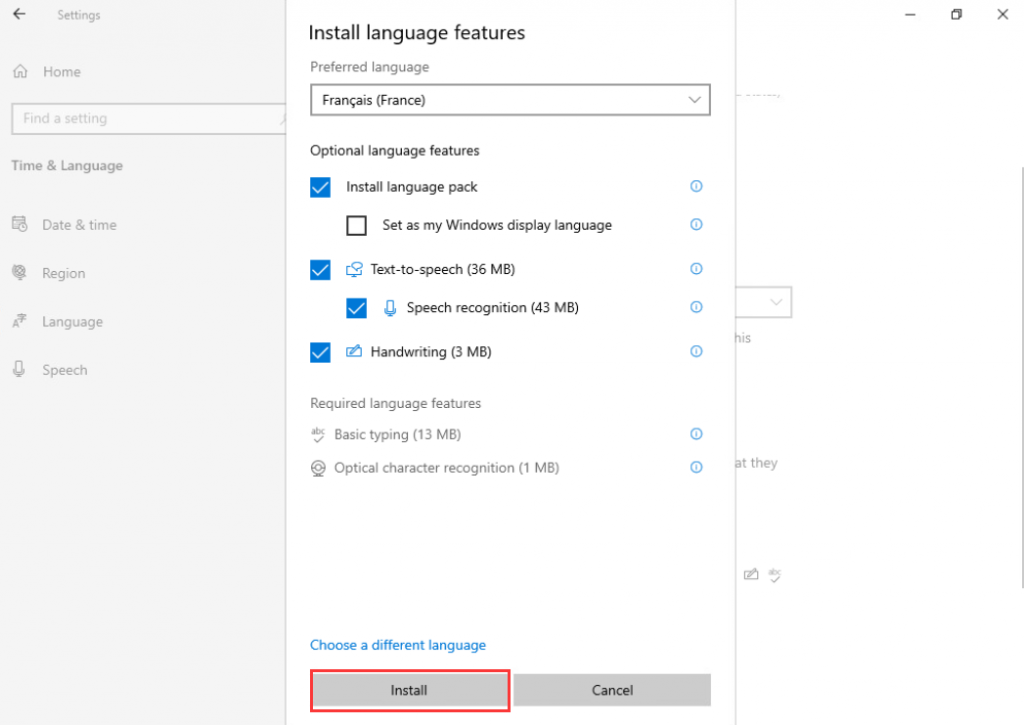
- 2. Enter the abbreviation or full name of the language you want to change in the search bar. (This blog post takes French as an example. We enter fr-fr. The full name and abbreviation of some national languages are listed in the picture below for reference.) Click to search. After selecting the language, click Next>install>wait for the language pack to be downloaded.
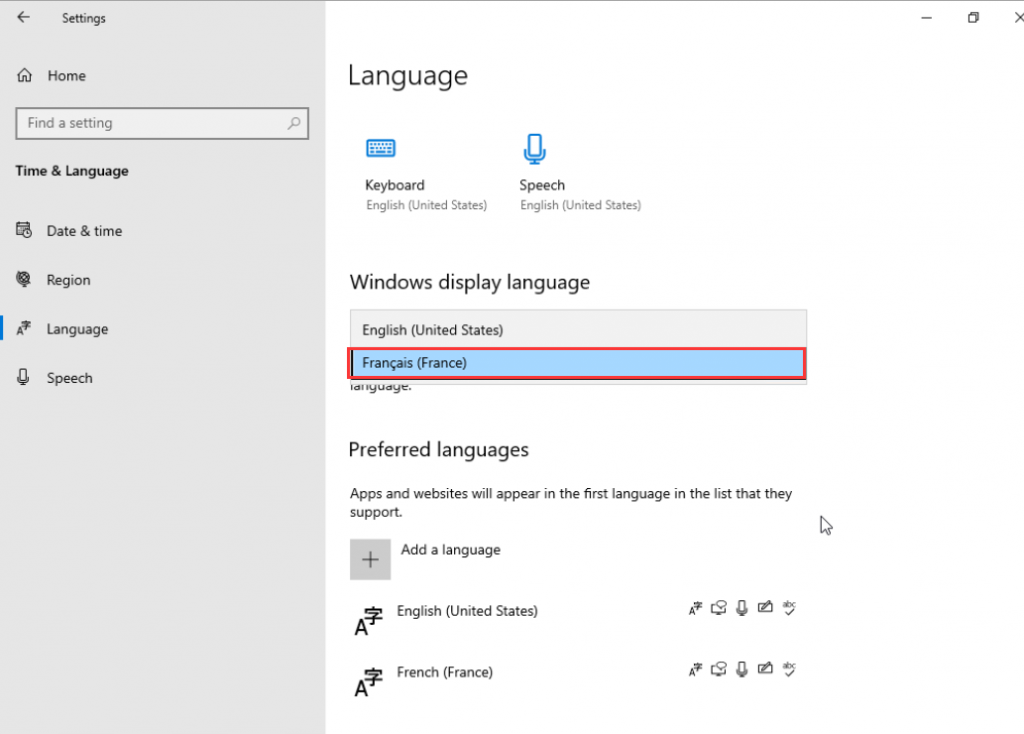
- 3. After the download of the language pack is completed, select the language you just downloaded in Windows display language. After changing the language, the system requires you to log out before you can make changes. Select log out. After logging out and logging in again, you will find that some languages have been changed.
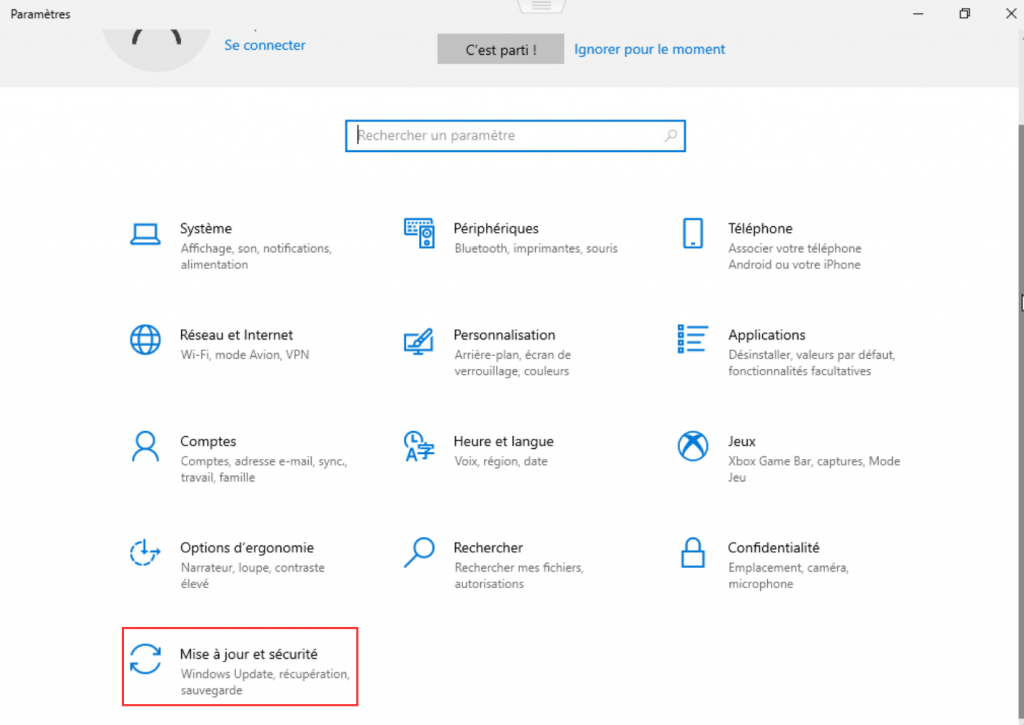
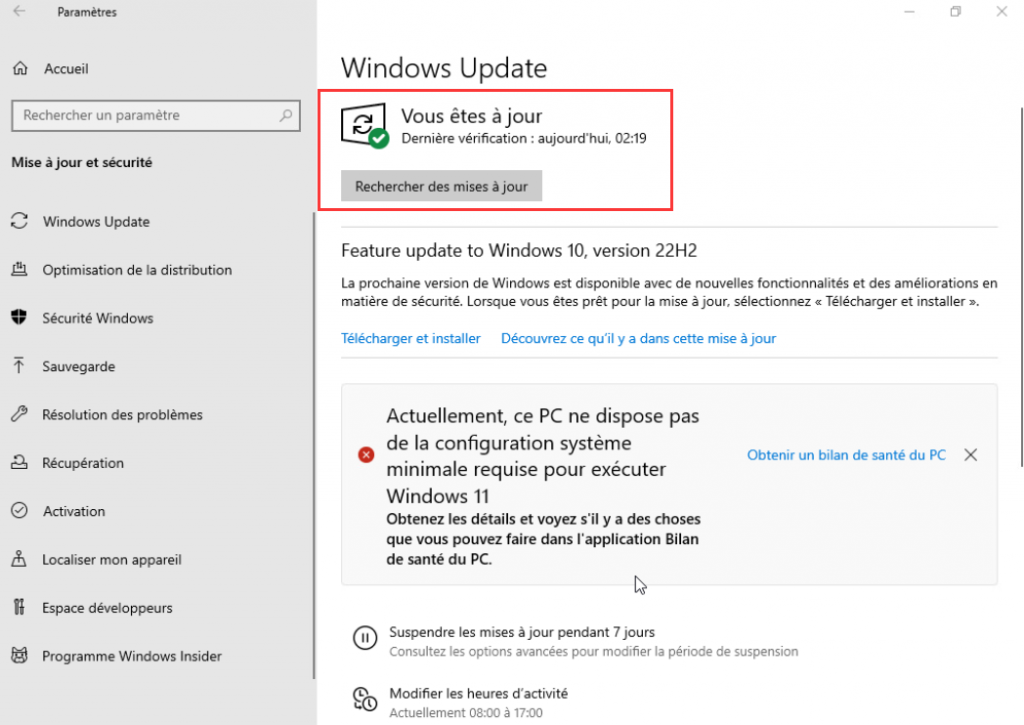
- 4. After the first three steps, some languages may not have been changed successfully. To avoid garbled characters, we enter the Settings page again, select Update and Security, download the relevant patch files, update the system to the latest version and then restart the computer.
Steps for installing Ubuntu 22.04 LTS
How to Change Language in Windows 11 English System
