
How to use Bluetooth in Windows 11
author: VENOEN
2025-06-30
How to use Bluetooth in Windows11
Overview:
In Windows 11, connecting Bluetooth devices provides users with a convenient wireless connection method, so that you can easily connect such as Bluetooth headphones, Bluetooth speakers, Bluetooth mouse, Bluetooth keyboard, mobile phone and other devices, get rid of the shackles of cables. The following are the general steps for connecting Bluetooth devices under Windows 11 for reference.
[Turn on Bluetooth]
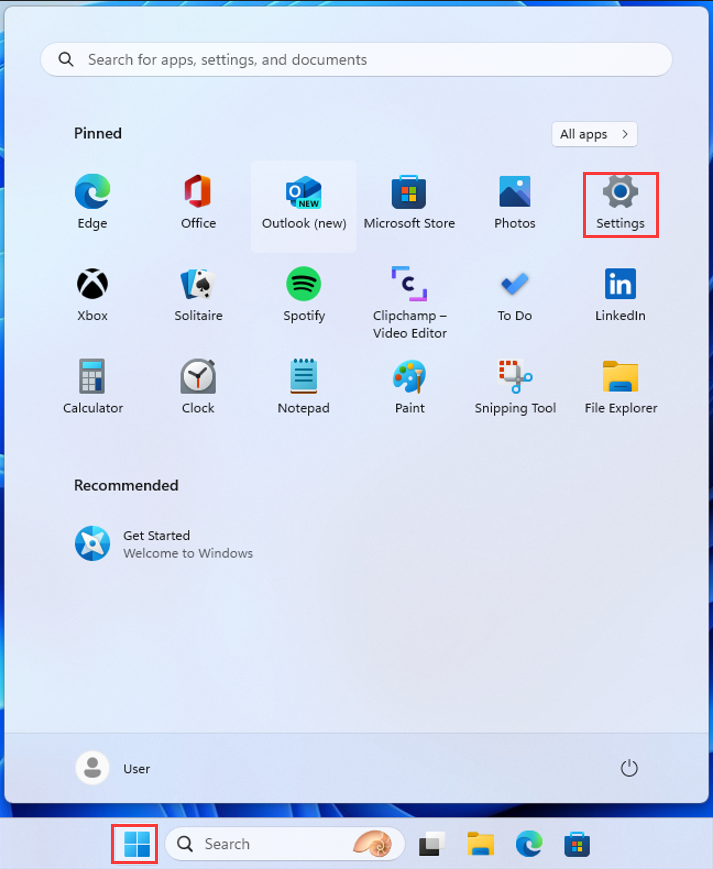
1. Ensure that the computer has entered the Windows11 desktop, click the "Start" option in the menu file, find the "Settings" option in the "Start" interface, and click to enter the Windows Settings Center;
1. Ensure that the computer has entered the Windows11 desktop, click the "Start" option in the menu file, find the "Settings" option in the "Start" interface, and click to enter the Windows Settings Center;
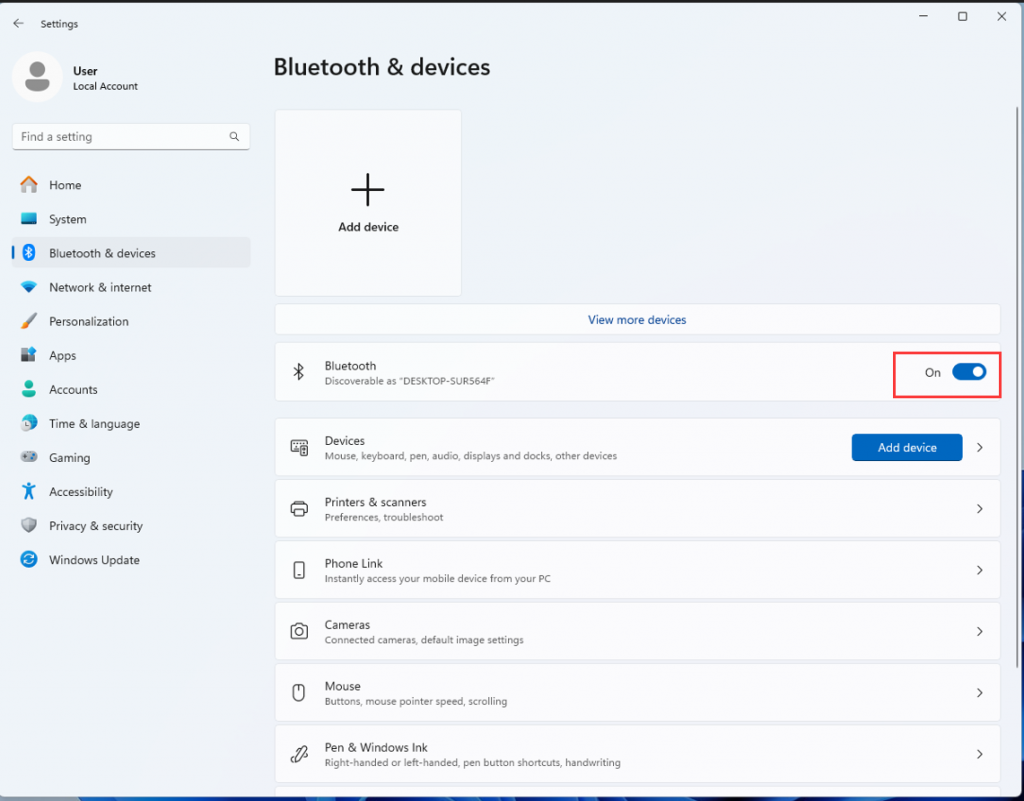
- 2. In the Windows Settings center, select Bluetooth & devices and ensure that Bluetooth is in the On state.
- [Connect Bluetooth]
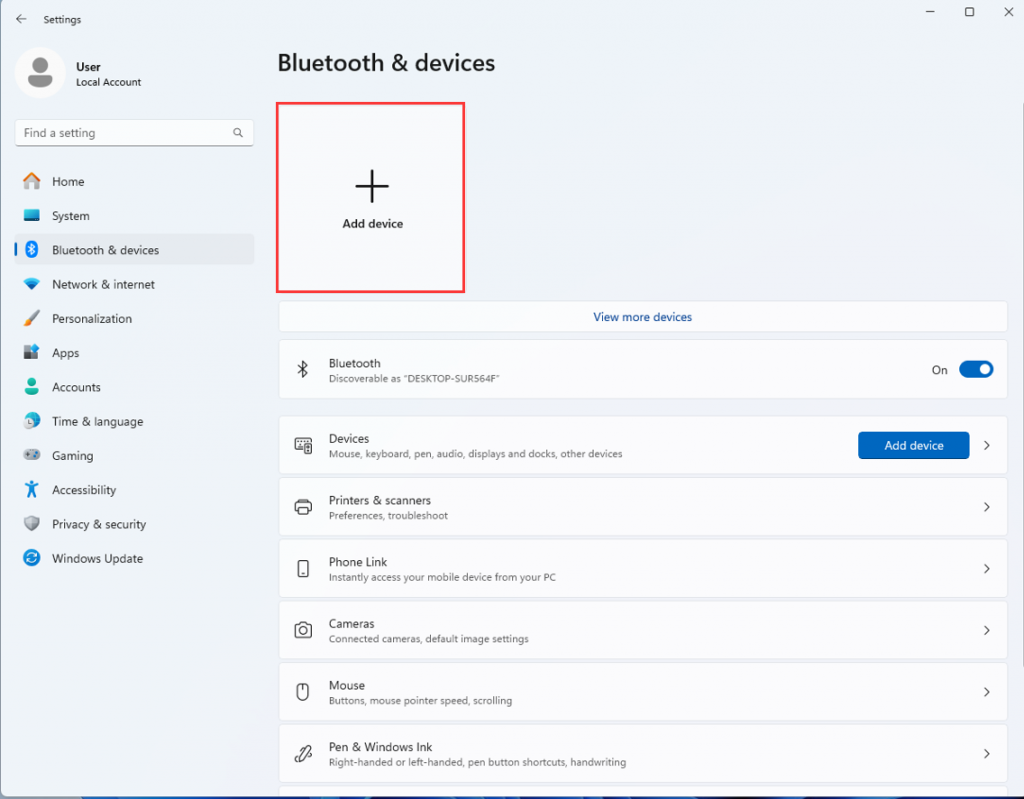
1. In Bluetooth & devices, select Add device.
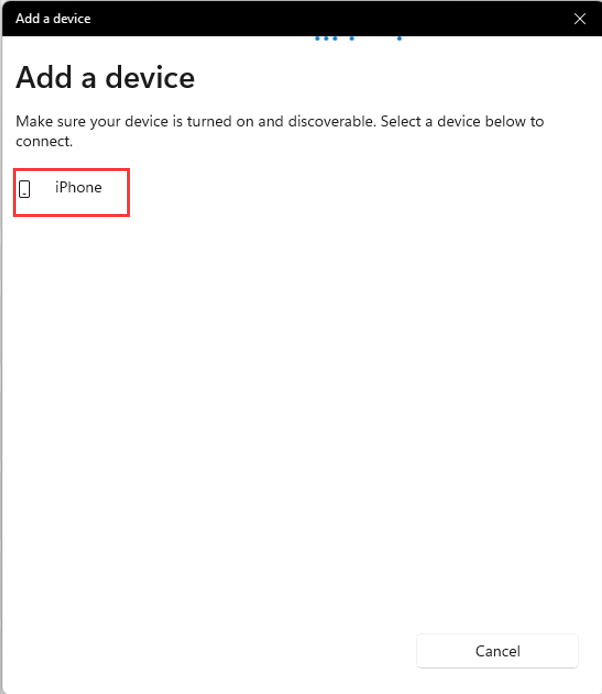
- 2. The system will search for nearby Bluetooth devices and select the Bluetooth device to be connected for pairing, such as pairing with the "iPhone" Bluetooth device;
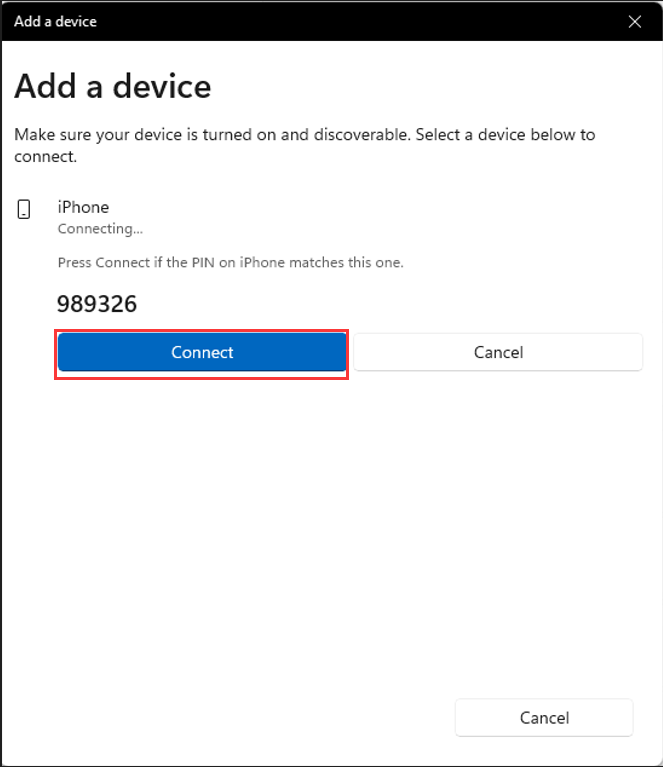
- 3. After clicking the "iPhone" Bluetooth device, a PIN code matching the PIN of the Bluetooth device will appear, click Connect, and the mobile phone also needs to confirm the connection information;
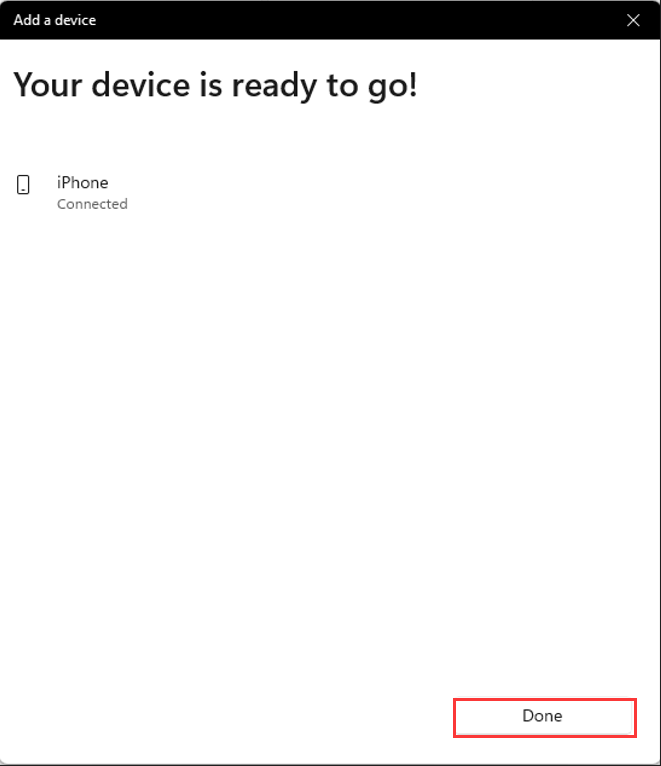
- 4. The following picture shows that the computer is successfully paired with the Bluetooth device;
How to check CPU speed (operating frequency) under Windows 11 system
[F9-12th Gen] Configure Auto power on steps
