
How to Use the GT-Core Ultra Series to Remotely Manage Computers via AMT
How to Use AMT for Remote Management of Computers with GT-Core Ultra Series Products
Intel AMT (Intel Active Management Technology) is a hardware-level out-of-band (OOB) remote management technology specifically designed by Intel for enterprise-level devices. Its core value lies in enabling IT administrators to remotely monitor, maintain, and repair computers even when the operating system crashes, shuts down, displays a blue screen, or has no OS.
I. Preparation Work:
GT-Core Ultra series host
The computer is connected to a wired local area network (and is in the same network segment as your remote computer), and the network cable is connected to the LAN1 port (only the Intel i226-LM network card supports Intel AMT)
Password rules: Think of the AMT administrator password in advance (must meet: 8-32 characters + upper and lower case + numbers + special symbols, example: vPro123!)
Connect a wired keyboard
Connect a monitor
Tool download: MeshCommander
II. AMT Configuration
2.1. Press the switch button to turn on the device. When the startup logo appears, quickly press the Del key to enter the BIOS Setup.
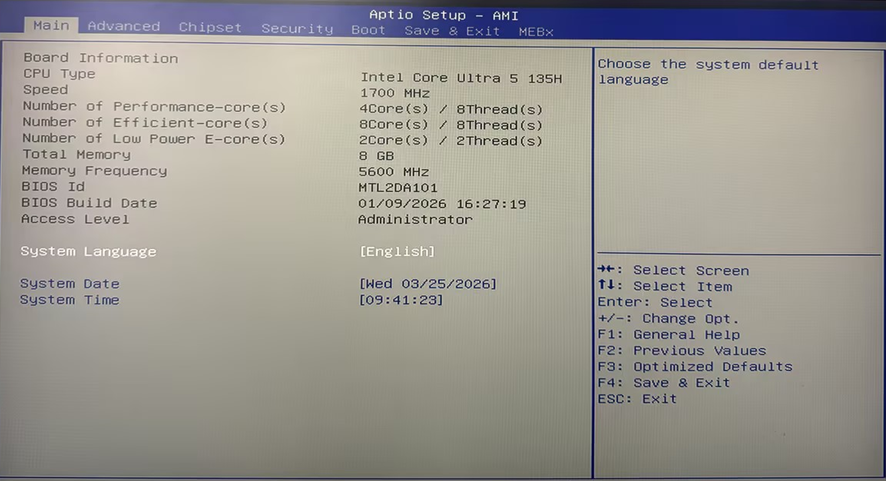
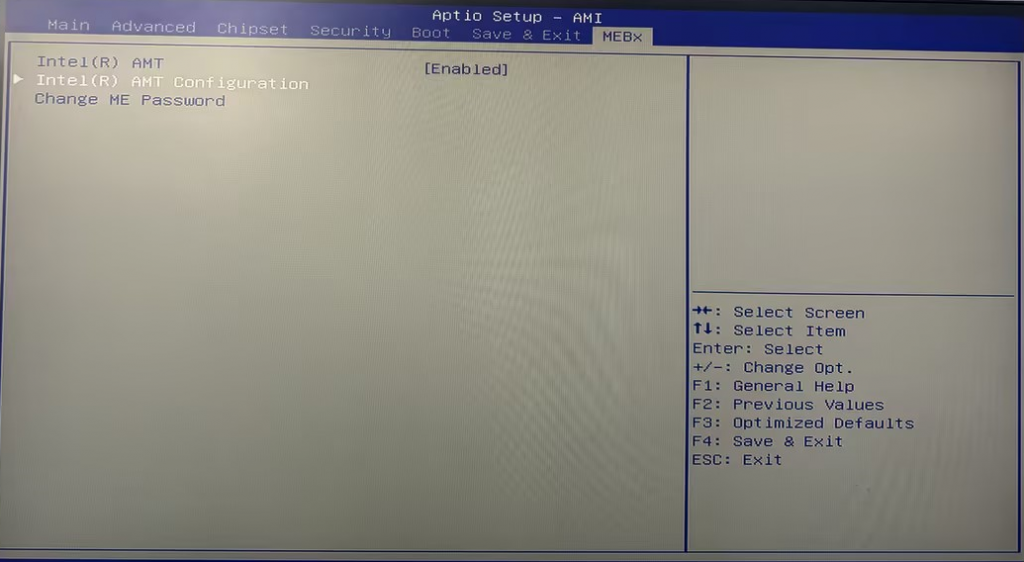
2.2. Select MEBx. For the first configuration, you will need to reset the password. The default password is "admin". In this step, you need to set a strong password; otherwise, it will prompt an error when attempting to set a new password.
The password strength must meet all of the following rules:
8 - 32 characters in length Capitalization and lowercase letters
At least one of the non-alphanumeric characters (such as ! @ # $ % ^ * )
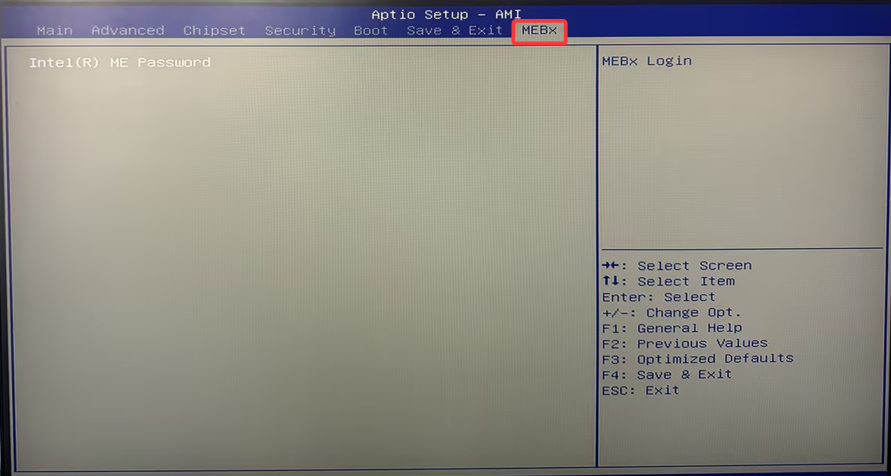
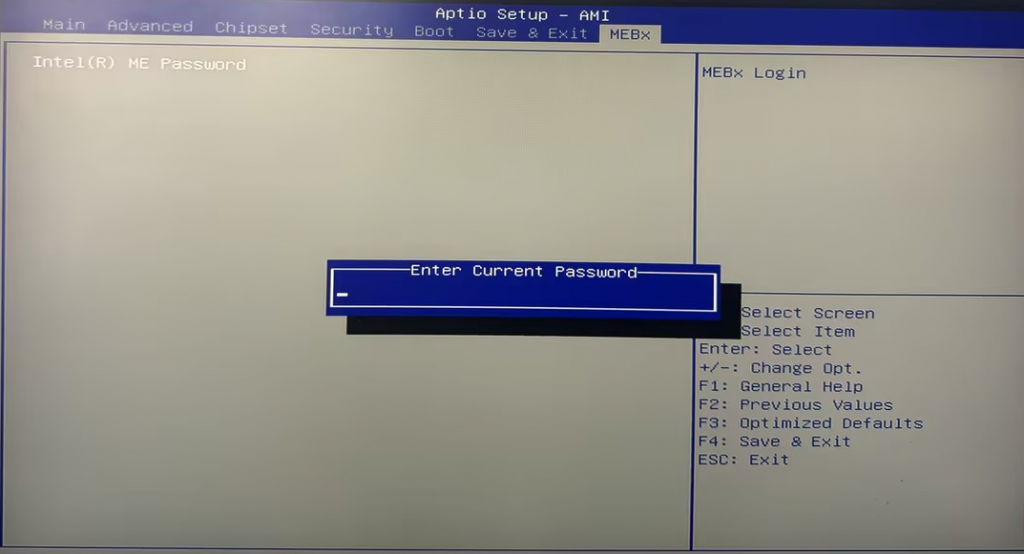
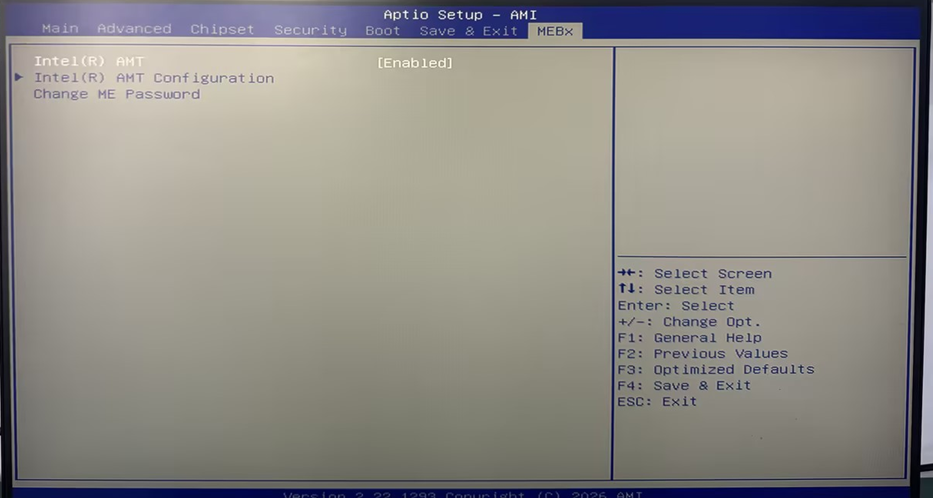
2.3. Entering Intel(R) AMT Configuration
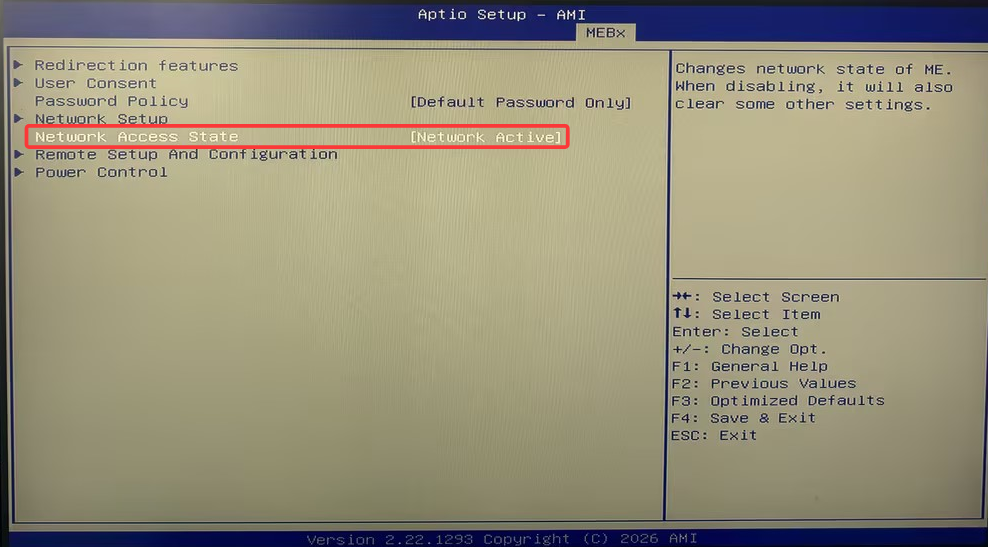
Network Access State配置为[Network Active]
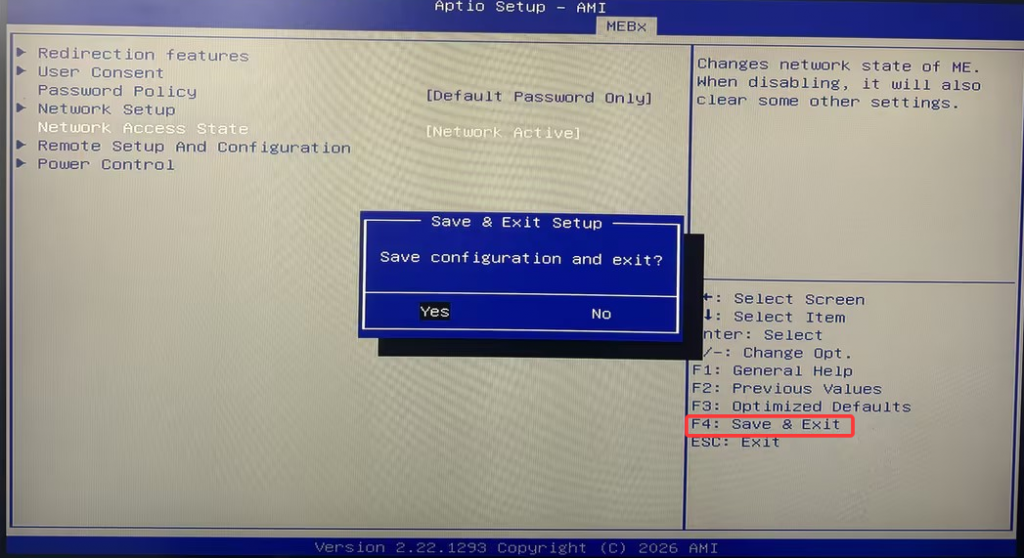
2.4. After configuration is completed, press F4 to save and exit.
III. MeshCommander Management
3.1. On other computers (by the IT administrator), download and install MeshCommander. The download link is://meshcommander.com/
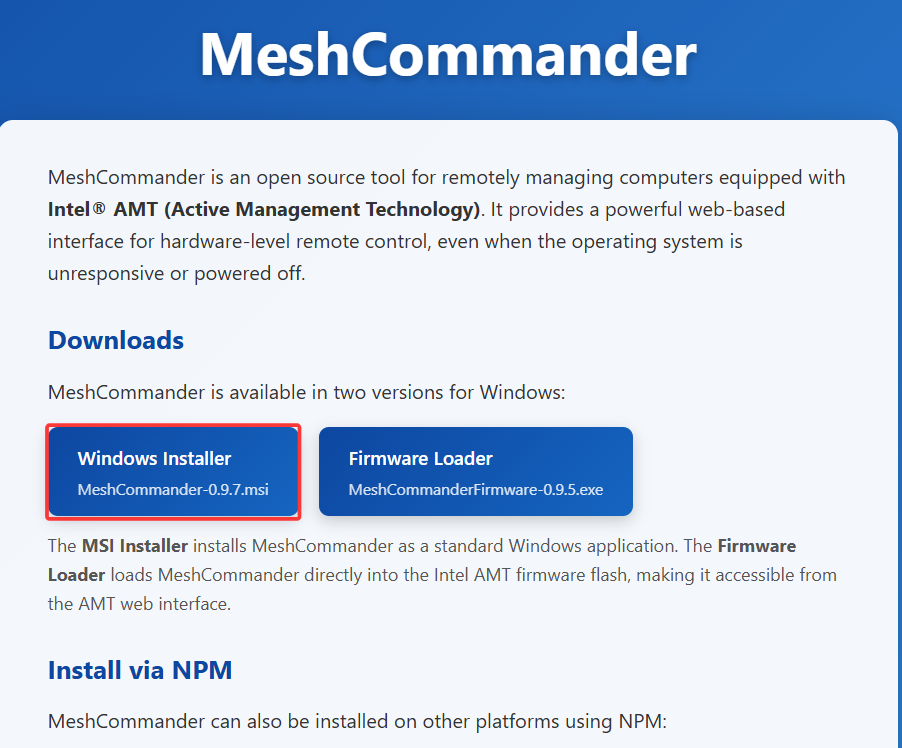
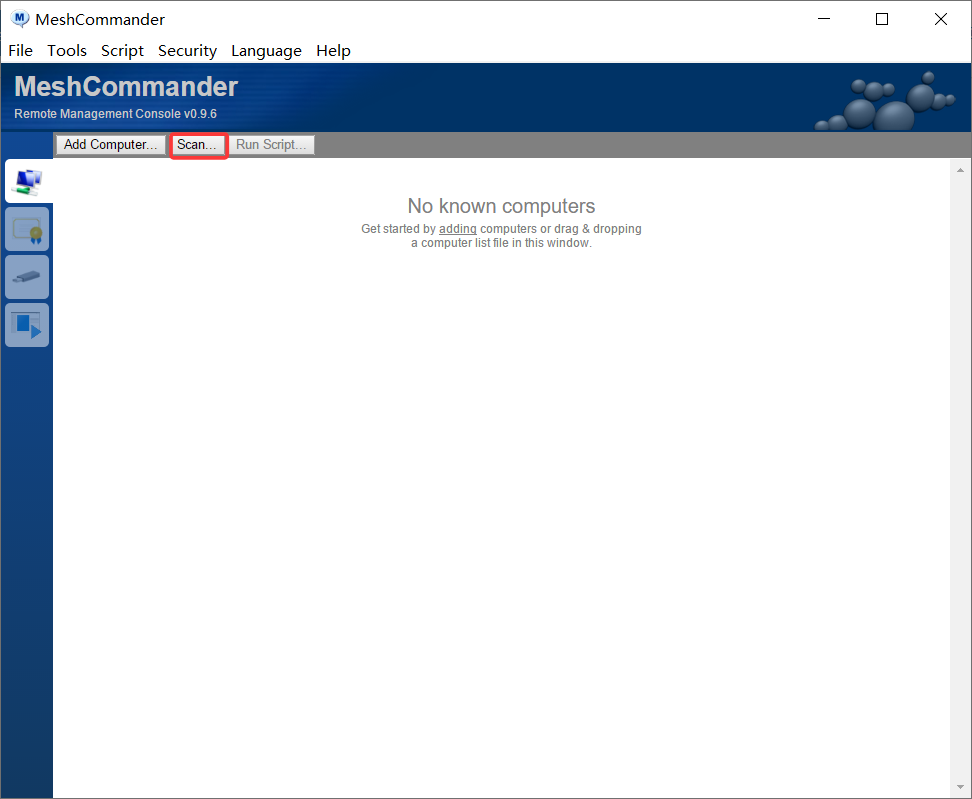
3.2. After installation is complete, run the MeshCommander management software and click "Scan..." (Scan for Intel AMT devices)
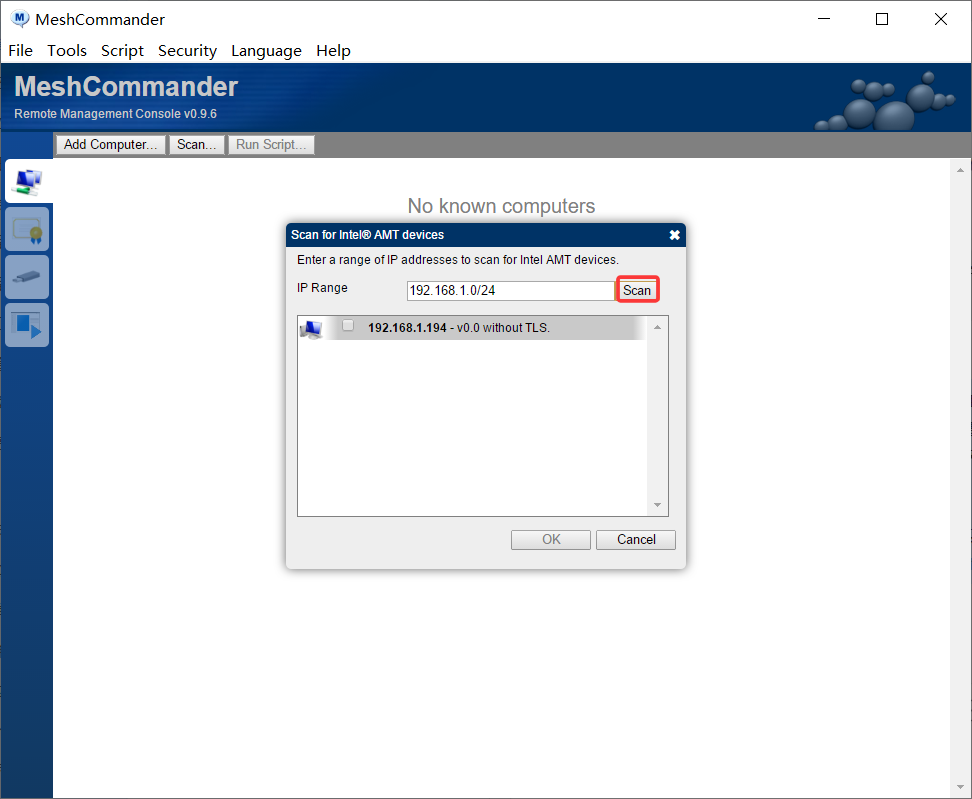
Enter the local network IP and subnet mask (such as 192.168.1.0/24), and click to search for the hosts in the local network that have Vpro (Intel AMT) enabled.
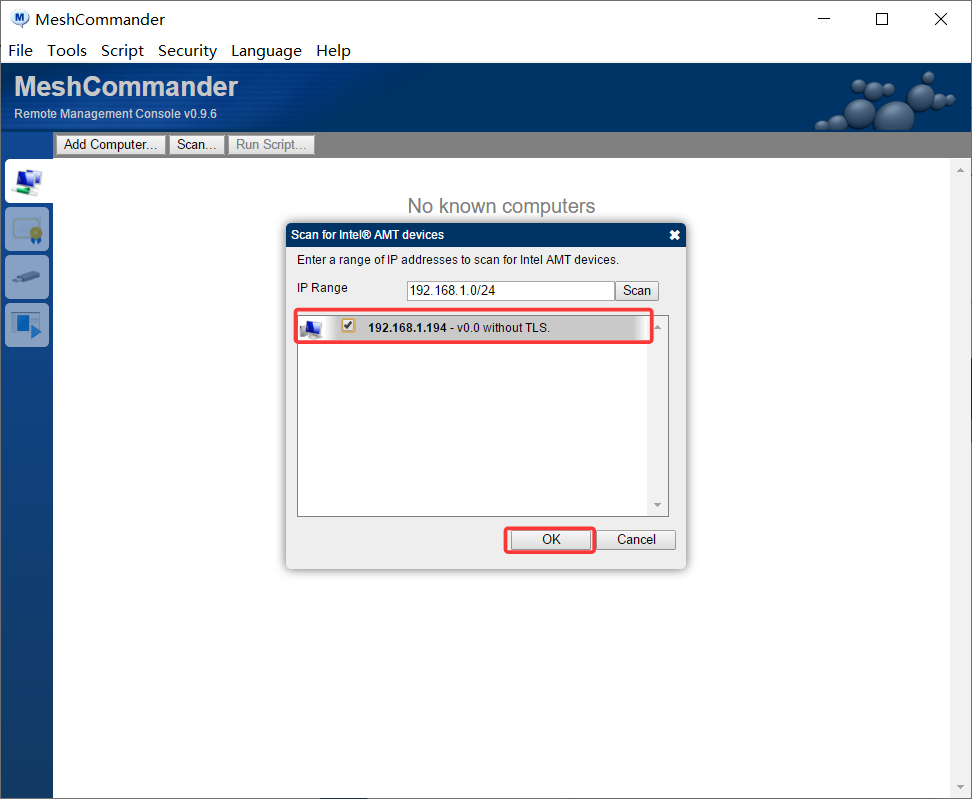
Check the selected hosts and click OK
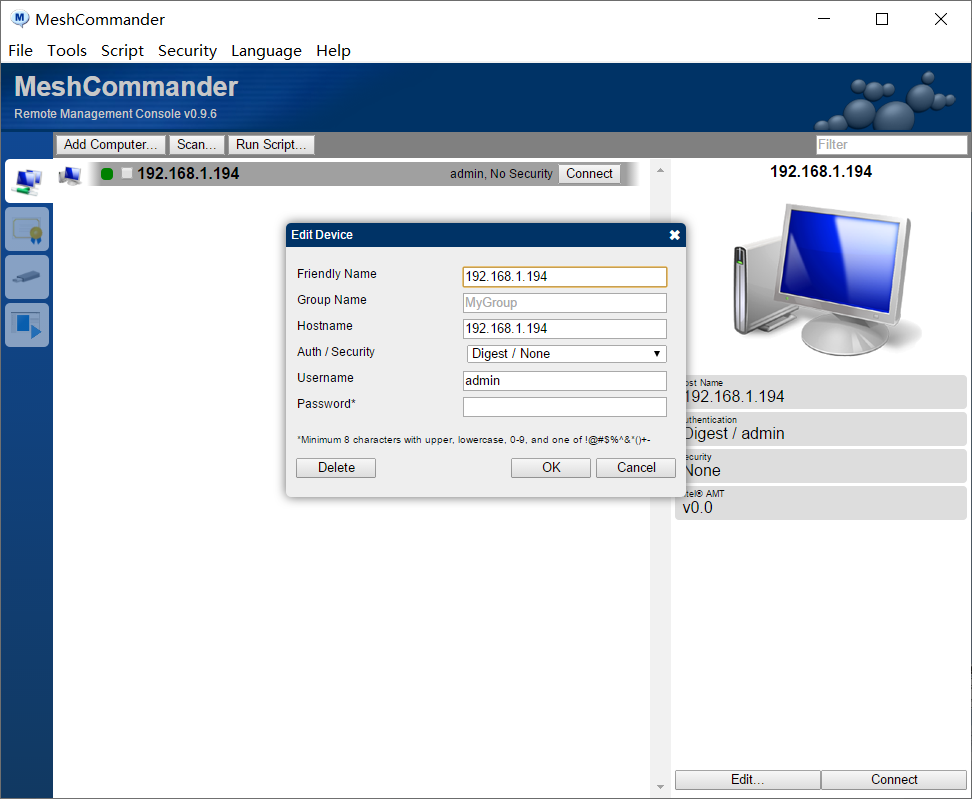
3.3. Double-click on the host in the list, enter the password, select Digest/TLS in the Auth/Security section, and then click OK.
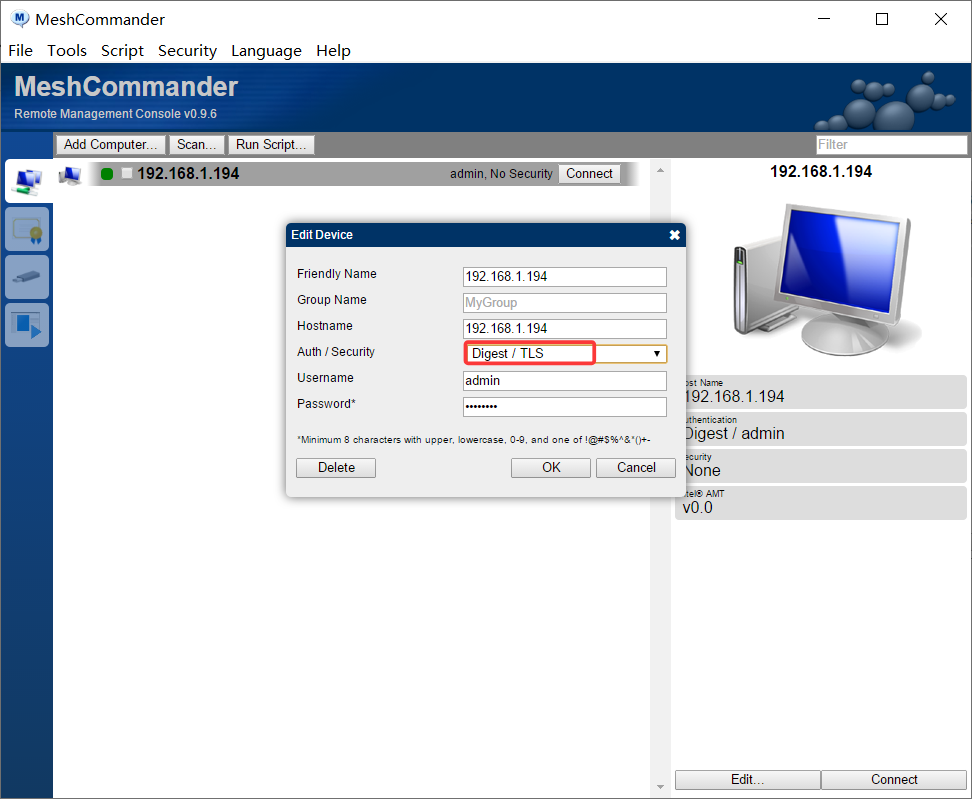
3.4. Click on "Connect", then in the pop-up dialog box, select "OK" to enter the management page.
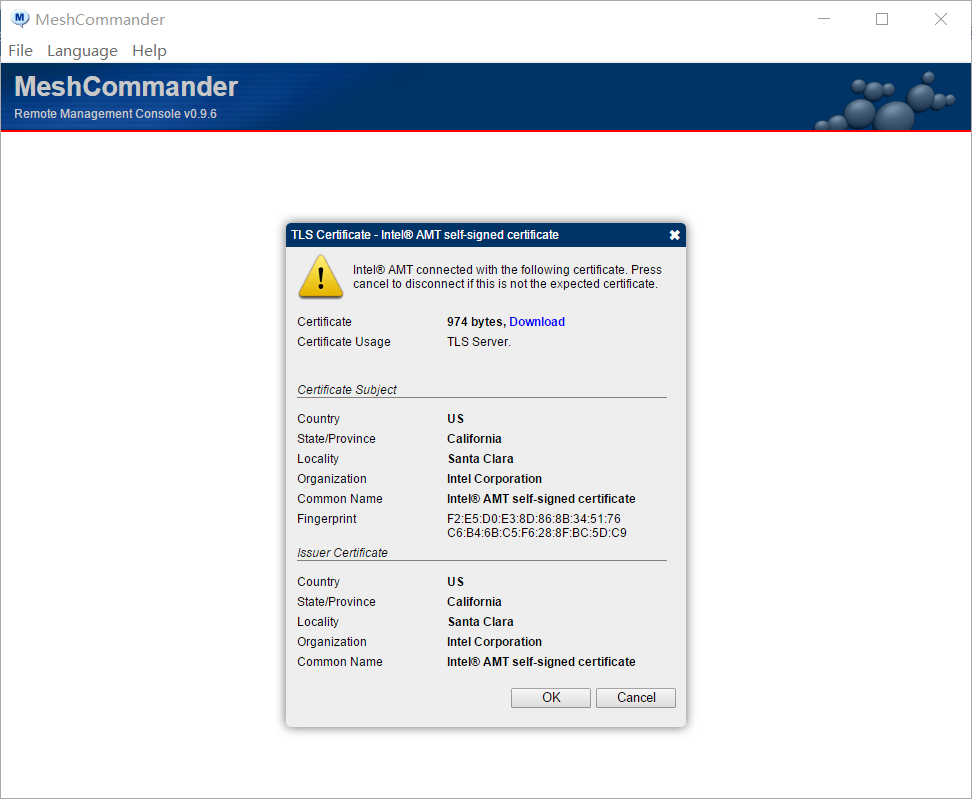
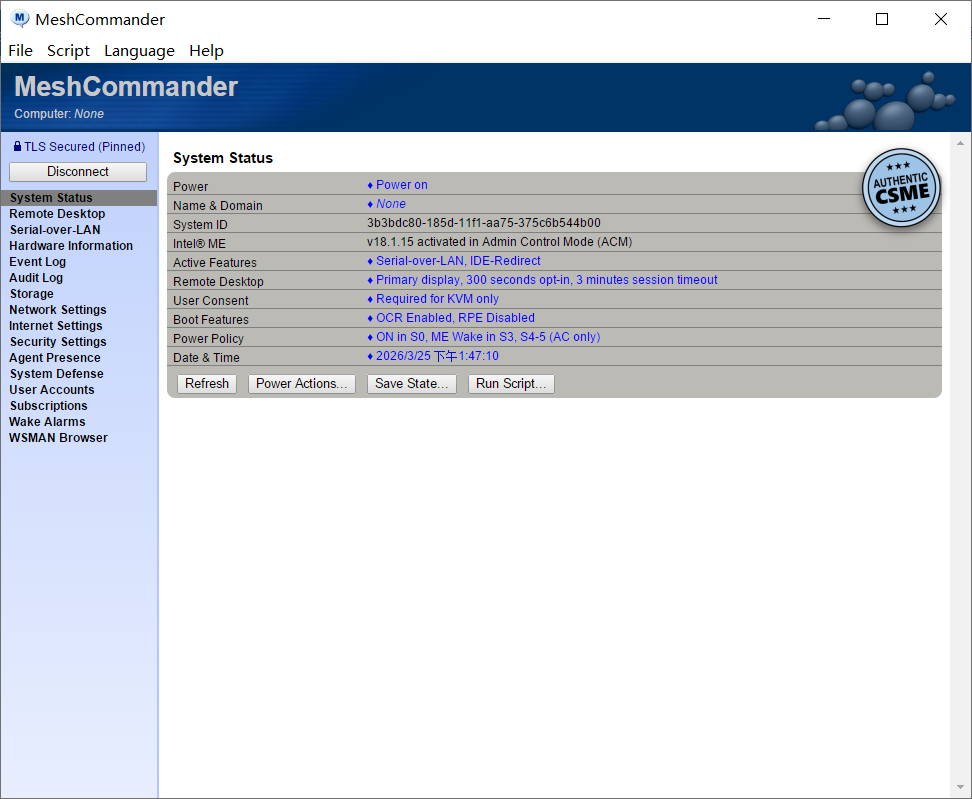
3.5. Select Remote Desktop
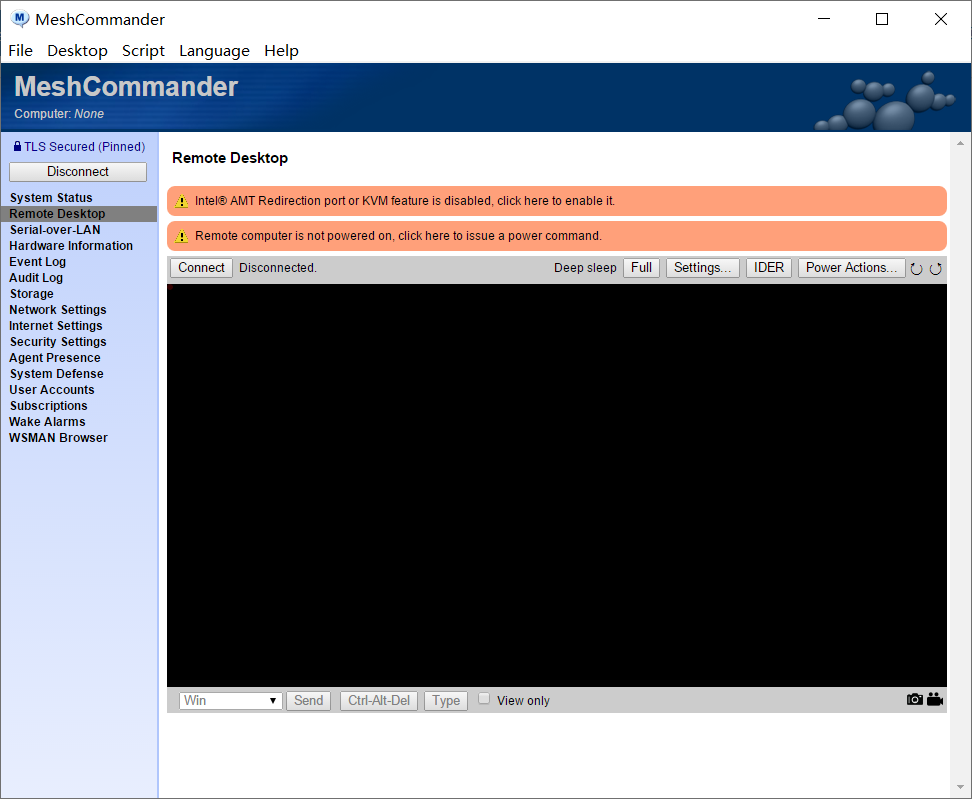
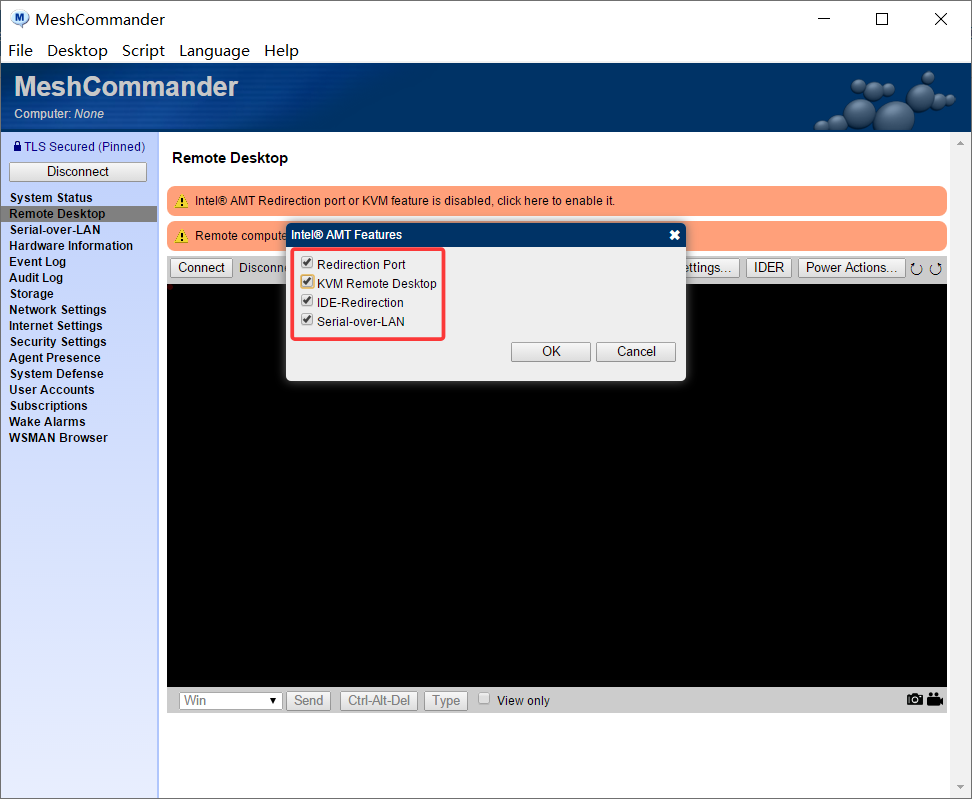
Click on the pop-up prompt, check all the options, and then click OK.
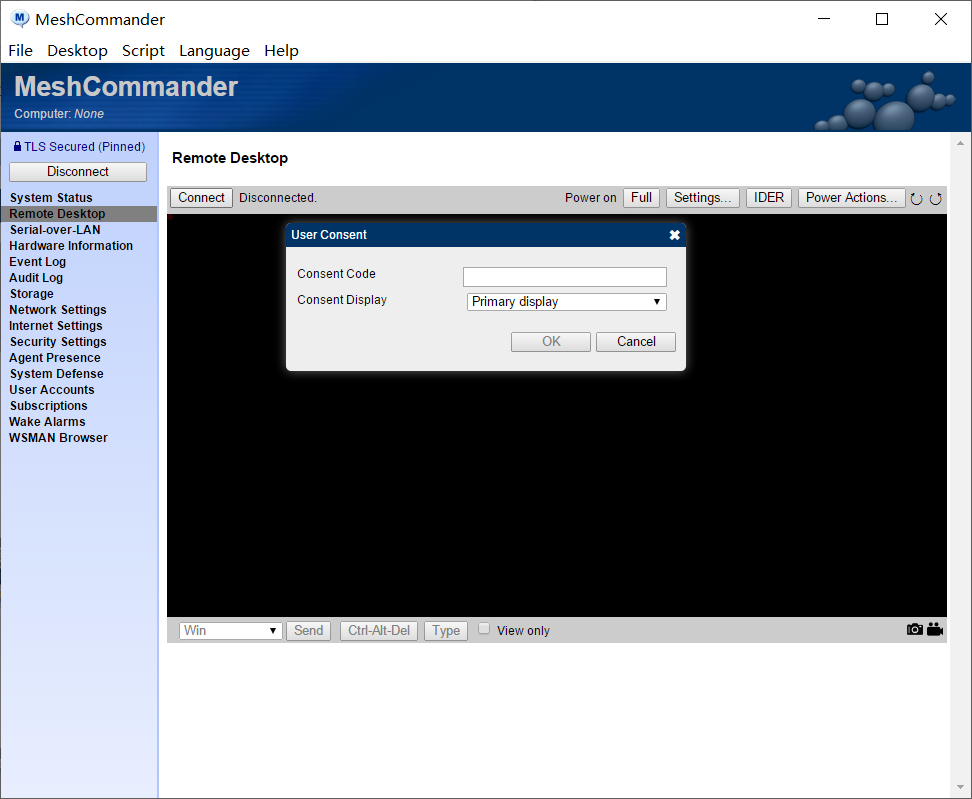
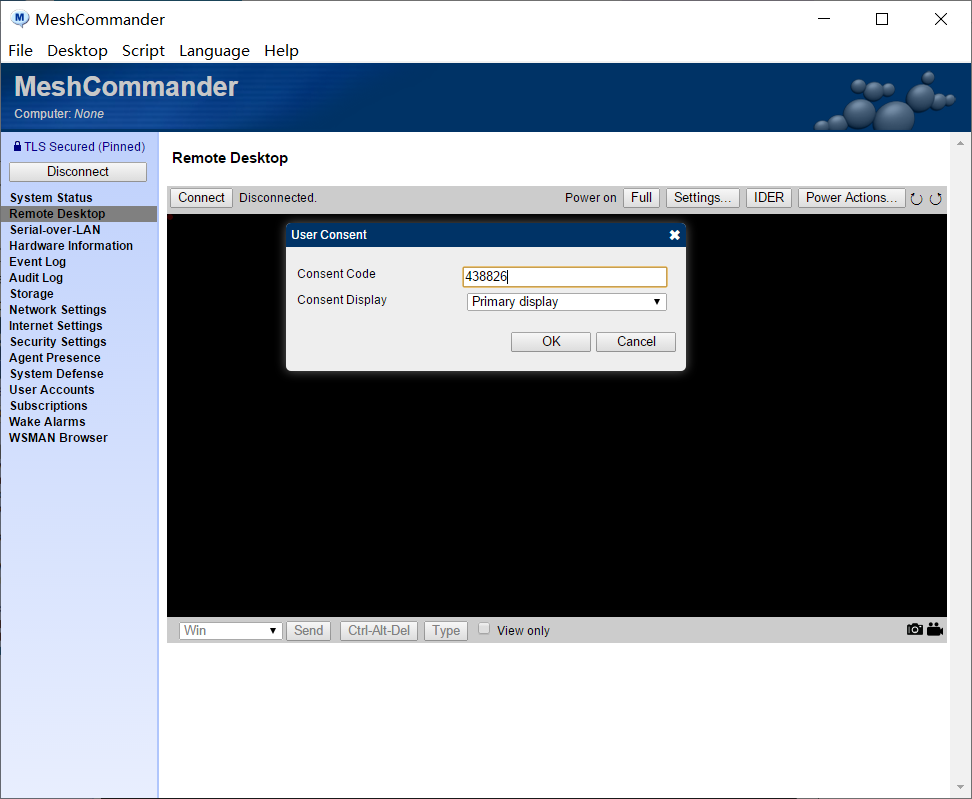
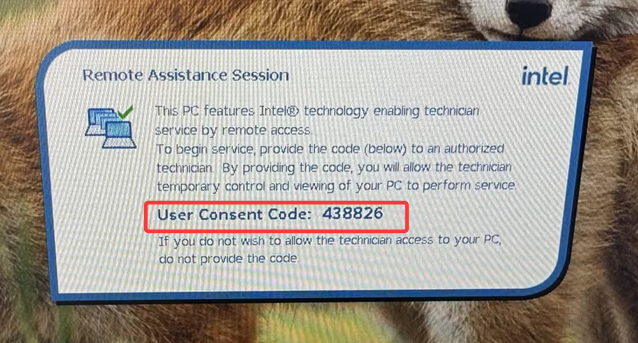
3.6. Click "Connect", and on the controlled screen, a 6-digit verification code will be displayed. Enter the verification code to access the remote desktop.
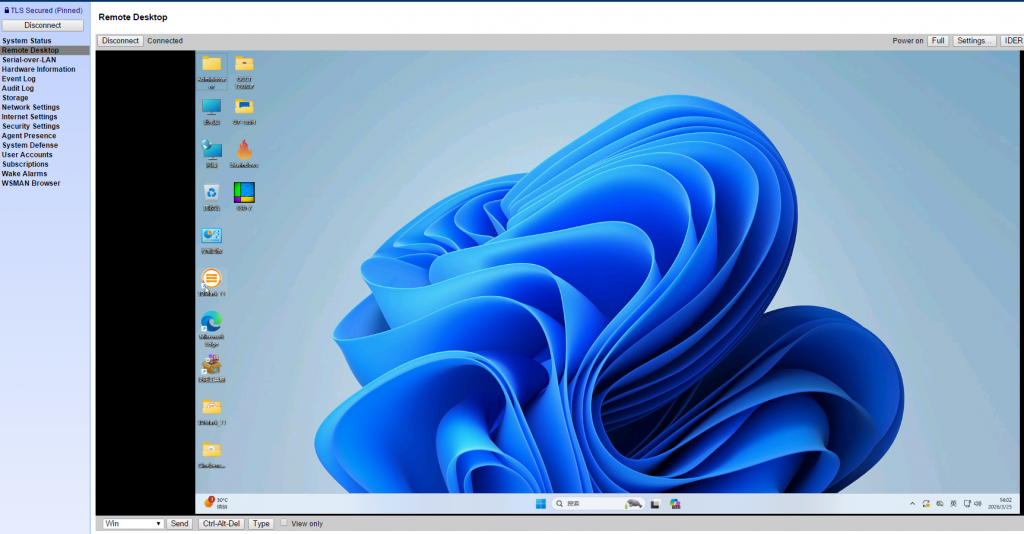
Extended Explanation:
If you want to cancel the verification code input and access the remote desktop, you can go to System Status > User Consent and set it to "Not Required", then click OK. When connecting to the remote desktop again, you won't need to enter the verification code.
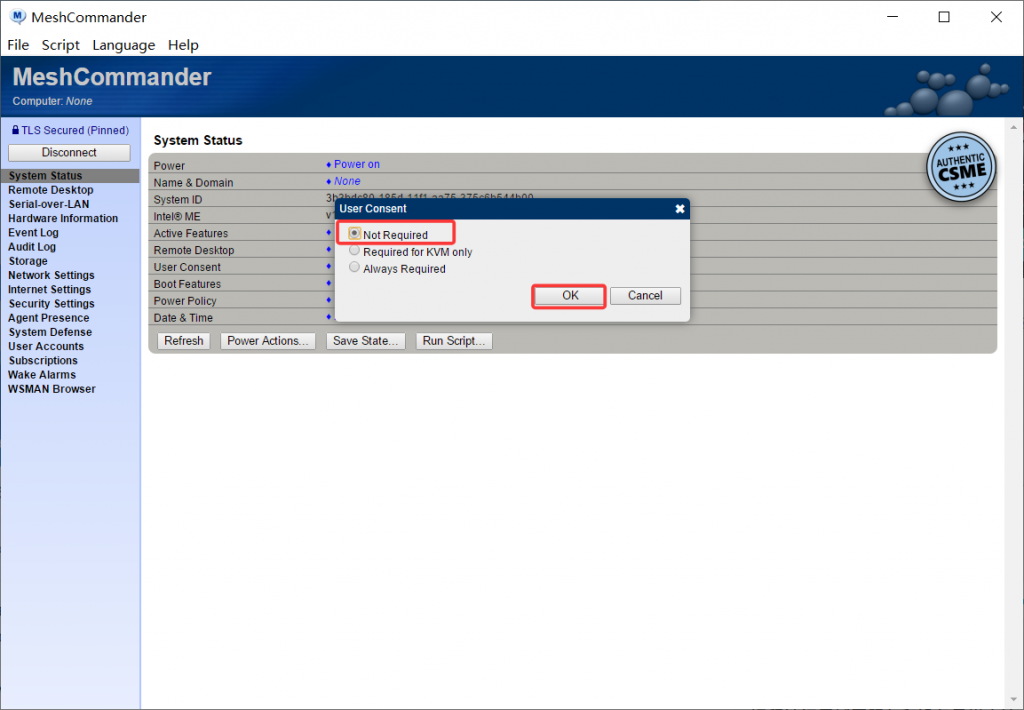
- The Remote Desktop function is only effective on integrated graphics models. If an independent graphics card model is selected, the Remote Desktop function cannot be used!
For more details on software usage, please visit the extended link for further information://meshcommander.com/
Important Note: Explanation of the Usage Scope of Intel AMT Remote Management
The Intel AMT configuration and MeshCommander operation methods described in this article are only applicable for remote management within the same local area network (LAN). In non-LAN environments such as different LANs, remote locations, public networks, 4G/5G mobile networks, cross-operator networks, etc.:
Whether the device can access, whether the network is smooth, whether the ports are open, and whether there are security risks, etc., are all determined by the user's network environment.
Due to various external factors such as public network IP, router permissions, operator NAT, firewall policies, security policies, etc., our company cannot provide AMT configuration support, debugging services, and availability guarantees in the public network environment.
Any operations that achieve public network access through port mapping, internal network penetration, DDNS, VPN, etc., are all the user's autonomous actions. The resulting cybersecurity, device exposure, data risk, etc., are borne by the user themselves.
Feasibility suggestions for non-LAN environments (for reference only)
If you do have the need for cross-network remote management, you can independently understand the following general technical solutions (our company does not provide technical support):
Use enterprise-level VPN or virtual local area network software to establish an encrypted virtual local area network, so that the management end and the devices are in the same virtual network segment. Then use AMT in the manner described in this article.
Router port mapping + dynamic domain name (DDNS) can achieve external access through router port mapping in a network with a public IP. Please note to enhance password security and avoid public network exposure risks.
Third-party internal network penetration services use mature internal network penetration tools to achieve cross-network access. Specific configurations and stability should be in accordance with the explanations of the corresponding service providers.
Enterprise-level management platforms can deploy professional management platforms such as Intel EMA for batch devices to achieve more secure cross-network management.
Security and Liability Statement
Intel AMT is a hardware-level management function. Strong passwords, network isolation, and permission control are the basis for safe use.
Direct exposure of the AMT port in the public network environment poses significant security risks and may lead to unauthorized access.
Our company only provides technical support for the hardware functions and basic configurations within the local area network. We are not responsible for the users' self-built public network access solutions.
H6-12th automatically powers on after power failure; BIOS configuration guide
Guide to Creating a Local User on Windows 11 Pro
