
Intel AC 7265 Wi-Fi module causes Windows 11 blue screen - Troubleshooting and solutions
author: VENOEN
2026-05-25
Blue Screen Troubleshooting & Solutions Caused by Intel AC 7265 Wi-Fi Module on Windows 11
1. Problem Overview
After Windows Update automatically installs driver patches for the Intel AC 7265 wireless network adapter, the system crashes with a Blue Screen of Death (BSOD). The device fails to boot into the Windows 11 desktop normally and gets stuck in a repeated blue screen and reboot loop.
1.1 Fault Phenomenon
| Trigger Condition | Blue Screen Stop Code | Fault File | Symptom | Affected Devices |
|---|---|---|---|---|
| System restart after Intel AC 7265 Wi-Fi driver update via Windows Update | SYSTEM_THREAD_EXCEPTION_NOT_HANDLED (0x0000007E) | ndis.sys | Blue screen occurs during Windows loading screen; desktop inaccessible | Mini PCs equipped with Intel AC 7265 modules with the problematic driver installed |
1. Root Cause Analysis
Warning: The Intel AC 7265 driver version pushed by Windows Update has compatibility conflicts with the firmware of some mini PC motherboards. The new driver triggers a kernel-level exception (0x7E) when invoking ndis.sys during system initialization, resulting in system crash. This is a driver compatibility issue rather than hardware damage.
2. Blue Screen Error Information
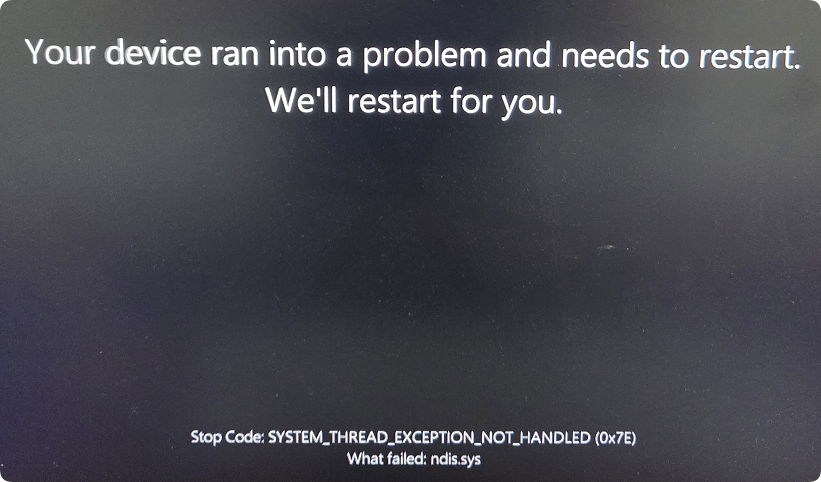
2.1 Introduction to ndis.sys
| Item | Details |
|---|---|
| File Name | ndis.sys |
| Full Path | C:\Windows\System32\drivers\ndis.sys |
| File Type | Windows Network Driver Interface Specification (NDIS) core driver |
| Function | Manages communication interfaces between all network adapters and the operating system kernel |
| Crash Reason | Incompatible system calls happen when the updated Intel AC 7265 driver accesses NDIS interfaces, triggering kernel exceptions |
3. Solutions & Operating Procedures
Follow the steps in sequence and check results before proceeding to the next step. The whole process contains four phases.
3.1 Overall Process Overview
| Phase | Objective | Expected Outcome |
|---|---|---|
| Phase 1 | Remove the Wi-Fi module after power cut | System boots into Windows 11 desktop normally |
| Phase 2 | Install compatible official driver | Wi-Fi and Bluetooth functions restored |
| Phase 3 | Reinstall the Wi-Fi module and verify | Confirm the blue screen is driver-related |
| Phase 4 | Replace the Wi-Fi module (final solution) | Eliminate compatibility issues permanently |
3.2 Phase 1: Remove the Wi-Fi Module after Power Cut (Mandatory First Step)
Safety Notice: Power off the device and disconnect all power supplies before disassembly. Wait 10 seconds to discharge residual electricity. Wear anti-static gloves or touch the metal chassis to release static electricity and avoid motherboard damage.
- Power off and cut power supply: Shut down the system completely, unplug all power cables and adapters, and wait 10 seconds.
- Open the chassis: Unscrew the rear cover of the mini PC and lift the cover gently without breaking fasteners.
- Locate the Wi-Fi module: The Intel AC 7265 module adopts M.2 2230 interface, installed in the mainboard slot marked WLAN, connected with 2 antenna cables.
- Disconnect antennas: Pull off the Main and AUX antenna connectors vertically instead of obliquely.
- Take out the module: Remove the fixing screw and pull the module out from the slot, store it properly.
- Reassemble the chassis: Fasten the rear cover and screws without reinstalling the module, then reconnect power supply.
- Boot verification: Power on the device. Normal access to Windows 11 desktop confirms the blue screen is caused by the Wi-Fi driver.
3.3 Phase 2: Install Compatible Official Driver (Execute after Blue Screen Disappears)
Download and install stable compatible drivers from official channels once the system boots properly.
| Driver Source | Download Link |
|---|---|
| Intel Official Website | //www.intel.com/content/www/us/en/products/sku/83635/intel-dual-band-wirelessac-7265/downloads.html |
Recommended Version: Select stable historical driver versions instead of the latest Windows Update release.
Tip: Navigate to Windows Update > Advanced options > Optional updates, and pause relevant Intel AC 7265 driver updates to prevent repeated incompatible updates.
3.4 Phase 3: Reinstall Wi-Fi Module and Verify Fault
Safety Notice: Power off and disconnect power before reinstallation. Live wire operation is strictly prohibited.
- Shut down the system and cut off all power, wait 10 seconds.
- Insert the module into the M.2 slot at a 30-degree angle, press it flat down, fasten the fixing screw and reconnect the two antenna cables tightly.
- Close the chassis and reconnect power, then power on the device.
- Check boot status: Normal desktop access means the issue is fixed; recurring ndis.sys blue screen requires module replacement.
3.5 Phase 4: Replace Wi-Fi Module (Final Solution)
Replace the network adapter if compatibility errors persist, to avoid recurring faults.
| Module Model | Interface | Wi-Fi Standard | Bluetooth Version | Windows 11 Compatibility |
|---|---|---|---|---|
| Original Intel AC 7265 | M.2 2230 | Wi-Fi 5 (802.11ac) | BT 4.2 | Compatibility risks exist |
| Recommended Intel AX200 | M.2 2230 | Wi-Fi 6 (802.11ax) | BT 5.2 | Native system support |
| Realtek 8821CE | M.2 2230 | Wi-Fi 5 (802.11ac) | BT 4.2 | Stable compatibility |
Priority Recommendation: Intel AX200 (M.2 2230). It is natively supported by Windows 11 with built-in drivers, delivering stable performance and thorough compatibility improvement. Confirm the motherboard interface type and 2 available antennas before replacement.
M6-R7-7840HS: Guide to Enabling AC Power Loss Boot in BIOS
GT-Ultra Series (Ultra5-135H/Ultra7-165H) BIOS Update Guide
