
Method for querying motherboard SN serial number and UUID number on Windows 10 and Ubuntu systems
This method is used to query the mainboard SN and UUID in Windows10 and Ubuntu
Overview:
The Serial Number (SN) and Universally Unique Identifier (UUID) numbers of the mainboard are universally unique identifiers used to identify the mainboard.
SN Serial number, also known as the motherboard serial number, is the unique number given to each motherboard by the motherboard manufacturer in order to identify and track the product. It can provide some key information about the motherboard, such as production batch, production date, and so on. Different brands of motherboards, the length of the SN serial number and naming conventions may be different. SN serial number is also a means of motherboard anti-counterfeiting, can be used to confirm the authenticity and legitimacy of the motherboard. In addition, in some cases, such as after-sales service or maintenance, it may be necessary to provide the SN serial number of the motherboard as a proof.
The UUID number, or Universal Unique identifier, is a globally unique identifier. The UUID number is usually generated by information about the motherboard and is unique to each motherboard. The UUID number can be used to identify a specific motherboard and may be used in some systems and software. For example, in some operating systems or management software, the UUID number may be used to identify and track the motherboard.
In some cases, such as the preparation of electronic bids, the software may automatically collect the SN number, UUID number, and other hardware information (such as IP address, MAC address, hard disk serial number, CPU serial number, etc.) of the motherboard, and then generate an ID as a judgment basis to identify whether there is a crosstalk behavior.
PS: Not all products are loaded with SN and UUID. Some products may be configured with default values, which cannot be queried through the following steps. For details, contact your hardware supplier.
Procedure Query the UUID and SN in Windows10
Procedure Query the UUID
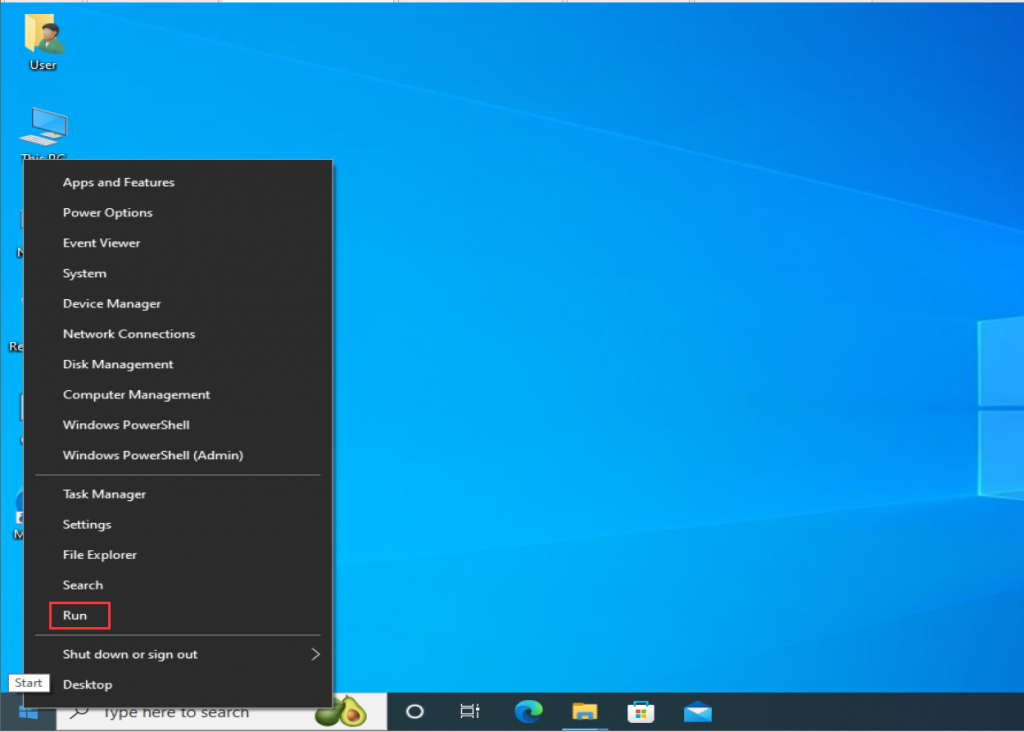
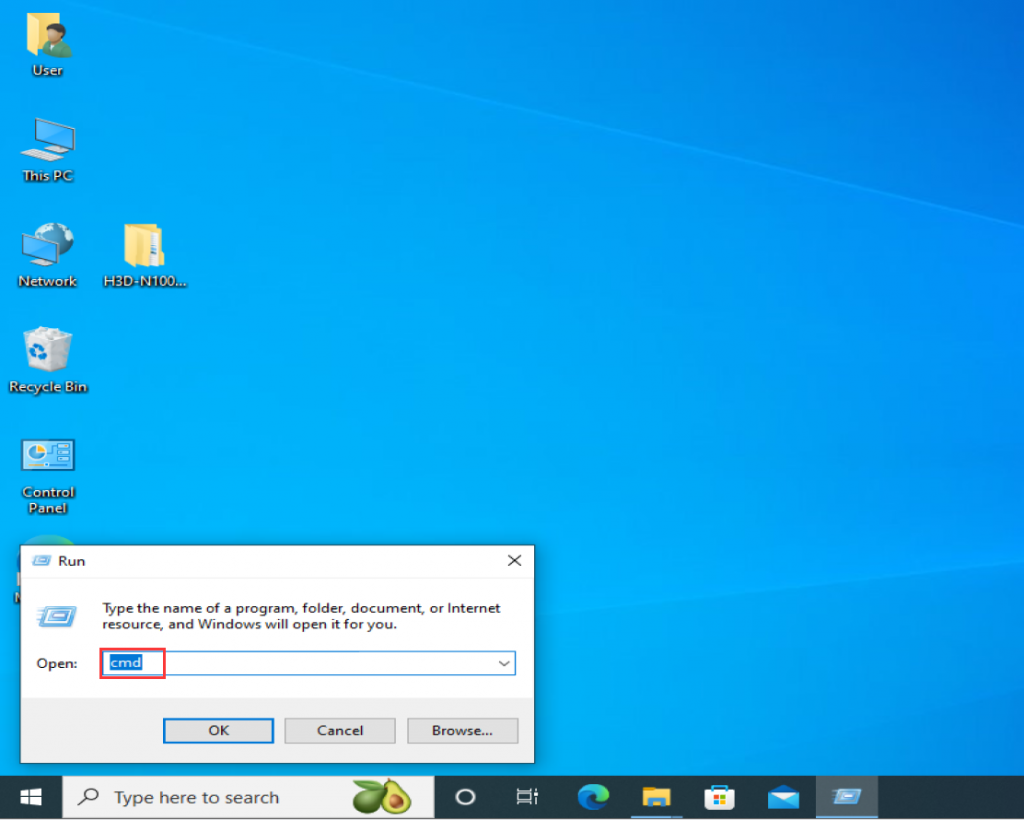
Step 1: Right-click Start> Choose Run>Run, Enter cmd, and press Enter to enter the command prompt window.
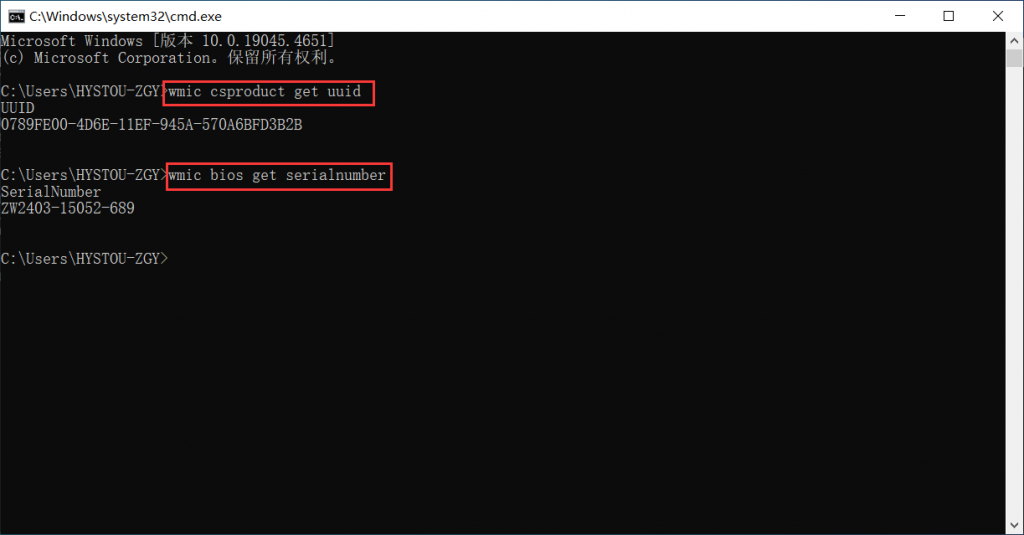
- Step 2: In the command prompt window, type:
wmic csproduct get uuid
Used to query the serial number of a UUID.
In the command prompt window, type:
wmic bios get serialnumber
Used to query the SN serial number;
- Procedure Query the UUID and SN of the Ubuntu OS
Procedure For querying UUID:
Step 1: Enter the Ubuntu desktop and press Ctrl+Alt+T to open the terminal.
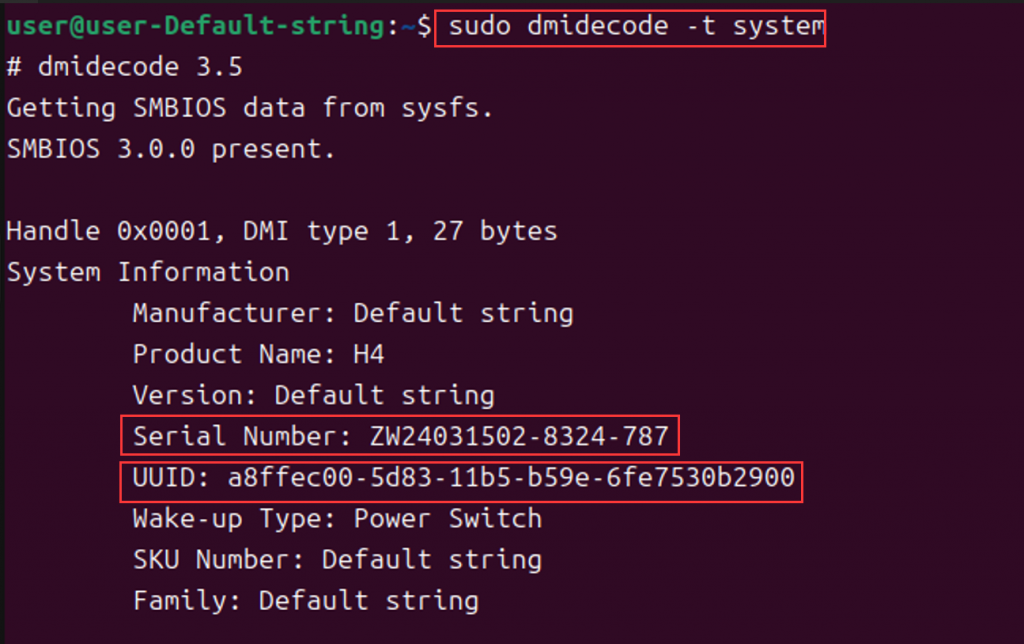
Step 2: Enter sudo dmidecode -t system in the terminal and press Enter.
Enter the user password and press Enter to query the Serial Number (SN) and UUID serial number.
[K4-4th/8th gen] front USB 3.0 port does not recognize USB peripherals. Product troubleshooting steps
EFI Shell Steps to update BIOS in mode
