
P05B common function opening steps
author: VENOEN
2025-06-28
- 1. Restore on AC Power Loss (Restore on AC Power Loss)
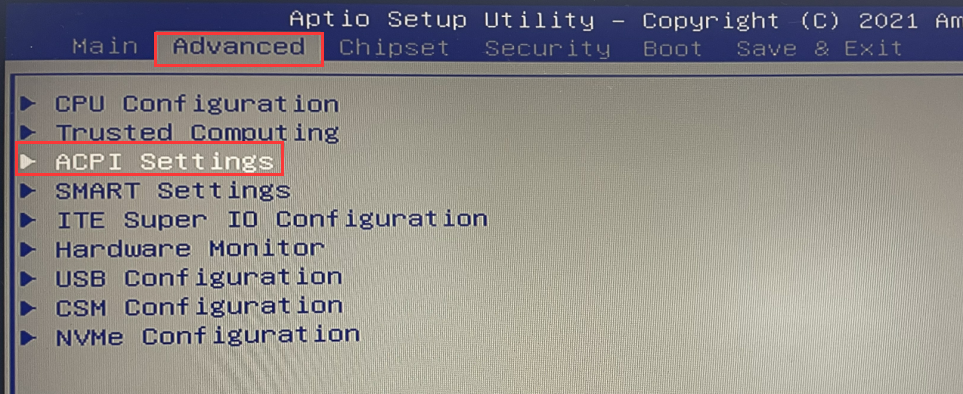
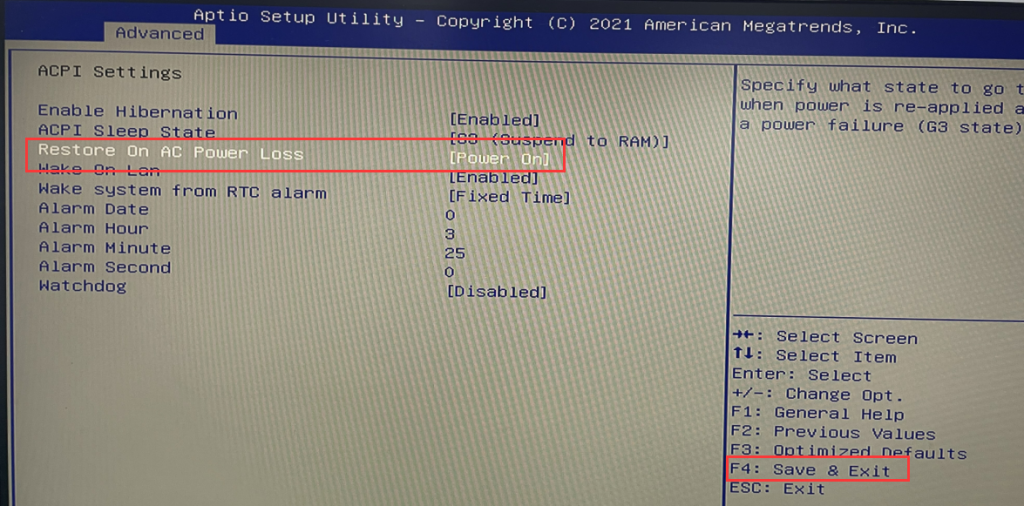
- 1-1、Press the PC switch button and quickly press Delete/Del on the keyboard to go to BIOS Setup. Choose Advanced>ACPI Settings> Set Restore on AC Power Loss to Power on> Press F 4 Save the Settings and exit.
- 2. Enable the Wake system from RTC alarm function
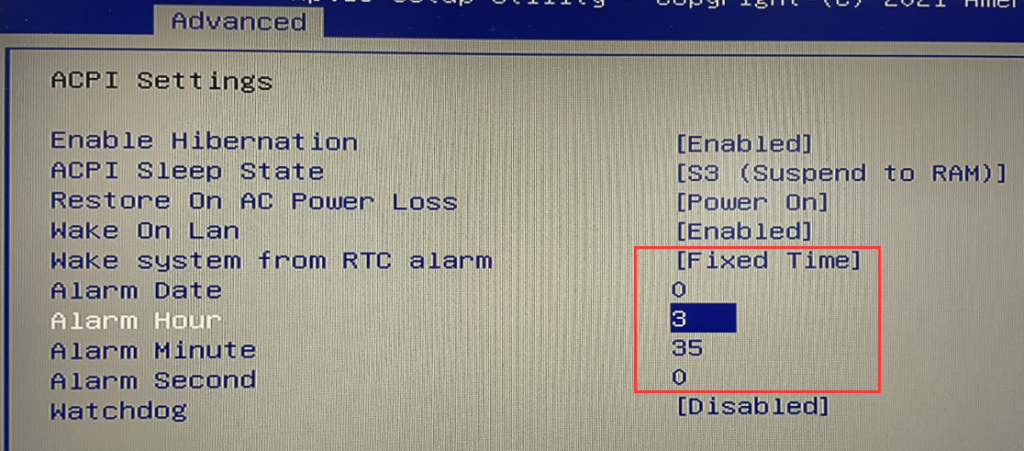
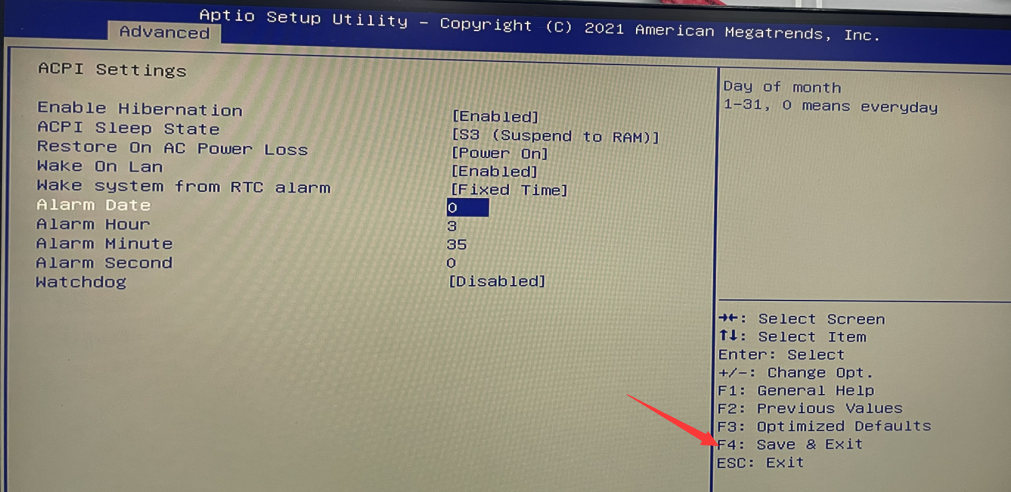
- 2-1. Press the PC switch button and quickly press the Delete/Del key on the keyboard to go to the BIOS Setup. Then choose Advanced>ACPI Settings> Set Wake system from RTC alarm to Fixed Time> Alarm Date Indicates the wake up date. If the value is set to 0, it indicates daily. You can set the wake-up time in Alarm Hour\Alarm Minute\Alarm Second according to your needs. In this tutorial, the boot time is set to 3:25 every day. Press F4 to save and exit after setting.
- Note: Existing KBR3D 1.80 or KBR3D 1.90 BIOS versions only support Legacy mode PXE boot. If UEFI PXE boot is required, use the dedicated BIOS version to solve the problem. This tutorial uses Legacy PXE as an example.
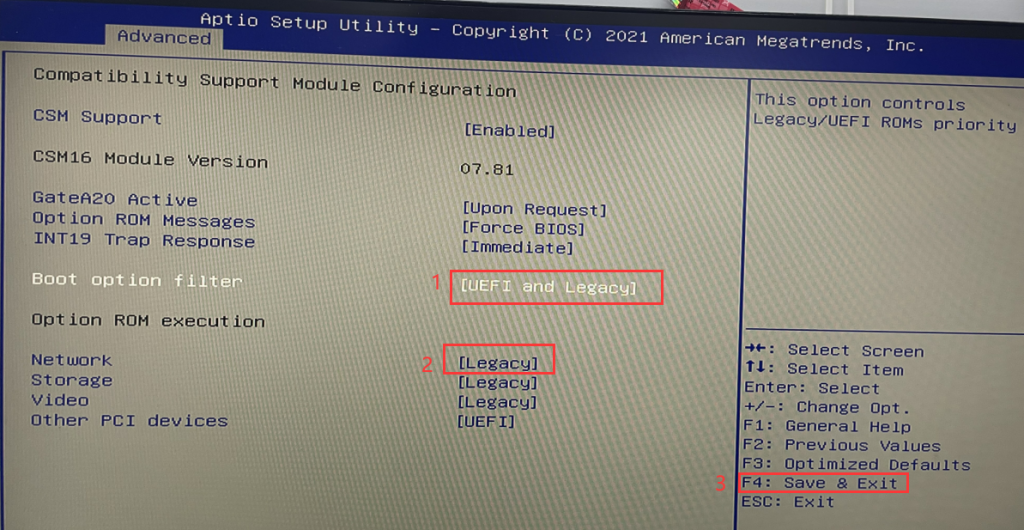
- 3-1. Press the PC switch button and quickly press Delete/Del on the keyboard to enter the BIOS Setup. Then choose Advanced>CSM Configuration> Set Boot option filter to UEFI and Legacy mode. Set Network to Legacy mode, install F4, save and exit.
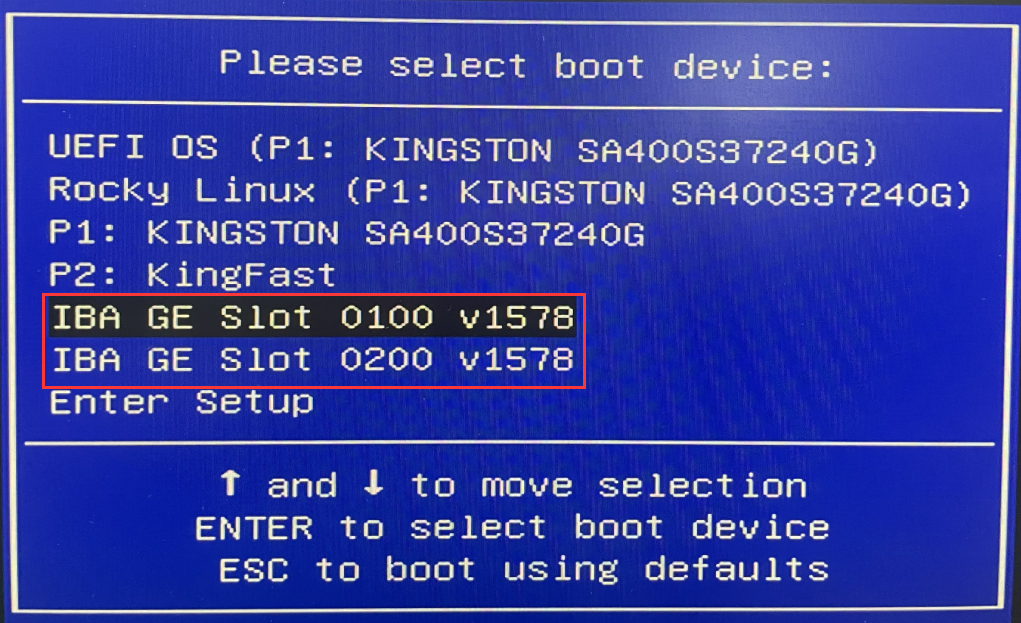
- 3-2. After the PXE device (IBA GE Slot 0100 or IBA GE Slot 0200) is enabled in the BIOS, restart the computer, and quickly press F11 to go to the boot management page. Select the PXE device you want and press Enter to confirm the boot.
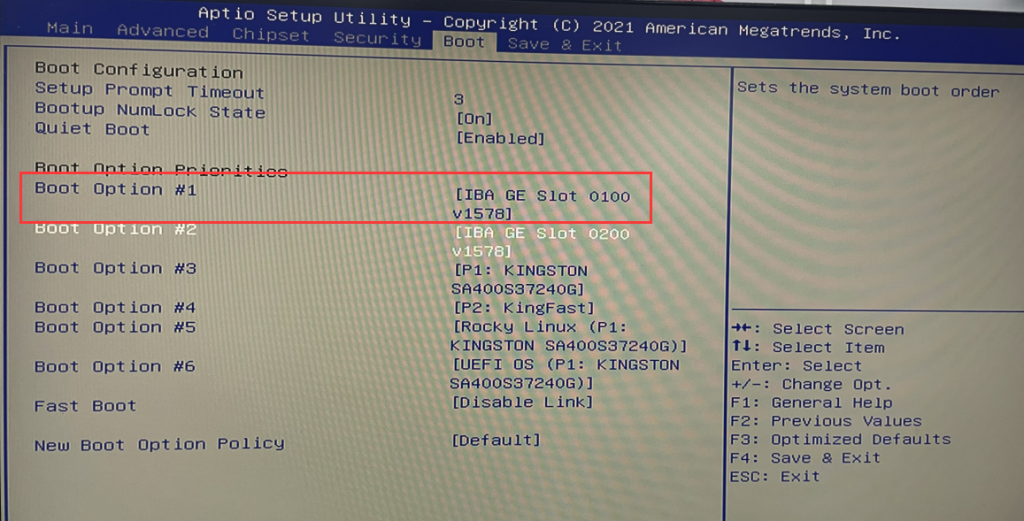
- 3. If you want to use PXE to Boot each time you Boot, enter the BIOS, choose Boot> Set Boot option #1 to IBA GE Slot 0100 or IBA GE Slot 0200, and press F4 to save the Settings and exit.
[H6 Series] Steps to check the hard disk in BIOS (M.2 NVME/M.2 SATA/SATA)
How to enter safe mode in Windows 10 (Steps to enter safe mode)
