
Restoring factory settings on Windows 10 systems
author: VENOEN
2025-09-02
Method 1. (This method is suitable for entering the operating system desktop normally)
When our computer often reports errors, runs slowly, freezes, has a blue screen or other unknown problems. To get back to normal, you can choose to restore your computer to its original state by restoring it to factory settings.
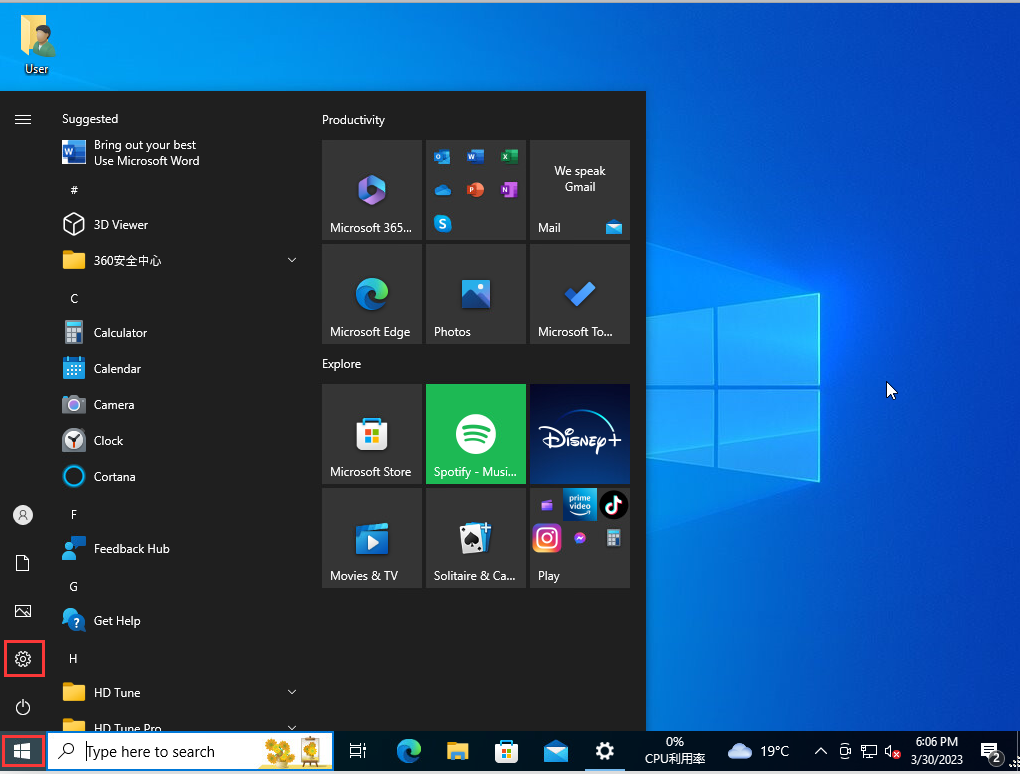
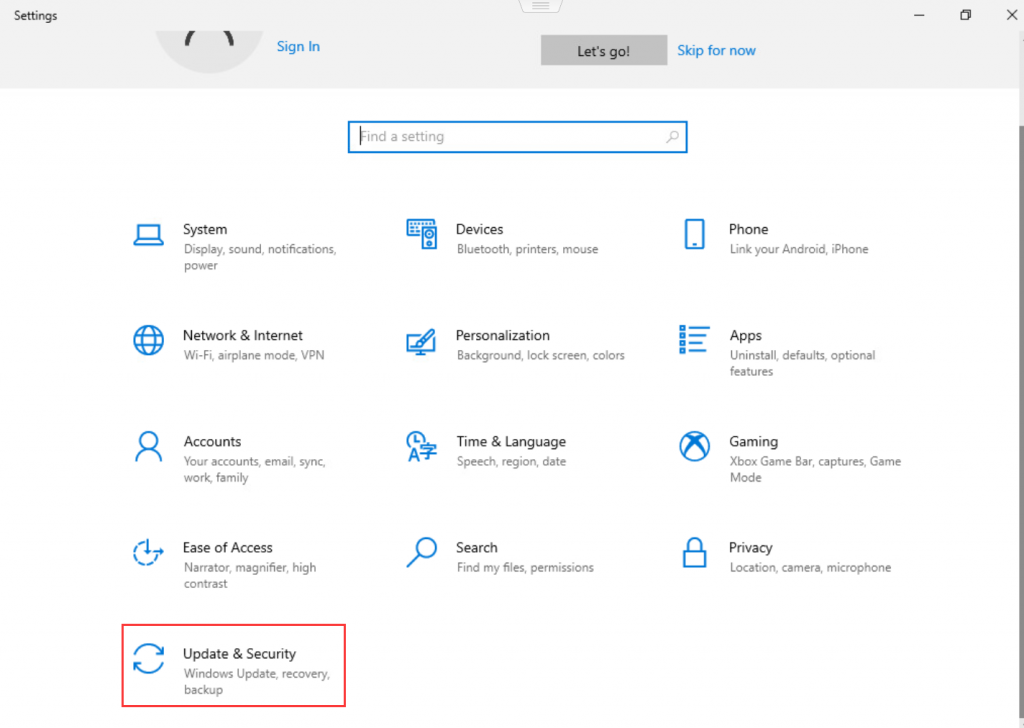
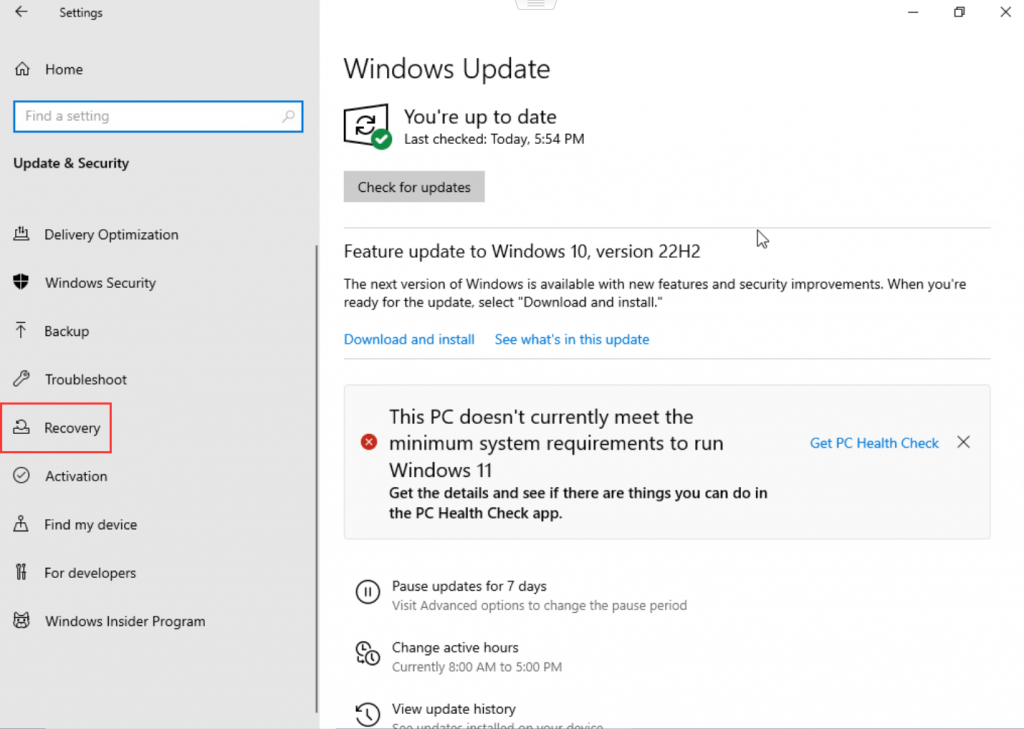
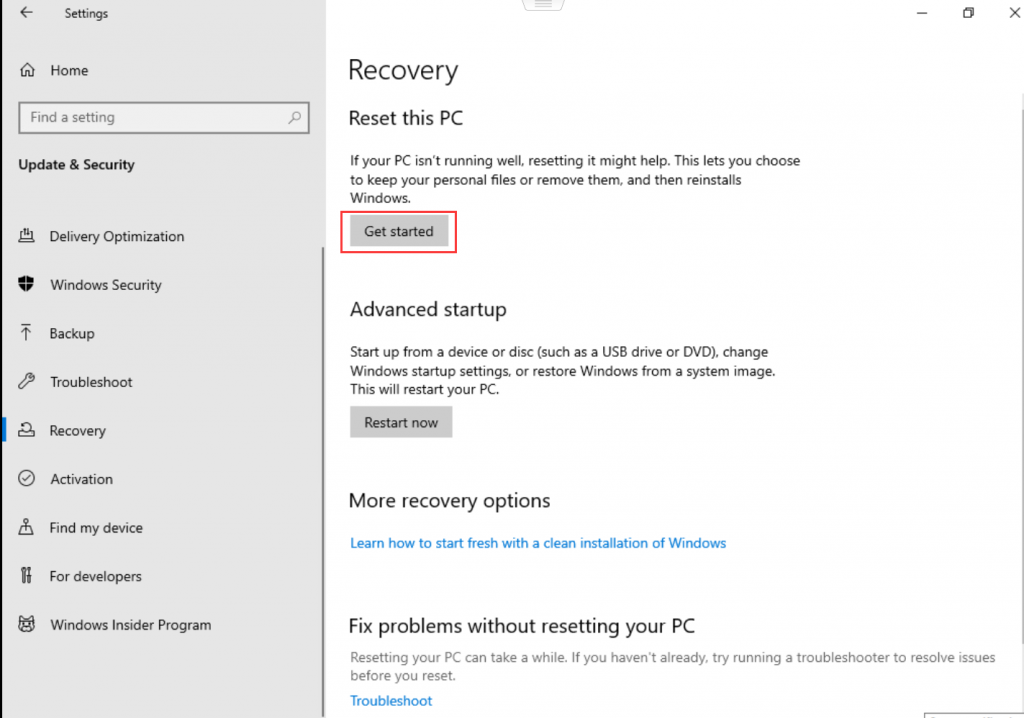
1. After entering the operating system desktop, select start>settings>Update & Security>Recovery>Get started to enter the recovery page.
1. After entering the operating system desktop, select start>settings>Update & Security>Recovery>Get started to enter the recovery page.
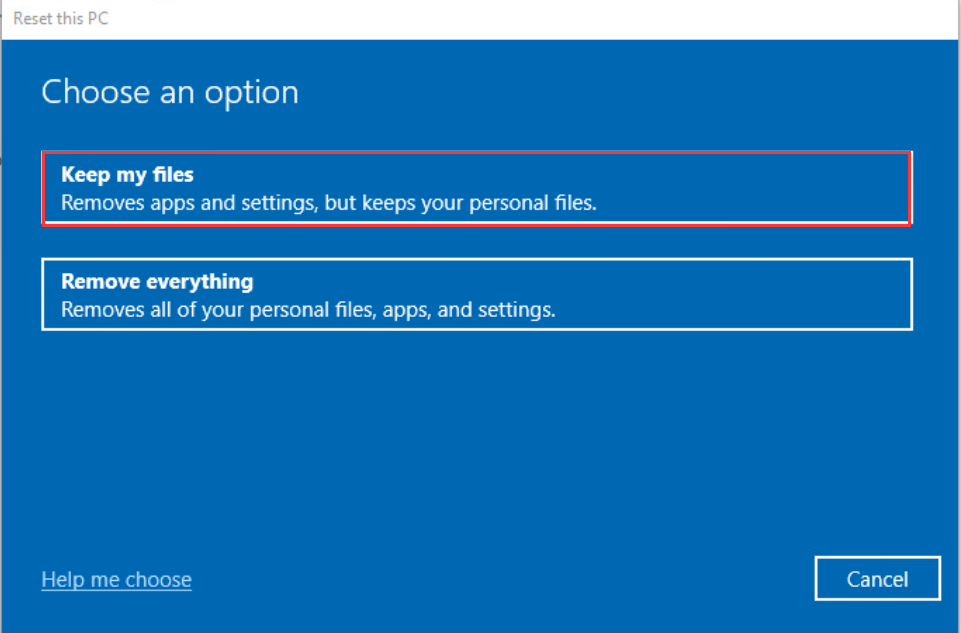
- 2. On the recovery page, select Keep my files or Remove everything according to your needs. If there is important data on the computer, it is recommended to select Keep my files. If there is no important data, select Remove everything.
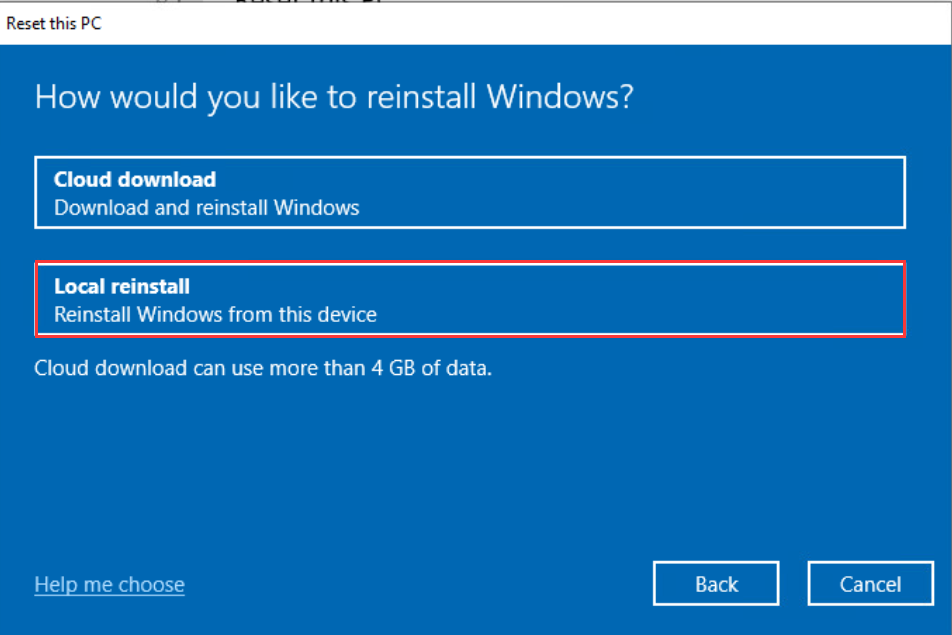
- 3. Select the restore mode according to the environment. Cloud download and Local reinstall are available. Usually, when the local system is not completely damaged, choosing the Local reinstall mode can reduce the restore time. If the computer is connected to the Internet and the local system is damaged, select Cloud download mode. Select Local reinstall mode in this tutorial.
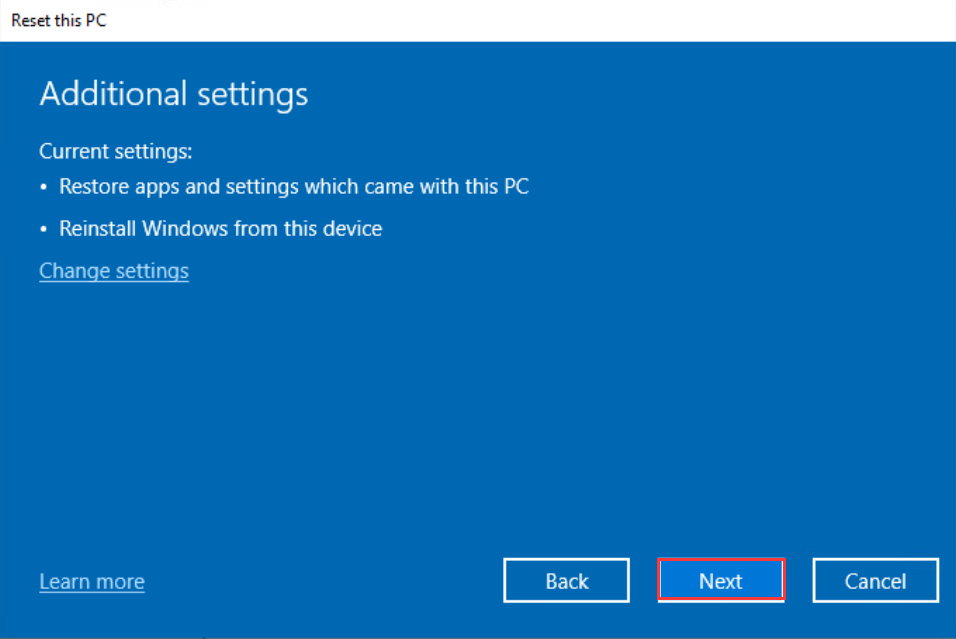
- 4. Click Next after confirming that the current settings meet your needs. You can also customize the restore settings. Usually, you can choose the default settings.
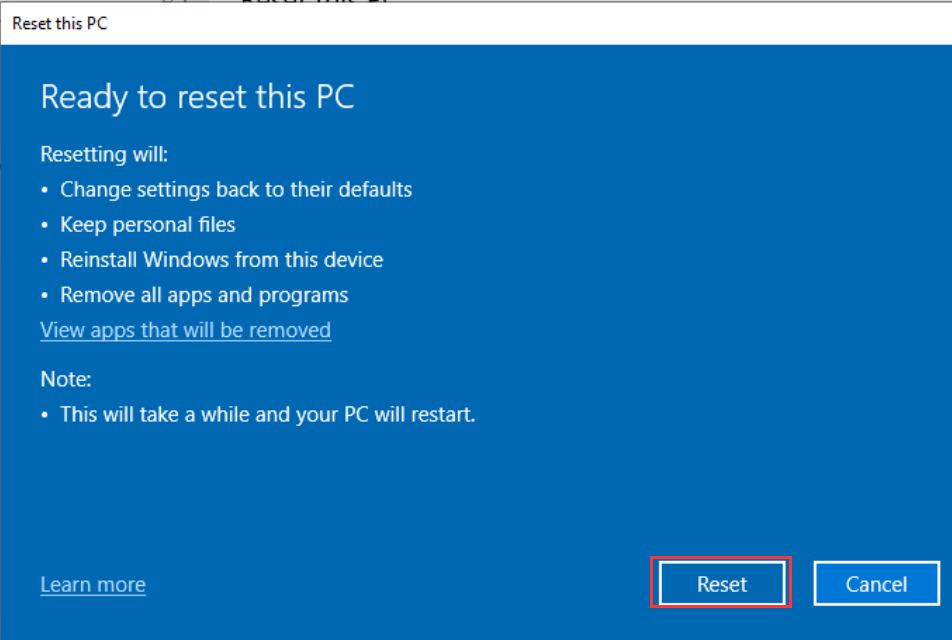
- 4. After confirming that everything is correct, click Reset. Then the system will automatically restart and restore to the initial state. It usually takes about 20 minutes to complete. The restoration time will vary depending on the hardware configuration.

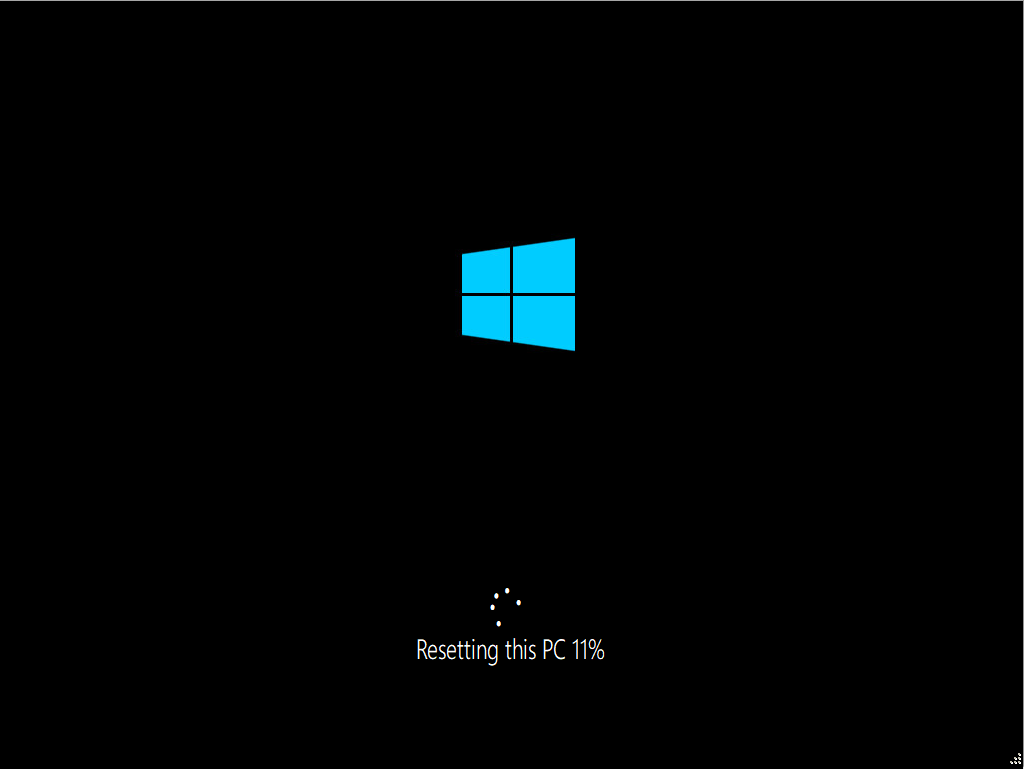
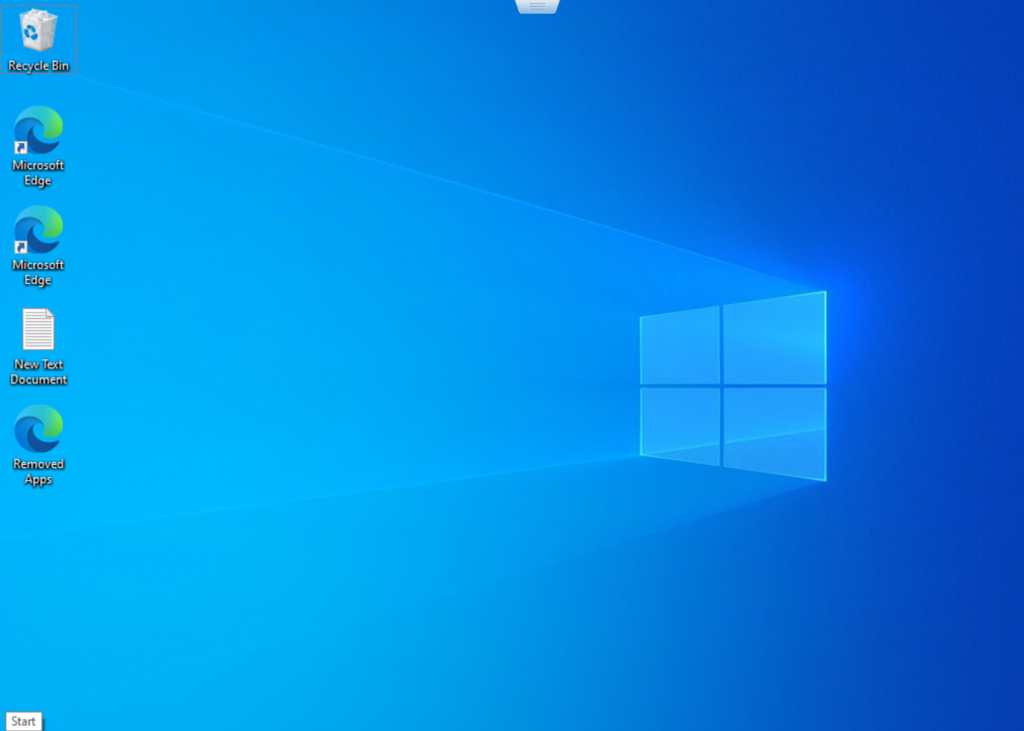
- 5. After the restoration is completed, the Windows desktop will be automatically entered. At this point, the operating system has been restored successfully!
Hard disk expansion and partitioning steps for Windows systems
Steps for installing Ubuntu 22.04 LTS
