
Switch FTPM to TPM enable Bluetooth guidance in H4T BIOS
author: VENOEN
2025-09-26
Applicable to H4T-i3-8145,i5-8265U
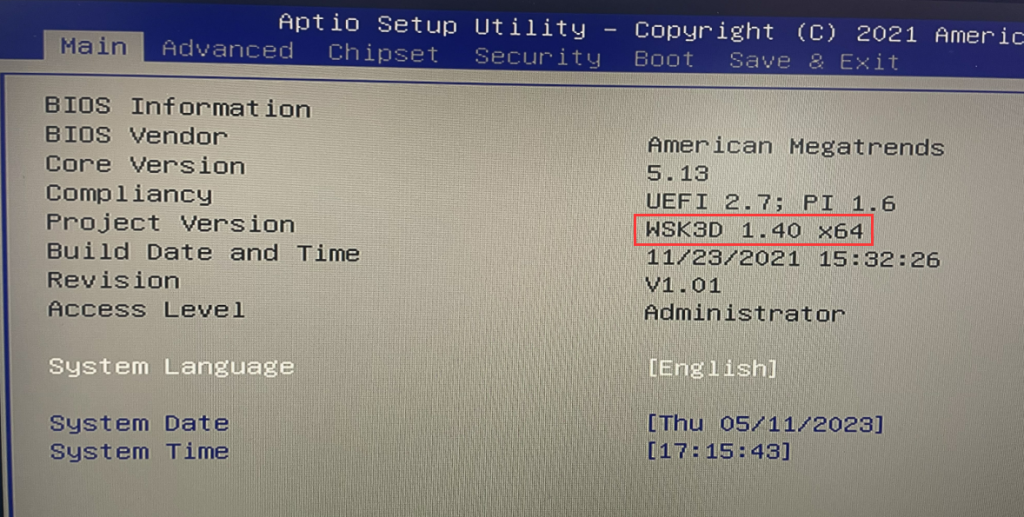
Bios version: WSK3D 1.40 X64
What is fTPM?
Bios version: WSK3D 1.40 X64
What is fTPM?
The full name of fTPM is firmware TPM. This is a security module implemented in the system firmware rather than a dedicated chip. It can be understood as a virtual TPM and can achieve similar functions to the TPM encryption chip in daily use.
What is TPM?

The picture above shows a 19pin independent encryption module, which can be directly inserted into the JTPM1 pin header of the motherboard. TPM is the abbreviation of Trusted Platform Module, translated as (Trusted Platform Module), which is a hardware security device. Simply put, it is a secure encryption processor. This secure cryptographic processor protects the computer using encryption keys. When booting the operating system, the TPM verifies that the firmware and operating system have not been modified by an unauthorized third party and denies booting if so.
At the same time, the TPM will also communicate with the security system on the computer. Whether it is fingerprint reading or Windows Hello, we need to cooperate with the TPM to allow us to access the device. This can deny third parties arbitrary access to our Windows Hello data.
In addition, TPM is also responsible for operating system-level file encryption functions, such as BitLocker under Windows, which can protect our data more securely
The new H4T model (BIOS version: WSK3D 1.40 X64) has FTPM turned on by default. If you need to install an independent TPM module, you need to switch the working mode in the BIOS.
The switching steps are as follows:
1-1. Disassemble the machine after powering off, and insert the TPM module into the JTPM1 pin header on the motherboard.
The switching steps are as follows:
1-1. Disassemble the machine after powering off, and insert the TPM module into the JTPM1 pin header on the motherboard.
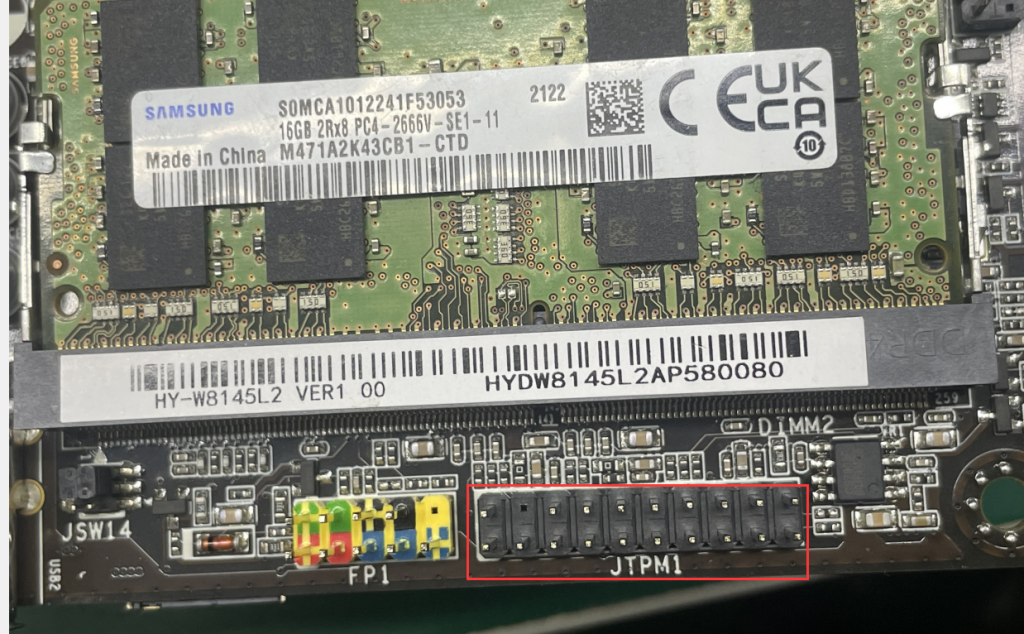
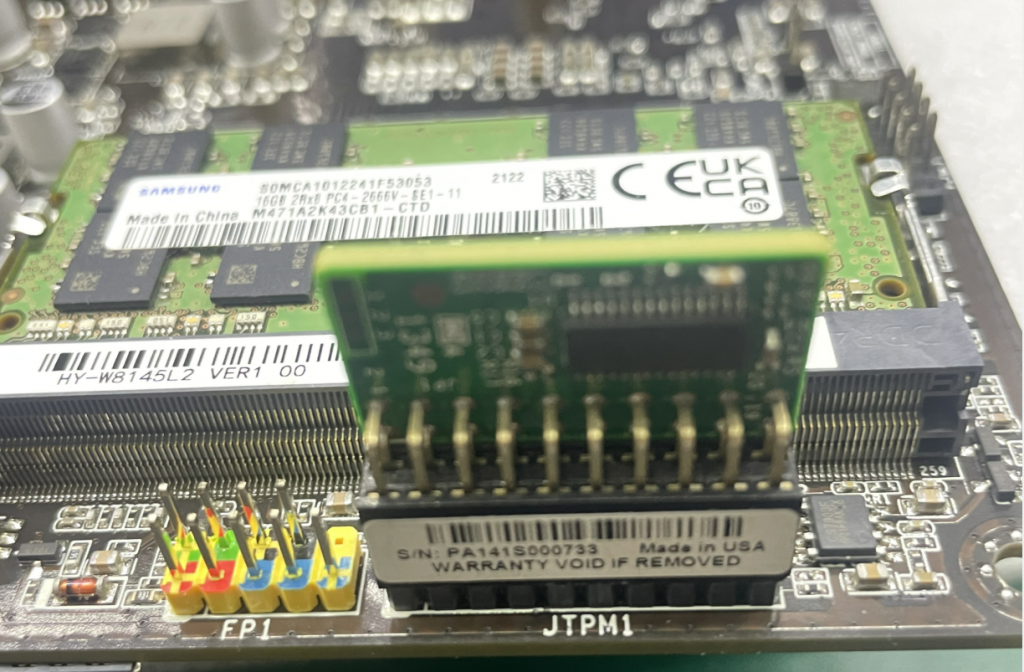
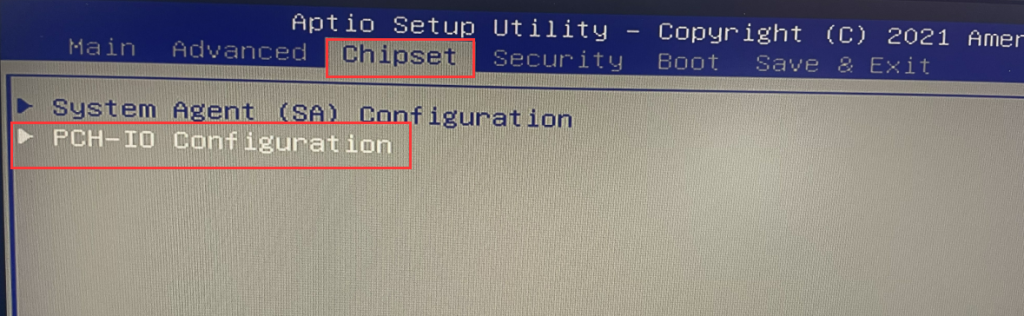
- 1-2. Press the PC power button and quickly tap the Del key on the keyboard to enter the BIOS. Select Chipset>PHC-IO Configuration>Set the TPM Device select ion to dTPM. Save and exit after the setting is successful.
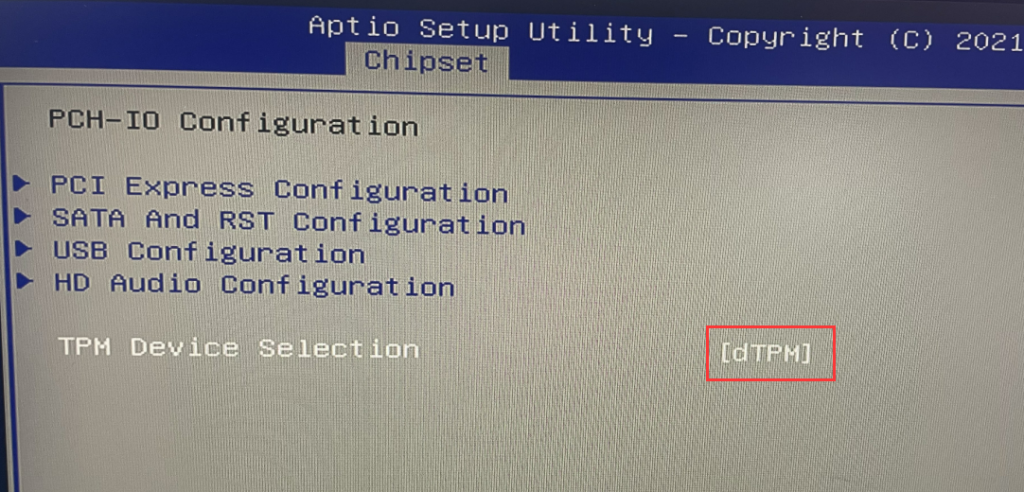
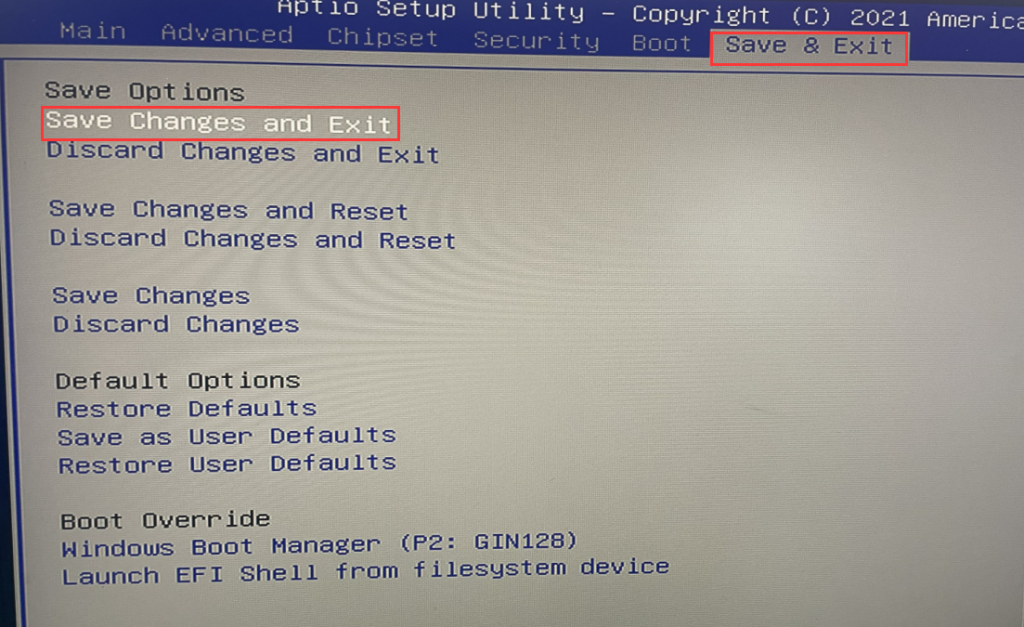
- 2. Regarding the H4T motherboard not recognizing Bluetooth:
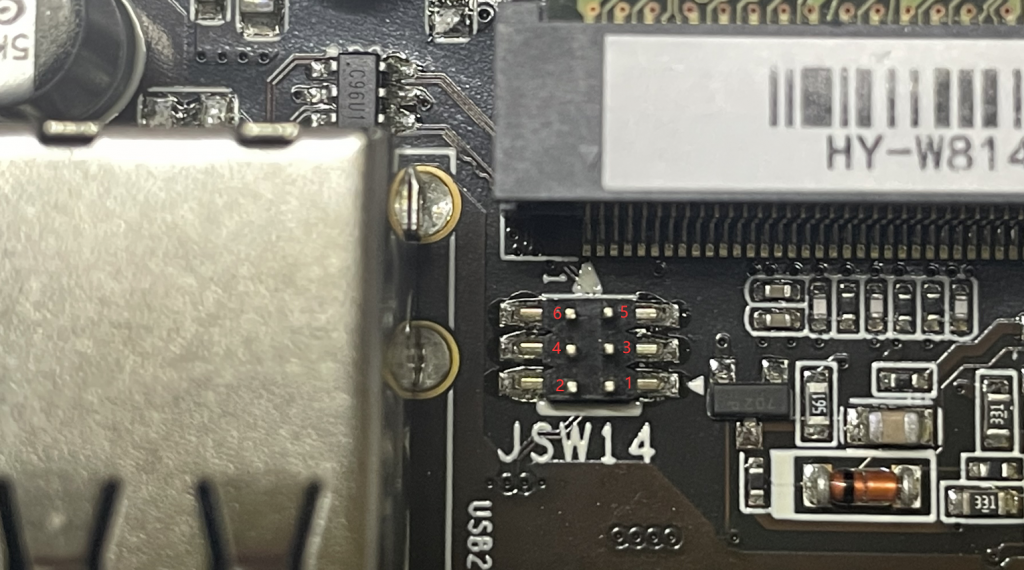
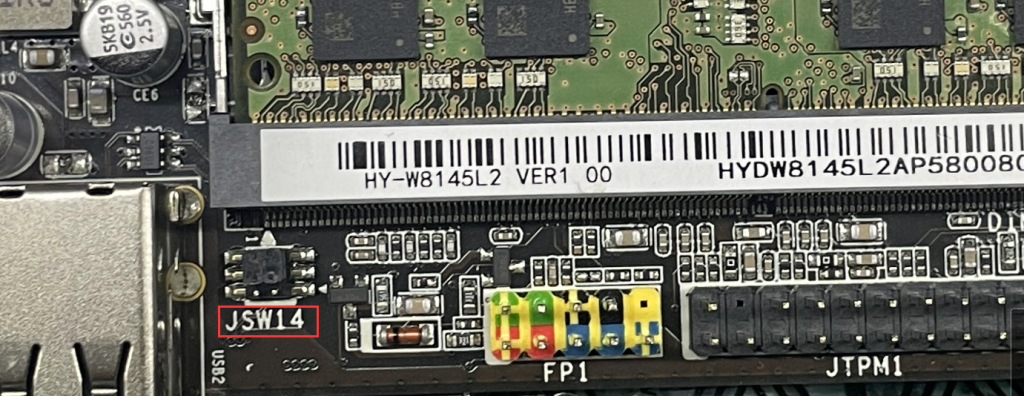
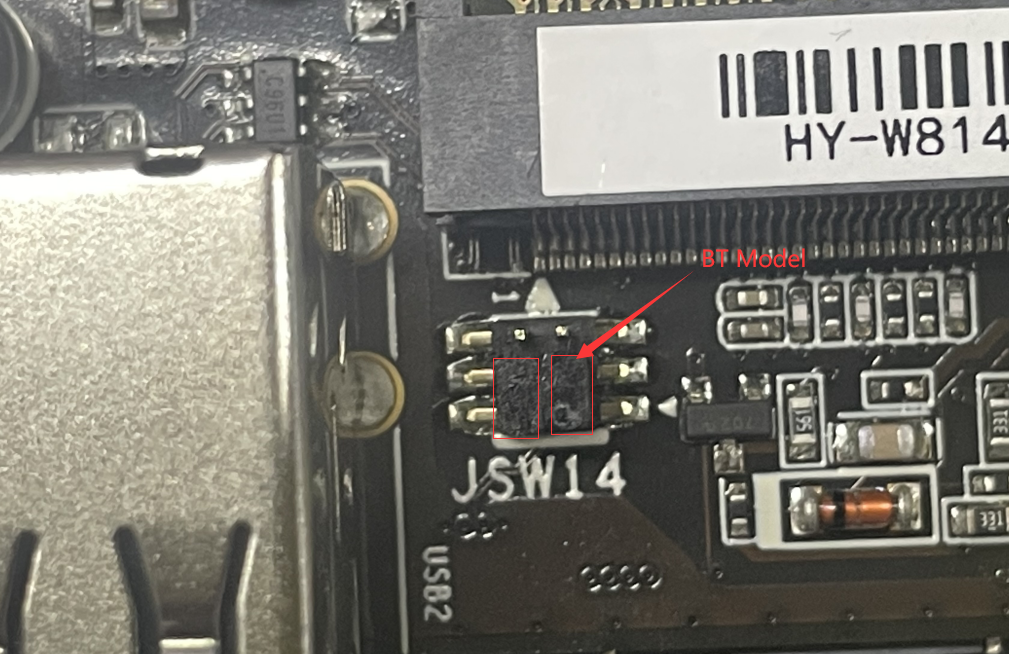
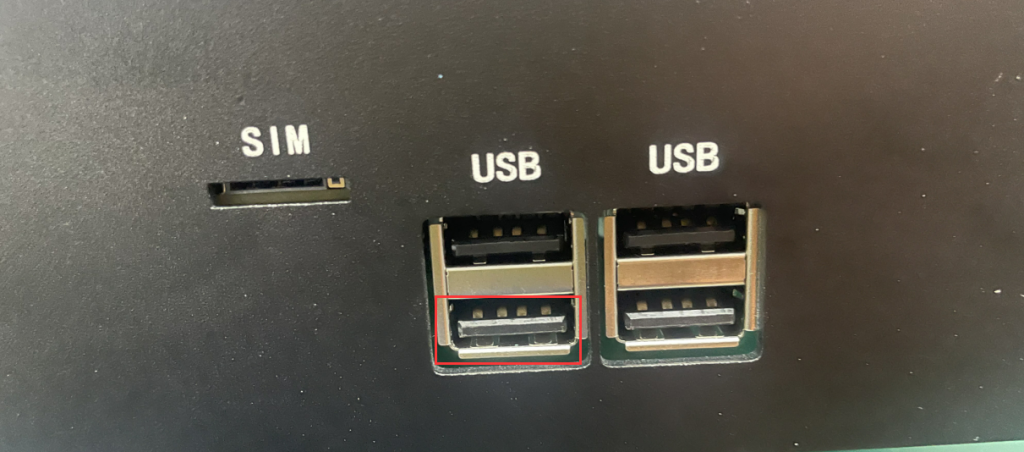
Because the WIFI slot of this motherboard has one USB bus and one of the front USB2.0 ports shares the same bus, even if the WIFI module has Bluetooth function, it cannot be recognized on the motherboard. If you want to enable the Bluetooth function, you need to change the jump cap on the motherboard JSW14.
2-1. After disassembling the machine, find the motherboard JSW14 pin header. There are 2 jumper caps on the pin header. Jumper cap 1 is plugged into pin3+pin5 by default, and jumper cap 2 is plugged into pin4+pin6 by default. Move jumper cap 1 to pin1 and pin3, and move jumper cap 2 to pin2 and pin4 to enable the Bluetooth function.
(Warm reminder: After moving the jumper cap, the USB2.0 port marked on the front will be invalid.)
How to configure multiple networks (Ethernet, WLAN, 4G) to connect to the Internet, Windows domains, or both simultaneously under the Windows 10-11 system?
Debian11 Installation Guide
