
Windows 10 or 11 system startup disk production and installation guide
author: VENOEN
2025-08-29
- Preparation
1 USB flash drive with a capacity greater than 8GB
1 Windows PC connected to the Internet
Insert the U disk into the PC USB port, open the browser, and enter this URL in the browser address file: Win10 download://www.microsoft.com/en-us/software-download/windows10,- Win11 download://www.microsoft.com/en-us/software-download/windows11
- Download the MediaCreationTool tool and run it.
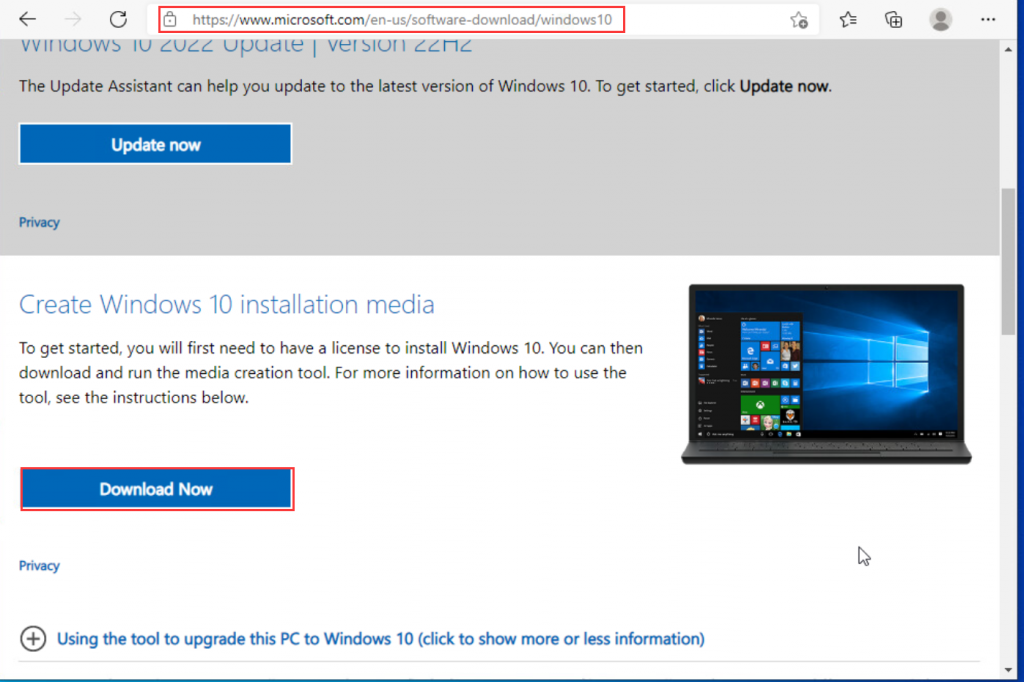
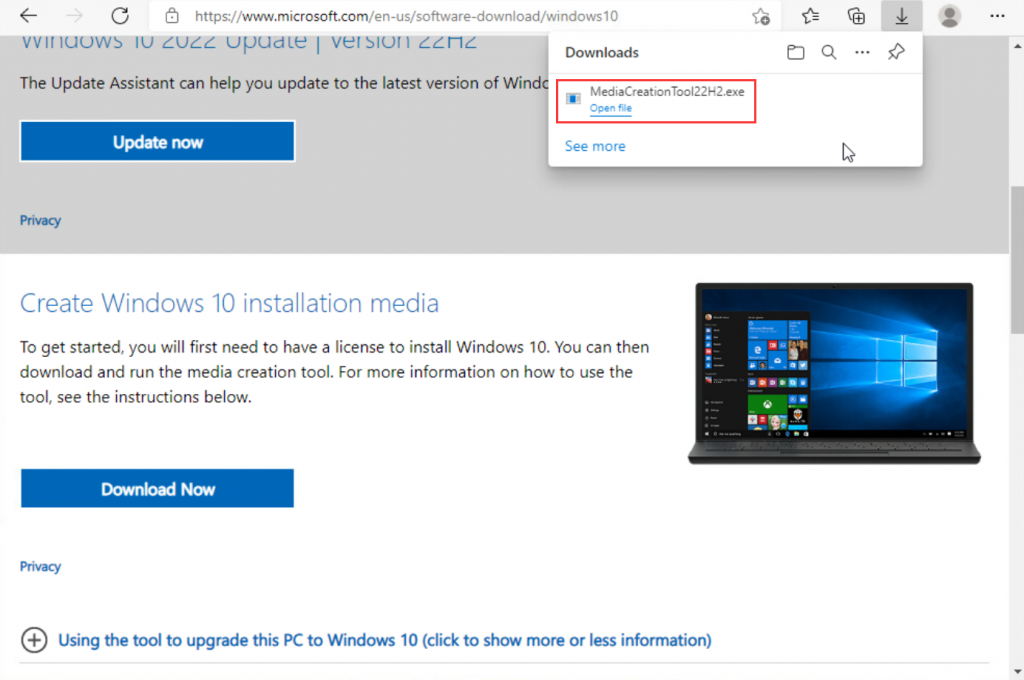
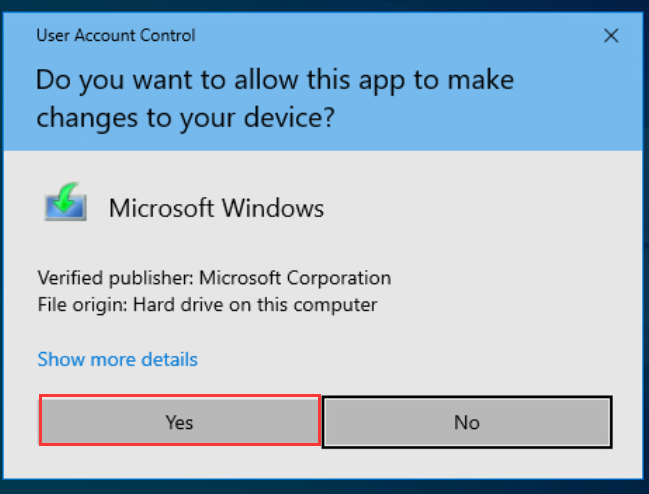
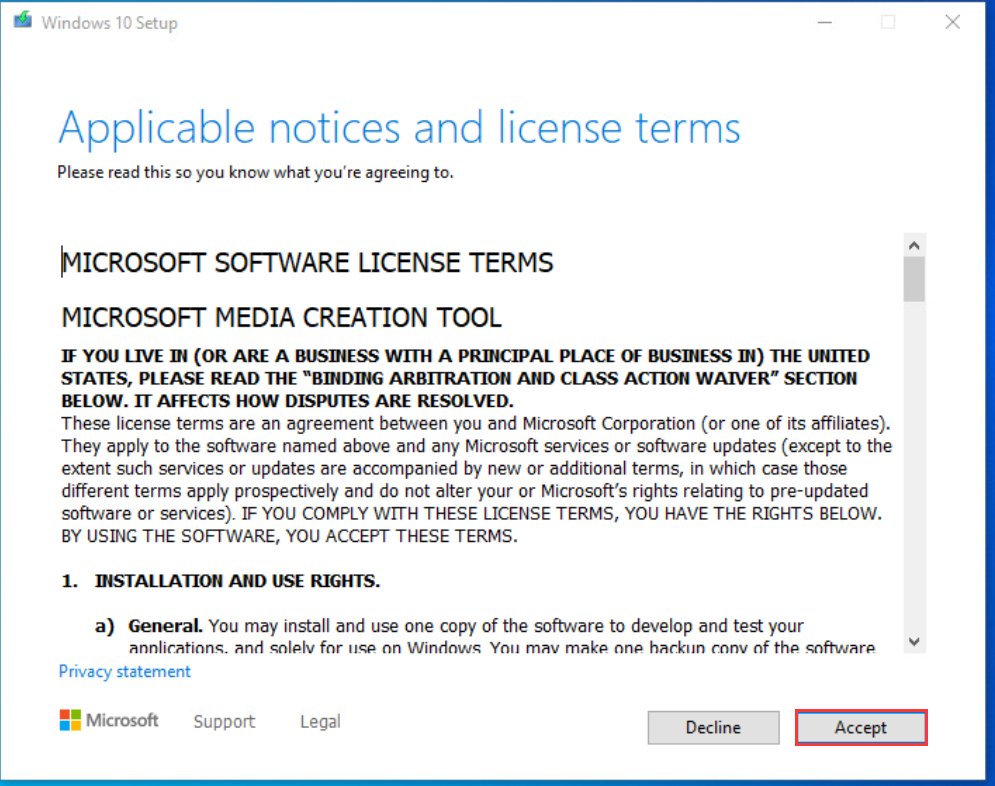
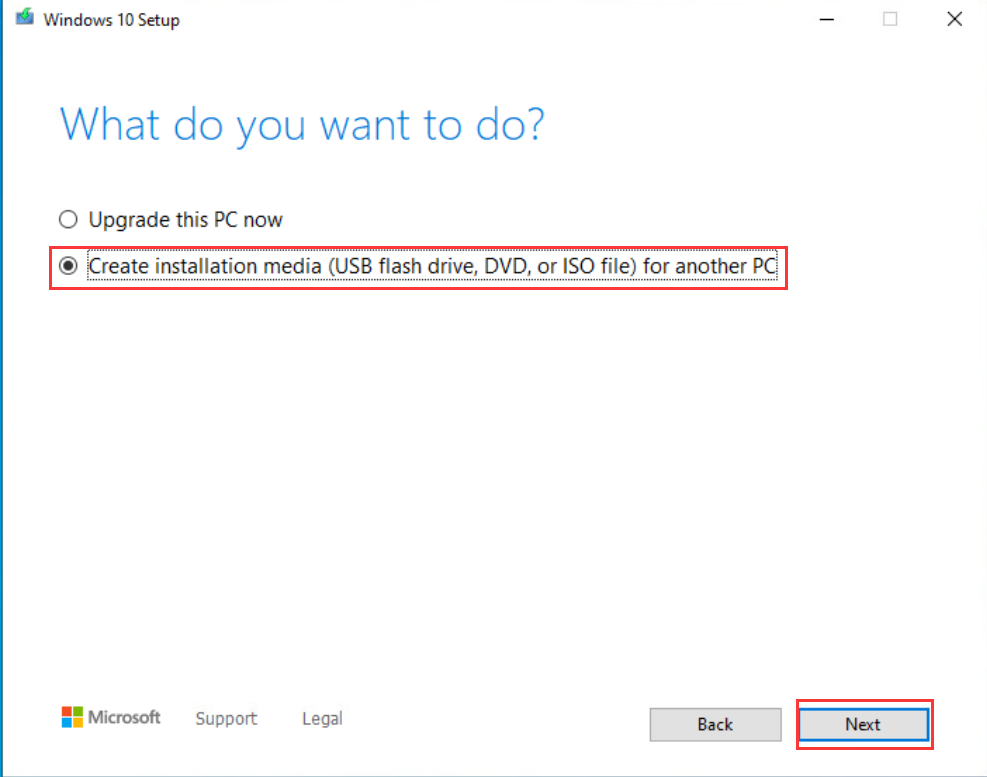
- 阅读Applicable notices and license terms选择Accept>Create installation media(USB flash drive, DVD, or ISO file) for another PC>Next.
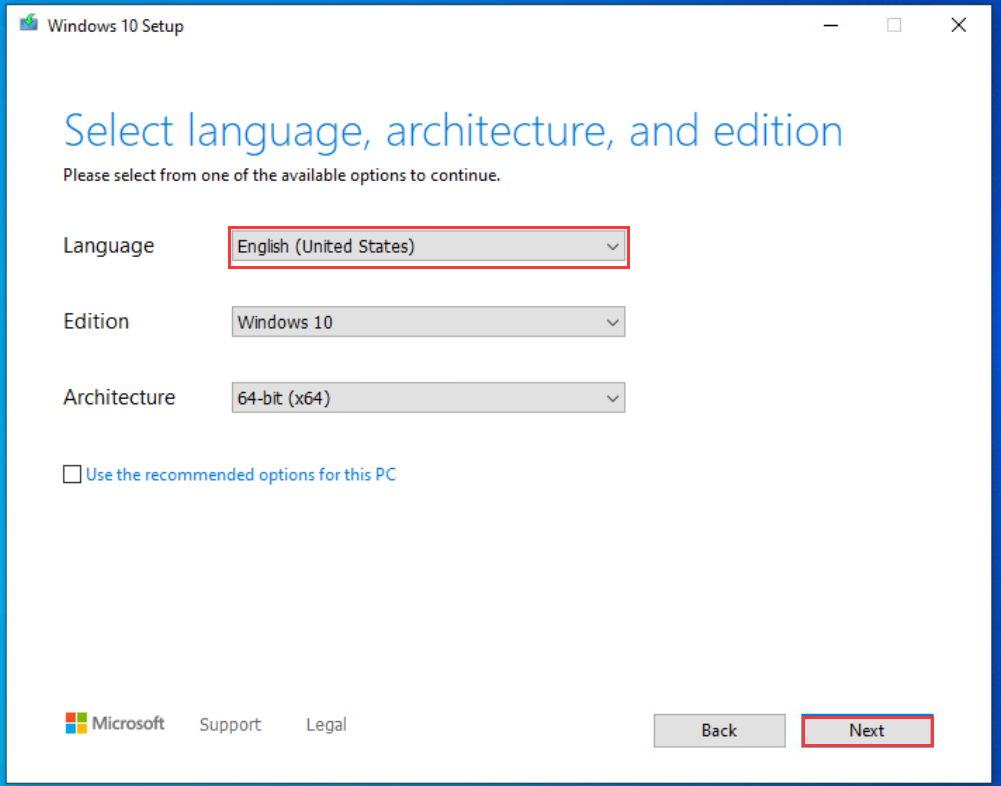
- In the Language option, select the required system language version. Here we take English as an example. After selecting the language, click Next.
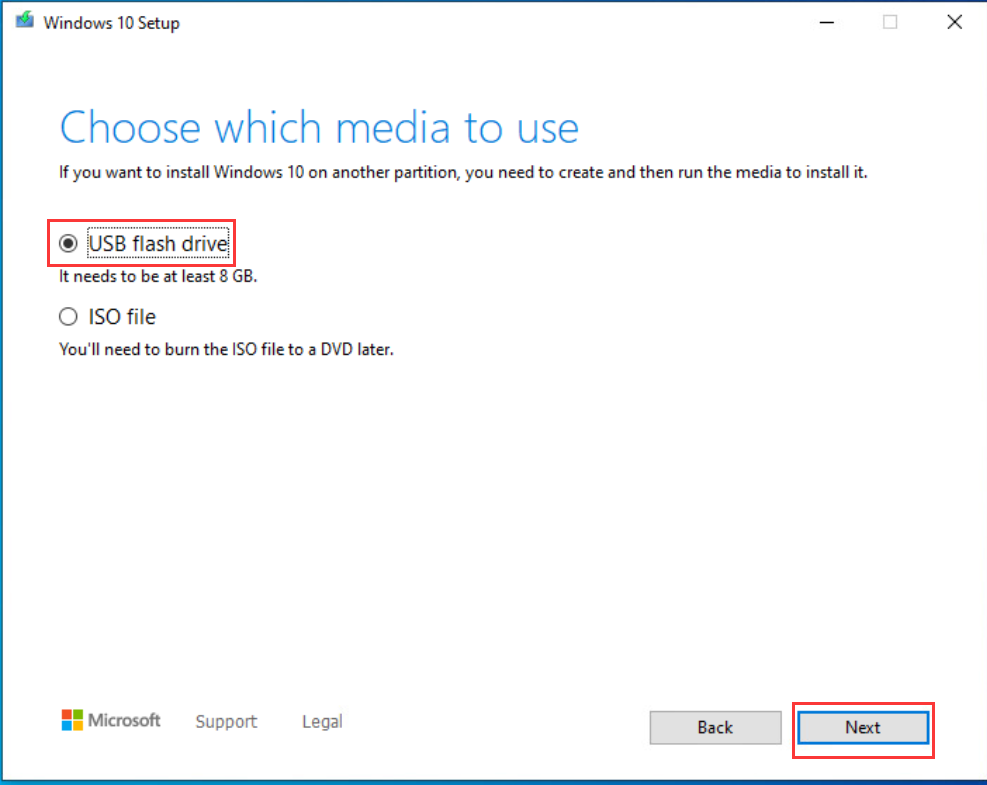
- Select USB flash drive >Next. (Note: This operation will delete all data in the USB flash drive. If you have important data, please back it up in advance)
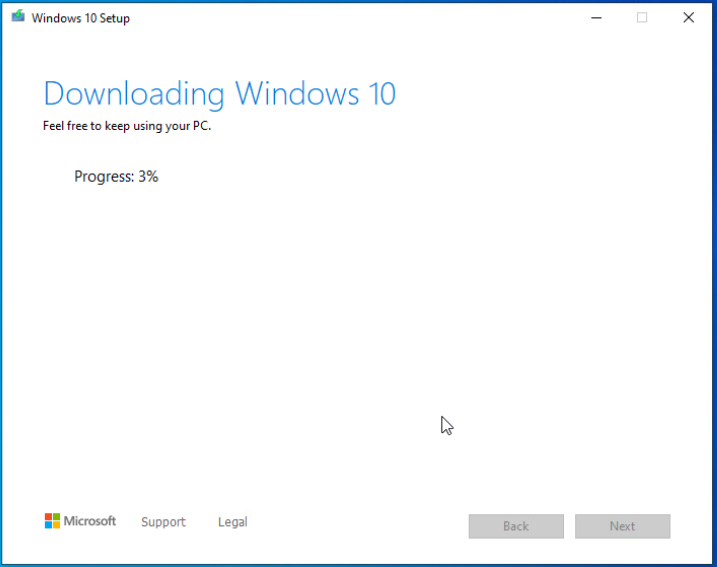
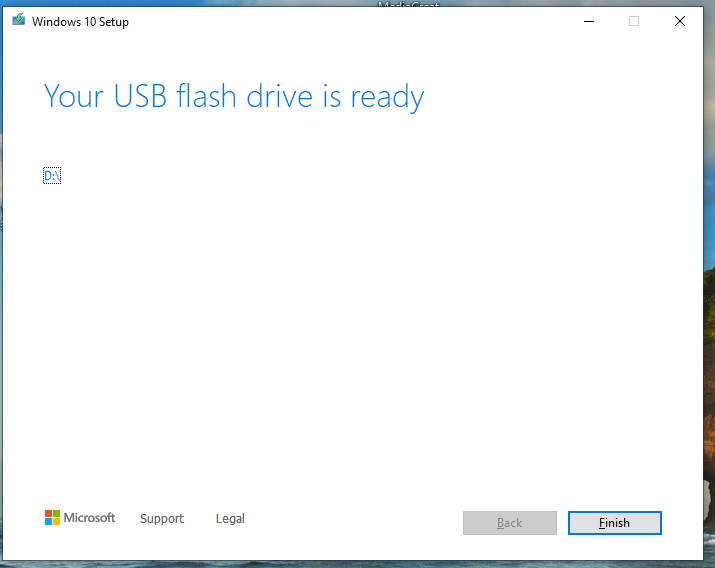
- Wait patiently, usually it will take 20-30 minutes to complete the production. When it prompts "Your USB flash drive is ready", it means the production is successful!
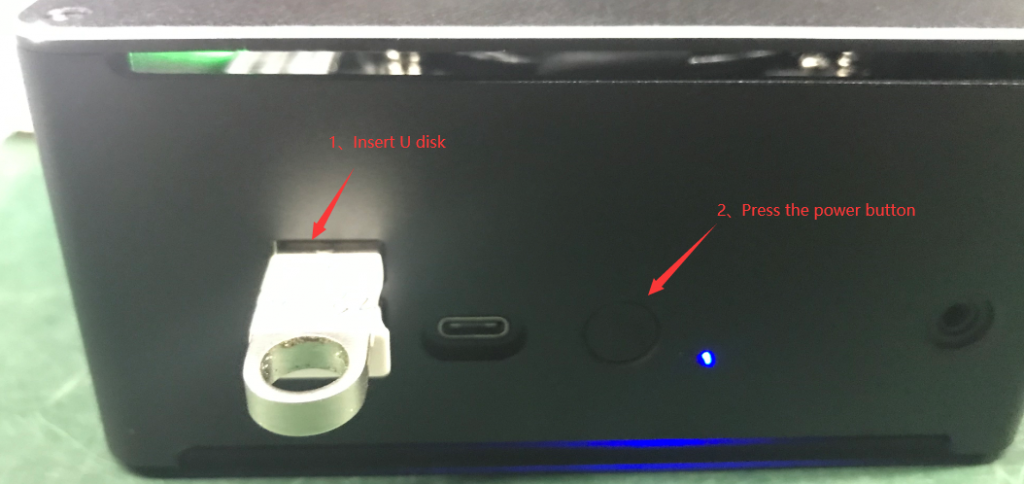
Insert the prepared Windows boot USB disk into the computer where the system needs to be installed, then press the power button to turn on the computer, and then press F7 or F11 repeatedly to enter Boot setup (depending on the model, here we take S210 as an example and press F7). Model express key.
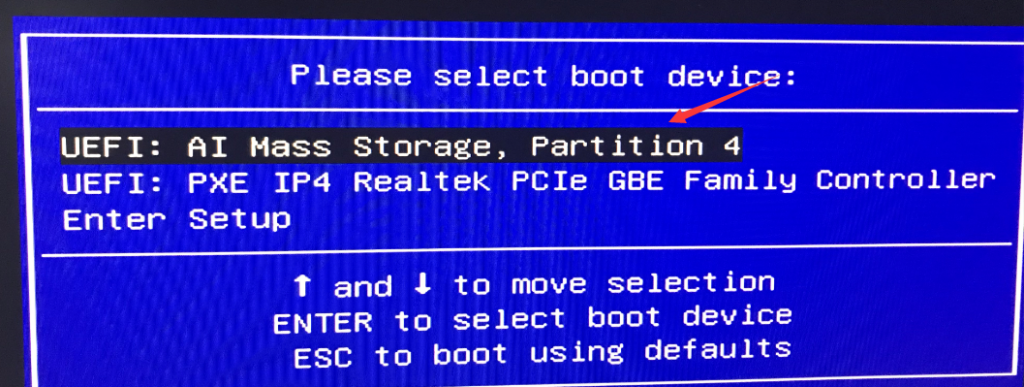
- Select the USB flash drive with UEFI: prefix and press Enter.
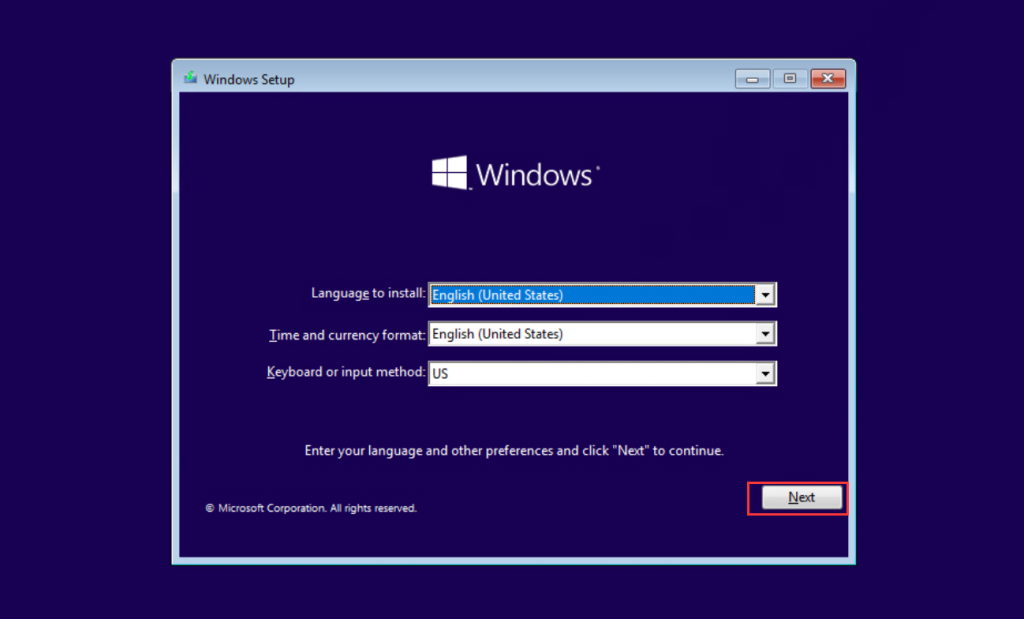
- Wait for loading to complete and follow the prompts.
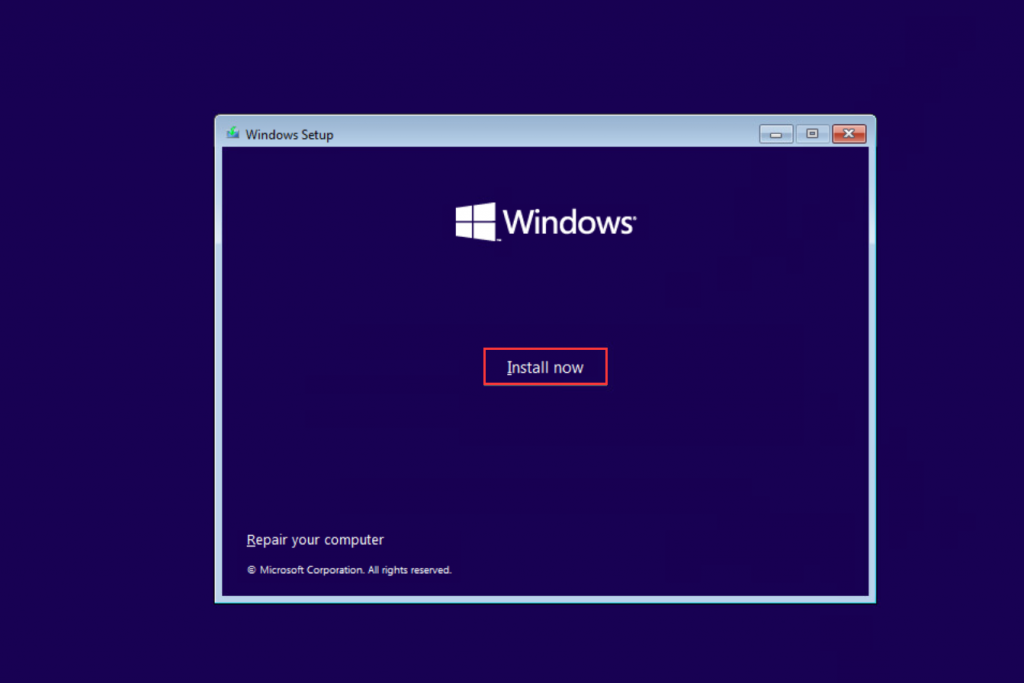
- As shown in the figure below, the system requires you to enter a key to activate Windows. Please purchase the key from Microsoft's official website or contact your supplier to obtain it. If you want to try Windows, you can select I don't have a product key and activate it after the installation is successful.
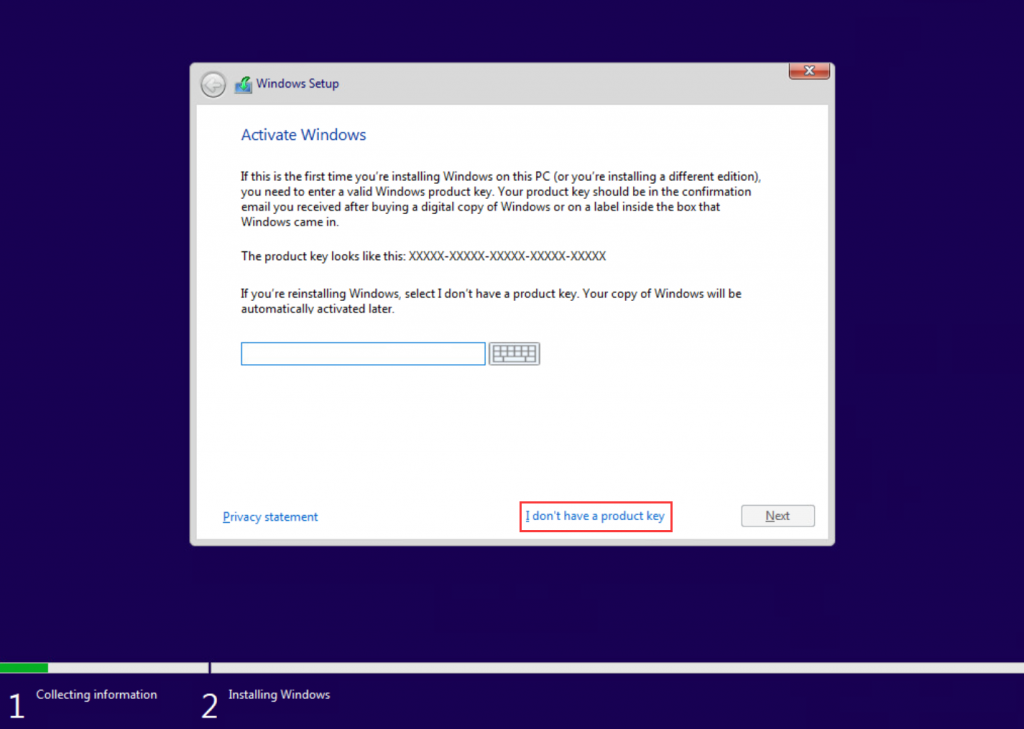
- Select the corresponding system version according to your needs. Here we take Windows 10 pro as an example.
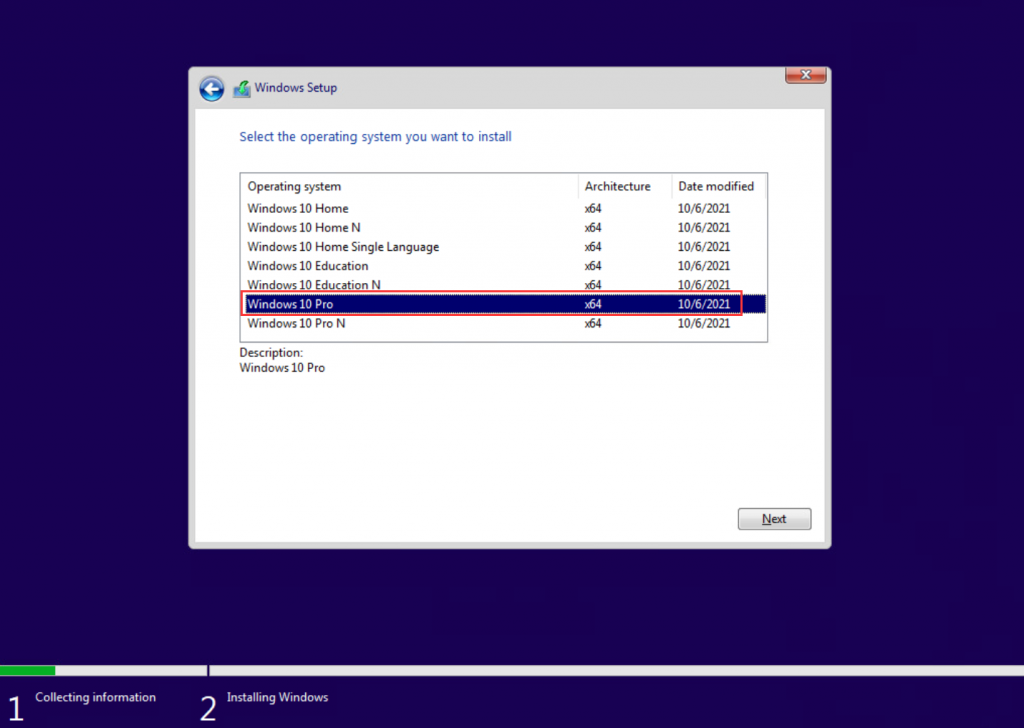
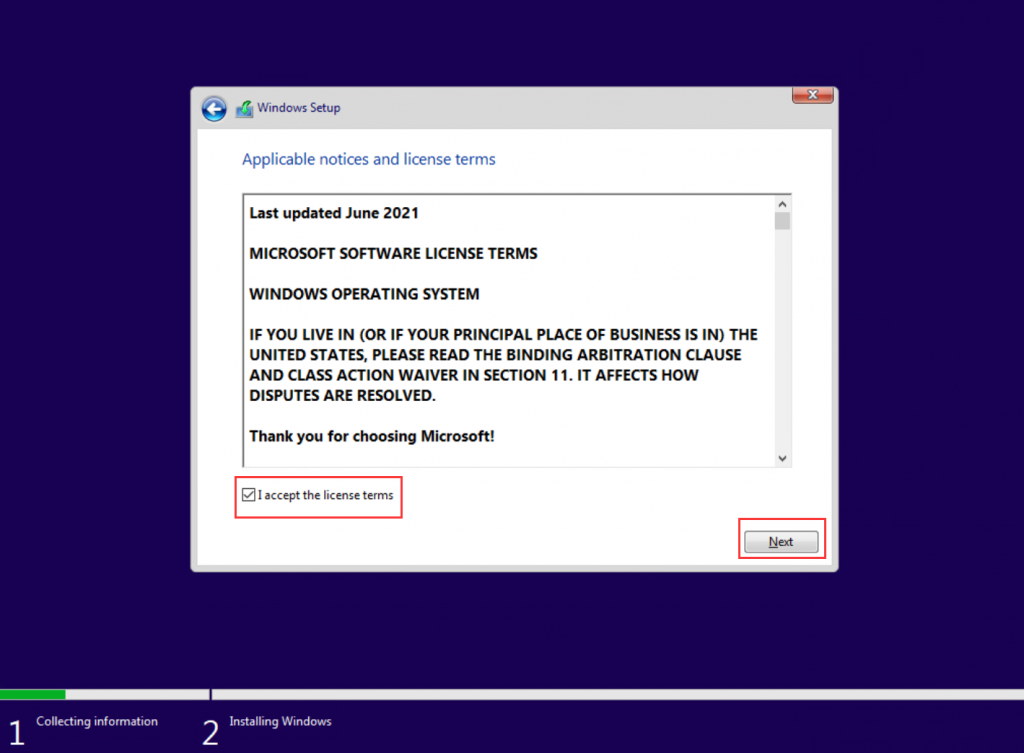
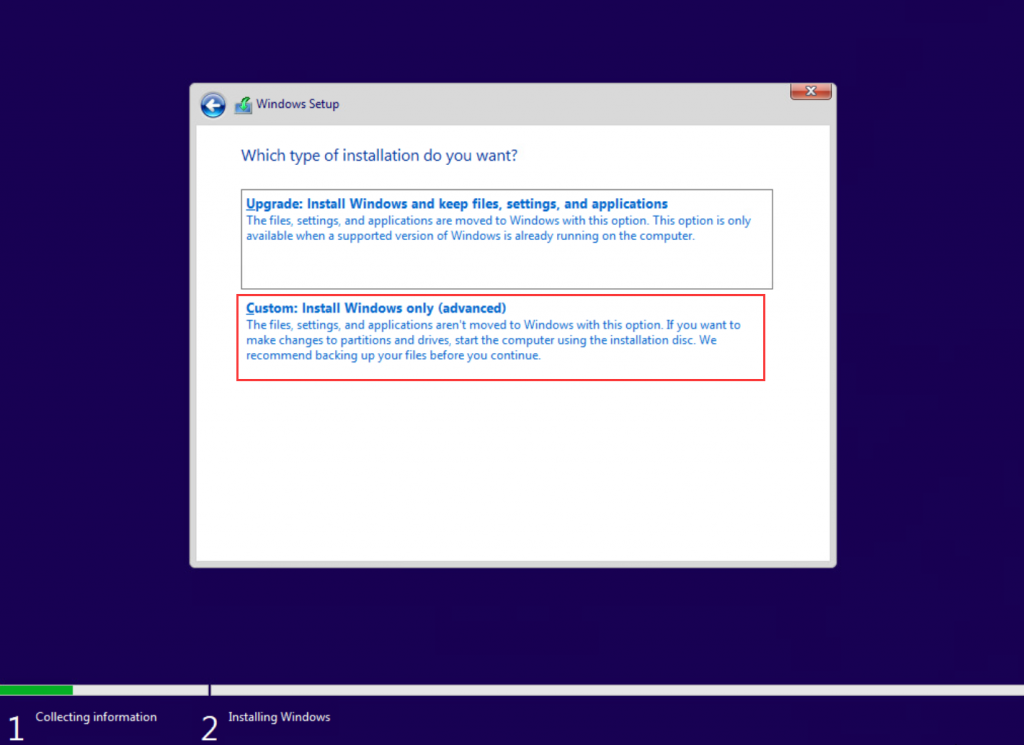
- Here, select SSD and create a new partition. If there are other partitions in the SSD, please delete all partitions and then create a new partition.
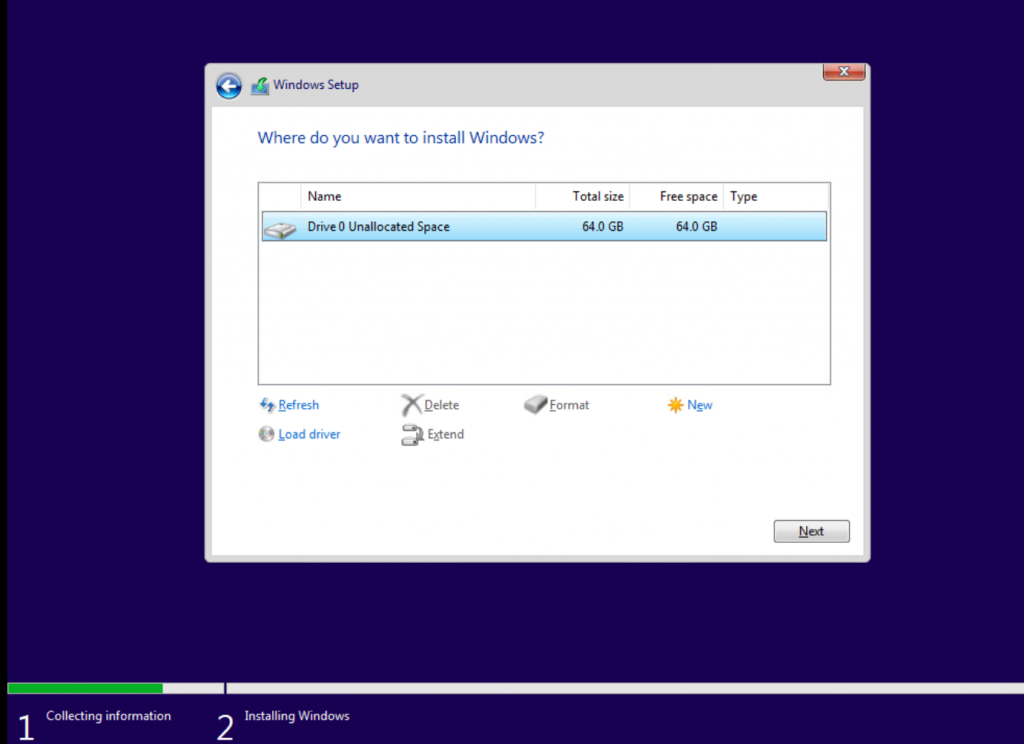
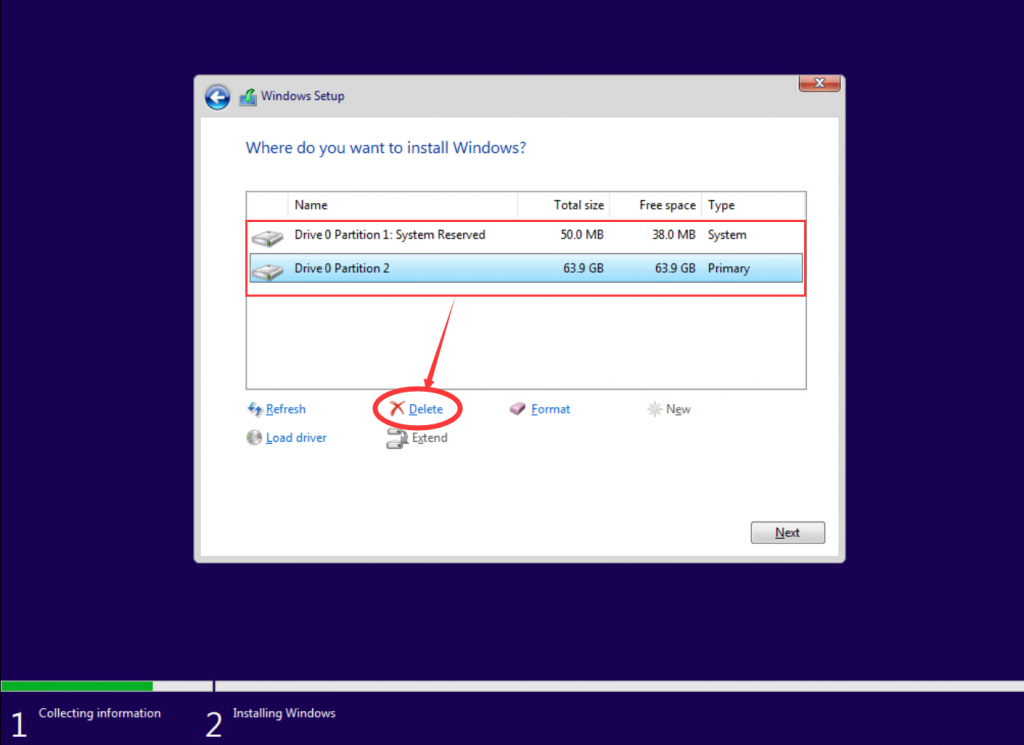
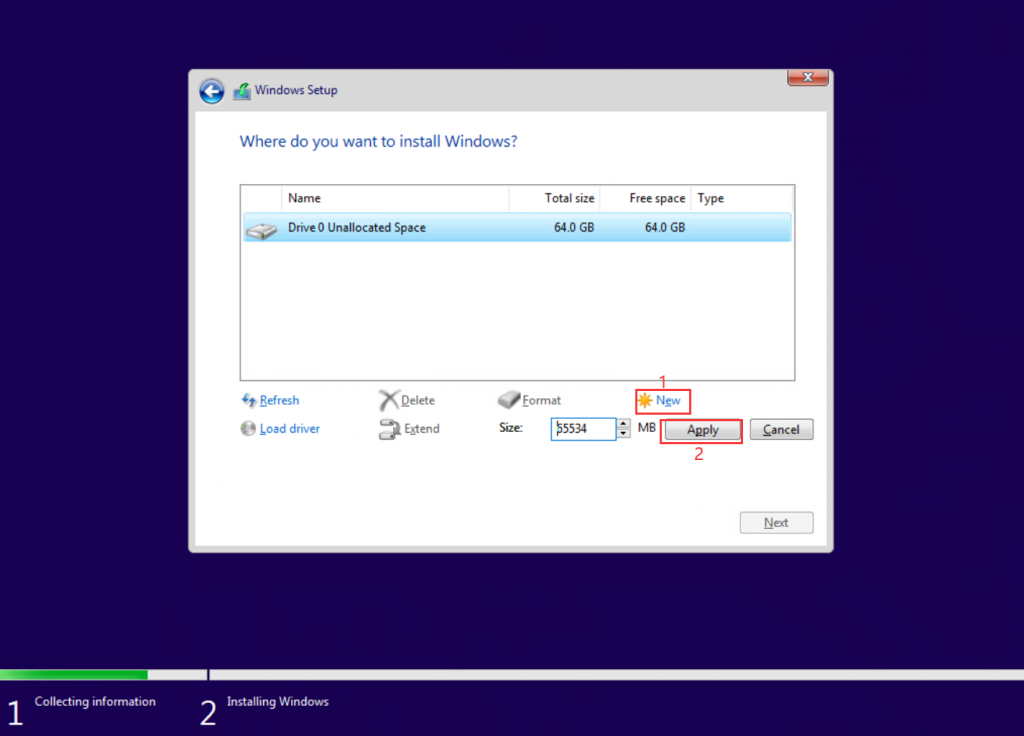
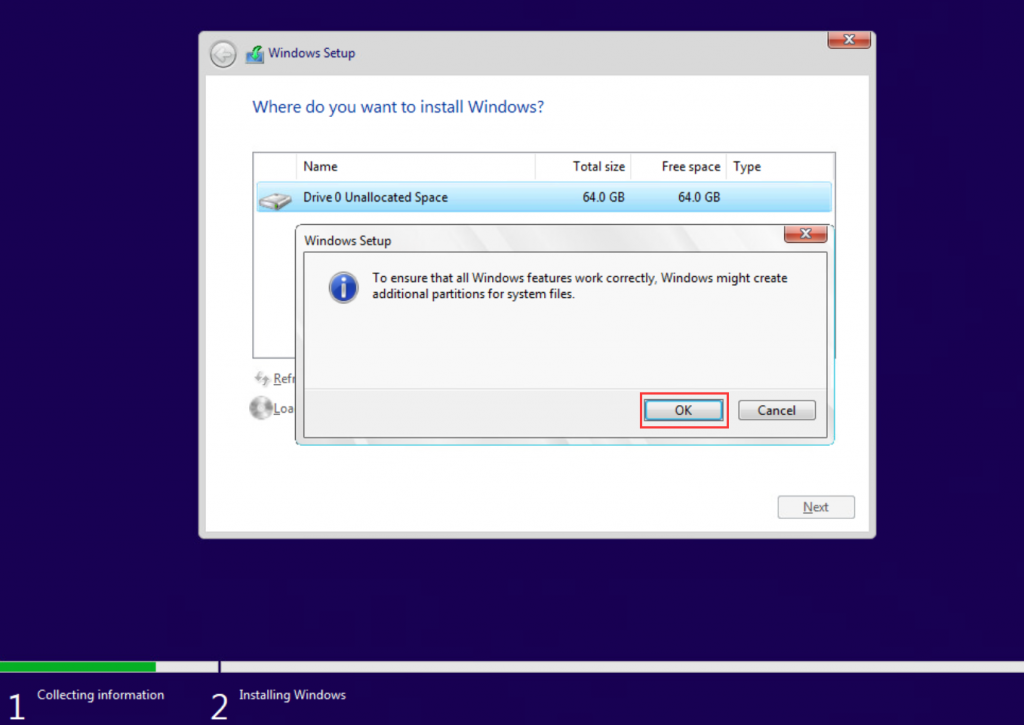
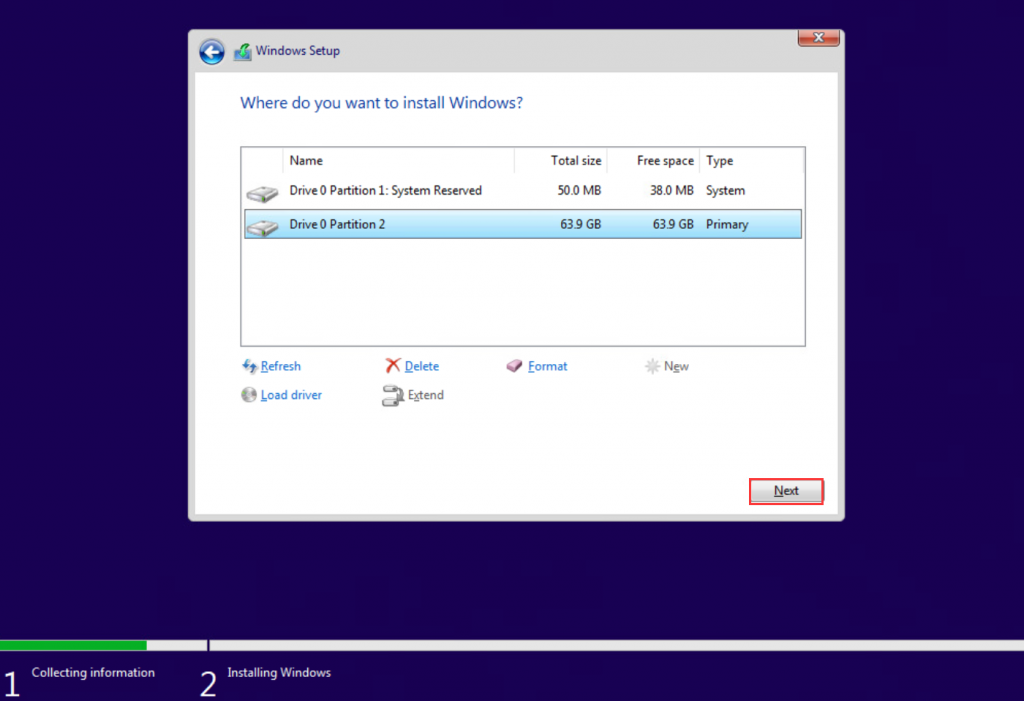
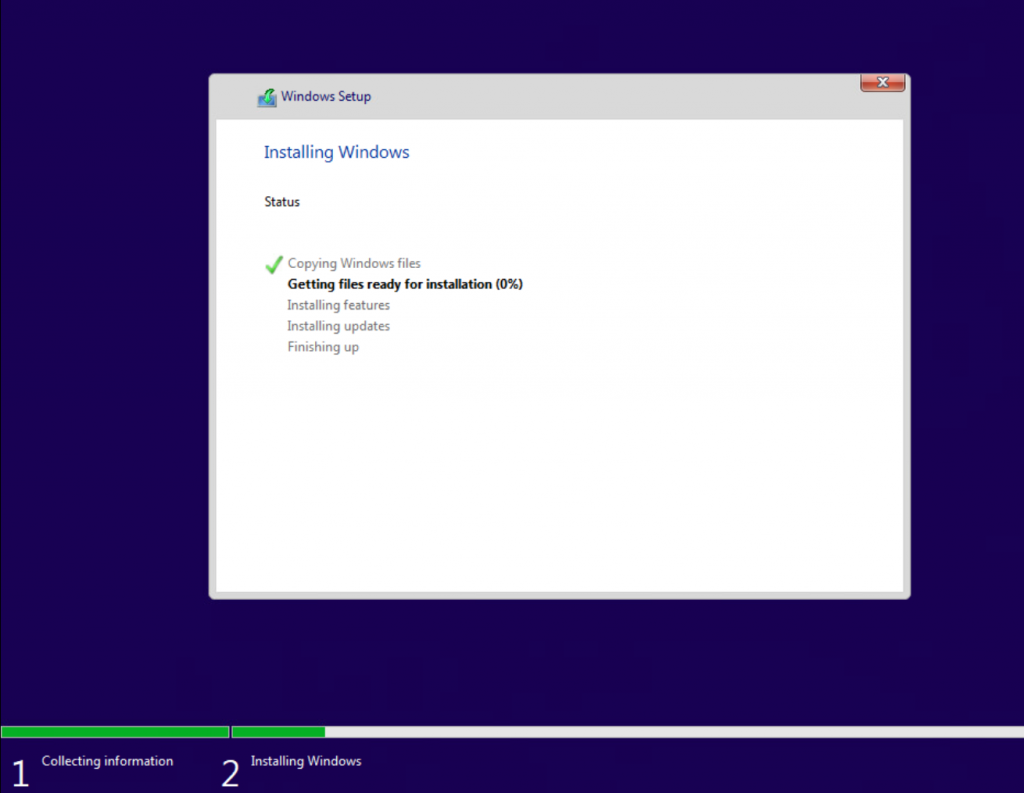
- Wait for the file writing to complete. When the following screenshot appears, remove the USB flash drive and select Restatr now to enter the Windows Setup Wizard.
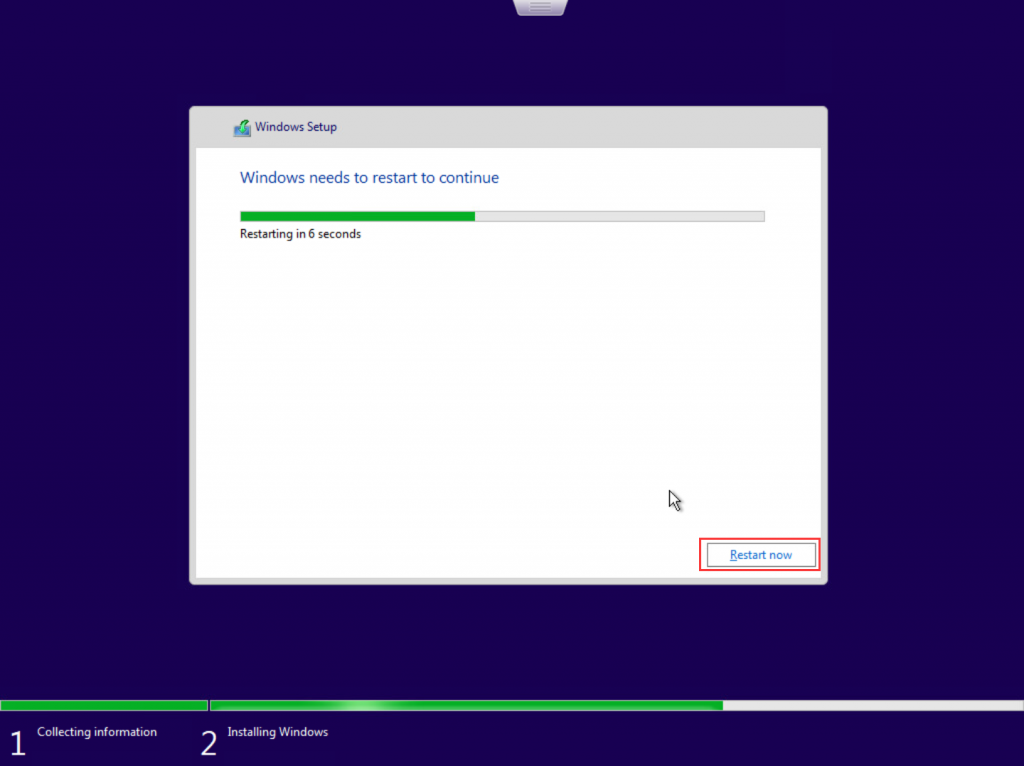
- Next, the system will automatically enter the Windows Setup Wizard, just follow the prompts. (We recommend disconnecting wired and wireless network connections before entering the setup wizard)
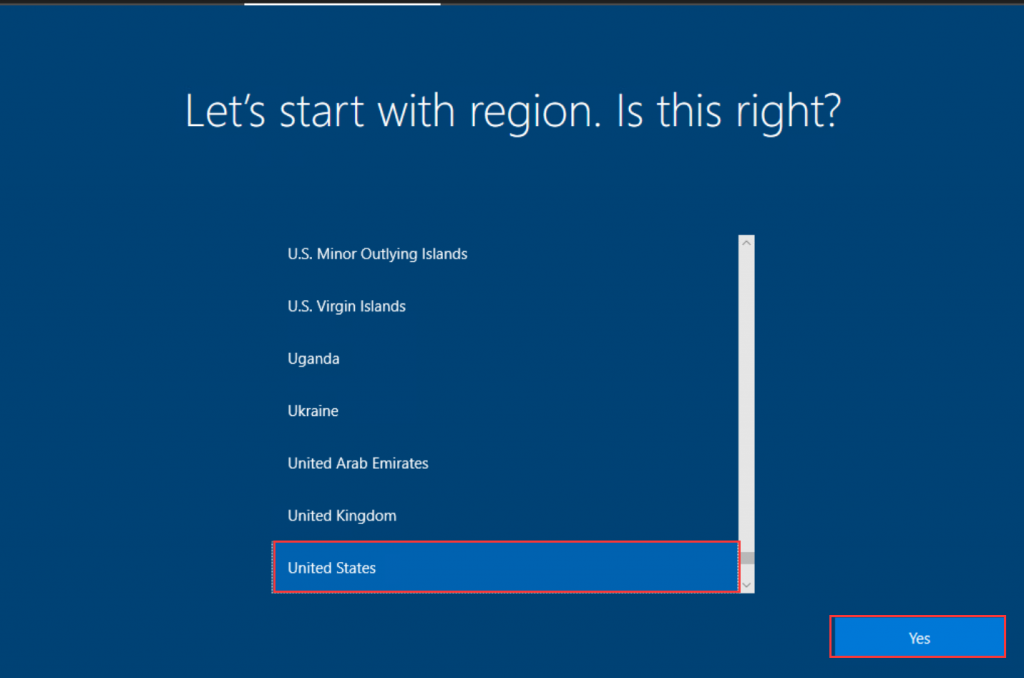
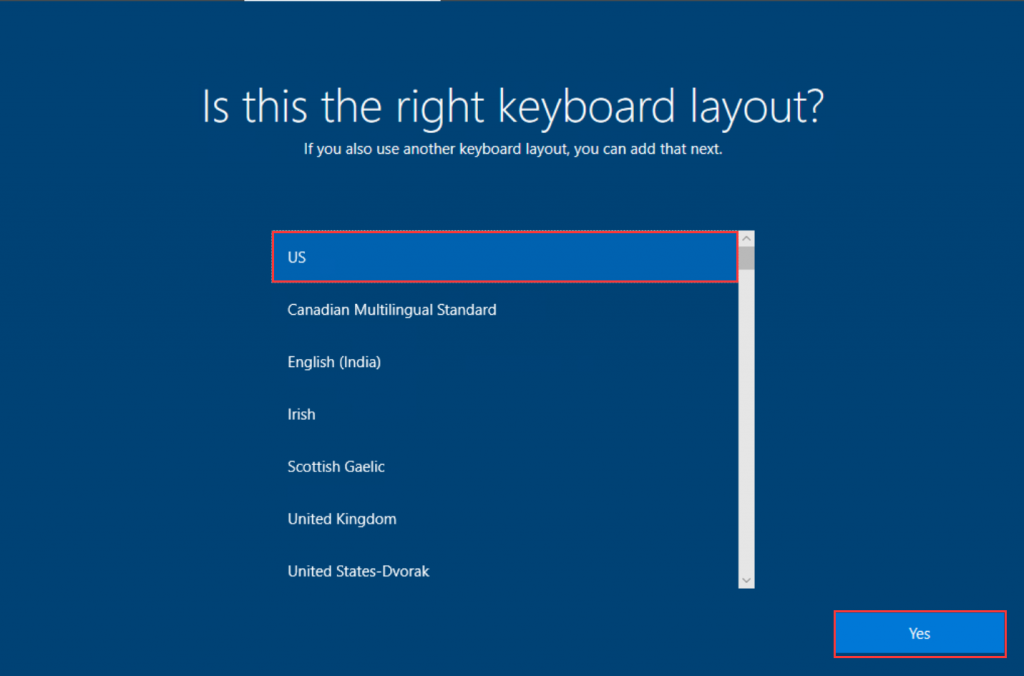
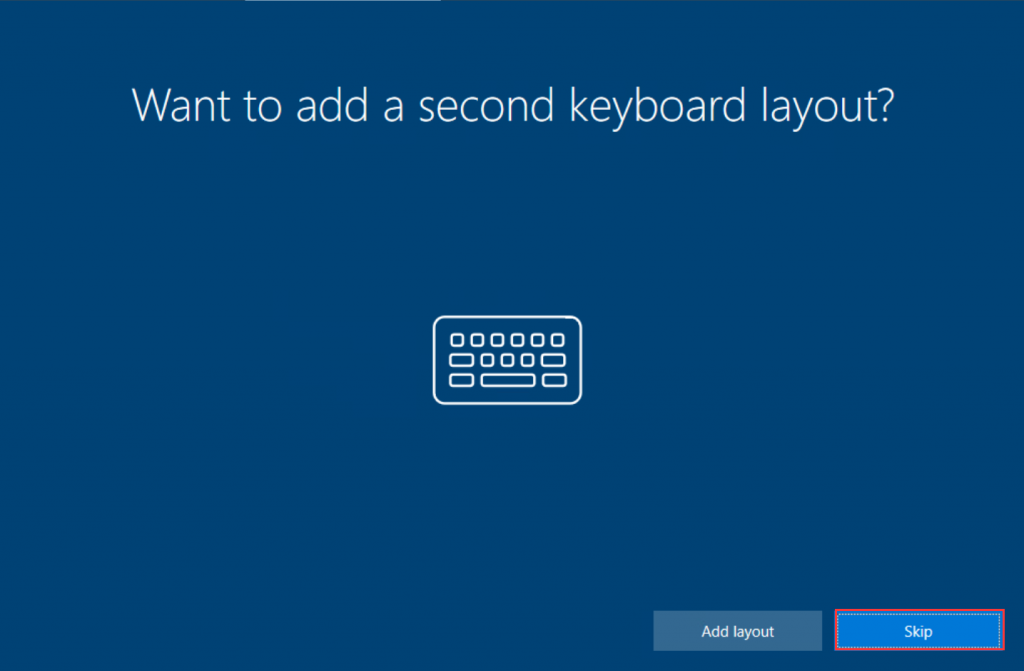
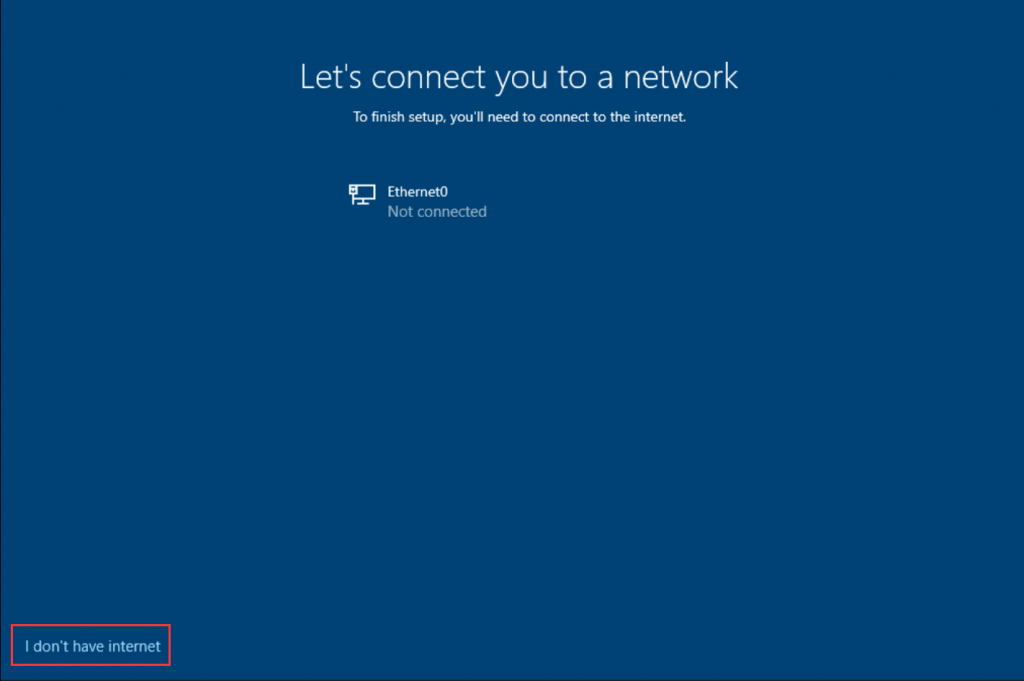
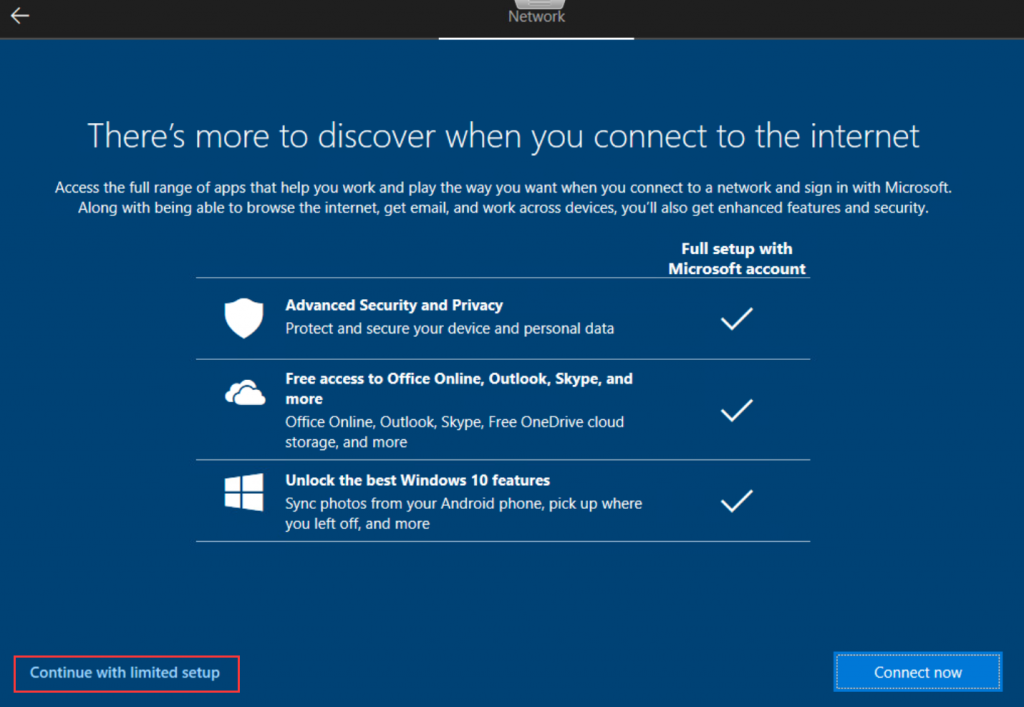
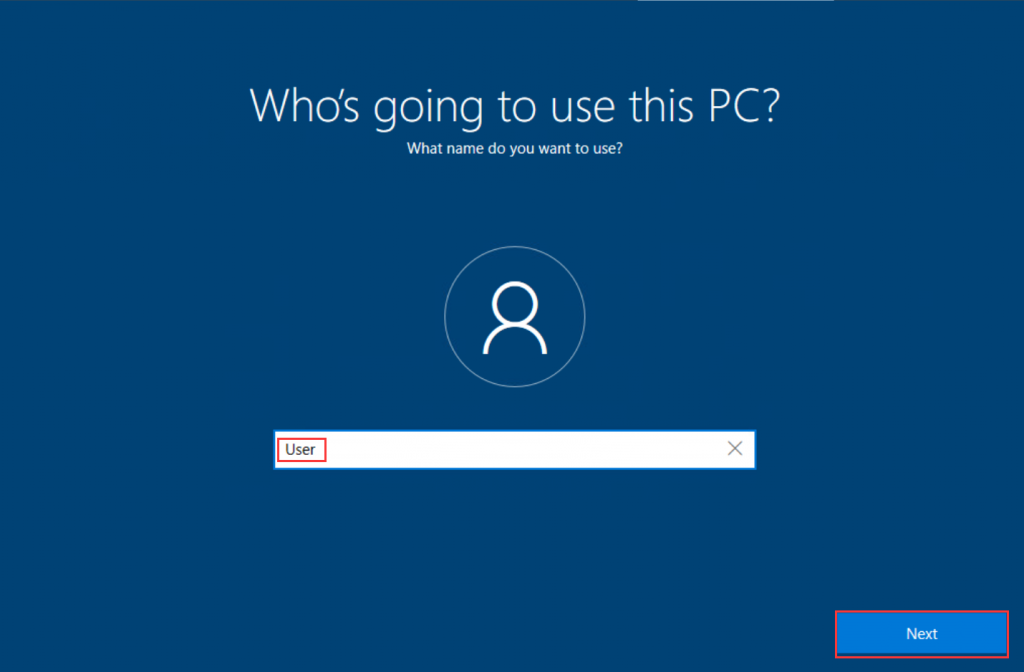
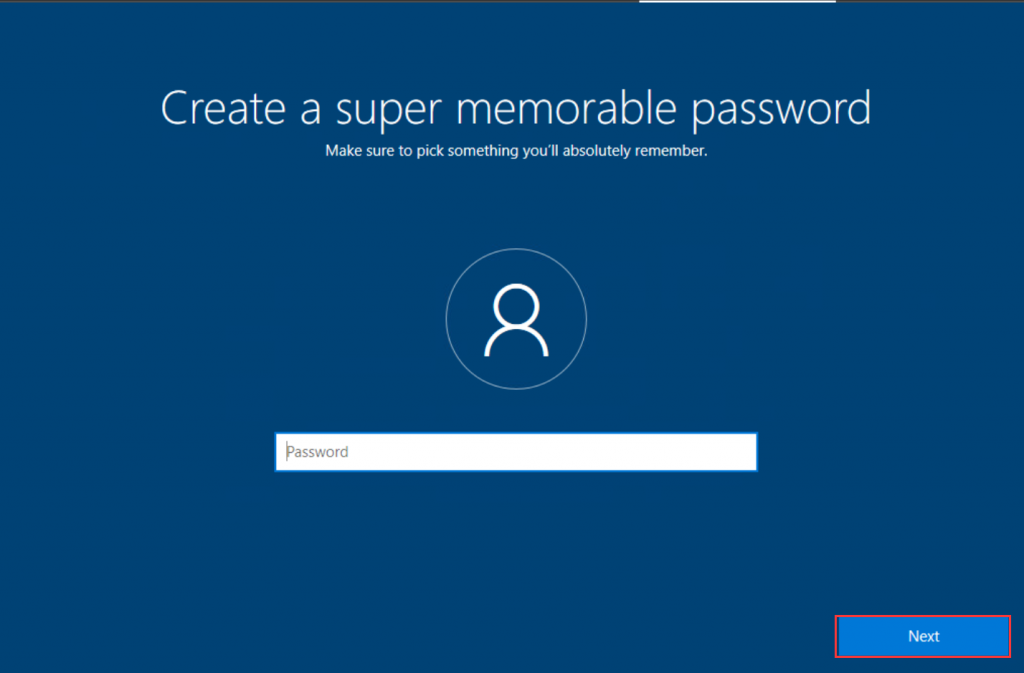
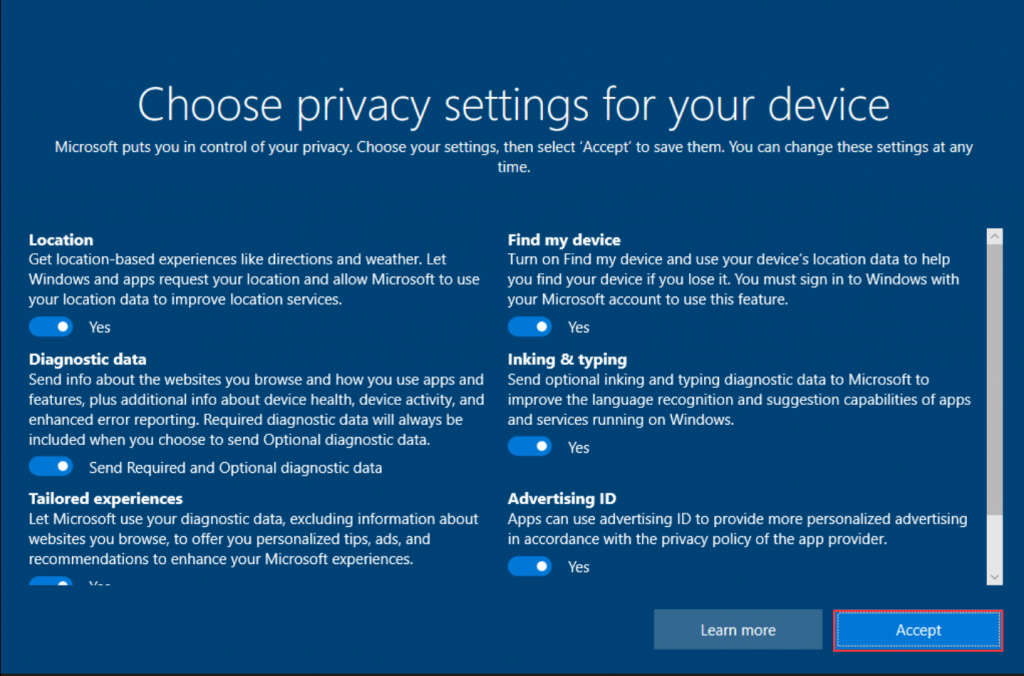
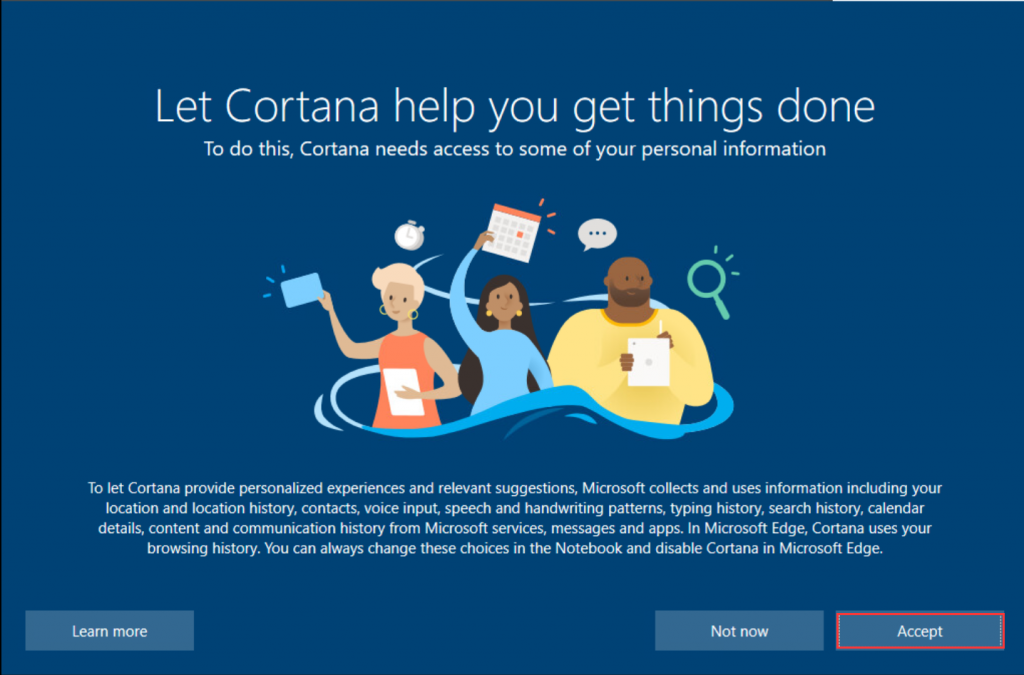
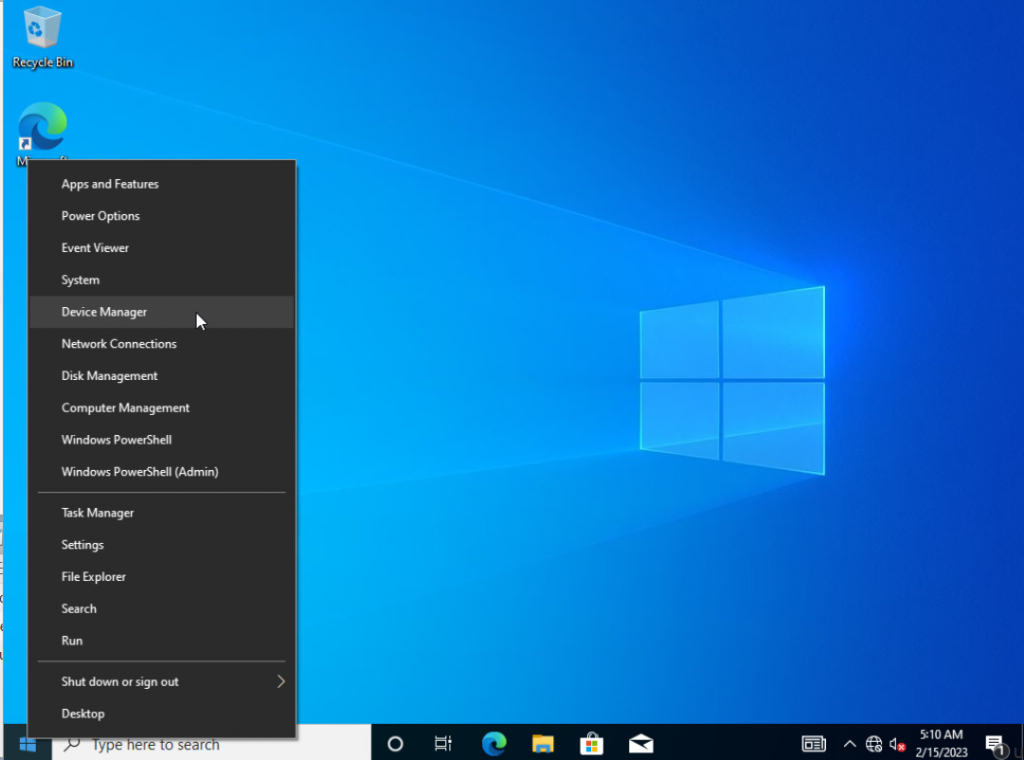
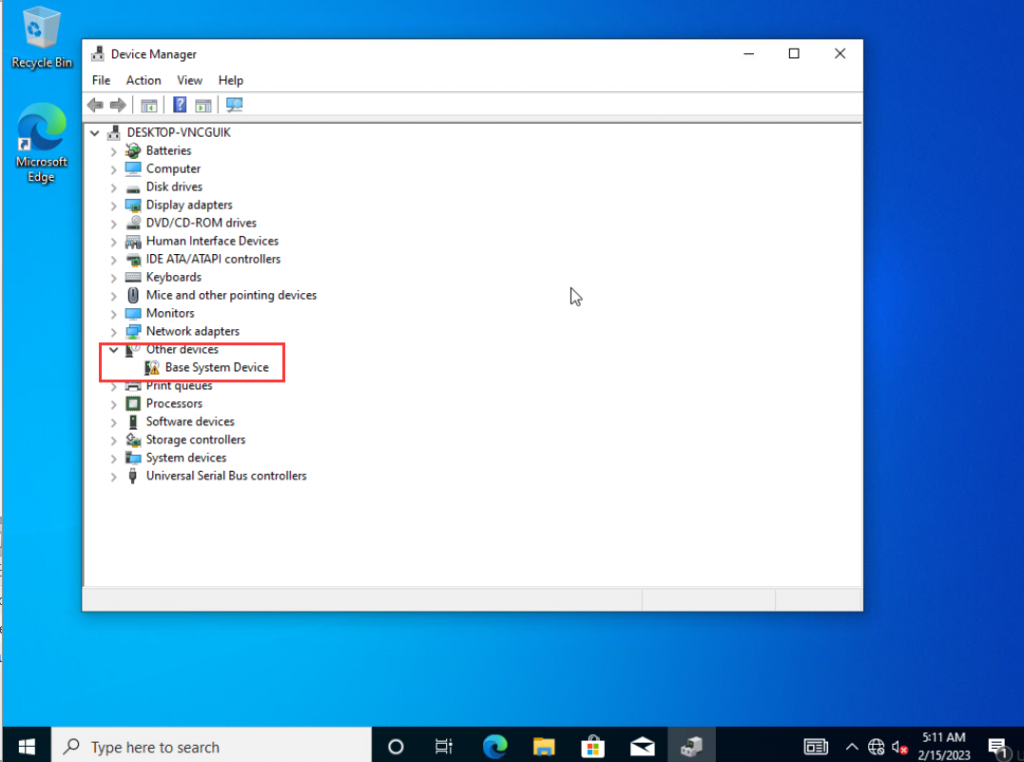
- Now that you have successfully entered the Windows desktop, you only need to enter the device manager to check which drivers are not installed, provide a screenshot of the device manager to your supplier, and ask your supplier to provide relevant drivers.
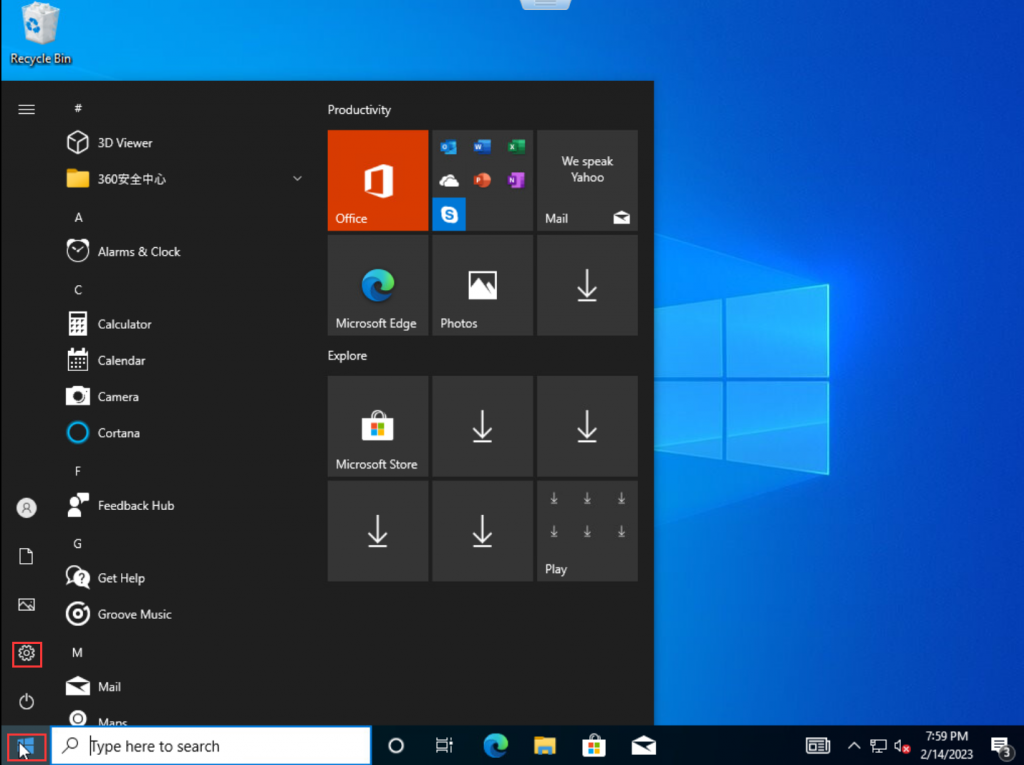
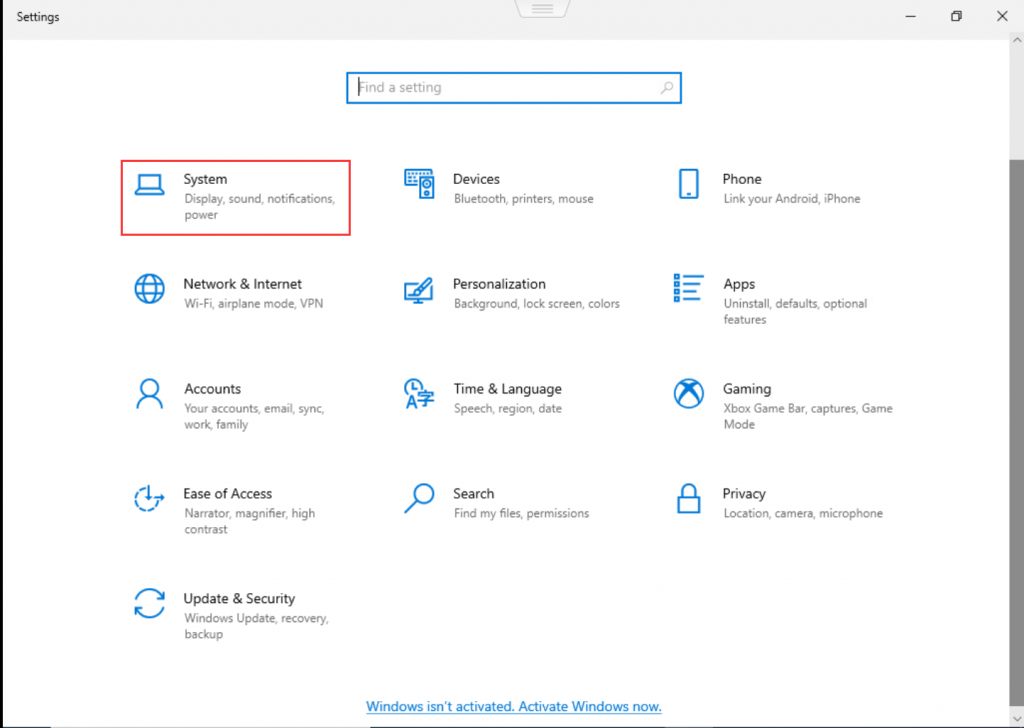
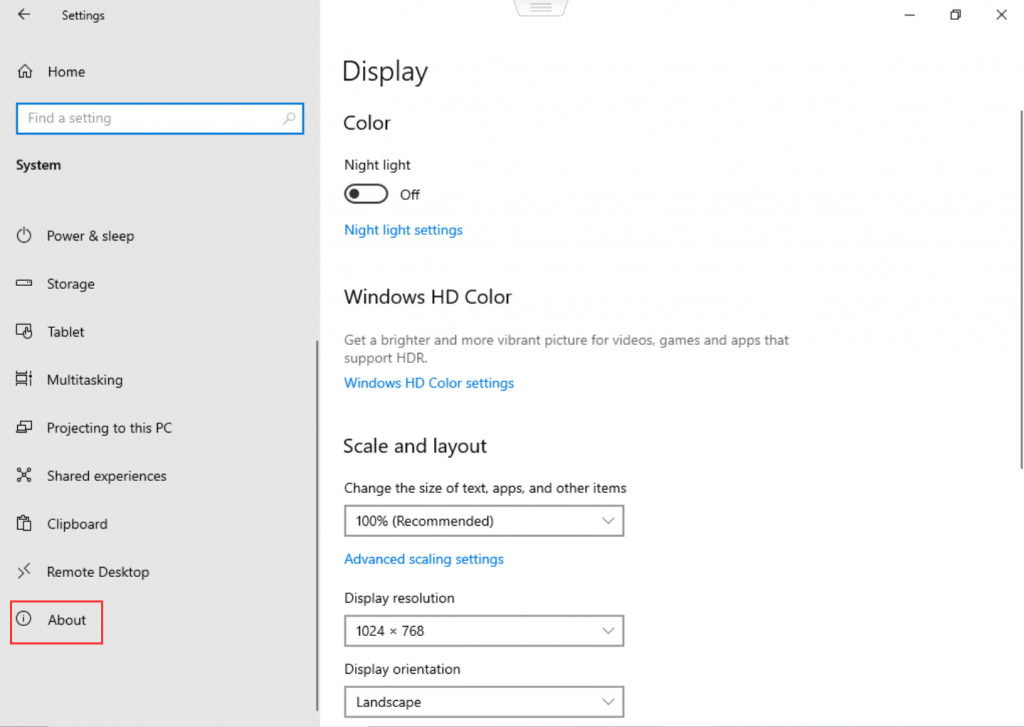
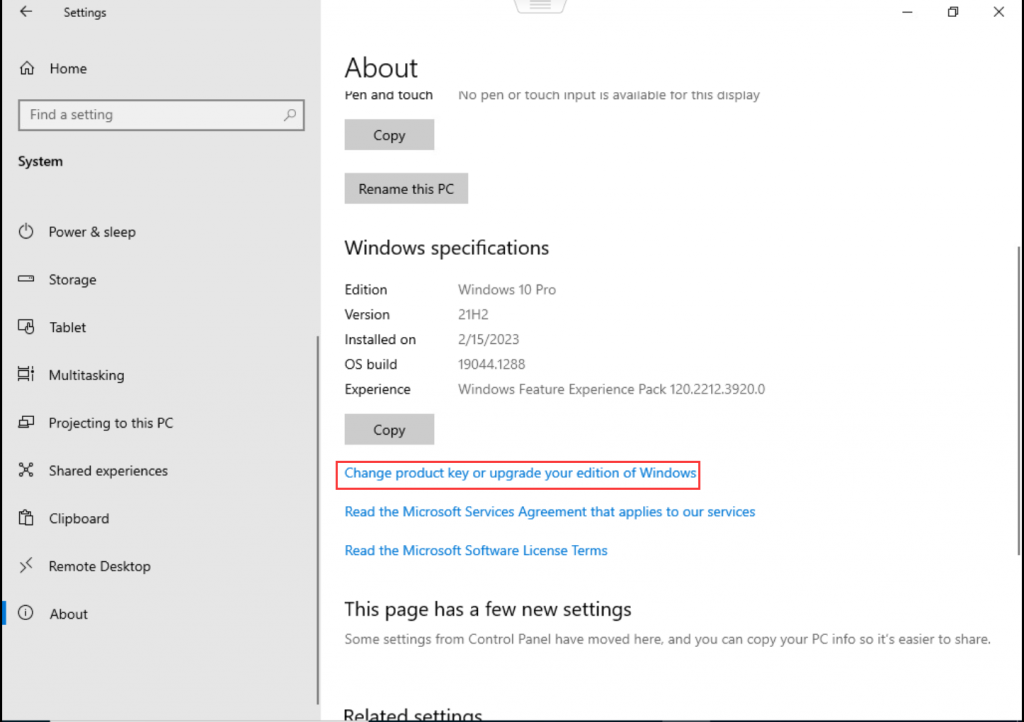
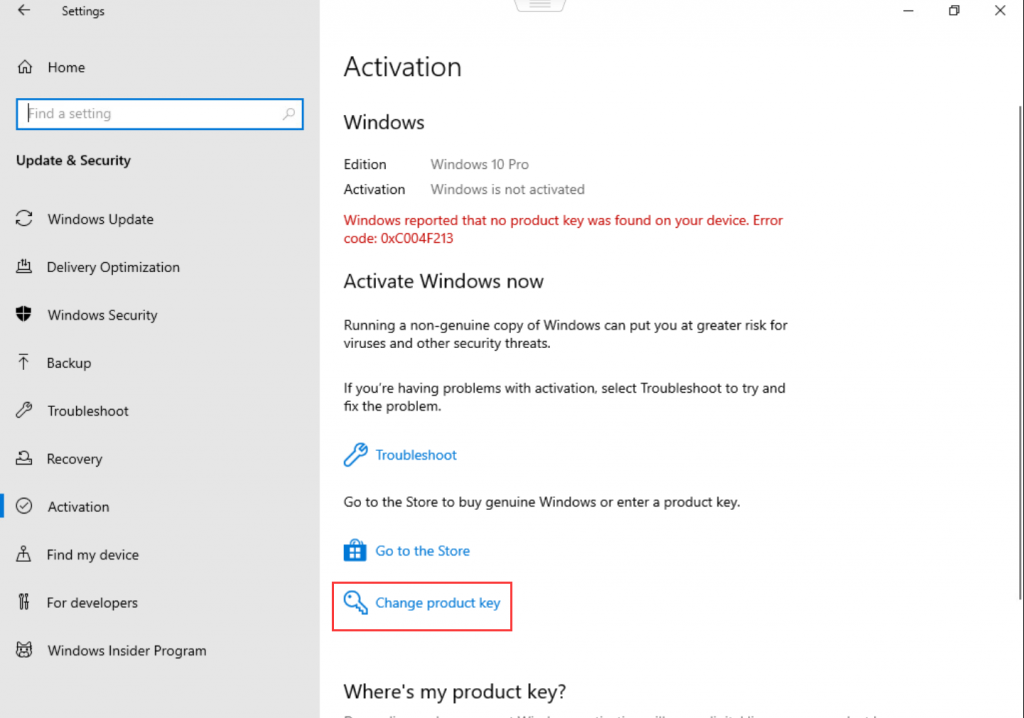
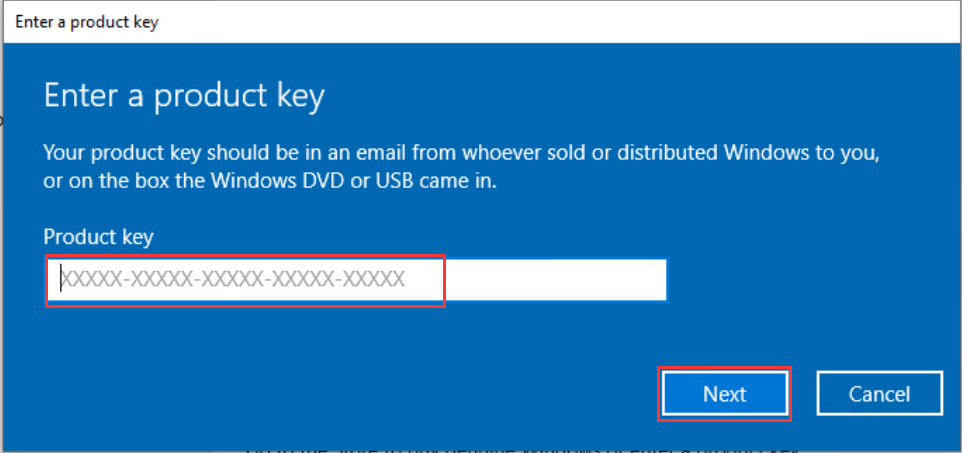
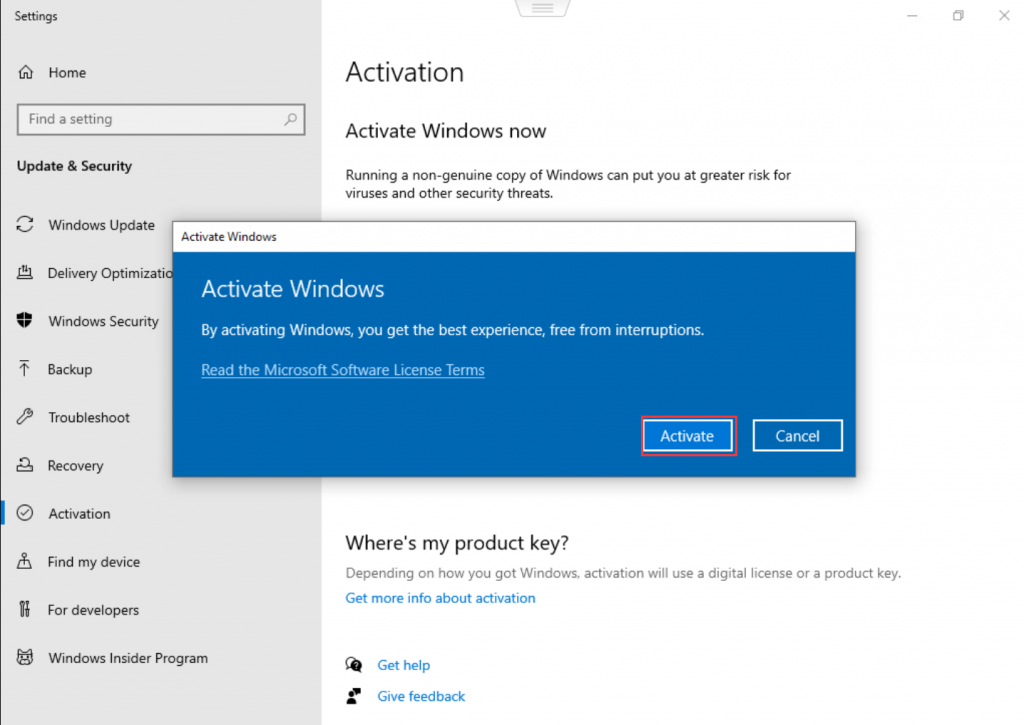
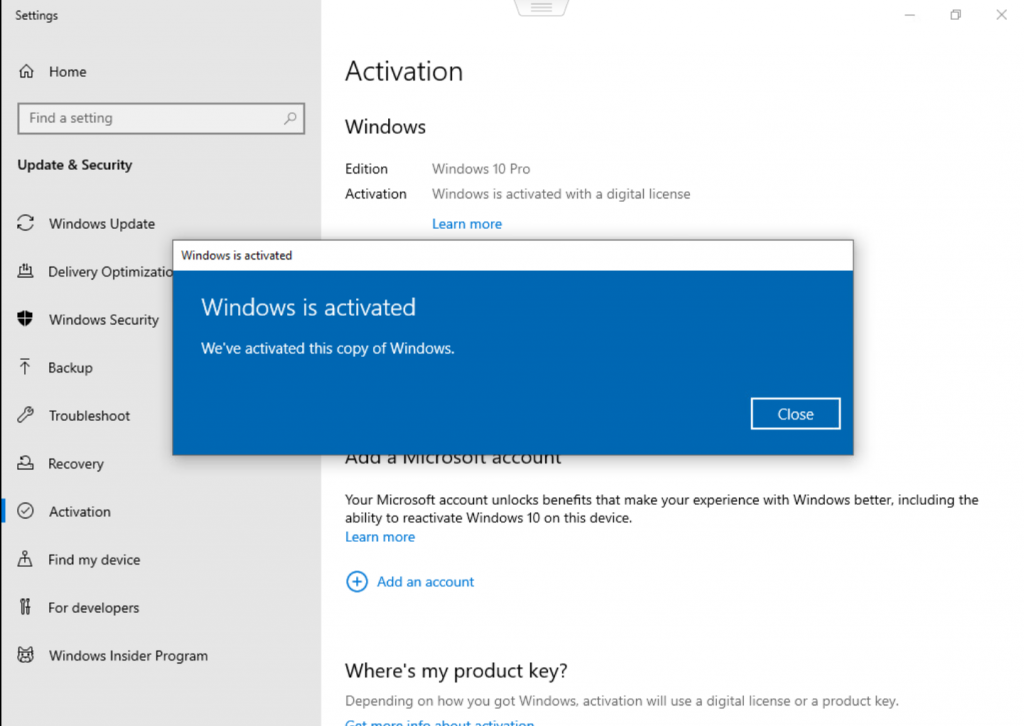
- Connect to check whether the system has been successfully activated. Generally, the system will be automatically activated after connecting to the Internet. If it is not activated, you can go to the Microsoft official website to purchase the corresponding system key or obtain the key from your supplier.
How to use the MemTest86 tool to check if RAM is functioning properly?
How to upgrade Windows 11 on a Windows 10 system?
