
Windows11 installation media production
author: VENOEN
2025-09-05
(Steps to create Win11 system installation disk)
Preparation
U disk with a capacity of 8G or above
Networked Windows PC (insert the USB flash drive into the PC USB port in advance)
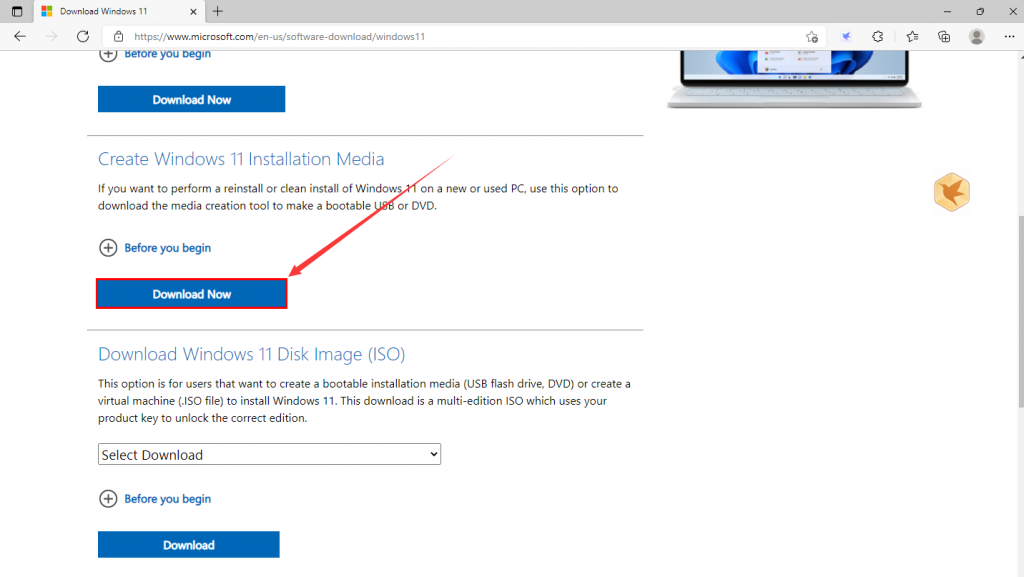
1. Open the browser and enter this URL in the browser address file: //www.microsoft.com/en-us/software-download/windows11. Download the MediaCreationToolW11 system tool as shown in the figure.
U disk with a capacity of 8G or above
Networked Windows PC (insert the USB flash drive into the PC USB port in advance)
1. Open the browser and enter this URL in the browser address file: //www.microsoft.com/en-us/software-download/windows11. Download the MediaCreationToolW11 system tool as shown in the figure.
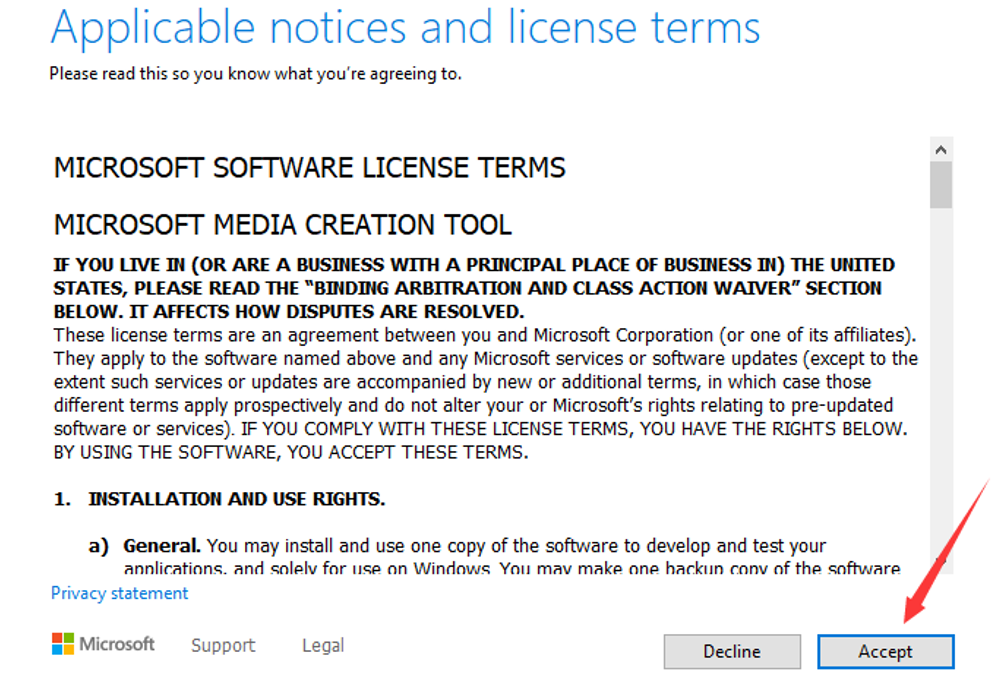
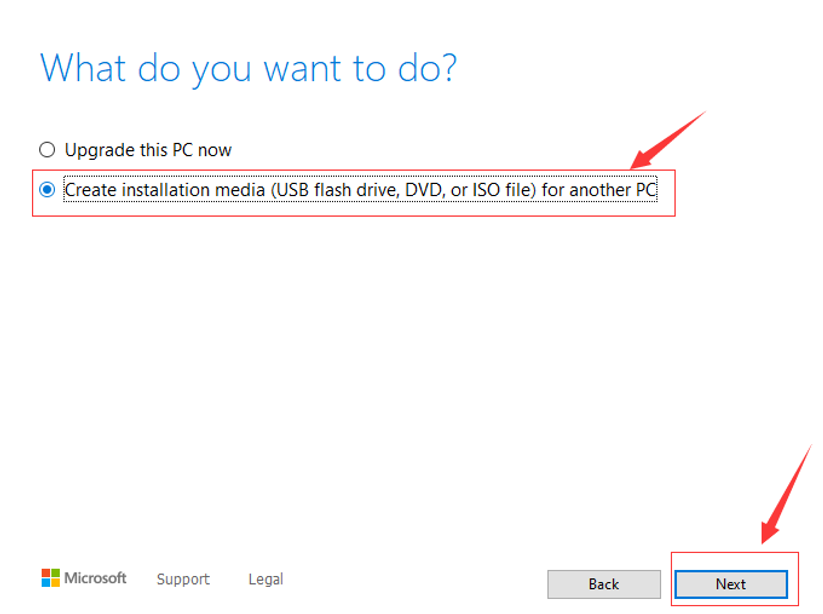
- 2. After the download is completed, double-click MediaCreationToolW11 to run the tool, and select Accept>Create installation media (USB flash drive, DVD, or ISO file) for another PC>Next.

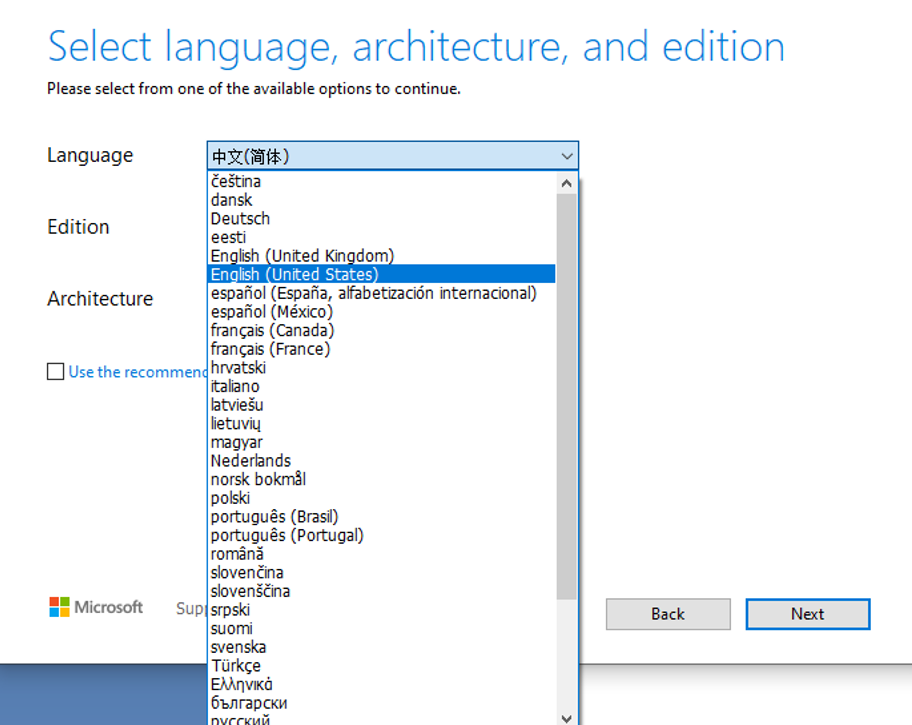
- 3. In the Language option, select the required system language version. Here we take English as an example. Select the language and then take the next step.
- In Choose which media to use, select USB flash drive>Next and select the correct U disk letter>Next (Note: This operation will delete all data in the U disk. If you have new data, please back it up in advance!)
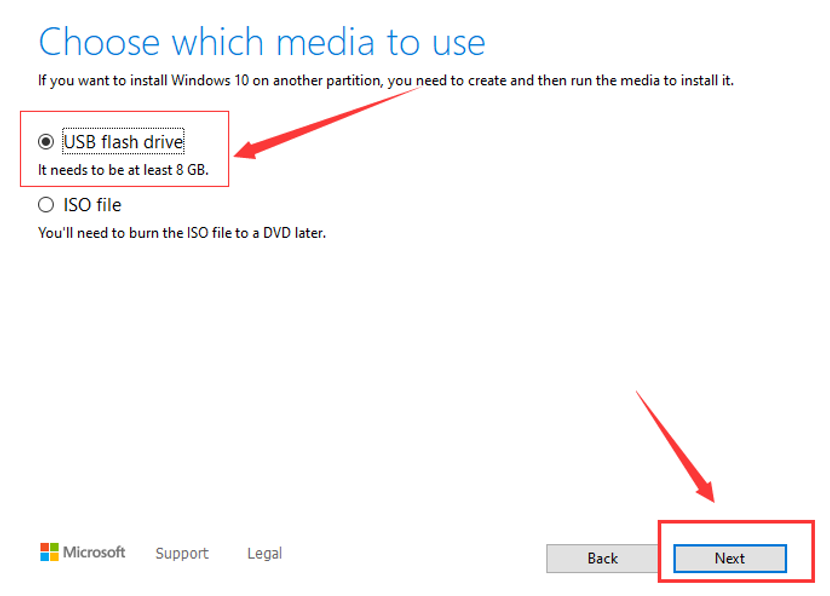
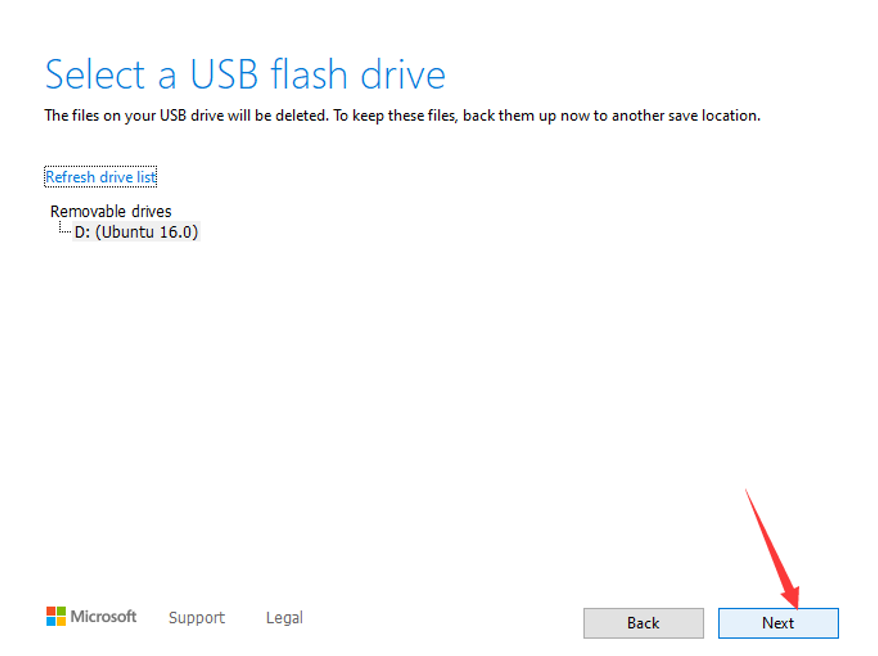
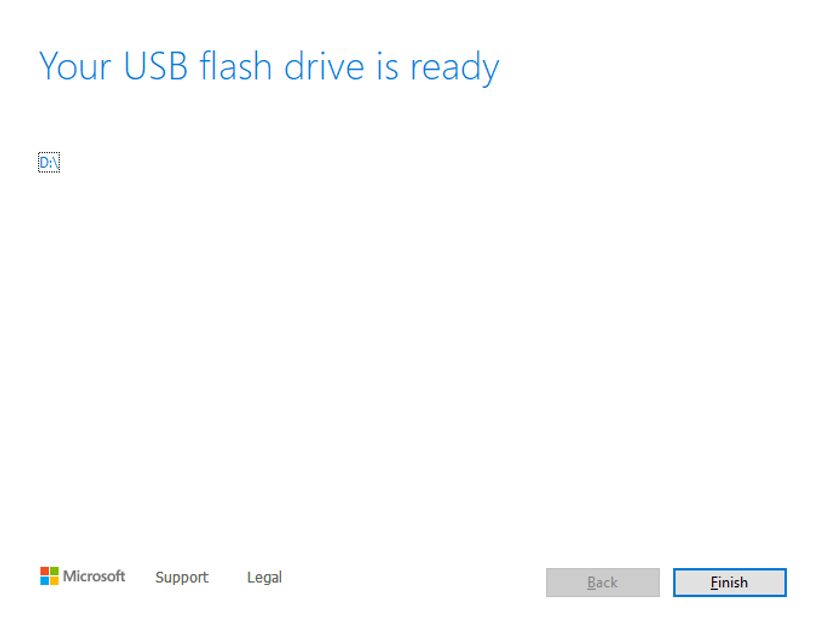
- 4. Next, the system will automatically download the Windows system image and write it to the USB flash drive. Just wait patiently. When "Your USB flash drive is ready" appears, the creation is successful.
Common QA answers for M1AMD series products
Install XP system and set SATA mode to IDE
